Photographers archiving multiple versions
You want to keep a growing photo collection and find earlier project versions locally. Capacity, retention and a tested restore process matter more to you than top speed.


If you mainly need space for a growing photo archive and older project versions, an external HDD is an obvious choice. An SSD may be more suitable if you often transfer projects while on the move. The drive alone won’t preserve earlier versions: set up suitable backup software, check which folders are included and test that you can restore your files. Apple Support recommends a storage capacity of at least twice that of your Mac for Time Machine. This recommendation applies to Time Machine use and isn’t a general rule for every backup.
You want to keep a growing photo collection and find earlier project versions locally. Capacity, retention and a tested restore process matter more to you than top speed.
You regularly transfer projects between work locations and need to weigh drive speed and connectivity against the storage space you need.
You want to protect your photos if a drive is lost and make sure your backup can actually be restored. That’s why encryption and testing the restore process deserve particular attention.
First decide what matters most to you: storage space, access to older versions, frequent transfers or access protection. Then choose your drive, connection and backup set-up to suit your needs.
A good fit if: The drive will mainly store a growing photo archive, including older versions, and fast transfer times aren’t a priority.
The trade-off: Allow enough space for new files and your preferred retention period; an HDD doesn’t manage versions on its own.
A good fit if: You regularly transfer large photo projects while on the move or need a drive for your mobile workflow.
The trade-off: Check that the capacity suits the version history you want to keep; a fast or rugged SSD is no substitute for versioning or a separate backup.
| Criteria | What to check before buying | Who should pay particular attention? |
|---|---|---|
| Space for your archive and versions | Allow for your source files, expected growth and preferred retention period. Bear in mind that Time Machine deletes older backups when the volume is full. | If my photo collection is growing and I need space for older versions, I prioritise usable capacity over top speed; around 36% of consumers also put storage for archives and versions first. |
| Older project versions | Check that your backup software includes your project folders, then test restoring an earlier file. | If I want to return to an earlier edit, I pay particular attention to versioning; around 29% of consumers prioritise being able to find older versions. |
| Speed and connectivity | Check that your computer’s connection is compatible with the cables supplied with the specific model. Manufacturers’ data-rate figures don’t tell you how quickly files will copy on your device. | If I often transfer projects between work locations, a suitable connection and short wait times matter to me; around 21% of consumers prioritise a mobile workflow. |
| Access protection and restoring files | Check the security features of the specific model, store any required password securely and test that you can restore files. | If I want to protect private photos if a drive is lost and make sure they can be restored, I pay attention to both; around 14% of consumers put access protection and restoring files first. |
Earlier versions are created by the backup process, not by the drive’s capacity alone. Apple Support notes that Time Machine deletes older backups when the backup volume is full.
Allow for the space and history you need, check which folders are included and test restoring a file.
An SSD’s speed and protection features don’t create additional file versions. Germany’s Federal Office for Information Security stresses that backed-up data must also be recoverable.
Choose an SSD for your mobile workflow if you need one, and plan for versioning and a separate backup independently.
An interface specification or a manufacturer’s maximum figure doesn’t tell you how quickly files will copy between your computer and a particular drive.
Take your computer’s connection and how you’ll actually use the drive into account, rather than treating different types of speed figures as equivalent.
The Canvio Flex portable HDD range is worth considering for a local archive if you need plenty of storage and compatible cables.
The black 4 TB My Passport model considered here is a portable HDD option for a larger photo archive.
The One Touch HDD is another portable storage option; the STKC4000404 support model considered here has 4 TB.
The 2 TB T7 Shield MU-PE2T0S/EU portable SSD is better suited to mobile transfers than to an archive where space for older versions is the priority.
This selection includes external HDDs for local photo archives and an external SSD for transferring projects while on the move.
 No image available
A portable HDD for a growing local photo archive.
5 TB; USB-C; USB 3.2 Gen 1.
No image available
A portable HDD for a local photo archive with project versions.
4 TB; USB-C; USB 3.2 Gen 1.
 No image available
A desktop HDD for an extensive local archive.
8 TB; USB 3.0; external power supply included.
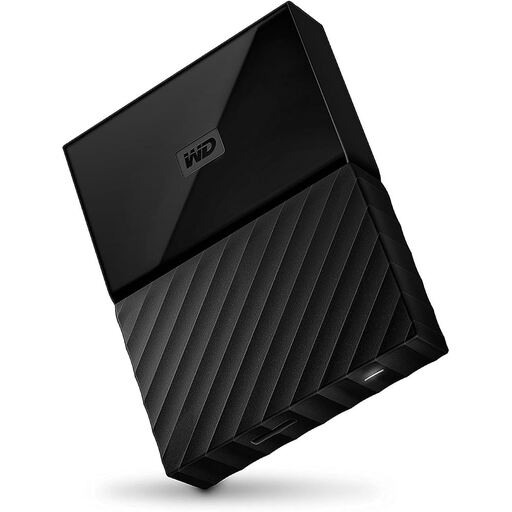 No image available
A portable HDD for a local photo archive.
4 TB; the product description lists 256-bit AES hardware encryption.
 No image available
An external SSD for transferring projects while on the move.
2 TB; USB 3.2 Gen 2; the product description lists hardware encryption.
Not if you specifically want to find older versions. On Windows, File History can save earlier versions; check that your project folders are actually included, then test restoring a file.
Add the drive as a backup volume in Time Machine settings. Apple Support recommends a capacity of at least twice that of your Mac. Back up any existing data on the drive elsewhere first, in case the volume needs to be erased during set-up.
No. Apple Support explains that Time Machine deletes older backups when the backup volume becomes full. Check that the history actually available is enough for your important project versions.
Check the warranty terms for the specific model and whether any data recovery service on offer is chargeable. Toshiba lists a three-year warranty for Canvio Flex; Seagate lists a two-year limited warranty for the One Touch STKC4000404. A warranty isn’t an additional backup of your photos.
No. Germany’s Federal Environment Agency explains that old electrical equipment must be collected separately and lists recycling centres as drop-off points. You’re responsible for deleting your personal data before handing the drive in.