If you mainly want to store a large photo collection locally, an external HDD could be a good fit. If you often transfer large batches of photos or edit them directly from the drive, a portable SSD may be a better option. Before buying, check the capacity, file system and USB port on your computer. Keep the original files in place at first, check that you can open and restore the copy, and keep important photos in a separate location too.
Which option is right for you?
Keep a local copy of your portfolio
You want to copy lots of existing photos without using the cloud, and be able to open them again later. Make sure you have enough storage and can actually restore the copy. The German Federal Office for Information Security (BSI) recommends planning for how you would restore your data.
Transfer batches of photos regularly
If you regularly copy or edit large folders of photos, make sure the drive, cable and USB port on your computer are compatible. The maximum speeds quoted by manufacturers apply only under the specified connection conditions.
Take your portfolio with you
When moving between devices or work locations, the right connection and a compact design matter. If you need protective features, check the conditions for the specific model: they won’t protect against every type of damage or loss.
What should you consider when buying?
The BSI recommends planning for data recovery too. When choosing a drive, also consider the size of your photo collection, the connection and how you handle files when you’re out and about or working with confidential material.
Portable HDD
A good fit if: you mainly want to store a local photo collection and don’t regularly transfer particularly large amounts of data.
Keep in mind: Check the capacity and connection. A single copy is no substitute for a separate backup.
Portable SSD with USB 3.2 Gen 2
A good fit if: you often transfer large photo folders or work directly from the drive, and your computer and cable are compatible.
Keep in mind: Manufacturer speeds of up to 1.050 MB/s are conditional maximums, not a guaranteed speed for every transfer.
Portable SSD with USB 3.2 Gen 2x2
A good fit if: you regularly transfer very large amounts of data and your host device and cable support USB 3.2 Gen 2x2.
Keep in mind: To reach the speeds of up to 2.000 MB/s quoted by Samsung for the T9, you’ll need a compatible host, a suitable cable and UASP, among other things.
| What you need |
What to look for when buying |
Who should prioritise this? |
| A copy you can restore |
Check the transfer, open a sample of the files and plan to keep another copy in a separate location. |
If I need to be able to restore my photos when necessary, I’ll test the copy and keep an additional one somewhere separate. Around 29% of consumers would choose the ability to restore their files as their top buying priority. |
| Storage for your photo collection |
Check the folder size on your own device and allow space for additional copies; make sure the available storage is sufficient. |
If I want to keep lots of photos and older versions, I need enough space for the entire collection. Around 23% of consumers would put capacity first. |
| Connection and transfer speed |
Check that the USB port and cable are compatible. For high manufacturer speed claims, take account of the stated host and connection requirements. |
If I often transfer large batches of photos, I want to know what speed my computer can actually support. Around 18% of consumers would prioritise a compatible connection and usable transfer speed. |
| Taking your drive between work locations |
Compare the design, cable and the protection conditions for the specific model. |
If I regularly take my portfolio with me, I look for a design that suits the way I travel and clearly stated protective features. Around 12% of consumers would make portability their main priority. |
| Confidential files |
Check that the encryption works with your devices and that you can store your access details securely. |
If my photos are confidential, I want to prevent unauthorised people from reading them if the drive is lost. Around 18% of consumers would choose protection for confidential files as their top buying priority. |
Common buying and usage mistakes
-
Relying on a single external drive as your complete backup
A drive could fail or be lost along with your computer. What matters is whether another copy remains available and can be restored.
Keep the original files in place, check that you can open and restore the copy, and keep important files in a separate location too.
-
Comparing advertised MB/s without checking your own USB connection
A high manufacturer speed claim depends on compatible ports and other connection requirements. Your current computer may not be able to reach that speed.
Check the USB port and cable before buying. Treat manufacturer speeds as conditional maximums, not as guaranteed transfer times.
-
Overlooking reformatting and the file system before transferring files
For the Seagate Basic PC version described, Seagate says reformatting is required for use with a Mac. Crucial warns that reformatting the X9 Pro can erase stored data.
Before copying your files, check which devices need to access the file system. Back up any existing files before reformatting a drive.
Reformatting takes time to set up, and if you do it without taking care, you could lose files that are already stored on the drive.
Key brands at a glance
Samsung
The T7 Shield and T9 cater for different protection and transfer needs.
- Samsung states that the T7 Shield has an IP65 rating under controlled test conditions.
- Samsung quotes speeds of up to 2.000 MB/s for the T9 under conditions including a compatible host and cable, as well as UASP. According to Samsung, damage caused by liquids and dust isn’t covered by the warranty.
WD
The Elements Portable is an HDD option for storing local photo copies on a portable drive.
- WD lists 2 TB and USB 3.2 Gen 1 or USB 3.0 for the Elements Portable version described.
- Capacity and USB specifications apply to the specific model; check the version you’re considering.
Seagate
The Basic Portable Drive is an HDD option for making local copies over USB.
- Seagate lists USB 3.0 and power supplied via the USB cable for the Basic.
- For the PC version described, Seagate says reformatting is required for use with a Mac; compatibility depends on your setup.
Kingston
The XS1000 and XS2000 are portable SSD models with different USB interfaces.
- Kingston quotes read speeds of up to 1.050 MB/s for the XS1000.
- Kingston quotes speeds of up to 2.000 MB/s for the XS2000; optimal speeds require USB 3.2 Gen 2x2.
Crucial
The X9 Pro is a portable SSD option for frequent transfers or working with photos on compatible devices.
- Crucial quotes speeds of up to 1.050 MB/s for the X9 Pro, along with water and dust resistance.
- Crucial warns against submerging the drive and highlights requirements for the host device and formatting.
Joybuy products for local photo copies
This selection features external WD HDDs for local photo copies, from portable drives to desktop models designed to stay in one place.
 No image available
WD Elements Portable 5TB USB-C
This portable model offers 5 TB and USB-C for a larger local photo collection.
View at Joybuy
No image available
WD Elements Portable 4TB USB-C
This model offers 4 TB and USB-C for local photo copies on a portable drive.
View at Joybuy
 No image available
WD Elements 2TB Portable External Hard Drive, USB-C, USB 3.2 Gen 1, 2.5", exFAT, Black
This model offers 2 TB, USB-C and exFAT for local photo copies in a portable format.
View at Joybuy
 No image available
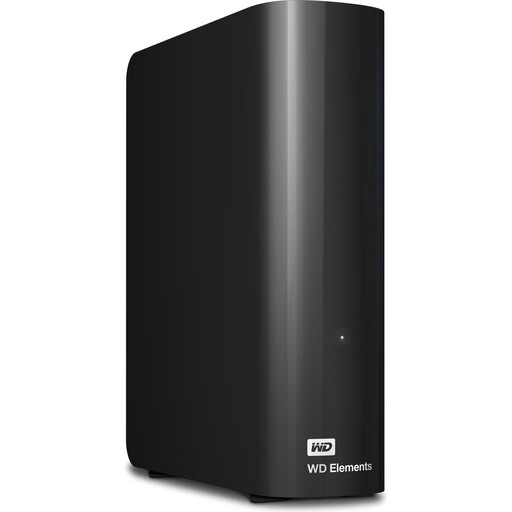
WD Elements 6TB Desktop External Hard Drive, USB 3.0, 3.5", NTFS, Black
This desktop drive offers 6 TB and USB 3.0 for a large photo collection kept in one place.
It requires an external power supply. The product description says reformatting is required for use with a Mac; back up any existing files before formatting.
View at Joybuy
 No image available
WD Elements 8TB Desktop External Hard Drive, USB 3.0, 3.5", Black
This desktop drive offers 8 TB and USB 3.0 for a large local photo collection.
It requires an external power supply. The product description says reformatting is required for use with a Mac; back up any existing files before formatting.
View at Joybuy
Frequently asked questions
Is an external SSD automatically the better choice for my portfolio?
No. If you mainly need space for local copies, first check the size of your photo collection and the HDD capacity available. An SSD may suit your workflow better if you often transfer large files, but its advertised maximum speed also depends on your computer’s connection and the cable.
How can I check that my photos will still be usable after copying them?
Open a sample of the copied photos and check that you can restore the data on the device you plan to use. The BSI notes that recovery should be part of your plan; you should also keep important copies in a separate location.
What should I know about statutory rights and manufacturer warranties when buying?
For a consumer purchase in the EU, you’re generally entitled to a minimum two-year legal guarantee from the seller, starting when you receive the goods. This is explained by Your Europe, the European Union’s information portal. An additional manufacturer’s warranty may come with its own conditions and doesn’t replace your statutory rights.
Do I need to encrypt portfolio photos?
That depends on how you use the photos and whether you process personal data. The General Data Protection Regulation covers the processing of personal data. For confidential files on a portable drive, the BSI says encryption can help prevent unauthorised access. Check that the encryption method works with the devices you want to use to open the photos.


