If you mainly want to archive large project folders and rarely need to copy them back, an external HDD could be a good fit, provided it has enough capacity for future growth and the backups you want to keep. An SSD may suit you better if you regularly transfer large files or need access on the go. However, the transfer rate you achieve also depends on your computer, cable and connection. Before setting it up, check the backup format and never keep important files only on the new drive: the Federal Office for Information Security recommends regular backups and keeping a separate copy.
Who is this selection for?
Anyone with a growing project archive
If you want to keep complete folders and older backups, consider your current storage needs alongside how much they’re likely to grow. For backing up all the data on a PC, the Federal Office for Information Security recommends using a storage device with sufficient capacity.
Anyone who regularly transfers large files
For frequent copying or access on the go, the drive, cable and computer all play a part in the connection. Advertised maximum speeds don’t automatically reflect the transfer rate you’ll get when backing up specific files.
Anyone with sensitive records
If you use a portable drive to store confidential content, plan separately for access protection. Whether additional professional data protection obligations apply depends on the content and how it’s processed; calling something a ‘journal’ doesn’t determine this on its own.
What should you consider when choosing?
External HDD for a growing archive
A good fit if: you need plenty of space for complete project folders and older backups, and rarely need to copy large amounts of data back.
Bear in mind: a USB specification alone won’t tell you how long it will take to transfer a particular folder. On a Mac, the format must also work with your backup method.
External SSD for frequent transfers
A good fit if: you regularly copy large folders or use them on the go, and your computer and cable support the USB connection you need.
Bear in mind: Samsung quotes sequential speeds of up to 1.050 MB/s for reading and 1.000 MB/s for writing on the T7 Shield MU-PE4T0S/EU. Your host device and cable must support USB 3.2 Gen 2, and UASP must be enabled.
| What you need |
What to check before buying |
Who it matters most to |
| Capacity for folders and backups |
Take into account the total size of your folders, expected growth and how many backups you want to keep. |
If my project archive is growing, I want to keep complete folders and older backups. Around 33% of consumers say storage space is their main concern. |
| Time needed for large transfers |
Consider how often you transfer files and how large they are, and check which connections your computer and cable support. |
If I often copy large folders, I want to know whether my system supports the connection I plan to use. Around 27% of consumers pay particular attention to frequent transfers. |
| Protection against unauthorised access if lost |
Check whether your backup system supports suitable encryption and how you’ll keep the recovery details safe. |
If my records are confidential, I want to stop others accessing them easily if the drive is lost. Around 20% of consumers prioritise protecting sensitive content. |
| Connection and backup format |
Check the USB connection, supplied cable, operating system and backup software you want to use. Before reformatting, save any existing data elsewhere. |
If I want to use a drive with my computer and backup method without extra setup, I check the connection and format. Around 20% of consumers prioritise this compatibility. |
Common backup mistakes
-
Moving your archive and treating the only copy as a backup
If the external drive fails or goes missing, your files may become inaccessible if they’re stored nowhere else. The Federal Office for Information Security recommends regular backups and keeping them separately.
Keep your originals and backups separate, and store at least one copy you need somewhere else.
-
Assuming maximum speeds are the speeds you’ll get for your backup
The sequential maximum speeds Samsung quotes for the T7 Shield require a compatible host and cable, as well as UASP. A connection specification alone doesn’t tell you how long a particular transfer will take.
Before buying, check your computer’s connections and how you plan to use it. Don’t treat manufacturers’ maximum speeds as a measurement of your backup performance.
-
Not checking existing files before reformatting
Reformatting can delete files already stored on the drive. Apple recommends APFS or APFS (Encrypted) for Time Machine volumes.
Check which format you need before setting up the drive, and save any existing files somewhere else first.
-
Confusing a robust casing with access protection
A dust and water resistance rating doesn’t prove that stored content is protected from unauthorised access. The Samsung T7 Shield’s IP65 rating is based on controlled tests; Samsung also states that liquid and dust damage are excluded from the warranty.
If you’re storing confidential content, plan access protection separately and keep an independent backup copy.
Key brands to consider
Toshiba
The Canvio Basics range includes portable HDDs. Toshiba lists the HDTB540EK3CA model with 4 TB of storage.
- Toshiba says the drive comes pre-formatted with the NTFS file system and is powered via USB.
- Reformatting is required for the macOS versions listed on the manufacturer’s website. The supplied cable has a Type A connector for the computer.
Western Digital
Western Digital describes the WD Elements Portable WDBU6Y0050BBK-WESN as a portable HDD with 5 TB of storage.
- Western Digital lists USB 3.2 Gen 1, also known as USB 3.0, for this model.
- Additional warranty terms for purchases made through WesternDigital.com don’t automatically apply to purchases from other retailers.
Samsung
Samsung says its portable T7 Shield SSD MU-PE4T0S/EU is available with 4 TB of storage and may suit frequent transfers or use on the go.
- Samsung quotes sequential maximum speeds of up to 1.050/1.000 MB/s, with a compatible host and cable and UASP enabled.
- Samsung says the IP65 rating is based on controlled tests; the manufacturer excludes liquid and dust damage from the warranty.
Seagate
Seagate lists the Expansion Portable STKM5000400 as a portable HDD with 5 TB of storage and USB 3.0.
- Seagate says a USB Type-A cable is included and offers a two-year limited manufacturer’s warranty in EMEA.
- Seagate says the drive needs reformatting to work with Time Machine. Warranty details vary by region.
Joybuy products for external backups
This selection includes external WD Elements HDDs for growing project archives and extra backups, including portable models and desktop drives.
 No image available
WD Elements Portable 5 TB USB-C
For a growing project archive, provided the stated capacity is enough for your folders and planned backups.
Described as a 5 TB portable external hard drive with USB-C.
View at Joybuy
No image available
WD Elements Portable 4 TB USB-C
For portable backups, if 4 TB is enough for your project folders and the backups you want to keep.
Described as a 4 TB external hard drive with USB-C.
View at Joybuy
 No image available
WD Elements Portable 2 TB USB-C
For portable backups, if your storage needs, including extra backups, fit within the stated capacity.
Product name lists: 2 TB, USB-C, USB 3.2 Gen 1 and exFAT.
View at Joybuy
 No image available
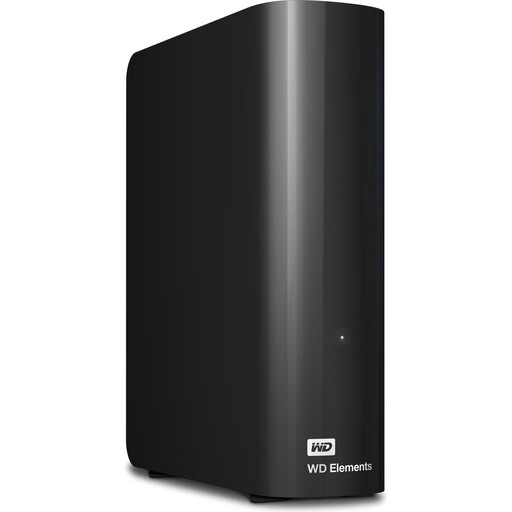
WD Elements Desktop 6 TB
For a fixed backup storage setup, if the stated capacity suits your archive and you have access to a power socket where you plan to keep it.
Product name lists: 6 TB, USB 3.0, 3.5 inches and NTFS. The product information says an external power supply is required and the drive needs reformatting for use with macOS.
View at Joybuy
 No image available
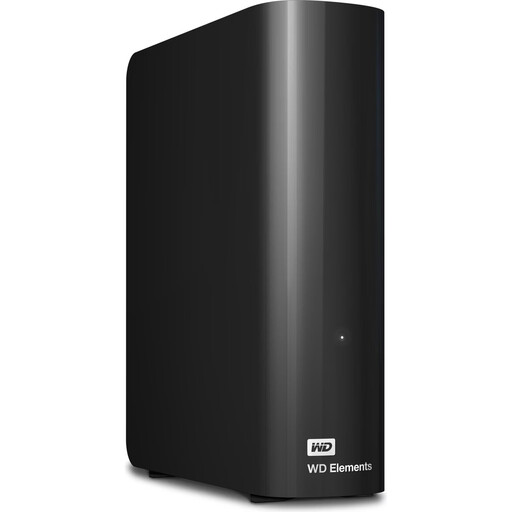
WD Elements Desktop 10 TB
For large project folders and backups, if you have space for a desktop drive and a power connection.
Product name lists: 10 TB, USB 3.2 Gen 1, 3.5 inches and NTFS. The product information says an external power supply is required and the drive needs reformatting for use with macOS.
View at Joybuy
Frequently asked questions
How much storage do I need for my journal and project folders?
Add up the complete folders you want to back up, then allow for future growth and the backups you want to keep. For backing up all the data on a PC, the Federal Office for Information Security recommends using a storage device with sufficient capacity.
Can I use an HDD set up for Windows with Time Machine straight away?
Not necessarily. Apple recommends APFS or APFS (Encrypted) for Time Machine volumes. Toshiba says the Canvio Basics comes pre-formatted with the NTFS file system and notes that reformatting is required for the macOS versions listed on the manufacturer’s website. Save any existing files somewhere else before reformatting.
Is it enough to move my project folders to a single external hard drive?
No. If the folders are only on that drive afterwards, you won’t have a separate copy. The Federal Office for Information Security recommends regular backups and keeping them separately. Check from time to time that you can restore the files you need.
Does the GDPR require a particular external hard drive for a journal?
Calling something a ‘journal’ doesn’t in itself mean you need a particular hard drive, design or capacity. If personal data is processed outside purely personal activities, the organisation responsible must assess the data protection and security requirements that apply to that processing. Whether this applies depends on how the drive is used.


