For a large, mostly stationary scan archive, an external HDD could be a good fit. If you’ll be carrying the drive around frequently or transferring large amounts of data regularly, an SSD may be a better choice. Whichever type of drive you choose, plan to keep another copy and check that you can restore your files. If you want to use the same folders on Windows and Mac devices, also check the file system: Apple distinguishes between shared drives and volumes used for Time Machine.
Who is this comparison useful for?
Backing up a scan archive
You want to be able to restore important scans after a device failure or accidental deletion. What matters is keeping an additional copy and having a process for checking that you can retrieve your files. Germany’s Federal Office for Information Security recommends taking data recovery into account.
Using scans on a PC and Mac
You want to open or add to the same folders on Windows and Mac devices. Check the file system separately from the connections and the formats of the documents you’ve stored. Apple lists exFAT as a format option for larger shared drives.
Managing a growing or portable archive
You regularly digitise more documents or take your archive with you. Depending on how you use it, available storage, transfer speeds and protection on the move will matter to different degrees. The exact model and its connection requirements are key.
What should you look for when buying?
First, work out how much space your archive needs and which devices you want to use your scans on. Then choose an HDD or SSD to suit where you’ll keep it and how much data you need to transfer. Plan your backup process separately.
| Consideration |
What to check when buying |
Who is this important to? |
| Restorable backup |
Allow space for the copies you plan to keep and make sure you have a suitable connection for retrieving them. |
If I don’t want to keep important scans in just one place, I need an additional copy and a tested recovery process. Around 33% of consumers prioritise backup. |
| File system and devices |
Check Windows PCs, Macs, USB connections and backup software requirements separately. |
If I want to open and add to the same folders on different devices, the file system needs to work with those devices. Around 27% of consumers prioritise using the drive across different devices. |
| Space for new scans |
Compare the size of your existing folders and planned growth with the capacity of the specific model. |
If my archive is growing regularly, I want enough room for new scans and the planned copies. Around 20% of consumers prioritise archive storage. |
| Mobile access and protection |
Check the protection and encryption features of the specific model, and keep a separate copy. |
If I take confidential scans with me, I check how the drive is protected and how I can still access a backup. Around 20% of consumers prioritise this. |
Which mistakes should you avoid?
-
Moving your only copy to the external drive
If the drive is lost, damaged or files are accidentally deleted, a single copy could become inaccessible. Germany’s Federal Office for Information Security recommends considering how you’ll restore your data, too.
Use the drive as part of a backup process, keep another copy separately and check that you can retrieve selected files.
-
Confusing file formats with file systems
PDFs and images are file formats used to store documents; whether a device can write to a drive depends in part on its file system. A drive set up for shared access is not automatically suitable as a Time Machine destination.
Before buying, check which devices and backup software you plan to use. Back up any existing files elsewhere before reformatting a drive.
-
Assuming an SSD’s maximum speed tells you how long copying will take
Samsung and Crucial state that their quoted maximum speeds depend on factors such as the host device, cable and connection. They don’t, on their own, tell you how long it will take to transfer your scan folders.
Check your devices’ connections first, and only prioritise high transfer speeds if you regularly move large amounts of data.
-
Assuming casing protection means data protection or backup
A protection rating for the casing doesn’t do the same job as encryption or an additional data copy. A drive you take with you could also be lost.
If you’re storing confidential scans, check the encryption features of the specific model and how you can recover your access details. Keep a separate backup as well.
Key brands at a glance
Toshiba
The Canvio Flex range is worth considering if you’re looking for an HDD for your archive, with connections for different types of device.
- Toshiba lists USB-A and USB-C cables for the range, along with 1, 2 and 4 TB models.
- Check the cable, capacity and file system of the specific model. Range-wide specifications don’t confirm the speed of a particular version.
Samsung
The portable T7 Shield SSD is an option if you’ll be carrying a drive around frequently or transferring large amounts of data.
- For the 1-TB MU-PE1T0S/EU model sold in Germany, Samsung lists IP65 and sequential maximum speeds of up to 1,050 MB/s read and 1,000 MB/s write.
- Samsung says these maximum speeds require a compatible host device, suitable cables and UASP enabled. It also notes that liquid and dust damage aren’t covered by the warranty.
Crucial
The X9 Pro is another portable SSD to consider, letting you weigh up your transfer needs against casing protection.
- Crucial lists read and write speeds of up to 1,050 MB/s and IP55 for the range.
- These are manufacturer maximum speeds under the stated test conditions. Crucial says an adapter for older USB-A devices is available separately.
Verbatim
The Pocket SSD is a compact USB-C option if you’d prefer a smaller drive to carry around.
- For the black 1-TB version with an orange cable, Verbatim lists a USB-C to USB-C cable and USB 3.2 Gen 2.
- The stated interface speed of up to 10 Gbit/s isn’t a guaranteed copy speed for scan folders. Check the exact colour and model.
Joybuy products for scan archives
This selection includes external HDDs for archives of different sizes, as well as an SSD option for scans on the move. If you’ll be using the drive with several devices, also check the file system and connections of the specific model.
 No image available
WD Elements Portable 5TB USB-C
For a growing archive if you’re looking for a portable drive with 5 TB and USB-C.
5 TB; USB-C. Don’t use it as the only copy of important files.
View at Joybuy
 No image available
WD Elements 2TB Portable External Hard Drive
For using the same scan folders on Windows and Mac devices, if the stated exFAT format suits your needs.
2 TB; USB-C; USB 3.2 Gen 1; 2.5-inch; exFAT. Don’t use it as the only copy of important files.
View at Joybuy
 No image available
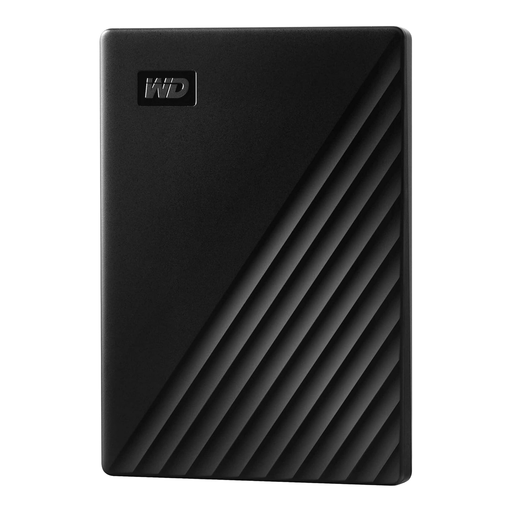
WD My Passport External Hard Drive 2 TB
For a portable 2-TB archive if you’re looking for an external hard drive for documents and other files.
2 TB. Don’t use it as the only copy of important files; plan to keep additional backups.
View at Joybuy
 No image available
Samsung Portable Solid State Drive T7 2TB
For scan files on the move if you’re looking for a 2-TB SSD with USB-C for storage and transfers.
2 TB; USB 3.2 Gen 2; Titanium Grey. Don’t use it as the only copy of important files.
View at Joybuy
 No image available
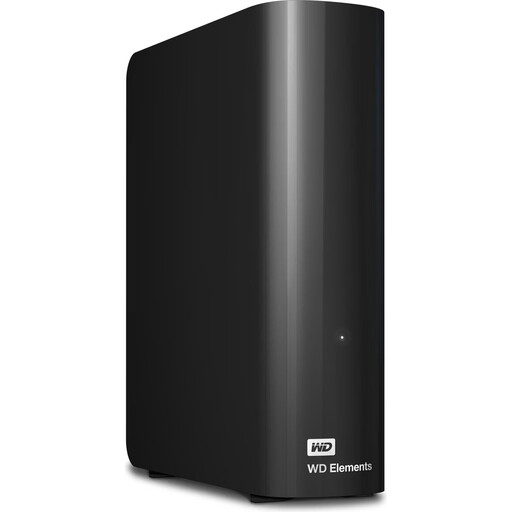
WD Elements 18TB Desktop External Hard Drive
For a very large, mostly stationary archive if you’re looking for 18 TB of storage.
18 TB; USB 3.2 Gen 1; 3.5-inch; NTFS. The product information says reformatting is required for macOS; back up any existing files elsewhere first. The supplied external power adapter is required during use. Don’t use it as the only copy of important files.
View at Joybuy
Frequently asked questions
Do I need a special drive for PDFs, images and other scan files?
The main things to consider when choosing a drive are storage capacity, device connections and the file system. Whether you can open an individual document also depends on having suitable software and the file remaining in a supported format. Germany’s Federal Office for Information Security also warns of potential issues with outdated data formats.
Can I use an exFAT drive for Windows files and Time Machine?
Not as the same Time Machine backup volume: Apple describes exFAT as suitable for shared drives, but rules out a volume formatted for Windows as a Time Machine destination. Apple recommends APFS as the preferred format for new Time Machine backup volumes. Back up any existing files elsewhere before formatting a drive.
How can I check that my scan backup is working?
Back up important files regularly and test a selection to make sure you can retrieve and open them. Germany’s Federal Office for Information Security stresses that restoring data shouldn’t be taken for granted.
What statutory rights apply if a drive develops a fault after purchase in Germany?
For a consumer purchase from a trader, EU rules explained by Your Europe provide at least two years of legal protection from the date you receive the goods. This right is against the seller and is separate from a voluntary manufacturer’s warranty. These rules don’t apply to purchases from private individuals.
Can I put an old external hard drive in household waste?
No. Under German disposal rules explained by the Federal Environment Agency, old electrical equipment must be collected separately. Erase your personal data before handing the device in for disposal.


