If you use just one computer across both screens, you don’t need a second audio input. First, check whether your existing headphone output is up to the job and whether the correct audio output is selected in Windows. A USB DAC with a headphone amplifier may be worth considering if your files, headphones or connection requirements call for one. If you want to hear two separate audio sources at the same time, the device must explicitly support mixing.
Who is this selection for?
Hi-res listeners with a dual-monitor setup
When playing audio files on your computer, the file format, playback software, audio output and headphone amplifier all need to work together. Microsoft Support recommends selecting your preferred device when several audio outputs are available.
Users with two audio sources
If by two screens you actually mean two separate playback devices and you want to hear their audio at the same time, look for an explicitly stated mixing function. Creative describes the Sound Blaster G8 as having two USB-C audio inputs and mixing.
Listeners with demanding headphones
When choosing a device, check that the headphone plug is compatible and review the stated amplification and power output for your specific headphones. Manufacturers’ specifications for outputs and operating conditions vary by model.
What should you look for when buying?
First, work out whether you’ll be playing audio from one computer or from several separate sources. Then compare your file formats and headphone connection with the inputs and outputs on the device you’re considering.
| What you’re looking for |
What to check |
Who it matters most to |
| Audio file support |
Check your files’ format and sample rate, as well as support from your player, operating system, USB input and specific model. |
If I use hi-res files, I want to be sure my playback chain supports the formats I need. Around 36% of consumers put file compatibility first. |
| Audio routing at your workstation |
Check whether audio will come from one computer or two playback devices. With one computer, select your preferred audio output; if you want to hear two sources at once, check explicitly that mixing is supported. |
If I work on one computer with two screens, I want to use the right output rather than mix two sources unnecessarily. Around 29% of consumers prioritise audio routing. |
| Compatibility with your headphones |
Check that the plug matches the output, and read the power specifications alongside the load and operating mode. When changing the gain, start at a low volume. |
If I want to keep using my existing headphones, the connection and amplification need to suit them. Around 21% of consumers focus primarily on headphone compatibility. |
| Space and portability |
Consider the space available and cable routing, as well as the connections you need and USB power supply. |
If space is tight on my desk or I want to move my setup, the right form factor matters to me. Around 14% of consumers prioritise space and portability. |
Common buying mistakes
-
Assuming two screens mean two audio sources
Having two displays connected to one computer doesn’t automatically mean two separate devices are playing audio at the same time. Windows lets you switch between available audio outputs, while mixing is designed for multiple audio sources.
Before buying, check how many devices will actually be playing audio. If you’re using one computer, start by selecting the right audio output; if you want to hear audio from two playback devices at once, check for a mixing function.
-
Choosing a device solely for its highest kHz rating
A maximum format specification doesn’t automatically tell you what your files, playback software and computer can output together.
Compare only the formats you actually use, and check the entire signal path from your computer to the DAC.
-
Comparing power output without considering operating conditions
According to the manufacturer, the FiiO KA17’s higher power output specifications apply only with sufficient USB power and Desktop Mode enabled. The FiiO K7 uses an external power supply.
Read power ratings alongside the load, output, power supply and operating mode, and check that the required power is available at your workstation.
-
Taking an older ‘best of’ list as proof of current availability
HIFI.DE included the DragonFly Cobalt in a list published on 6 July 2026. On 28 January 2026, AudioQuest discussed the model’s discontinuation and dwindling stock.
Don’t take a product’s position in an older list as an indication that it’s still available to buy. Check the model’s current status and product identity separately.
An overview of relevant brands
FiiO
The K7 and K7 BT are designed for a dedicated audio workstation, while the KA17 is a compact USB DAC with a headphone amplifier.
- FiiO says the K7 has several inputs and headphone outputs, as well as an external 12 V power supply.
- According to the manufacturer, the KA17’s higher power output specifications apply only with sufficient USB power and Desktop Mode enabled. The K7 and KA17 shouldn’t be compared on the basis of individual power ratings alone.
iFi audio
The ZEN DAC 3 is a desktop USB device for headphones and other audio equipment connected via its designated outputs.
- The manual lists USB-C, 6.3 mm and 4.4 mm headphone outputs. iFi audio specifies PCM support up to 768 kHz.
- Check whether you need this level of format support and which output is compatible with your headphones.
Cambridge Audio
The DacMagic 200M is designed for a permanent setup with several types of digital playback device and a pair of headphones.
- The manufacturer’s European website lists USB, optical and coaxial inputs, Bluetooth aptX and a headphone output.
- The sound benefits described by the manufacturer haven’t been independently verified here as proof that it outperforms other devices.
Creative
According to Creative, the Sound Blaster G8 is designed for the specific use case of mixing audio from two USB sources at the same time.
- Creative specifies two USB-C audio inputs with mixing and playback up to 32 Bit/384 kHz.
- If you’re using two screens with just one computer, you don’t automatically need the extra mixing function. Claims about sound and suitability come from the manufacturer.
Chord Electronics
The Mojo 2 is a portable DAC with a headphone amplifier, suited to setups that aren’t confined to a permanent desk space.
- Chord lists digital inputs via USB-C, Micro-USB, optical and coaxial, as well as 3.5 mm and 4.4 mm headphone outputs.
- Check the connection version and cables you need. The claim that it leads the way in sound quality comes from the manufacturer.
Joybuy product selection
This selection includes devices for computer and desktop audio playback. For each model, check that its inputs are compatible with your existing audio output and that its headphone connections suit your headphones.
 No image available
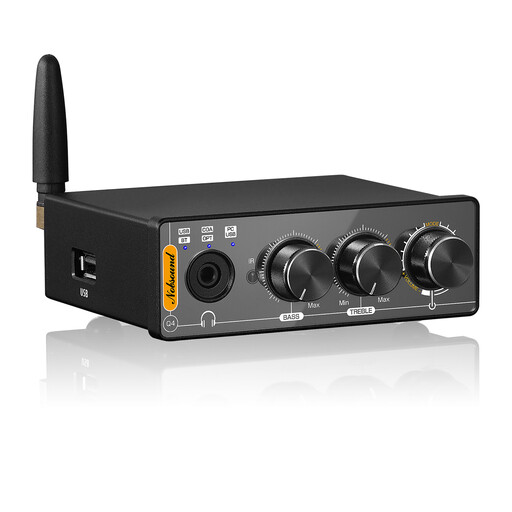
Nobsound Q4 USB DAC with headphone amplifier
For USB playback from a PC; compare the stated support up to 24 Bit/192 kHz with your files and player.
The product name mentions Bluetooth and an optical input.
View on Joybuy
 No image available
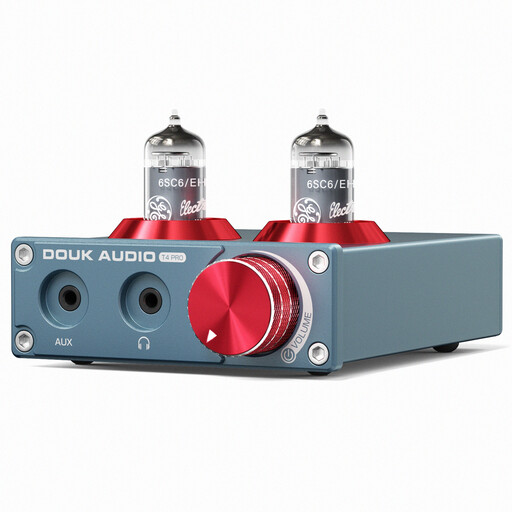
Douk Audio T4 PRO Mini Valve desktop headphone amplifier
May suit a computer with an analogue 3.5 mm output, provided this signal path is compatible with the device’s AUX input.
Use only the correct DC power supply: the product warning says an incompatible power supply can cause overheating, a fire hazard or damage to the device.
View on Joybuy
 No image available
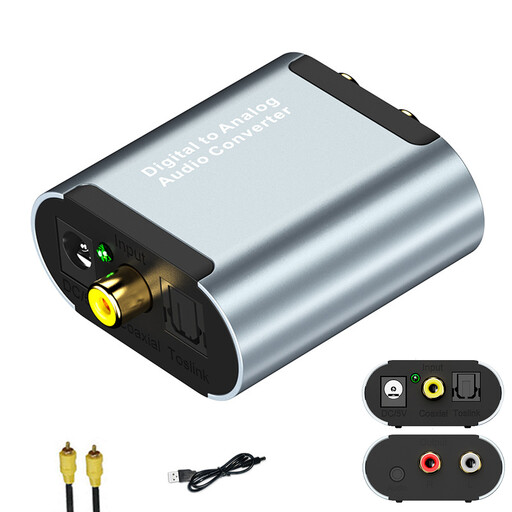
Digital audio converter with optical and coaxial inputs
For a digital source with an optical or coaxial output, if you want to use the specified 3.5 mm audio output for your headphones.
The product name mentions USB power. Check that your digital source has one of the compatible inputs.
View on Joybuy
Frequently asked questions
Do I need two audio inputs for two screens?
No, not just because you have two screens. If a Windows computer is playing your files, start by selecting your preferred audio output. You only need a device with an explicitly stated mixing function if you want to hear two separate playback devices at the same time.
Why isn’t my DAC playing audio in Windows?
First, check that Windows has selected your preferred DAC rather than another available audio output. Then check the cables and volume, and try a different audio format setting if necessary. Microsoft Support outlines these steps for troubleshooting audio problems.
How can I check whether a DAC supports my hi-res files?
Compare your files’ formats with the specifications for the DAC, playback software and computer. The device’s maximum format rating alone doesn’t confirm that the entire playback chain can output that format.
What should I bear in mind when changing the gain?
Start at a low volume and check that the output and gain settings suit your specific headphones. The iFi ZEN DAC 3 manual explicitly warns against switching PowerMatch at high volume.


