What should you look for when buying?
First, decide whether you’ll be recording alone or on separate voice tracks. Then check the microphone position and connection against your recording device.
| What you need |
What to check before buying |
Who is it important to? |
| Clear speech despite fan noise |
An adjustable boom mic and a test recording with the fan running; listen afterwards for any audible changes. |
If I’m recording on my own at a computer, I want my voice to remain clear despite the fan; consumers who prioritise this are likely to account for around 36%. |
| Two separate dialogue voices |
Decide in advance whether you’ll be recording both voices at once; for separate tracks, check the inputs, drivers and software together. |
If we’re speaking at the same time and want to edit each voice separately, we need separate tracks; consumers with this as their main concern are likely to account for around 29%. |
| Connecting to your recording device |
Check the connection on the specific version against your device and software; confirm which microphone is selected before recording. |
If I switch between a computer and a mobile device, the headset connection needs to match my recording device; consumers who prioritise compatibility are likely to account for around 21%. |
| Checking your pronunciation |
Listen to a short test recording at your usual speaking volume; test noise reduction carefully and keep an unedited copy of the recording. |
If I want to assess my pronunciation, editing shouldn’t make speech sounds unnatural; consumers with this priority are likely to account for around 14%. |
Headsets at Joybuy
Joybuy headsets for recording speech on a computer, including wired models with different connections.
 No image available
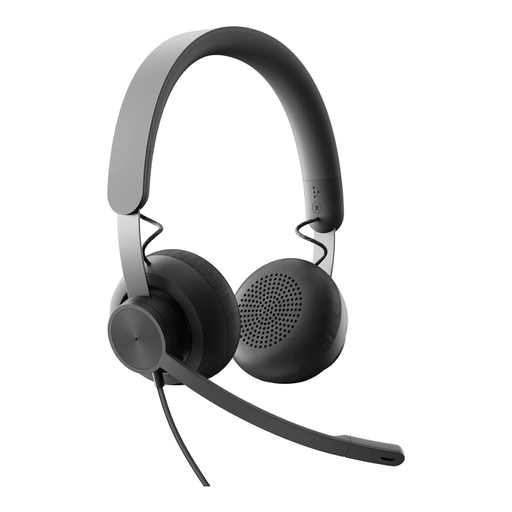
Logitech Zone Wired Teams Headset, Graphite
For one person speaking at a computer, it’s important to position the microphone properly and test the recording with the fan running.
Logitech describes a dual-microphone system for calls in the Zone Wired; this manufacturer information doesn’t prove how well it records learning dialogues.
View at Joybuy
 No image available
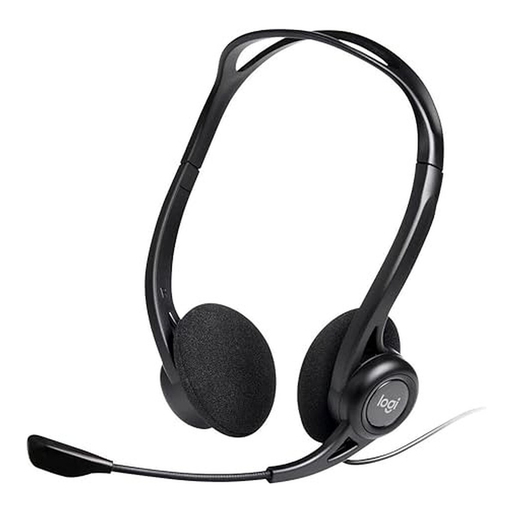
Logitech 960 Stereo Headset, USB
For computer recordings, check beforehand that your software is using the headset microphone as its input.
The product name specifies USB, a 2.4-m cable, and PC, Mac and laptop compatibility; test it separately with the fan in your recording space.
View at Joybuy
 No image available
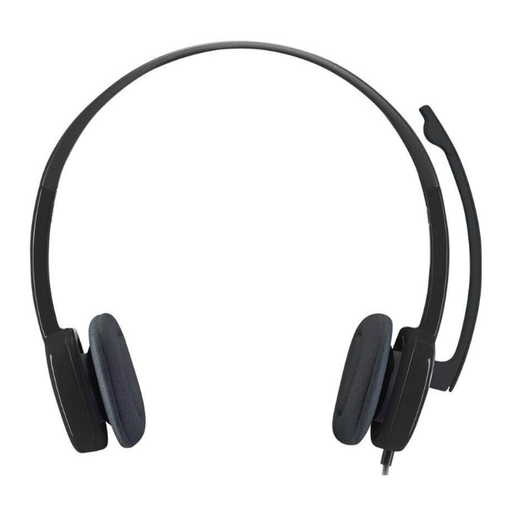
Logitech H151 Stereo Headset
If your recording device has a compatible 3.5-mm connection, test that the microphone and software work together before you start recording properly.
The product name specifies a 3.5-mm connection and an adjustable noise-cancelling microphone; assess its effect on your own recording separately.
View at Joybuy
 No image available
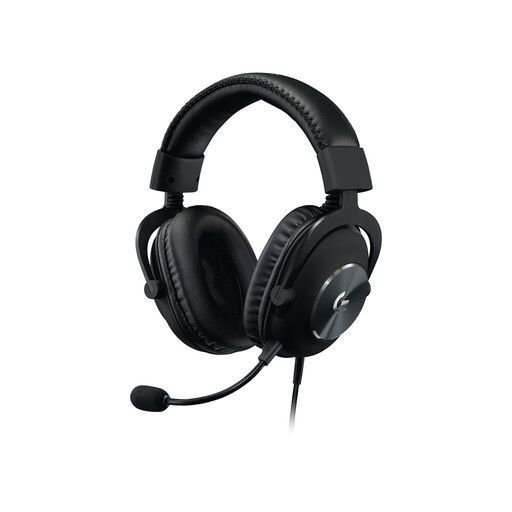
Logitech G PRO X Gaming Headset, USB
For one person speaking at a computer, test the microphone track with the supplied software and the fan running.
The product name specifies a wired gaming headset with a USB connection.
View at Joybuy
 No image available
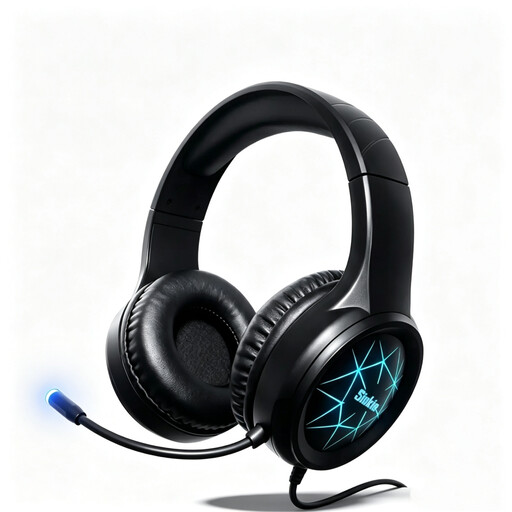
Siukie CH25 Gaming Headset
If you can choose a connection that matches your recording device, check beforehand that the software recognises the headset microphone and listen to a test recording.
The product name specifies USB and 3.5 mm connections, a 50-mm driver and a noise-cancelling microphone. Test the microphone’s performance with fan noise separately.
View at Joybuy
Frequently asked questions
Will ANC in the earcups stop fan noise appearing in my recording?
No. That alone won’t tell you how the microphone track will sound. Check the microphone separately and listen to a recording with the fan running; noise isolation in the earcups and microphone processing are different features.
Can I connect two USB headsets and record the voices separately?
Not without checking your recording setup. The Audacity Manual lists compatible hardware, drivers and software as prerequisites for multichannel recording; before your session, test that the inputs and tracks are assigned correctly.
What can I do if I can’t switch the fan off?
Position the microphone close to the person speaking and as far from the noise source as possible. If the fan noise is consistent, Audacity can create a noise profile from a section without speech; listen to the edited result for artefacts.
What extra equipment might I need for a recording headset?
An XLR recording headset may require a suitable audio interface and compatible inputs. The Audio-Technica BPHS2a has separate microphone and headphone connections; for other models, check that the connections match your recording device.
Can I simply record a learning dialogue with someone else in Germany or share it with others?
You must not record another person’s non-public speech without authorisation. Section 201 of the German Criminal Code (StGB) also covers using or making such a recording available to others; the Federal Ministry of Justice and the Federal Office of Justice list the provision on Gesetze im Internet. Check that you’re authorised before recording, and separately confirm whether you can share the recording as planned. Further data protection obligations may depend on the specific school or course context.


