If you’ll be the main person delivering the tutorial, a headset with a boom microphone is a good fit: USB works well at a fixed computer desk, while Bluetooth gives you more freedom to move, provided your computer and conferencing software support the connection. If you need other people in the room to be heard too, a personal headset alone isn’t a proven solution for every seat. Microsoft Support describes room audio as an option for meeting rooms, while Zoom Support warns that multiple active audio devices in the same room can cause echoes.
Who is this guide for?
Teachers presenting on their own
If you’re presenting from your computer, your voice needs to come through clearly to online participants. Logitech and Jabra describe the microphone features of their respective models; Zoom Support recommends testing your microphone and speakers before the session.
Teachers with a group in the room
If questions from the meeting room also need to be heard, you’ll need to distinguish between a personal headset and a shared room audio source. Microsoft Support explains how to select room audio in Teams meetings, while Zoom Support covers the risk of echoes when multiple audio devices are active in the same room.
Teachers who move around the room
If you move around while explaining, the right connection and easy controls while speaking are important things to consider. Logitech describes Bluetooth multipoint for certain Zone models; check the features of the specific version.
What should you look for when buying?
First, decide whether only your voice needs to be heard or whether the group’s contributions need to come through too. This will determine whether a personal headset is enough or whether you should plan for room audio.
Wired USB headset
A good fit if: you’ll stay at your computer during the tutorial and prefer a wired connection.
Bear in mind: the cable limits your freedom to move, and you should test microphone performance at your usual speaking position.
Wireless headset
A good fit if: you want to move around during the tutorial or switch between compatible devices.
Bear in mind: check the connection and battery level before the session. ANC for listening doesn’t automatically mean better microphone recording.
Room audio for the group
A good fit if: other people will speak in the meeting room and need to be heard without passing the headset around.
Bear in mind: choose a shared audio source; multiple active audio devices at the same time can cause echoes.
| What you need |
What to check before buying |
Who it matters most to |
| Clear teaching voice |
Check for a boom microphone and mute function; test the audio with your chosen conferencing software from your usual speaking position. |
When I’m explaining things at my computer, I want my voice to come through clearly despite possible background noise. Around 29% of consumers put speech clarity first. |
| Contributions from people in the room |
Agree in advance who will be speaking and choose a suitable shared room audio source. |
If people at the table will be asking questions too, I don’t want only the voice picked up by the headset microphone to be transmitted. Around 18% of consumers prioritise being able to hear contributions from the room. |
| Computer connection |
Check compatibility with your connection type, operating system and conferencing software; select the right microphone and speaker before you start. |
If I rely on a particular computer and conferencing software, the headset needs to connect to them. Around 23% of consumers put compatibility with their computer and software first. |
| Freedom to move |
Check the Bluetooth connection with the device you plan to use; for wireless models, check the talk time of the specific version. |
If I leave my seat while explaining, I don’t want to be restricted by an audio cable. Around 18% of consumers prioritise freedom to move. |
| Comfort |
Check the fit and padding of the specific version; read the returns policy before buying. |
If I’ll be wearing the headset through longer tutorials and Q&A sessions, a comfortable fit matters to me. Around 12% of consumers put comfort first. |
Common misconceptions
-
Assuming ANC means a good microphone for transmitting your voice
ANC affects what the person wearing the headset hears. It doesn’t tell you how clearly your voice will come through the microphone.
Check the microphone performance of the specific model and test your voice using the conferencing software you plan to use before the session.
-
Relying on a personal headset to pick up the whole room
A boom microphone worn by the teacher isn’t a proven way to pick up contributions from every seat.
Before choosing, decide whether only you will speak or whether other people will too. For group discussions, choose a suitable room audio source.
-
Using several computers with conference audio active in the same room
Zoom Support warns that multiple active audio devices in a conference room can cause echoes. Muting a microphone doesn’t automatically disconnect the speaker.
Choose one shared audio connection and, if necessary, disconnect conference audio on the other devices.
Key brands at a glance
Logitech
Zone Wired is a wired option for a fixed USB workstation; Zone 300 is a Bluetooth alternative if you need to move around.
- Logitech lists two noise-cancelling microphones for the Zone Wired. For the Zone 300, the manufacturer describes two boom microphones, multipoint connectivity and up to 16 hours of talk time.
- These are manufacturer claims for specific models, not independent evidence of speech quality in a meeting room. The Zone Wired’s cable may limit movement.
Jabra
The Evolve2 40 SE is wired, while the Evolve2 75 is a wireless option with ANC. Check whether you need the specific Teams or UC version.
- Jabra lists three microphones and passive noise isolation for the Evolve2 40 SE, and eight microphones and ANC for the Evolve2 75.
- Having ANC on the headset doesn’t prove that it will pick up contributions from everyone in the room.
HP Poly
The Voyager Focus 2 is a Bluetooth option for presenters who want adjustable noise cancellation while listening.
- HP lists three ANC levels and microphone noise cancellation for this model.
- Check the talk time, features and certification of the specific version; manufacturer claims aren’t a guarantee of performance in every situation.
Yealink
The UH37 range includes wired USB versions in mono and stereo, for a fixed tutorial workstation.
- Yealink describes two microphones, muting via the boom arm or a button, and a USB-A/USB-C adapter.
- Manufacturer claims about reducing office noise don’t prove that the headset will pick up contributions from across the room.
Joybuy headsets for tutorials
This selection includes wired and wireless headsets for presenters speaking at a computer. It doesn’t replace separate planning for contributions from people across the room.
 No image available
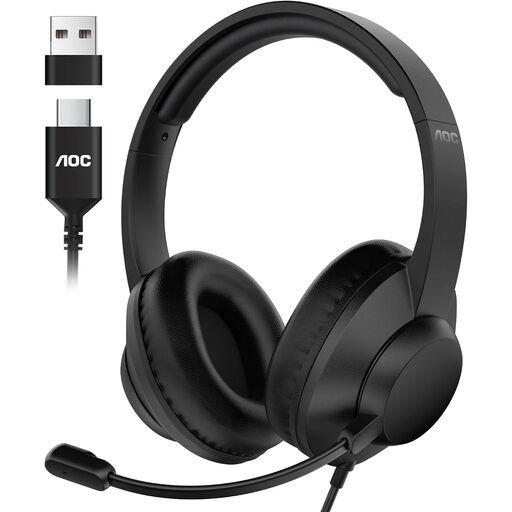
AOC USB headset with microphone for PC
For tutorials at a fixed PC workstation when a wired connection suits you.
USB headset with microphone; wired over-ear design.
View at Joybuy
 No image available
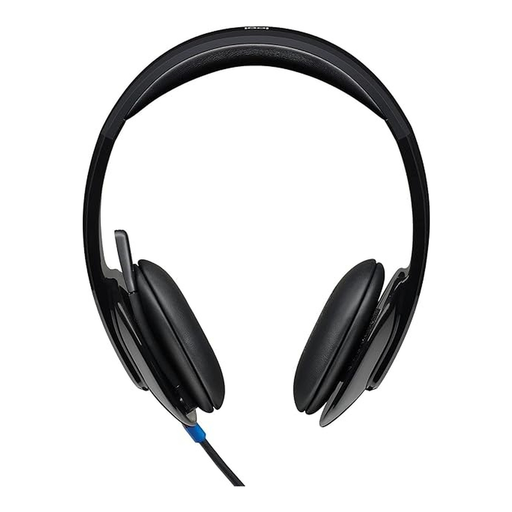
Logitech H540 stereo headset
For tutorials at your computer if you’re looking for a wired headset with on-ear controls.
USB connection; adjustable noise-cancelling microphone; mute indicator. The product name also lists PC, Mac and laptop compatibility.
View at Joybuy
 No image available
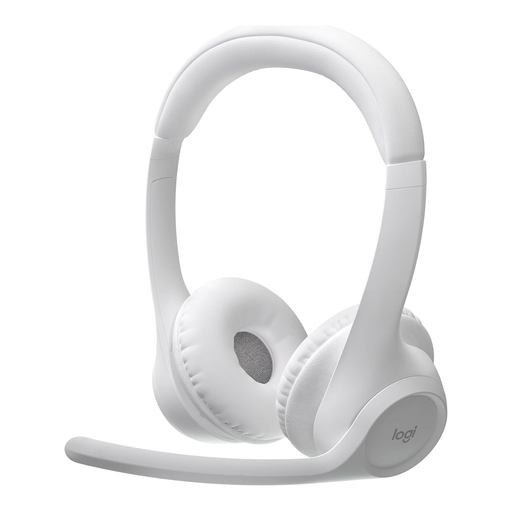
Logitech Zone 300
For presenters who want to move around during a tutorial or use a Bluetooth headset with multiple devices.
Bluetooth, multipoint and over-ear design; Logitech describes the model as having two boom microphones.
View at Joybuy
 No image available
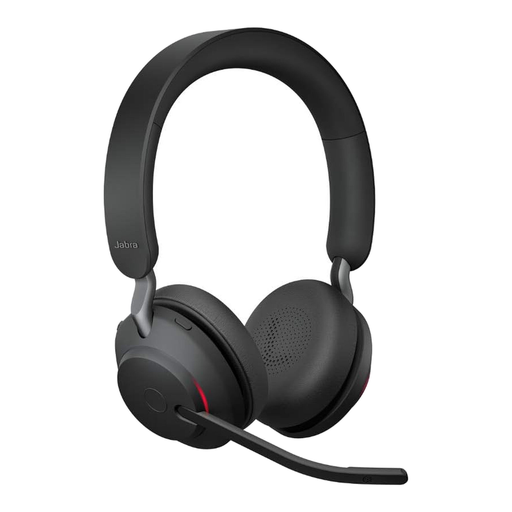
Jabra Evolve2 65 wireless PC headset
For presenters looking for a wireless headset for calls at their computer.
The product name lists a USB-C Bluetooth adapter, UC certification and a black finish.
View at Joybuy
 No image available
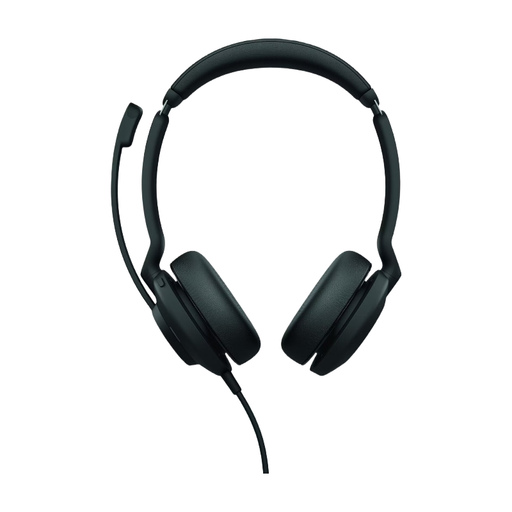
Jabra Evolve2 30 SE
A wired USB option for a presenter at their computer.
View at Joybuy
Frequently asked questions
How do I set up my headset before the tutorial?
In Teams, select your preferred microphone and speaker before joining, or choose them during Zoom’s audio test. Play back a voice recording to check that you’re using the headset rather than your computer’s built-in microphone.
Is one headset enough if people at the table will be asking questions?
A personal headset isn’t a proven solution for every seat. Plan for a suitable room audio source to capture contributions from the group; Zoom Support warns that multiple active audio devices in the same room can cause echoes.
What should I check with a wireless headset, and what if it develops a fault?
For wireless models, check the talk time and accessories included with the specific version. If the product is faulty, the seller is generally responsible for the statutory guarantee. For online purchases, the Verbraucherzentrale says the cooling-off period is usually 14 days from the conclusion of the contract or receipt of the goods.


