Cataloguers working with small print
You read captions in digitised advertisements and transcribe details. A clear view at a practical scaling level and enough room for the cataloguing form are essential.


Choose a monitor that lets you view a digitised image, cataloguing form and source file side by side, with everything clear at your preferred scaling. A graphics monitor may be useful for assessing or editing colour; for cataloguing alone, readability, window layout and ergonomics matter more directly. It’s your cataloguing software, not your monitor, that links advertisements to their source files.
You read captions in digitised advertisements and transcribe details. A clear view at a practical scaling level and enough room for the cataloguing form are essential.
You compare the advertisement image, metadata and related source files across several windows. Screen space, window layout and suitable connections all shape your workflow. The German Digital Library describes metadata as the basis for identifying and researching objects, and linking them to other datasets.
If you assess or edit colours, the characteristics of the specific monitor and a suitable colour-management workflow matter just as much as screen size.
A good fit if: you mainly enter and check text, and QHD gives you enough room for your windows at the font size you need. Philips lists a resolution of 2,560 × 1,440 pixels for its 27-inch 276B9/00 monitor.
The trade-off: compared with the 27-inch 4K models mentioned here, you get fewer pixels. Check your window layout at the scaling you normally use.
A good fit if: you often enlarge small captions or display a digitised image and cataloguing form at the same time. MSI and LG both list a resolution of 3,840 × 2,160 pixels for the 27-inch models featured here.
The trade-off: high resolution is no substitute for comfortable scaling. Also check that your computer and the connection you want to use support the display.
A good fit if: you genuinely assess or edit the colours in historical prints and use a suitable colour-management workflow. EIZO lists a wide-gamut IPS panel and colour-space presets for the ColorEdge CS2740.
The trade-off: a wide colour gamut alone doesn’t prove that a digitised image’s colours are accurate or that your workflow is correctly set up. This specialist feature set isn’t automatically necessary if you only need to read.
| What you need | What to check before buying | Who it matters most to |
|---|---|---|
| Reading small print | Display the digitised image and cataloguing form side by side at your usual font size and scaling. Check the screen size and native resolution of the specific model. | If I need to read small captions alongside cataloguing details, what matters to me is how clear everything looks at my chosen magnification. Around 36% of consumers put small-text readability first. |
| Comparing sources side by side | Try your cataloguing software to see how many windows fit on screen at a readable size. Check the connections and whether the specific model meets your KVM needs. | If I want to compare a digitised image, metadata and source file in separate views, I need a suitable window layout. Around 29% of consumers prioritise comparing sources side by side. |
| Working comfortably | Check the specific model’s height, tilt and swivel adjustments, as well as the desk space it needs and its position in relation to light. The Federal Institute for Occupational Safety and Health sets out requirements for workplace screen workstations within the scope of ASR A6. | If I regularly spend long periods reviewing digitised images, I want to be able to position the monitor to suit my workspace. Around 21% of consumers put an ergonomic setup first. |
| Assessing colours | Check the colour gamut you need, the colour management in the software you use and the specifications for the specific model. | If I need to assess or edit the colours in historical prints, the entire colour-management workflow matters to me. Around 14% of consumers make colour assessment their main buying priority. |
More pixels won’t help if your chosen scaling or font size makes your working view impractical.
Try a typical advertisement image alongside your cataloguing form at your preferred scaling.
According to EIZO, how an image looks also depends on your monitor, operating system and image-editing software settings.
Choose a graphics monitor to suit the colour workflow you actually need, not just a colour-gamut figure.
For the MSI Modern MD272UPHGDE, the manufacturer lists image transmission via DisplayPort Alternate Mode and 98 W charging. Your notebook must support the required features too.
Before buying, check your notebook’s output, signal transmission and charging requirements against the specifications for the specific monitor.
The Modern MD272UPHGDE is a 27-inch 4K monitor with detailed specifications, designed for office work and comparing several views.
The 27UP850K-W is a 27-inch 4K IPS option for digitised images and office work.
The 276B9/00 is a QHD office option for cataloguing and comparing sources.
The ColorEdge CS2740 is a specialist option if your cataloguing work also involves colour-focused image editing.
The PhotoVue SW272U is worth considering if you also need more advanced colour assessment.
The following Joybuy models may suit reviewing digitised images and working with multiple views, depending on their specifications. Check the resolution, format, scaling and connections against your own workspace.
 No image available
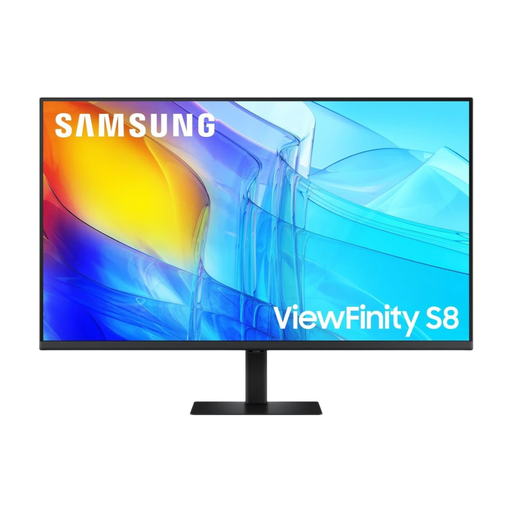
An option if you’re looking for a 27-inch display to view digitised images in detail.
27 inches, 3,840 × 2,160 pixels, IPS and 60 Hz, according to the product name.
 No image available
This large-screen model may suit a more expansive workspace; check that it fits on your desk.
37 inches and UHD, according to the product name.
 No image available
The wide format may suit you if you want to arrange several work views side by side.
5,120 × 2,160 pixels, 21:9, IPS and 100 Hz; the product name also lists PIP/PBP and USB-C with 65 W Power Delivery.
 No image available
An option if you’re looking for a 27-inch display for detailed views and an adjustable monitor position.
3,840 × 2,160 pixels, IPS and 120 Hz; the product name also lists PIP/PBP and USB-C with 90 W Power Delivery.
 No image available
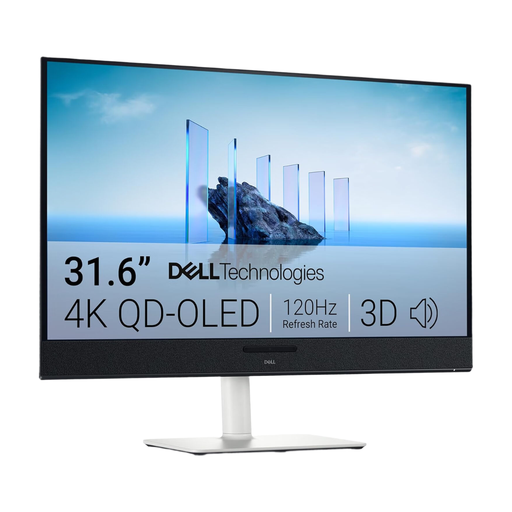
The larger display may suit a workspace with several windows; take the desk space it needs into account.
31.6 inches, 3,840 × 2,160 pixels and QD-OLED, according to the product name.
No. Monitor specifications relate to the display and its connections; your cataloguing software or data storage system needs to handle the links. The German Digital Library describes linking as one of the functions of metadata.
Open a typical digitised image beside your cataloguing form and check the font size, scaling and monitor position. If you want to connect a notebook with a single USB-C cable, check that the notebook supports the required video signal and charging power, and compare this with the specifications for the specific monitor. For the MSI Modern MD272UPHGDE, MSI lists USB-C with DisplayPort Alternate Mode and 98 W Power Delivery.
Compare the energy labels for the specific devices; annual electricity costs depend on consumption and usage. According to consumer information from the European Union, purchases of consumer goods from a trader are covered by a legal guarantee of at least two years from the date you receive the goods. A manufacturer’s warranty is separate.
EU rules set out energy-labelling requirements and additional product information for electronic displays. The German Environment Agency advises that end-of-life electrical equipment must be collected separately from other waste. ASR A6 sets out requirements for workplace screen workstations within its scope; it is not a general private-sector requirement to buy a particular model.
For a qualifying distance contract, you generally have a 14-day right to cancel from the date the goods are delivered. Check the terms of your specific contract and any information about return postage costs; cancellation and the legal guarantee are separate rights.