Readers of historical scans in daylight
If you mostly read digitised letters outdoors, check whether reflections make the writing difficult to see and whether you need to keep repositioning the device.


For mostly monochrome letter scans viewed in daylight, a large-format E Ink device could be a good option. If colour details, research apps and working with heavily enlarged sections matter to you, it’s also worth considering a traditional colour tablet. Before you buy, open one of your own scans on the device and test the zoom, navigation and readability in the conditions you usually read in.
If you mostly read digitised letters outdoors, check whether reflections make the writing difficult to see and whether you need to keep repositioning the device.
For densely written or hard-to-read pages, it’s important to be able to zoom in on specific sections and then navigate around the scan comfortably.
If ink colours or paper details matter, or you use other sources while reading, check the colour display and make sure it suits the digital workflow you need.
| What matters | What to check before buying | Who is it especially important to? |
|---|---|---|
| Readability in daylight | Open a bright scan and a low-contrast one in your usual lighting conditions; check for reflections and whether you need to adjust the device angle. | When I read historical letters outdoors, I want to make out the writing without constantly angling the device towards the light. Around 31% of consumers prioritise readability in daylight. |
| Small or faint handwriting | View the same file both full-page and at word level; try zooming in on sections, cropping the margins and navigating around the page. | With dense or faint handwriting, I want to zoom in on specific words and then carry on through the scan. Around 31% of consumers prioritise decipherability. |
| Colour details and research | Display an original colour scan and check whether the research tools you need are available on the device. | If ink colours or annotations offer clues, I need colour and want to look up other sources at the same time. Around 19% of consumers prioritise colour and research. |
| File import and annotations | Check that the file format and transfer method work for you; make sure the stylus and the writing or synchronisation features you need fit your workflow. | If I want to annotate scans, I need to know in advance how importing files and using a stylus will fit into my workflow. Around 19% of consumers prioritise importing and annotations. |
A device may open PDFs, but that doesn’t mean zooming in and navigating around your particular document will be easy.
Open a typical scan and try the page view, margin cropping and section zoom before you decide.
According to the manufacturer, the PocketBook InkPad One displays 16 shades of grey. Differences in ink or paper colour won’t appear in colour.
If colour is important for deciphering or comparing documents, check the same scan on a colour display too.
With reMarkable, it’s important to distinguish between built-in device features and additional Connect features; not all synchronisation or app features are included in the same package.
Before buying, decide whether you only want to read, write directly on scans or work on documents across devices, then check which features you’ll need.
The InkPad One is a large-format black-and-white E Ink device for PDF and image files.
The Note Air5 C combines colour E Ink with PDF tools and Android apps.
The 13-inch iPad Air (M4) is a traditional colour tablet for viewing large pages and doing additional research.
The Paper Pro is a colour E Ink device for importing PDFs and working with a stylus.
An E Ink device for reading and annotating your own documents.
The models below include traditional colour tablets as well as E Ink reading and note-taking devices. With compact displays, pay particular attention to how often you’ll need to zoom in to decipher the handwriting.
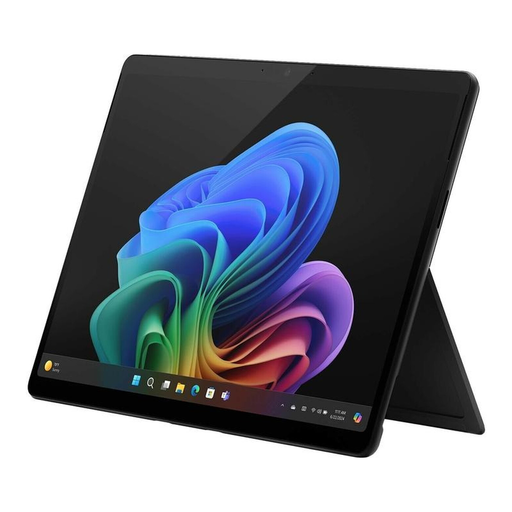 No image available
If you’re looking for colour scans and a traditional tablet for additional research, check how readable your letters are on this model in your usual lighting conditions.
13-inch OLED display; 2-in-1; Core Ultra 7 266V; 16 GB RAM; 512 GB SSD; Win11 Pro.
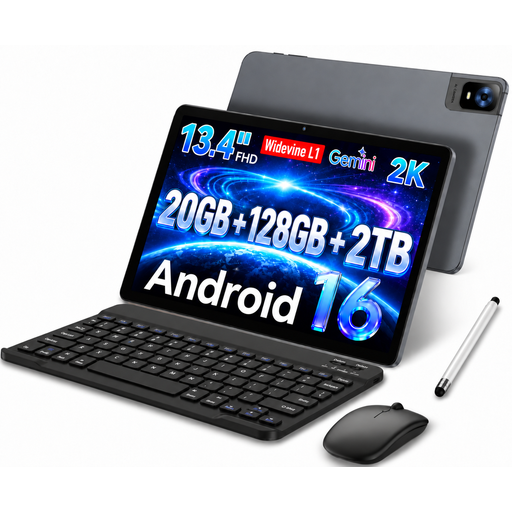 No image available
If you want to view large colour scans of letters, this tablet is worth trying out with your own files.
13.4 inches; Android 16; 20 GB RAM (8 GB + 12 GB virtual); 128 GB; 1920 × 1200 IPS display; keyboard, mouse and stylus are listed in the product name.
 No image available
If you want to read letter scans on an E Ink device and add handwritten notes, test the zoom and stylus controls with one of your own files.
10.65 inches; E Ink display; a protective case is listed in the product name.
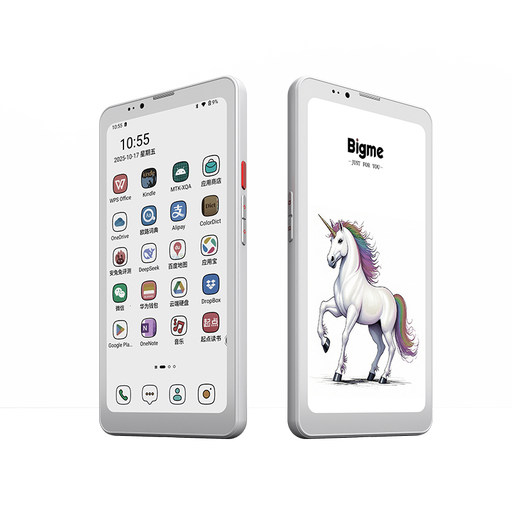 No image available
If a compact colour E Ink device matters to you, check whether you can zoom in on individual sections of a letter often enough on a 6.13-inch screen.
6.13 inches; colour E Ink; Android 14; 8 GB RAM and 256 GB storage according to the product name.
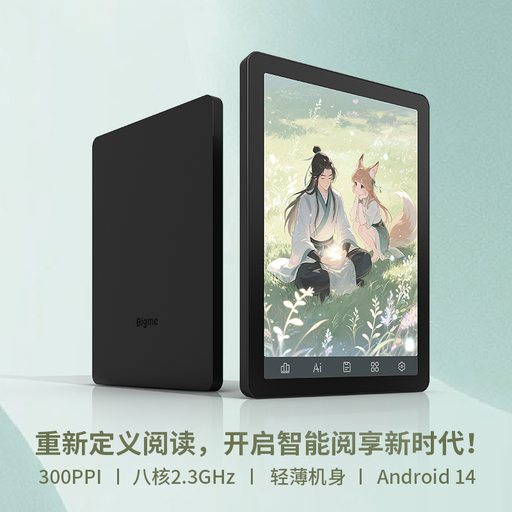 No image available
If you’re considering a compact e-reader for letter files, check whether the small display is large enough for the handwriting or whether you’ll need to zoom in often.
6 inches; E Ink; 36-level front light; Android 14; 4 GB RAM and 64 GB storage according to the product name.
With a scan, first try zooming in on a PDF or image using one of your own pages. BOOX documents features including page-width and section zoom in NeoReader under firmware V4.1; this doesn’t automatically convert historical handwriting into text that you can resize freely.
No. reMarkable describes built-in device features that are available without Connect. According to the German reMarkable website, unlimited cloud storage and certain additional app features are part of the Connect plan; check which of these you actually need.
No. A letter’s age alone doesn’t mean it can automatically be used without restriction. The Federal Archives highlights protection periods and digitised material that is sometimes only accessible in reading rooms. Under certain conditions, § 53 UrhG allows individual copies for private use, provided they are not made for direct or indirect commercial purposes. Check the conditions of the specific collection and how you plan to use the material.