Readers with limited table space
You often hold your device and want to bring up letters during a short café break. A handy size matters more to you than a large full-page view.


If you usually read letters while holding your device, consider a compact colour tablet. For viewing full pages and making margin notes, a larger colour tablet with a stylus could be a better fit. E-paper may work well if monochrome display or the available PDF workflow suits your scans, though colour, file transfer and annotation features can be limiting factors. Before you buy, open the same letter scan in the app you plan to use and check the full-page view, zoom, offline access and whether you can export your annotations.
You often hold your device and want to bring up letters during a short café break. A handy size matters more to you than a large full-page view.
You want to see handwriting, page margins or enclosures in context, and are weighing up a larger display against the extra weight and space it takes up.
You want to add handwritten comments to parts of a scan and find or export your notes later. The stylus, PDF app and file transfer method all play a part.
A good fit if: You often read individual letters while holding your device and want to switch between scans and other apps.
The trade-off: A complete, detailed letter page will appear smaller on the more compact display.
A good fit if: You want a clearer view of letter pages and handwritten notes in the margins.
The trade-off: The larger display means more weight and takes up more space at a café table.
A good fit if: You mainly read black-and-white scans but also want to use apps and zoom in on PDFs. BOOX says NeoReader offers several zoom views.
The trade-off: A monochrome display is not suitable if colours in the original letter are important to your interpretation.
A good fit if: You want to read and annotate PDFs without distractions. reMarkable lists PDF import, an 11.8-inch colour display and adjustable reading light for Paper Pro.
The trade-off: The system described by reMarkable is not the same as having a general selection of Android or iPad apps.
Check a complete letter scan in the app you plan to use. The page overview, readable details and annotation workflow you want may lead you to prioritise different features.
| What you need | What to check before buying | Who is it important to? |
|---|---|---|
| Full-page view and handwriting | Open a typical scan at full-page size and zoomed in; check the display size and zoom features in the app you plan to use. | If I want to read handwriting and page margins in context, I want to switch between the full-page view and zoom as little as possible. Around 36% of consumers prioritise a readable full-page view. |
| Easy to handle at a café table | Compare the dimensions and weight of the model you are considering, including the case you plan to use; view the scan on the display. | If I usually read while holding my device and have little space, an easy-to-hold device matters more to me than a large full-page view. Around 29% of consumers put ease of handling first. |
| Notes directly on the scan | Import, annotate and export your own scan; check the stylus and what’s included in the box. | If I want to find or use my notes again later, the complete PDF workflow needs to work with my file. Around 21% of consumers prioritise annotating letter scans. |
| Lighting and offline access | View the scan in bright and dim light; check that it’s available locally before your café visit. | If I read in changing light and don’t want to rely on café Wi-Fi, I want to make the file available locally beforehand. Around 14% of consumers mainly consider lighting and access without Wi-Fi. |
Apple lists the iPad mini at 8.5 inches, while Samsung lists the Galaxy Tab S10 FE at 10.9 inches. The difference in display size doesn’t tell you which device will make your handwriting easier to read.
Open the same complete letter page and the same hard-to-read section on each display size you’re considering.
Large scans may require you to zoom and navigate more often.
BOOX distinguishes between the Go 10.3 (Gen II) Lumi, which has a front light, and the other Gen II version, which does not.
Before buying, compare the full model name and lighting features.
A Joybuy listing is titled Galaxy Tab S10 FE X520, but its technical specifications give the model number SM-X210NDBAEUB. Samsung lists the German version we checked as SM-X520NZAREUB.
Compare the model number, storage and connectivity version with the manufacturer’s details. If the information doesn’t match, check the product’s identity.
The iPad mini is a compact colour tablet option for frequent reading while holding your device.
The Galaxy Tab S10 FE is a larger colour tablet option for PDFs and handwritten comments.
The Go 10.3 (Gen II) Lumi combines monochrome e-paper with a front light, PDF annotation and access to Android apps.
Paper Pro is an e-paper option for focused reading and writing with imported PDFs.
Here you’ll find Joybuy tablets with touchscreens in a range of sizes, suitable for viewing digital letter scans.
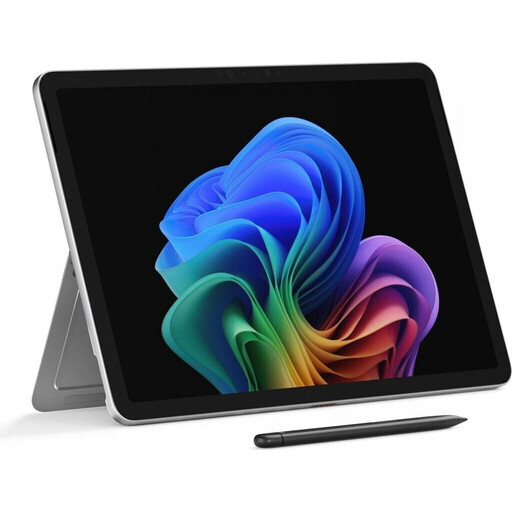 No image available
For viewing letter scans on a larger touchscreen; according to the product details, its weight may be a consideration if you plan to read while holding it for a long time.
12-inch display in a 3:2 format with 2,196 × 1,464 pixels; stated weight: 686 g.
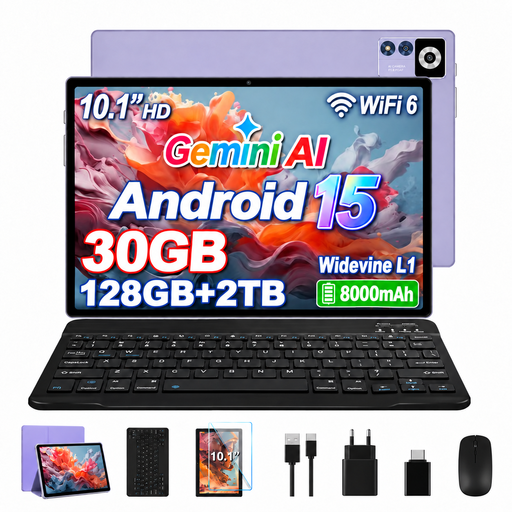 No image available
An option if you want to view letter pages on an Android tablet; check your scan on the actual display.
10.1-inch IPS display with 1,280 × 800 pixels; 8 GB RAM plus 22 GB virtual RAM and 128 GB storage according to the product name.
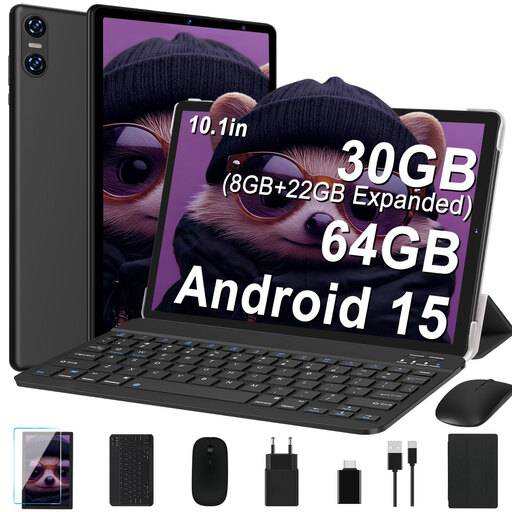 No image available
For viewing letter scans on a 10.1-inch touchscreen; check whether the included accessories suit your café setup.
IPS display with 1,280 × 800 pixels; 8 GB RAM plus 22 GB virtual RAM and 64 GB storage according to the product name.
The product name lists a keyboard, mouse and case as included accessories.
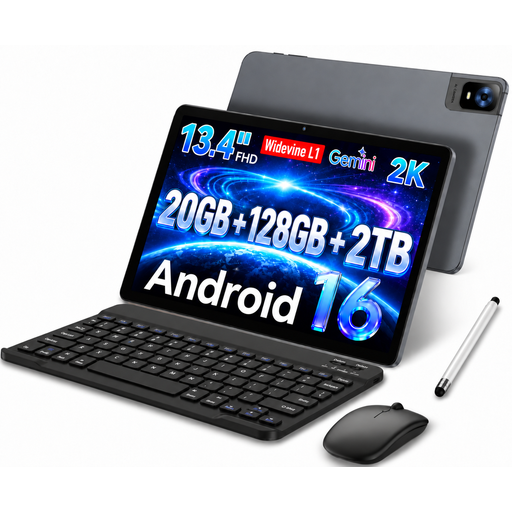 No image available
The larger display may make it easier to see the whole letter page; check the weight and how easy it is to use in your chosen spot.
13.4-inch FHD IPS display with 1,920 × 1,200 pixels; the product name lists a stylus, keyboard and mouse.
 No image available
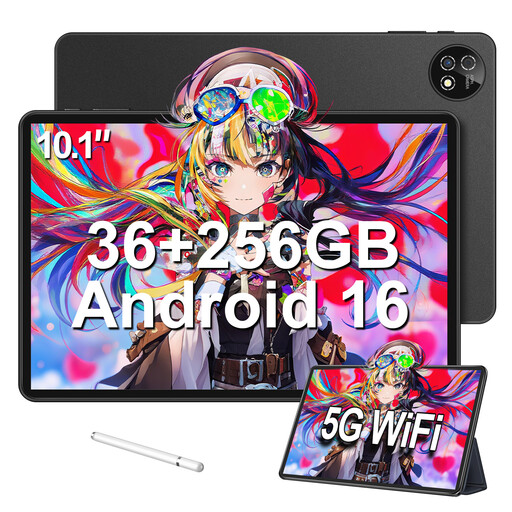
A touchscreen option for letter scans; open a typical page on the 10.1-inch display to check the full-page view and detail.
The product name lists Android 16, 36 GB RAM (6 GB + 30 GB) and 256 GB storage, with TF expansion up to 1 TB.
The product name lists a keyboard, mouse and protective case as part of the set.
Before choosing a device, open a typical scan in the PDF app you plan to use and compare the whole page, individual enlarged words and how clearly the margins are visible. BOOX documents features such as page-width and area zoom in NeoReader; other apps may work differently.
It depends on the device and workflow. Samsung describes PDF comments and PDF export from Samsung Notes; Apple’s Markup tools can annotate PDFs in supported apps. Test importing and exporting your own scan, then open the exported file on a second device.
Set up your preferred reading app, download a sample scan to your device and test that you can access it without an internet connection. For public hotspots, the Verbraucherzentrale recommends, among other things, using encrypted connections and disabling active file sharing.
No. Free access alone does not mean you have general permission to republish it. The Deutsche Digitale Bibliothek points out that use of freely accessible items may be restricted by rights and conditions set by the institution providing them. Check the rights notice for the specific item.