Web and video animators
If you create digital animations, choose a colour mode to suit your output rather than focusing solely on the widest possible colour gamut.


Start by choosing a monitor that suits your output. For web animation, a suitable sRGB mode may be enough, while video or print workflows call for checking the colour spaces and calibration options you need. Then make sure the resolution, desk space for your preview and timeline, connections and stand all work with your computer and setup. Colour gamut coverage and manufacturer specifications alone don’t guarantee consistent, colour-accurate results over time; the International Color Consortium describes calibration and profiling as complementary steps.
If you create digital animations, choose a colour mode to suit your output rather than focusing solely on the widest possible colour gamut.
For clear, easy-to-read tools and timelines, match the screen size and resolution to the space you have available and your preferred software layout.
If you work with content for different colour workflows, check the specific colour modes listed, along with the calibration and profiling process. The International Color Consortium describes both steps as part of a consistent colour workflow.
When choosing a monitor for animating from home, your priorities will depend on whether colour workflow, workspace, connections, ergonomics or motion preview matters most to your work.
| Priority | What to check before buying | Who is this important to? |
|---|---|---|
| Colour workflow | Match your output format with suitable colour modes and the intended calibration and profiling process. | If I work across web and video output, I want to choose the right mode rather than focus only on the biggest gamut figure. Around 31% of consumers say colour workflow is their main buying priority. |
| Preview and timeline | Consider resolution, screen size, scaling and available desk space together. | If I want to see my preview, timeline and tools at the same time, the display needs to suit my desk and software. Workspace is the priority for around 25% of consumers. |
| Connections and switching between computers | Check the video and data connections, the charging power you need and, if you use several computers, whether KVM functionality is specifically listed. | If I want to use my laptop or several computers with the monitor, I need to know which connections and power supply will actually work. Around 19% of consumers prioritise connections and switching between computers. |
| Ergonomics and desk space | Consider the dimensions, height adjustment, tilt and potential glare in your own workspace. | If my desk is short on space, I want to know whether I can position and adjust the screen to suit it. Around 13% of consumers say workspace setup is their main priority. |
| Motion preview | Match the refresh rate you need with your colour checks and the connection actually supported. | If I check movement frequently, I want to take the refresh rate into account without overlooking suitable colour modes. Around 12% of consumers say motion preview is their main priority. |
An sRGB mode may suit web output, but a wide colour gamut alone won’t ensure consistent results. The International Color Consortium describes calibration and profiling as complementary steps.
Decide on your output format first, then check that the colour mode and colour management suit it.
Depending on your workflow, setup, calibration and profiling may take additional time.
USB-C alone doesn’t tell you which video and data connections, charging power or switching features a specific model offers. EIZO lists a maximum USB-C power delivery of 60 W for the ColorEdge CS2740; BenQ lists Thunderbolt 4 with 90 W Power Delivery and KVM for the PD2732U.
Check the video and data connections, the wattage you need and, if applicable, KVM compatibility for your specific computer and monitor.
If the connection or power supply isn’t suitable for your devices, you may need a separate connection or power supply.
27-inch models vary in resolution: QHD and 4K aren’t the same. BenQ lists QHD for the PD2705Q, while EIZO lists 4K for the CS2740. Desk space and how easy the tools are to read also affect whether the layout suits your work.
Compare the resolution and scaling with your animation software and the dimensions of your desk.
The DesignVue PD2705Q and PD2732U cater to different needs for colour modes and working resolution.
The ProArt PA279CRV is a 27-inch 4K option with colour modes listed for different workflows.
The ColorEdge CS2740 is aimed at workflows where hardware calibration and specified colour gamuts matter.
The UltraSharp U2724D is a QHD option to consider if its listed refresh rate matters for your work.
The 27UP850K-W is a 27-inch 4K IPS option with USB-C and an adjustable stand.
These models offer different approaches to animating from home, from sRGB-focused work and larger workspaces to motion preview. Check the colour modes, resolution, connections and desk space against your specific workflow.
 No image available
An option for detailed previews and an sRGB-focused workflow.
27 inches, 4K resolution at 3840 × 2160 pixels, IPS, 60 Hz, 10-bit colour depth and a listed sRGB picture mode. The stand offers height adjustment and pivot.
 No image available
Worth considering if 4K previews and the listed sRGB and Adobe RGB figures matter for your workflow.
Specifications include a 27-inch IPS screen with 3840 × 2160 pixels, 100% sRGB and 99% Adobe RGB. The description lists 120 Hz at UHD and 240 Hz at FHD, plus USB-C with 90 W Power Delivery.
 No image available
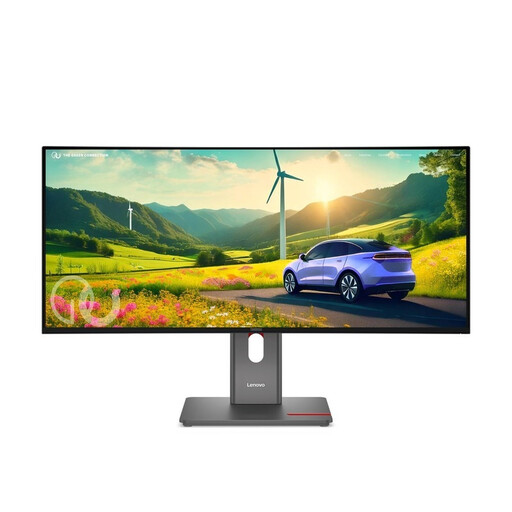
A wider workspace could be useful for viewing your preview, timeline and several tools side by side. Be sure to check how much desk space it needs, too.
Specifications include a 34-inch screen with 3440 × 1440 pixels in a 21:9 format, 120 Hz, 99% sRGB and 98% DCI-P3. The description lists factory calibration and USB-C with up to 140 W Power Delivery.
 No image available
A potential choice if motion preview matters and QHD offers enough detail for your work.
Specifications include a 27-inch QHD screen with 2560 × 1440 pixels and a 275 Hz refresh rate. The listed figures also include 99% sRGB and 99% Adobe RGB; compared with 4K, QHD gives you less resolution for previews and tools.
 No image available
The wide 21:9 workspace could be useful if you want several tools and a large preview on screen at the same time.
Specifications include a 40-inch screen with 5120 × 2160 pixels, 100 Hz and USB-C with 65 W Power Delivery. The listed figures include 99% sRGB and 87% Adobe RGB; bear this in mind if your workflow requires extensive Adobe RGB coverage.
No. Choose a colour mode and working colour space to suit your output, and use calibration and profiling together. sRGB may suit web images, but a coverage figure alone doesn’t confirm that your workflow is set up correctly.
Check that your laptop and the monitor input support the picture signal you need, and that the listed USB-C or Thunderbolt power delivery is sufficient for your laptop. EIZO lists a maximum of 60 W for the CS2740 and BenQ lists 90 W for the PD2732U; neither figure guarantees compatibility with every laptop.
Choose a colour mode to suit your project, then calibrate and profile the display as complementary steps. The International Color Consortium describes both as part of colour communication between devices. Also check that your software and operating system use the profile as intended.
When comparing monitors in the EU, use the energy label information to compare like-for-like models. Consumer goods in the EU come with a statutory guarantee of at least two years; this is separate from any voluntary manufacturer’s warranty.
No. The German Federal Institute for Occupational Safety and Health lists workplaces and teleworking workplaces as situations covered by ASR A6. Whether a particular workspace falls within its scope depends on its legal classification as a workplace.