Code reviewers who need multiple views
If you want to review a diff, related files and documentation side by side, compare the usable screen space at your preferred scaling and factor in the room available on your desk.


For reviewing individual code changes, clear text and a well-positioned screen matter most. If you want your diff, documentation and application visible at the same time, more usable screen space is a priority. Check the resolution and scaling together, and only choose USB-C docking if your laptop, cable, video signal and charging requirements are compatible with the specific monitor. A large or ultrawide model will also need enough room on your desk.
If you want to review a diff, related files and documentation side by side, compare the usable screen space at your preferred scaling and factor in the room available on your desk.
If you regularly connect your laptop, check that the monitor, laptop and cable all support the video output, peripherals and, where needed, power delivery you require.
If you usually read one code view at a time and have limited desk space, check the monitor’s dimensions and whether you can position the screen to suit where you sit.
First decide whether you’ll mostly read one view or need several windows side by side all the time. Then check readability, desk space and the connections available at your workstation.
A good fit if: You’re short on space and usually review one code view at a time.
Consider: A 23.8-inch Full HD model has fewer pixels for side-by-side views than the QHD and 4K examples considered here.
A good fit if: You want to view code and a diff together on a standard desk.
Consider: At the same screen size, the 4K example has more pixels than the QHD one. Whether the text is comfortable to read still depends on your chosen scaling.
A good fit if: You want your diff, documentation and other windows visible at the same time, and have enough room on your desk.
Consider: The width, depth and viewing distance need to suit your workstation. Advertised coding modes alone don’t demonstrate a productivity benefit for code reviews.
| Priority | What to check before buying | Who is this important to? |
|---|---|---|
| Display code clearly | Consider screen size and native resolution together; try out the text size and scaling on your own computer. | If you want to see small changes and highlights clearly, how text looks at your preferred font size matters. Readability is the main priority for around 33% of consumers. |
| See the diff and context at the same time | Plan your window layout and scaling; measure the screen width and available desk space. | If you want to compare changes with documentation or a running application, more usable screen space can often mean less switching between windows. Around 27% of consumers prioritise multiple views. |
| Connect a laptop and peripherals | Check your laptop’s video output, USB-C functions, charging requirements and cable against the connections on the specific monitor. | If you regularly connect your work laptop at a dedicated desk, the video output and, where needed, charging should suit your devices. Around 20% of consumers prioritise connectivity and docking. |
| Position the screen to suit you | Check height adjustment, tilt and, where available, pivot, as well as the monitor and stand dimensions. | If you work at an existing desk, the monitor and stand need to suit your seating position and available space. Around 20% of consumers prioritise adjustability. |
Pixel count, screen size and scaling are different factors. If the text is too small, a higher resolution alone won’t make it easier to read.
Try your code and diff at the text size you actually plan to use before choosing a monitor based on resolution.
A USB-C port on a monitor alone doesn’t confirm that it supports the right video output or provides enough power to charge your laptop.
Check the capabilities of your laptop’s port, the cable and your charging requirements against the specifications of the specific monitor.
A wide monitor needs enough room on your desk, and its size also needs to suit your viewing distance and window layout.
Measure the available width and depth, and check the dimensions of the specific model, including its stand.
BenQ advertises coding modes for the RD320UA. The available information confirms that these modes are included, but doesn’t establish a general benefit for every code review.
Start by basing your choice on verifiable features such as text clarity, adjustment options and connectivity.
The models featured come in different sizes and resolutions, with a range of connectivity options.
The RD programming monitor range may appeal if you’re looking for a large 4K display with documented coding modes.
The FlexScan examples range from a compact Full HD model to a 27-inch 4K model with USB-C docking.
The UltraWide range also includes extra-wide formats for anyone who wants to arrange multiple windows on one screen.
According to ASUS, the ProArt PA279CRV combines a 27-inch 4K display with an adjustable stand and USB-C.
The models below are mostly large and ultrawide monitors, alongside a 27-inch 4K monitor for code, diffs and other windows. As well as considering your preferred text size, check the space available and, for USB-C, your laptop’s compatibility.
 No image available
The 32:9 format could suit a multi-window layout if you have enough room on your desk.
49 inches; 5120 × 1440 pixels; 165 Hz; height-adjustable stand. The 49-inch format needs a considerable amount of space.
 No image available
The 21:9 format could work well if you want to review code and other views side by side.
34 inches; 3440 × 1440 pixels; 21:9; height-adjustable stand. This format needs more desk space than a compact monitor.
 No image available
The large ultrawide screen could be a good fit if you want to have several work windows open on one display.
40 inches; 5120 × 2160 pixels; 21:9; USB-C Power Delivery up to 65 W; height-adjustable stand. Charging requires a compatible laptop and cable; check that 65 W meets your needs.
 No image available
The 27-inch 4K format could suit a desk where you want to review code and diffs together; try out your preferred scaling.
27 inches; 3840 × 2160 pixels; USB-C Power Delivery up to 90 W; height-adjustable stand. Charging requires a compatible laptop and cable.
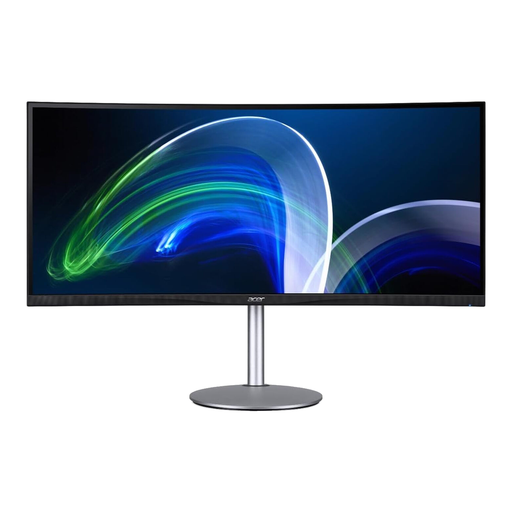 No image available
The wide format could be useful for viewing several windows side by side, if the monitor fits on your desk.
37.5 inches; 3840 × 1600 pixels; 21:9. The ultrawide format needs plenty of desk space.
No, 4K isn’t essential for this. According to Dell Germany, the Dell S2725DSM is a 27-inch monitor with 2560 × 1440 pixels; according to EIZO Germany, the EIZO EV2740X has 3840 × 2160 pixels at the same screen size. Try your preferred text size and scaling on your computer, as a higher pixel count alone won’t determine what’s comfortable for you to read.
Compare your laptop’s charging requirements with the Power Delivery output of the specific monitor. Also check that your laptop and cable support the video output you need; BenQ lists DisplayPort Alt Mode and up to 90 W via USB-C for the RD320UA.
Adjust the screen height, viewing angle, text scaling and lighting to suit your actual workspace. The DGUV lists glare, poor lighting and an unsuitable ergonomic setup as potential sources of strain; no single monitor feature will automatically resolve them.
The European Commission describes an A to G efficiency scale for monitors. Compare the energy label and the specifications for the specific model, rather than assuming that screen size or maximum charging output alone will tell you how much it costs to run.
For a relevant distance contract with a consumer, the official EU Your Europe portal generally gives a 14-day withdrawal period from delivery; exceptions and rules on return costs depend on the circumstances. Your statutory rights against the seller should be distinguished from a voluntary manufacturer’s warranty.
No, simply calling it a home office doesn’t make a private desk a teleworking workstation. According to the distinction set out by the Committee for Workplaces, a teleworking workstation requires, among other things, a corresponding agreement and equipment provided and set up by the employer. ASR A6 describes its own scope; it doesn’t automatically mean that a particular monitor is required for a private purchase.