What should you look for when buying?
First, work out how many windows you want to see at once and how much desk space you have. Then decide whether finer image detail, an easily adjustable position or connecting your laptop is the most important feature for your working day.
Compact Full HD monitor
A good fit if: you have limited desk space and mainly want to use one work window that’s easy to read.
The trade-off: compared with the QHD and 4K models mentioned, there are fewer pixels available for displaying content side by side.
27-inch QHD monitor
A good fit if: you want to arrange slides and supporting material on one screen without committing to 4K straight away.
The trade-off: connections vary by model; QHD alone doesn’t mean the monitor has USB-C docking.
27-inch 4K monitor with colour modes
A good fit if: you want to assess fine details in graphics-heavy presentations and use documented colour modes.
The trade-off: check that text and the interface remain comfortable to read at your preferred scaling.
Wide ultrawide monitor
A good fit if: you keep several materials open side by side and have plenty of desk space.
The trade-off: the extra width takes up space and doesn’t replace a suitable text size and seating position.
| Priority |
What to check before buying |
Who it matters most to |
| Space for slides and supporting material |
Compare desk width, window layout and your preferred operating system scaling. |
If I want to keep slides, notes and sources open at the same time, I need enough workspace without constantly switching between them. Around 36% of consumers are likely to put screen space and side-by-side windows first. |
| Positioning and readability |
Check height and tilt adjustment, potential reflections and the viewing distance available. |
If I work at a screen for long periods, I want to be able to adjust its position and distance to suit my workspace and eyesight. Around 29% of consumers are likely to prioritise an adjustable setup that’s easy to read. |
| Details and colours in slides |
Check the resolution and documented colour modes against the presentation’s requirements. |
If my slides contain lots of images, charts or small text, I want to be able to assess the details closely. Around 21% of consumers are likely to prioritise these design details. |
| Connecting a laptop |
Check your laptop’s USB-C video output, the suitable cable and the charging power required. |
If I regularly reconnect my laptop, I want to combine the video signal and, if possible, power supply in a suitable connection. Around 14% of consumers are likely to prioritise connecting their laptop easily. |
Joybuy monitors for working on slides
This Joybuy selection includes a compact Full HD monitor, QHD and 4K models, and a wide ultrawide monitor. For USB-C, pay particular attention to whether video transmission and charging power are suitable for your laptop.
 No image available
INNOCN 40C1U, 40-inch ultrawide monitor
The wide format is a good choice if you want to display several work materials side by side and have enough desk space.
40 inches, 5120 × 2160 pixels, IPS and a 21:9 format; USB-C with 65 W Power Delivery is listed. The stand is height-adjustable.
View at Joybuy
 No image available
INNOCN CB27U1, 27-inch 4K UHD monitor
An option if you want to check fine details in your slides and the text remains comfortable to read at your preferred scaling.
3840 × 2160 pixels and IPS; USB-C with 90 W Power Delivery and a height-adjustable stand are listed.
View at Joybuy
 No image available
Philips 276B9, 27-inch QHD IPS monitor
The 27-inch QHD format is a good option if you want more screen space for arranging slides and supporting material.
2560 × 1440 pixels and IPS; USB-C with 65 W Power Delivery and a USB hub are listed. The stand can be adjusted for height, tilt, swivel and pivot.
View at Joybuy
 No image available
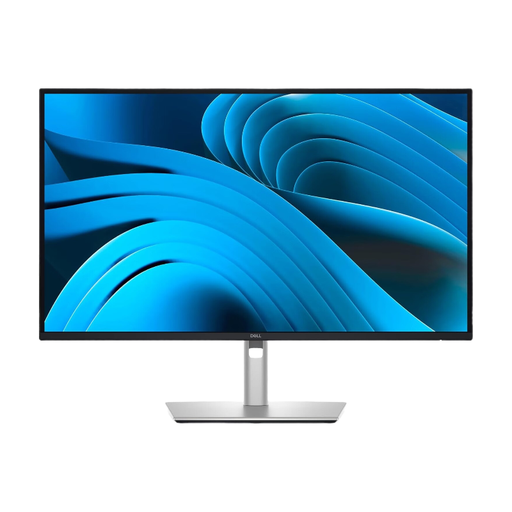
Dell Pro Plus P2725DE, 27-inch monitor
This model is suited to working on slides on a 27-inch screen if QHD resolution and the right USB-C charging power for your laptop are important to you.
2560 × 1440 pixels; USB-C with up to 90 W Power Delivery and a USB hub are listed. The stand offers height adjustment and pivot.
View at Joybuy
 No image available
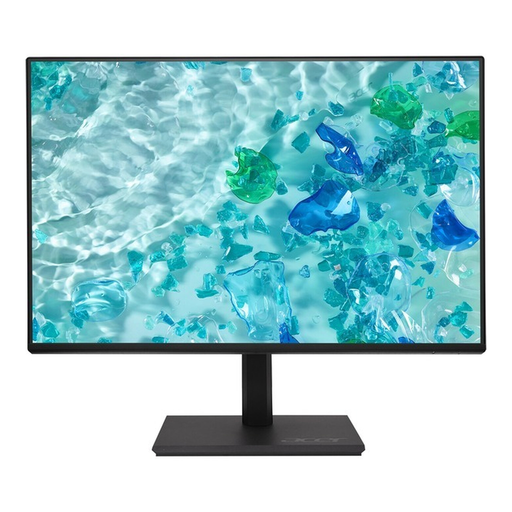
Acer Vero B247YGbmiqprx, 24-inch monitor
A more compact option if desk space is limited and you mainly work with individual windows.
23.8 inches, 1920 × 1080 pixels and IPS. The stand allows for height, tilt, swivel and pivot adjustments; there are fewer pixels available for displaying lots of content at once than on QHD or 4K models.
View at Joybuy
Frequently asked questions
Do you need 4K for presentations?
Not necessarily. According to their respective product specifications, a 27-inch QHD model offers 2560 × 1440 pixels, while the 27-inch 4K PA279CRV offers 3840 × 2160 pixels. What matters is whether you want to check finer details and whether text remains comfortable to read at your chosen scaling.
How should I position my monitor?
Set the position and viewing distance to suit your tasks, eyesight and body measurements, and look out for distracting reflections. The Federal Institute for Occupational Safety and Health treats these as part of creating a suitable computer workstation. An adjustable stand makes it easier to get the right setup, but doesn’t replace the need to do so.
What should I look out for in terms of energy use and faults?
For electronic displays in the EU, you can compare the energy label; the European Commission includes computer monitors in this product group. If you buy as a consumer in the EU, you have at least two years of legal protection from the seller if the goods are faulty. A voluntary manufacturer’s guarantee doesn’t reduce these rights.
Does the Workplace Ordinance automatically apply to every home office desk?
No. Under the Workplace Ordinance, a teleworking workstation is a computer workstation in a private home that has been set up by the employer. This includes an agreement and equipment provided and installed by the employer. Section 1(4) lists certain provisions that apply to these teleworking workstations. Simply calling a setup a home office doesn’t establish whether these requirements are met in a particular case.


