Event teams with lots of room information to share
If you want guests to be able to read schedules, meeting points or updates from some distance away, consider the amount of text, font size and available space together.


Choose a tablet based on the viewing distance and amount of text, then decide whether guests should be able to use the device. A larger display can give you more room to show multiple notices. For shared devices, it’s important to test that access can be restricted to the information app. Also check where the tablet will be placed, how it will be powered and how the display will be used: display size and battery capacity alone don’t guarantee all-day visibility.
If you want guests to be able to read schedules, meeting points or updates from some distance away, consider the amount of text, font size and available space together.
If guests can use the tablet, your team should test whether access can be restricted to the information app as intended, and how to remove the restriction.
If you’re making information available for a set period, set up and check the placement, screen timeout and power supply to suit your planned use.
Check the finished information layout in its intended location, and test how the tablet works and is powered as part of your planned setup.
| Consideration | What to check before buying | Who will find this most important? |
|---|---|---|
| Making information easy to read | Check the display size, resolution, available space and font size from the intended viewing distance. | If I want guests to read longer schedules or several times from some distance away, I’ll check the finished layout rather than focusing only on pixel counts. Around 33% of consumers would name readability as their top concern. |
| Restricting guest access | Set up and test app restrictions, a passcode and the screen timeout on the actual device. | If guests can touch the tablet, I want to stop them leaving the information or seeing other open content. Around 27% of consumers would put guest access first. |
| Ensuring a stable setup | Check the table space, viewing angle, cable route and what’s included with the selected version. | If there’s no separate stand at the intended location, I’ll need a suitable, stable setup. Around 20% of consumers would name placement as their top concern. |
| Keeping the display available | Check the planned display time, automatic screen timeout, power socket and safe cable routing together. | If the information needs to remain accessible during an event, I’ll plan the power supply and screen timeout to suit the schedule. Around 20% of consumers would prioritise display time. |
A high refresh rate affects how moving images are displayed. For static room information, font size, contrast and viewing distance are what matter when designing the layout.
Check the finished layout at the intended location rather than choosing a device based on its refresh rate alone.
A stated battery capacity doesn’t tell you how long a tablet will last with its display constantly on in your intended setup.
Test display time and screen timeout together, and plan for a suitable power supply and safe cable routing.
Having to charge the tablet can limit where you can place it, so take the power socket and cable route into account when setting it up.
Without app restrictions in place, guests can leave the app. You should also check whether any personal information visible on screen is necessary.
Set up app restrictions on the actual device, test them and check all visible content before putting the tablet in place.
For one REDMI Pad 2 Pro listing we reviewed, the stated display resolution differed from Xiaomi’s official specification.
Check the model and version against the manufacturer’s details before choosing.
The Galaxy Tab A11+ is an 11-inch Android option if this size suits the amount of text you plan to display and the room layout.
The REDMI Pad 2 Pro is a larger option if you need to display lots of information at once and have enough space for it.
The iPad (A16) is an option to compare if you plan to use a single information app and set up Guided Access.
The Tab Plus may be worth considering for a tabletop setup if its built-in stand suits the space you have in mind.
These Joybuy tablets have different display sizes for showing event information. Compare the finished layout with your planned viewing distance and the space available.
 No image available
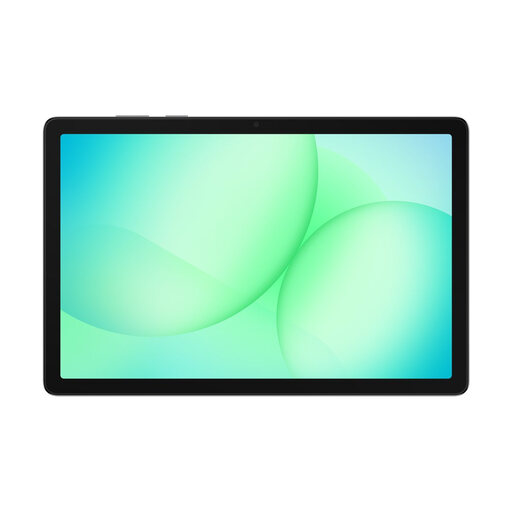
May be suitable if an 11-inch display fits the amount of text you plan to show and the available space.
11-inch display; Wi-Fi; 6 GB RAM; 128 GB storage.
 No image available
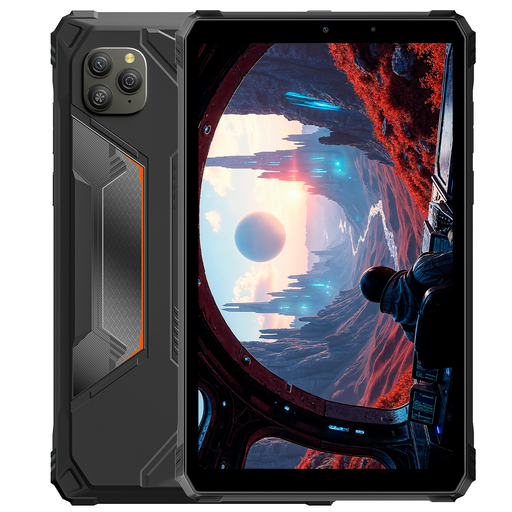
The more compact display may suit a smaller space; check that the information is still easy to read from the intended viewing distance.
8,68-inch display; 128 GB storage; 6.600 mAh battery; Android 15.
 No image available
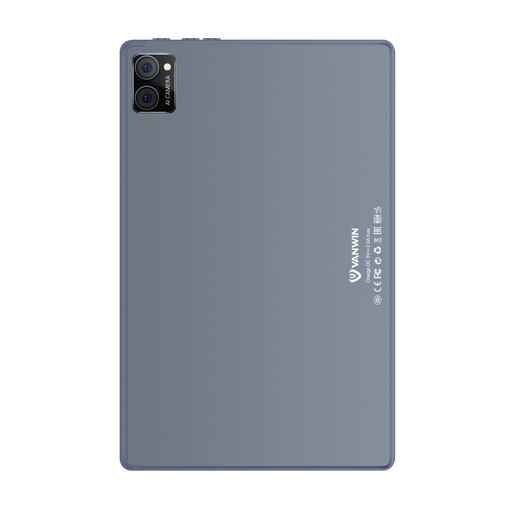
Check whether the 10,1-inch display is large enough for your intended viewing distance, and whether the keyboard and case suit your planned setup.
10,1-inch touchscreen; Android; Unisoc T310 Octa Core; 32 GB RAM; 256 GB; keyboard and case.
 No image available
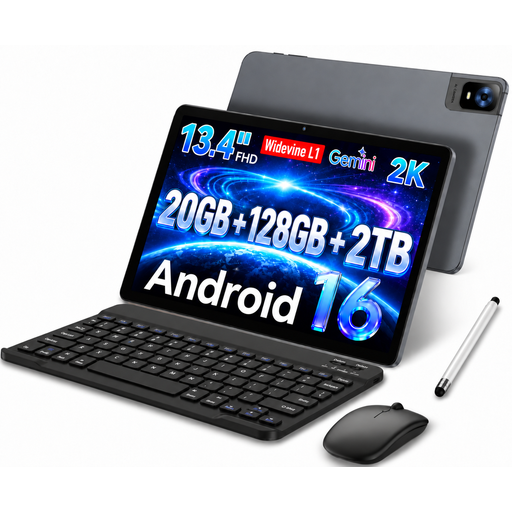
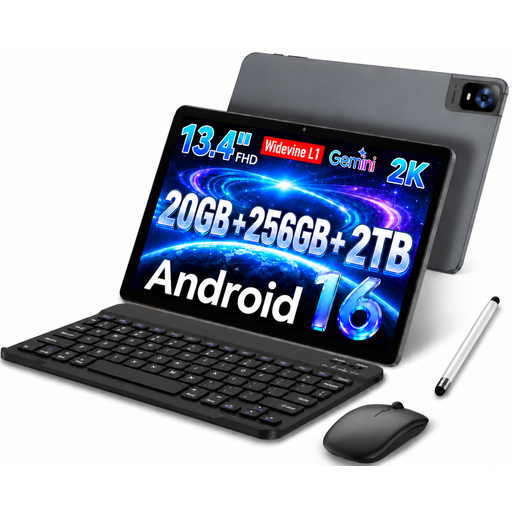
The 13,4-inch display may suit showing several notices at once, provided there’s enough space where you plan to place it.
FHD IPS display with 1920 × 1200 pixels; 20 GB RAM (8 GB + 12 GB virtual); 128 GB ROM; keyboard, mouse and stylus.
 No image available
The 13,4-inch display may suit showing several notices at once, provided there’s enough space where you plan to place it.
FHD IPS display with 1920 × 1200 pixels; 20 GB RAM (8 GB + 12 GB virtual); 256 GB ROM; keyboard, mouse and stylus.
Set up app restrictions on the tablet itself and test them before handing it over. Apple describes Guided Access on iPad, which restricts the device to one app and includes passcode settings. Google describes screen pinning on Android; some steps in its instructions apply only to certain Pixel devices.
Battery capacity alone can’t tell you whether a tablet will keep room information visible all day. Samsung lists 7.040 mAh for the Galaxy Tab A11+, but this doesn’t confirm how long it will last in this type of use. Plan display time, screen timeout and power supply together, and test your intended setup.
Check what’s included with the specific version and where you plan to put it. Apple lists a USB-C cable but no power adapter for the iPad (A16); Lenovo describes the Tab Plus as having a built-in kickstand. Whether you need any additional accessories depends on your setup.
That depends on what you’re displaying and why. The European Commission explains the GDPR principle of data minimisation: use anonymous information where possible and limit personal data to what’s necessary. General event information is a good choice for notices on open display; check with the organisation responsible before including personal information.