Editors working with long interview timelines
You want to keep the dialogue tracks, transcript and preview in view at the same time. The key question is whether you’d benefit more from extra horizontal workspace or a native 4K preview.


If you edit long interviews with the timeline, transcript and preview on screen at the same time, a wide 21:9 display could be a good fit. For checking fine 4K image details, a 4K monitor is the better choice. Also consider text legibility at your preferred scaling, the colour space required for your output and the connections on your editing computer. A monitor alone won’t speed up large project files.
You want to keep the dialogue tracks, transcript and preview in view at the same time. The key question is whether you’d benefit more from extra horizontal workspace or a native 4K preview.
You check speaker attribution and text directly in your editing software. With dialect recordings, check the transcript in your actual workflow rather than expecting a monitor to improve speech recognition.
You’ll need either colour modes suited to your output format or a connection that’s compatible with your editing laptop. Check that the ports and charging power meet the needs of your specific devices.
Start by comparing your typical editing layout: how much room do the timeline, transcript and preview need side by side? Then check image detail, your colour workflow and laptop connectivity.
| Buying priority | What to look for | Who is this most important to? |
|---|---|---|
| Room for the timeline and windows | Compare the aspect ratio and resolution with your own window layout. With 21:9, also consider desk space and text height. | If I want to see the timeline, transcript and preview side by side, horizontal workspace comes first. Around 36% of shoppers are likely to have this priority. |
| Transcript legibility | Check a typical interview segment with its transcript at your preferred scaling, and assess the text, preview and controls together. | If I need to check dialect and speaker attribution carefully, easy-to-read text matters more than extra timeline width. Around 29% of shoppers are likely to prioritise transcript legibility. |
| Colour checking | Decide on your output format, then check that the specific model offers suitable colour modes and, if needed, calibration options. | If I need to assess colours for a particular output format, I look for suitable modes and, if needed, a way to calibrate regularly. Around 21% of shoppers are likely to make colour checking their top priority. |
| Laptop connectivity | Check that your laptop’s video output, cable and power requirements match the monitor’s connections. Assess large-file processing separately. | If I edit on a laptop, the connection needs to work with my devices; a monitor isn’t a solution for slow file processing. Around 14% of shoppers are likely to prioritise laptop connectivity. |
According to the manufacturer, the LG UltraWide 34U650A-B has a resolution of 3,440 × 1,440 pixels; the 4K models discussed here have a resolution of 3,840 × 2,160 pixels. A wider screen doesn’t automatically mean a native 4K preview.
Use a typical project layout to decide whether side-by-side windows or checking 4K image detail matters more to you.
The stated charging power is up to 96 W for the ASUS PA279CRV and up to 85 W for the BenQ PD3225U. Whether video and power both work also depends on your laptop and connection.
Check your specific laptop’s video output, cable and charging requirements against the monitor’s specifications.
Depending on your device’s ports, you may need a different compatible cable or a separate power supply.
Colour modes and calibration features vary by model and need to suit your project and output workflow. A colour gamut figure alone doesn’t confirm that your entire colour workflow is set up correctly.
First decide on your output format, then check the relevant mode on the specific model. Choose specialist features only if you need them for your workflow.
A colour workflow that includes calibration may take extra time to set up.
A screen on its own won’t change how quickly large media files are processed. Adobe describes proxy files for Premiere as low-resolution editing copies for large or resource-intensive video files.
Assess your screen requirements separately from any performance issues. If you use Premiere, check whether the proxy workflow described is suitable for your clips and project.
The UltraWide 34U650A-B is a 21:9 option for wide editing layouts.
The ProArt PA279CRV combines a 27-inch 4K UHD workspace with colour presets and USB-C.
The PD3225U is a larger 31.5-inch 4K option with colour modes and Thunderbolt connectivity.
The ColorEdge CG2700X is designed for workflows involving regular, controlled colour checks; the CS2740 is another 27-inch 4K option.
The B-Line 346B1C/00 is another 34-inch UltraWide option with USB-C for wide working layouts.
This selection includes 4K screens for checking image detail and a wide 21:9 layout for timelines and multiple windows. A monitor alone won’t speed up the processing of large project files; Adobe describes proxy files for Premiere as an editing aid for resource-intensive media.
 No image available
A 27-inch 4K option if you want to check image detail and position the monitor at your editing desk.
Listed in the product name: 4K UHD, IPS, 60 Hz and HDR Ready.
 No image available
A wide workspace for fitting the timeline and several windows on screen at the same time.
Listed in the product name: 5,120 × 2,160 pixels, IPS, 100 Hz, USB-C with 65 W Power Delivery, plus PIP and PBP.
 No image available
A 27-inch 4K option if you want to check image detail and use split-screen views.
Listed in the product name: 3,840 × 2,160 pixels, 120 Hz, USB-C with 90 W Power Delivery, plus PIP and PBP.
 No image available
A larger 4K preview if you prefer checking images on a bigger screen.
Listed in the product name: 3,840 × 2,160 pixels and DisplayHDR True Black 400.
 No image available
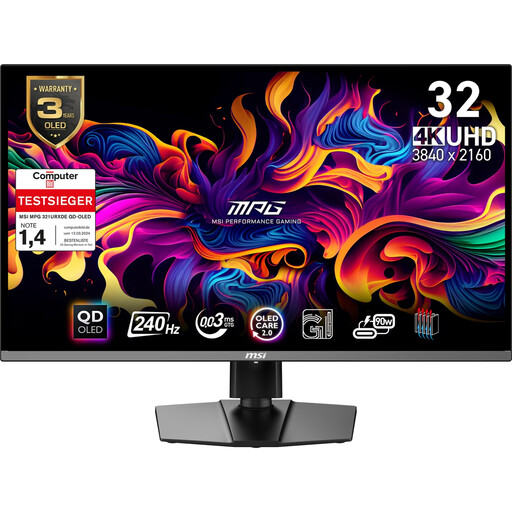
A larger 4K screen if you want to check detail and are considering a USB-C connection that also supplies power.
Listed in the product name: 3,840 × 2,160 pixels, 240 Hz and USB-C with 90 W Power Delivery.
No. Screen size alone won’t speed up the processing of large media files. Adobe describes low-resolution proxy files for Premiere as editing copies for resource-intensive videos; check whether this workflow suits your software and clips.
Plan to check the transcript. Adobe describes settings for language and speaker labelling, as well as reviewing the finished transcript; a monitor specification can’t guarantee accurate recognition of your dialect.
First, identify your project’s output format, then choose a monitor mode to match it. ASUS lists a Rec.709 mode for the PA279CRV, BenQ lists a Rec.709 mode for the PD3225U, and EIZO lists a BT.709 preset for the CG2700X. If you make colour decisions regularly, also check what calibration features the specific model offers.