Who this choice matters to

Regular video editors

If you edit longer clips or costume footage at higher resolutions, match your laptop’s specifications to your editing software and files. Adobe sets out separate minimum and recommended requirements for HD and 4K in Premiere 26.x.

Teams using a shared editing workstation

If projects move between a laptop and a shared workstation, it’s important to have access to the media and a reliable process for file paths and backups. Adobe explains access requirements for certain Premiere workflows, while the Federal Office for Information Security outlines the benefits of keeping backup copies.

Careful image reviewers

If you assess the colours and details of costumes, compare the display on the specific laptop configuration with the monitor you actually use. PC-WELT highlights display quality and ports as additional factors when choosing a laptop for video editing.

What to consider when buying

Powerful Windows laptop

A good fit if: you edit on Windows and need the full specification to suit your software, resolution and effects. For Premiere 26.x on Windows, Adobe recommends 32 GB or more of RAM and 8 GB of graphics memory for 4K and above.

Trade-off: The range name alone doesn’t confirm the memory, graphics or ports you need. Check the exact model number.

MacBook Pro with macOS

A good fit if: your editing software, plug-ins and project handover work well with macOS. Apple Support Germany documents hardware support for H.264, HEVC and ProRes, as well as an SDXC slot, on the 16-inch model with M5 Pro.

Trade-off: Codec support doesn’t guarantee a particular preview performance, and memory and SSD specifications vary by configuration.

Compact laptop and shared editing workstation

A good fit if: you mainly review or prepare footage on the go, then do more demanding editing at a shared workstation.

Trade-off: A smaller built-in display leaves less room for the timeline. Shared storage and local media copies need an agreed process for files and backups.

Consideration What to check before buying Who is it important to?
Editing and preview performance Check that your editing software and version support the resolution and format of your footage; verify the memory and graphics specifications of the exact configuration. If I edit longer costume videos or footage at higher resolutions, I want specifications that suit my software. Around 27% of consumers put suitable editing and preview performance first.
Project handover Agree in advance where the original media will be stored and how everyone will access it; check that the ports and storage suit the workstation. If several people are working on the same project, I want to access the original files without unnecessary extra steps. Around 27% of consumers prioritise handover between a laptop and a shared editing workstation.
Checking the image Check the display specifications for the exact configuration and compare them with your existing external monitor. If I’m assessing fabric colours and costume details, I want to judge the display at the workstation I actually use for checking footage. Around 20% of consumers put checking colours and details first.
Portability Match the size and weight to your actual journey and the space you need for the timeline; check for a card reader and drive connections. If I review footage in different locations, the device needs to suit the journey and accessories I have available. Around 13% of consumers prioritise portability between the filming location and editing workstation.
Specifications that suit your needs Consider your software requirements and existing drives; check what storage and backup solutions your workflow needs. If I mainly edit short or less demanding projects, I don’t want to choose specifications I won’t need. Around 13% of consumers prioritise a well-balanced overall specification over the highest possible spec.

Avoid common buying mistakes

  • Assuming Premiere recommendations are minimum requirements for all video editing

    For Premiere 26.x, Adobe distinguishes between minimum and recommended specifications, as well as between HD and 4K. Don’t assume these figures apply to other editing software.

    First check your software version, the resolution and the characteristics of your footage. Then compare the laptop’s full specification with your software’s requirements.

  • Confusing project files with shared access to original media

    Everyone working on a Premiere Team Project needs access to the media. A project file on its own doesn’t provide that access.

    Before choosing ports and storage options, agree where the media will be kept and how everyone will access it.

  • Assuming the range name tells you what a model includes

    Memory, graphics and ports can vary within the same range. At a shared editing workstation, it’s the exact configuration that matters.

    Compare the full model number and the specifications of the configuration on offer with your drives, memory cards and monitor.

Brands and ranges to consider

Lenovo

The ThinkPad T1g Gen 8 range is a Windows option for a performance-focused workstation.

  • Lenovo lists Core Ultra processors and GeForce RTX graphics for this range.
  • These range-wide specifications don’t confirm what’s included with every configuration. Notebookcheck includes a specific configuration in its photo and video editing list; check the full model number.

Apple

The MacBook Pro with macOS may suit you if your editing software, plug-ins and shared workflow are compatible.

  • For the 16-inch M5 Pro model, Apple Support Germany lists hardware support for several video formats and an SDXC slot, among other features.
  • These manufacturer specifications aren’t a performance test for a specific editing project, and memory and SSD configurations vary.

ASUS

The ProArt P16 range is a Windows option for creative work if you want to check the display and ports for your media and peripherals.

  • For the German H7606WX-SE090X configuration, ASUS lists a 16-inch OLED display, an SD Express card reader and USB4.
  • These specifications don’t automatically apply to other P16 configurations. Check that the exact specification suits your software and workstation.

HP

The ZBook Studio is another mobile Windows workstation range to compare with your editing setup.

  • HP describes the 16-inch ZBook Studio G11 as a mobile workstation PC with discrete graphics options.
  • A general description of the range doesn’t confirm the specifications of a particular product or guarantee an advantage for your videos.

Dell

The Pro Max 16 comes in configurable Windows workstation versions, allowing you to compare memory, graphics and ports.

  • Dell’s model page lists different graphics and storage configurations.
  • The specifications of one configuration don’t apply to all the others. Check the exact configuration for your workflow.

Joybuy products for your editing workstation

The Joybuy models below include a Windows laptop with discrete graphics and a compact option for reviewing and preparing footage at a shared editing workstation.
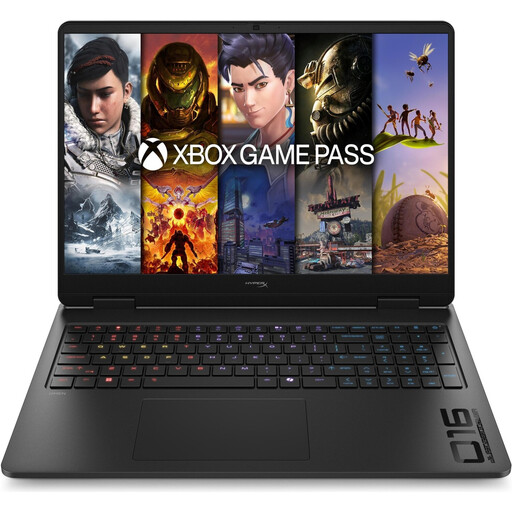
HP OMEN 16-ap1071ng, QHD, Ryzen 7 8745HX, 16 GB RAM, 1 TB SSD, GeForce RTX 5060

HP OMEN 16-ap1071ng, QHD, Ryzen 7 8745HX, 16 GB RAM, 1 TB SSD, GeForce RTX 5060

If you’re looking for a Windows laptop with discrete graphics and ports for peripherals, check that this model suits your editing software and the file workflow at your shared workstation.

Specifications include an AMD Ryzen 7 8745HX, 16 GB RAM, a 1 TB SSD, GeForce RTX 5060, a 16-inch QHD display and Windows 11 Home. It also has HDMI 2.1, USB ports and Gigabit Ethernet.

For Premiere 26.x on Windows, Adobe recommends 32 GB or more of RAM for 4K and above. This configuration has 16 GB, so it falls below that recommendation. The recommendation doesn’t apply to all editing software.

View at Joybuy
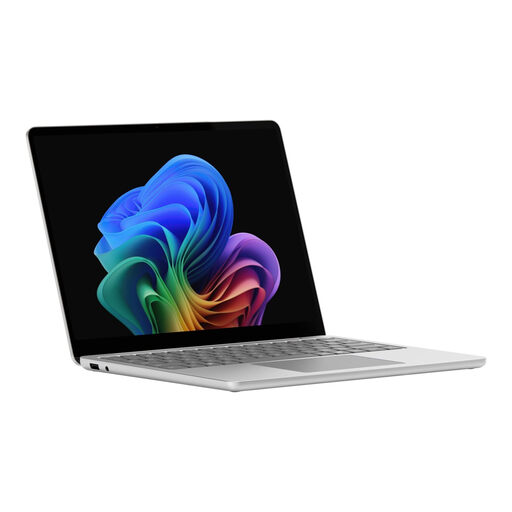
Microsoft Surface Laptop 8, Core Ultra 5, 24 GB RAM, 1 TB SSD, Platinum

Microsoft Surface Laptop 8, Core Ultra 5, 24 GB RAM, 1 TB SSD, Platinum

This compact configuration is worth considering for reviewing or preparing footage on the go. For work at a shared editing workstation, make sure you can access the media and have enough room for the timeline.

Specifications include a 13-inch touchscreen with a 1920 × 1280 resolution, Core Ultra 5, Windows 11 Pro, 24 GB RAM, a 1 TB SSD and integrated Intel graphics.

For Premiere 26.x on Windows, Adobe recommends 32 GB or more of RAM for 4K and above. This configuration has 24 GB, so it falls below that recommendation. The recommendation doesn’t apply to all editing software.

View at Joybuy

Frequently asked questions

How should we set up projects when several people are editing?

First agree where the original media will be stored and how everyone will access it. Everyone working on a Premiere Team Project needs access to the media. For Premiere Productions on shared storage, Adobe recommends using the same drive letter on Windows and keeping a local media cache at each workstation. This advice applies to the Adobe workflows mentioned, not automatically to all editing software.

Is a shared drive enough of a backup?

You should also make a separate backup of the original files and project files. The Federal Office for Information Security explains that backup copies can help you restore files if they’re damaged, accidentally deleted or stolen.

Should everyone use the same user account?

If several people use the same computer, separate user accounts can help you manage their access rights individually. The Federal Office for Information Security describes this option. You should also agree where to store project files that everyone needs to use.

What are my rights when buying a new laptop in Germany?

When you buy from a retailer as a consumer, you’re generally entitled to a two-year statutory warranty against defects, which is separate from any voluntary guarantee. Many online purchases also generally come with a 14-day right to cancel, subject to exceptions. The Verbraucherzentrale explains these time limits; the terms of your specific contract and any applicable exceptions will determine what applies.

Can I publish a carnival video showing identifiable people without further ado?

There’s no blanket answer: processing personal data requires an applicable legal basis, and valid consent is one possible basis. Whether consent is needed for a particular recording and publication, or another legal basis applies, depends on the circumstances. The Federal Commissioner for Data Protection and Freedom of Information explains the possible legal bases; your choice of laptop won’t determine the answer.