What should you look for when buying?
First, decide whether the laptop’s built-in screen will count as one of your two displays. Then you can match display support, connection options and testing tools to the way you actually work.
| Priority |
What to check before buying |
Most relevant for |
| Separate displays |
Decide whether the laptop screen will count; check display support for the specific configuration and select ‘Extend’ mode. |
If I need to use two external monitors as separate workspaces at the same time, I check the supported number of displays and the connection options. Around 36% of consumers put this independent display setup first. |
| Testing tools and apps running at the same time |
Identify the apps and browser sessions you need; compare the memory and SSD in the version on offer. |
If I use browsers, developer tools and, where needed, automation at the same time, I choose specifications to suit the way I actually work. For around 29% of consumers, having enough space for their testing tools is the main priority. |
| Operating system and browsers |
Check which browsers and testing tools are supported by the operating system you need; don’t mistake mobile emulation for testing on a real device. |
If my tests require specific browsers or an operating system, I check that these requirements are met before choosing. Around 21% of consumers prioritise having the right browser and operating system coverage. |
| Docking and accessories |
Check the monitor inputs against the cables you already have; check dock compatibility and whether a power adapter is included. |
If I often connect my laptop in different places, I want to get my monitor setup working again with as little extra effort as possible. For around 14% of consumers, easy docking is the main priority. |
Joybuy laptops for this testing setup
These MacBook Air configurations are listed for a macOS testing setup with up to two external displays. Check that the Thunderbolt 4 ports suit your monitors, and check what comes with each version.
 No image available
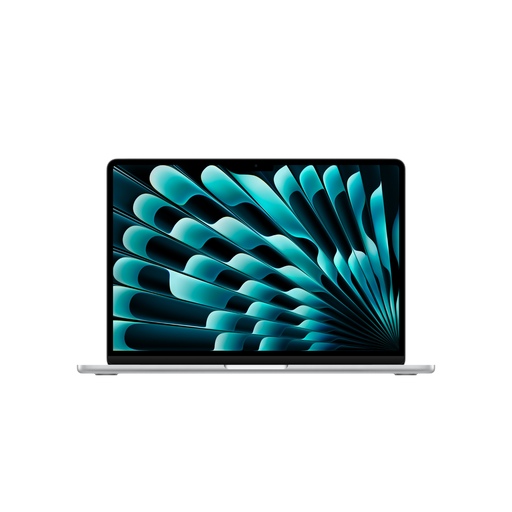
Apple 13-inch MacBook Air (M5, 2026), 10-core CPU, 10-core GPU, 16 GB, 1 TB SSD, silver, German QWERTZ keyboard
For a macOS testing setup with up to two external displays in use at the same time while the laptop lid is open.
16 GB memory; 1 TB SSD; two Thunderbolt 4 ports. Power adapter not included.
View at Joybuy
No image available
Apple 13-inch MacBook Air (M5, 2026), 10-core CPU, 10-core GPU, 24 GB, 1 TB SSD, silver, German QWERTZ keyboard
For a macOS testing setup with up to two external displays in use at the same time while the laptop lid is open.
24 GB memory; 1 TB SSD; two Thunderbolt 4 ports. Power adapter not included.
View at Joybuy
 No image available
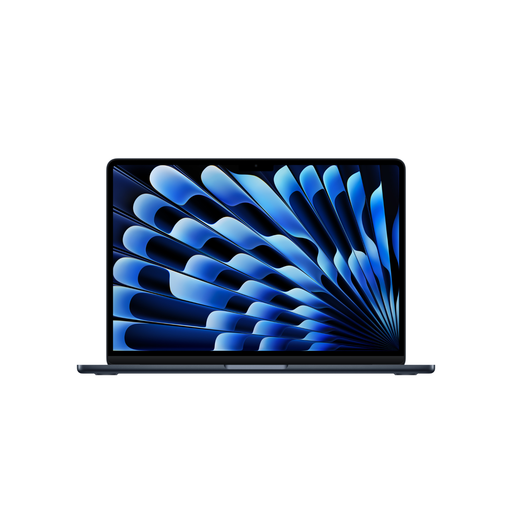
Apple 13-inch MacBook Air (M5, 2026), 10-core CPU, 8-core GPU, 16 GB, 512 GB SSD, Midnight, German QWERTZ keyboard
For a macOS testing setup with up to two external displays in use at the same time while the laptop lid is open.
16 GB memory; 512 GB SSD; two Thunderbolt 4 ports. Power adapter not included.
View at Joybuy
Frequently asked questions
Is a laptop with just one external monitor enough for testing across two screens?
Yes, if you want to count the built-in screen and use both displays independently. On Windows, select ‘Extend’ rather than mirroring; if you need two external monitors, also check display support for the specific laptop configuration.
How do I set up a second screen in Windows?
Connect the monitor and cable, then select ‘Extend’ in the display settings. Microsoft Support recommends checking the ports and cables first if you have connection problems. With multiple external monitors, your display adapter’s capabilities may also limit how many screens you can use at the same time.
Can I complete my mobile checkout testing using browser device mode alone?
No. Browser device mode isn’t a substitute for testing on a mobile device. Chrome for Developers describes it as a simulation; if behaviour on an actual device is important, you should test on one as well.
What consumer rights apply when buying a laptop in Germany?
For a consumer purchase made remotely, you generally have a 14-day right to cancel, starting from the day the goods are delivered. The EU’s Your Europe information site also states that goods bought from a professional seller come with at least two years of legal guarantee from the date of receipt. This is different from a voluntary manufacturer’s warranty. Consumer rights do not automatically apply to business purchases.


