What should you look for when buying?
Start by matching storage to the project as a whole, then check that the software, footage and ports are compatible with the exact laptop configuration.
| Priority |
What to check when buying |
Who is this especially important to? |
| Storage space and speed |
Check there’s room for originals, cache, proxies and exports, as well as the SSD specification and ports. Plan separately for working files and backups. |
If I’m bringing together lots of club footage, I need room for cache and project files as well as the originals, and I want to keep a separate backup. Consumers who prioritise storage and file organisation make up roughly 31%. |
| Smooth playback |
Check the editing software, operating system, resolution and recording format against the RAM and graphics memory in the exact configuration. For Premiere on Windows, Adobe recommends 32 GB of RAM or more for 4K and above. |
If I’m editing high-resolution clips, I want to match the software to the hardware and check whether proxies are supported for my clips. Consumers who prioritise smooth editing make up around 25%. |
| Teamwork and ports |
Check cards, drive connectors, monitor ports, operating systems and the shared editing software against the laptop model. |
If several club members are contributing footage, I want to be able to open and share files across different editing stations. Consumers whose main priority is a team workflow make up about 19%. |
| Portability |
Consider how often you’ll work in different locations, the screen size you need, the weight of the specific model and the power supply available at each location. |
If I’m travelling to different editing locations, I want to weigh up the workspace I need against the device I’ll have to carry. Consumers who prioritise portability make up approximately 13%. |
| Overall specification |
Consider the complete configuration, including any drives, adapters and software you’ll need. Only factor in upgradeability if it’s confirmed for that exact model. |
If I’m buying for the club, I want to see the full specification, including accessories, before deciding. Consumers who look at the overall cost first make up around 12%. |
Joybuy products
This selection features gaming laptops with details on internal storage, RAM and ports for an editing setup. Check the exact configuration and your editing software’s requirements before choosing a model.
 No image available
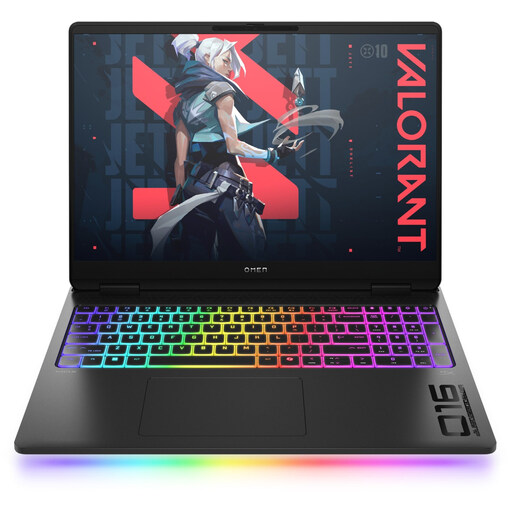
HP OMEN MAX 16-ah0698ng
A configuration with plenty of internal storage and RAM for large project files.
Intel Core Ultra 9 275HX, 64 GB RAM, 2 TB SSD and GeForce RTX 5090 with 24 GB.
16-inch WQXGA OLED display; Thunderbolt 4 and HDMI.
Windows 11 Home.
View at Joybuy
 No image available
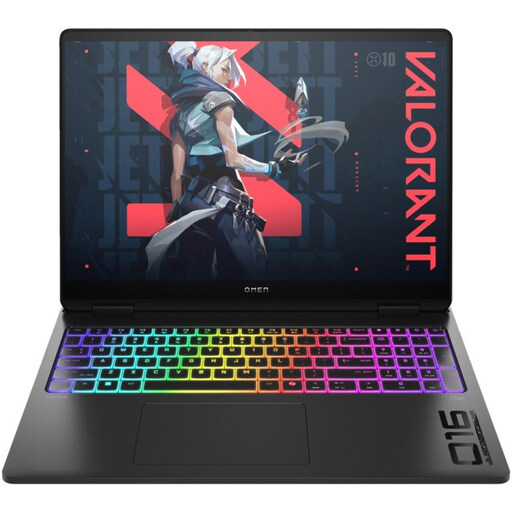
HP OMEN MAX 16-ak0693ng
Check whether the stated 1 TB SSD has enough room for your original footage, cache and exports.
AMD Ryzen AI 9 HX 375, 32 GB RAM, 1 TB SSD and GeForce RTX 5070 Ti with 12 GB.
16-inch WQXGA display; USB-C and HDMI.
Windows 11 Home.
View at Joybuy
 No image available
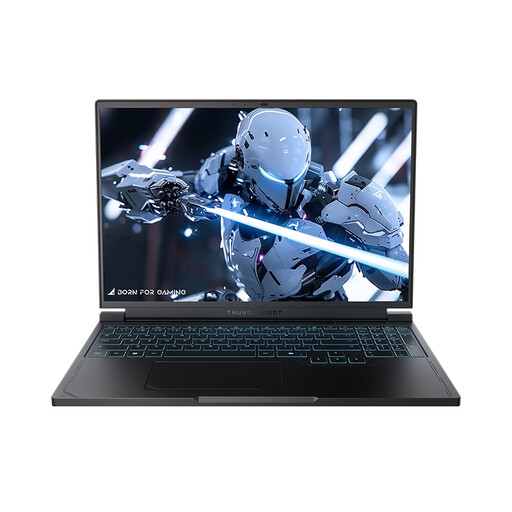
THUNDEROBOT Radiant S16
This configuration combines a 1 TB NVMe SSD with a 16-inch display; check that the specification suits your footage and editing software.
AMD Ryzen 7 7745HX, 16 GB DDR5 RAM, 1 TB SSD and NVIDIA GeForce RTX 5060.
16-inch QHD+ display with 240 Hz; USB-A, USB-C, HDMI and Mini DisplayPort.
View at Joybuy
 No image available
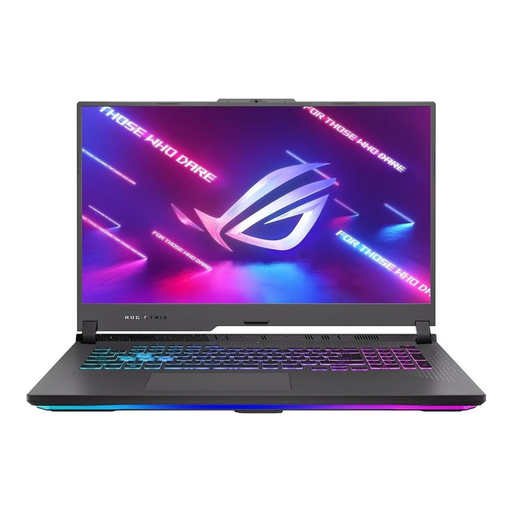
ASUS ROG Strix G17
The 17.3-inch display gives you more built-in screen space; check whether its size and specification suit your editing setup.
AMD Ryzen 9 7940HX, 16 GB RAM, 1 TB SSD and GeForce RTX 4060 with 8 GB.
17.3-inch Full HD display with 144 Hz; Windows 11.
View at Joybuy
 No image available
MSI Cyborg 15 A13VE-1005
With a 512 GB SSD, check how much space you’ll need for originals, cache and exports. You may also need additional working storage and a separate backup drive.
Intel Core i5-13420H, 16 GB DDR5 RAM, 512 GB SSD and NVIDIA GeForce RTX 4050.
15.6-inch Full HD display with 144 Hz.
Check what operating system installation and setup will be needed before use.
View at Joybuy
Frequently asked questions
Does every laptop for an anniversary film need at least 32 GB of RAM?
No. 32 GB of RAM isn’t a universal minimum requirement for video editing. For Premiere on Windows, Adobe recommends 32 GB or more for 4K and above; HD requirements are different. Check the guidance for your specific software, operating system and footage.
What can I do if playback stutters with large files?
For supported video clips, you can use proxy files in Premiere. These are lower-resolution working copies of your footage. Adobe notes some limitations, including for clips with subtitles. Remember to allow storage space for these additional files too.
Is a large laptop SSD enough to back up the club’s footage?
No. More storage on the same SSD isn’t a substitute for a separate backup. The German Federal Office for Information Security recommends keeping backups because data can be lost through hardware failure, theft or accidental deletion, for example. Keep your backup separate from your working files and check that you can restore them.
Does the right to cancel an online purchase also apply if the club places the order?
You can’t assume that it does: the right to cancel an online purchase generally applies to consumers. So check who will be party to the contract. The seller’s statutory liability for defects is also different from a voluntary guarantee.
Can the club simply add copyrighted music to its anniversary film?
Not without checking the necessary rights. According to GEMA, if a film or video uses someone else’s copyrighted music, the synchronisation rights must be cleared with the rights holders. Whether you need additional rights for a screening or online publication depends on the music and how you plan to use it.


