Start by choosing a laptop that suits the catalogue software you actually use, and check whether it runs locally or in a browser: CollectiveAccess describes Providence as a server-based web application, but this does not tell you what other programmes require. A 14-inch laptop is a more compact option if you work in different locations, while a 16-inch screen gives you more room to view records and images. File naming and separate backups remain separate tasks, regardless of your laptop, as Collections Trust points out.
Which workflow is right for you?
Collection managers working with source files
If you need to link object details, photographs and sources so they can be found easily, plan your file names, storage locations and backups alongside your choice of laptop. Collections Trust highlights these tasks when managing digital collection files; CollectiveAccess describes Providence as an environment for managing data, media and metadata.
Cataloguers working in different locations
If you move between the collection, photography area and desk, you’ll need to weigh screen space against portability and the room available to set up. A compact format may be better suited to how you work; the exact specification depends on the model variant.
Collection staff at a fixed workstation
If you often check records and images side by side, compare the screen size with the catalogue interface you actually use. The 16-inch models reviewed offer more physical screen space than the 14-inch model reviewed. Whether everything fits comfortably side by side also depends on the software.
What should you consider when choosing?
| Purchasing consideration |
What to check before buying |
Who it matters most to |
| Catalogue software and links |
Check the operating system and browser or installation requirements for the specific software, and find out where the source files are stored. |
If you want your software to manage object details and linked sources together, it needs to suit your workflow. Around 31% of consumers put the usability of their catalogue software and file links first. |
| Files and backups |
Estimate your current file collection and how much it is likely to grow. Plan internal storage and a separate backup independently. |
If you want to keep photographs, scans and working copies on your laptop, you’ll need a separate backup as well as enough storage space. Around 25% of consumers prioritise space for source files and backups. |
| Screen space |
Check with your own catalogue interface whether records and images fit side by side on screen. |
If you often compare entries and photographs at the same time, the usable screen area is particularly important. Around 19% of consumers prioritise viewing them side by side. |
| Working in different locations |
Check the available space, access to power and connections you need at each location. Don’t use display specifications to infer battery life. |
If you move between cataloguing and photography areas, the right format and available connections matter. Around 13% of consumers prioritise working in different locations. |
| Set-up and overall cost |
Check the operating system of the exact variant and include any required software and backup media in your budget. |
If you want your laptop to be ready to use with your chosen software, check the operating system and set-up requirements before buying. Around 12% of consumers prioritise the overall effort involved in getting started. |
Avoiding purchasing and planning mistakes
-
Confusing a larger SSD with a backup
Internal storage keeps working files on your laptop, but that copy alone won’t protect them from loss. Plan file naming, working copies and a separate backup together.
You may also need external storage or another backup method to keep a separate copy.
Check how much space you’re likely to need and decide where a separate copy of your files will be stored.
-
Assuming similarly named laptop variants are identical
Specifications can vary within a product family. The HP ProBook 460 G11 A23HLEA#ABD reviewed here is listed with FreeDOS, which is an important difference if you want to use a Windows application.
Check the full model number, operating system, display and storage for the exact offer you’re considering.
-
Choosing your catalogue software after buying a laptop
Browser-based cataloguing and locally installed software may have different requirements for access, operating systems and file management. CollectiveAccess describes Providence as a server-based web application; this does not establish the requirements of other systems or your specific installation.
Depending on the system, you may need to allow for extra software or set-up work.
First, confirm which system you’ll use and how it manages source files.
Key brands to consider
Lenovo
The ThinkPad E14 Gen 7 21SX000RGE reviewed here is a compact 14-inch option for a Windows working environment.
- Lenovo lists a matt WUXGA display, German keyboard, 16 GB RAM and 512 GB SSD for this variant.
- These specifications apply to the exact 21SX000RGE variant and shouldn’t be assumed to apply to other E14 configurations.
ASUS
The Vivobook 16 M1605NAQ-MB077W is a 16-inch option with Windows 11 Home, suited to workflows that benefit from a larger view.
- ASUS lists a matt WUXGA display for this exact variant.
- Specifications for other M1605 variants don’t automatically apply to the M1605NAQ-MB077W.
HP
The ProBook 460 G11 A23HLEA#ABD reviewed here combines a 16-inch WUXGA display with a 1 TB SSD.
- HP lists a 16-inch WUXGA screen and 1 TB SSD for this exact variant.
- HP lists FreeDOS rather than Windows pre-installed. If your software requires Windows, you’ll need to plan separately for the operating system and set-up.
Laptop selection at Joybuy
This selection includes compact 14-inch laptops and 16-inch models for working with records, photographs and locally stored source files.
 No image available
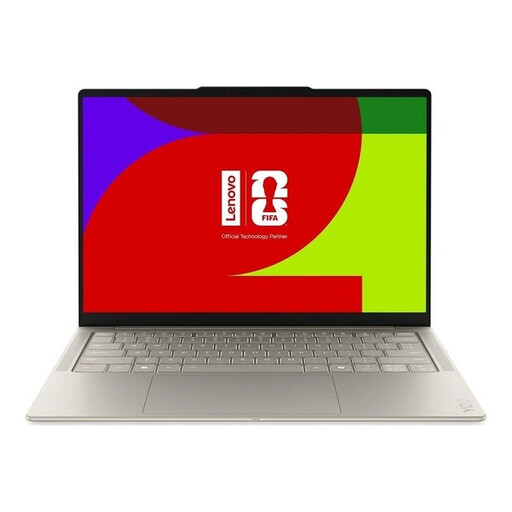
Lenovo Yoga Slim 7i Aura Edition, 14-inch, 2.8K OLED, Core Ultra 7 355, 16 GB/1 TB SSD, Windows 11 Evo
The 14-inch format is a compact option for cataloguing in different locations.
Listed in the product name: 2.8K OLED display, 16 GB RAM, 1 TB SSD and Windows 11 Evo.
View at Joybuy
 No image available
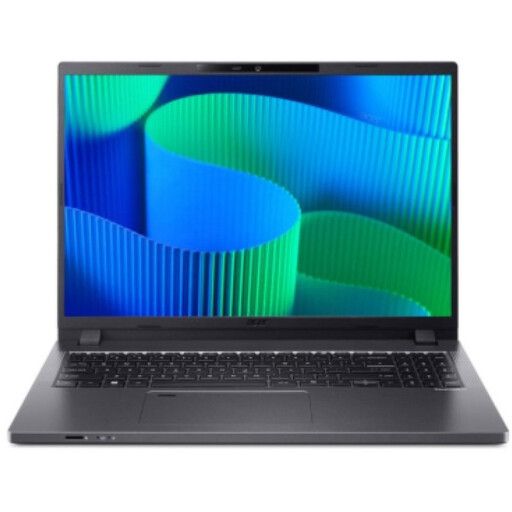
Acer TravelMate TMP216-41-TCO, 16-inch WUXGA, Ryzen 3 PRO 7335U, 16 GB/512 GB SSD, Windows 11 Pro Education
The 16-inch format is an option if you want to check records and images at a fixed cataloguing workstation.
Listed in the product name: WUXGA display, 16 GB DDR5, 512 GB SSD and Windows 11 Pro Education.
View at Joybuy
 No image available
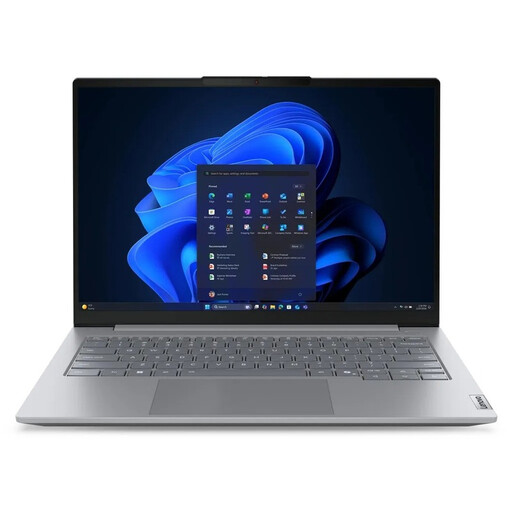
Lenovo ThinkBook 16 G9 AHP 21UT, Ryzen 5 220, 32 GB RAM, 1 TB NVMe SSD, Windows 11 Pro
The 16-inch format is worth considering if you want more screen space for records and images.
Listed in the product name: AMD Ryzen 5 220 at 3.2 GHz, 32 GB RAM, 1 TB NVMe SSD and Windows 11 Pro.
View at Joybuy
 No image available
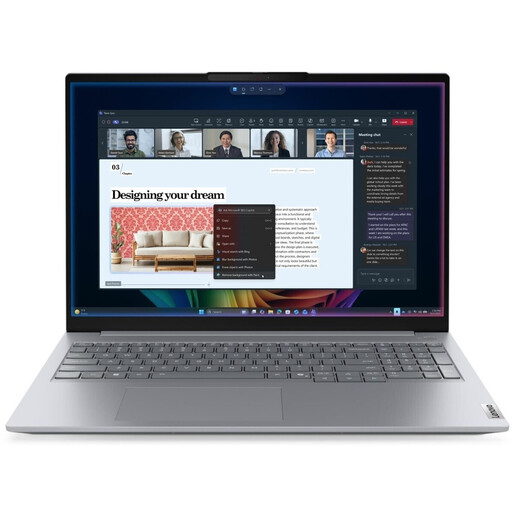
Lenovo ThinkBook 16 Gen 9, Intel Core Ultra 5 325, 32 GB DDR5, 512 GB PCIe SSD, Windows 11 Pro
A 16-inch model for checking records and images at a fixed workstation.
Listed in the product name: Intel Core Ultra 5 325, 32 GB DDR5, 512 GB PCIe SSD and Windows 11 Pro.
View at Joybuy
 No image available
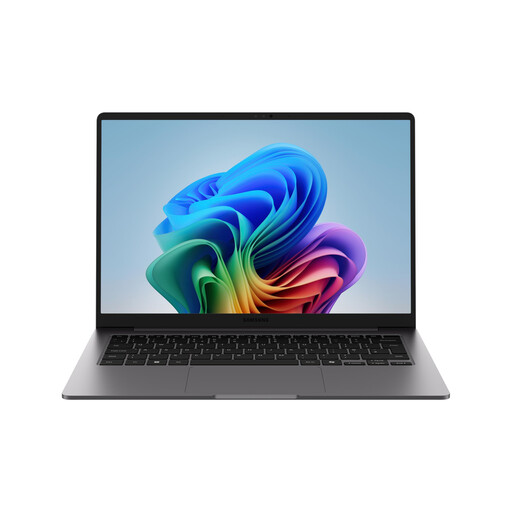
Samsung Galaxy Book6 Enterprise Edition, 14-inch, Core Ultra 7 355, 32 GB LPDDR5X, 512 GB NVMe SSD, Windows 11 Pro
The 14-inch format is a compact option if you want to use your laptop in different cataloguing locations.
Listed in the product name: 32 GB LPDDR5X, 512 GB NVMe SSD, Windows 11 Pro and an RJ45 port.
View at Joybuy
Frequently asked questions
Do I have to use Windows for cataloguing?
No, it depends on the catalogue software you use. CollectiveAccess describes Providence as a web-based application; this doesn’t tell you what other programmes or your installation require. The HP A23HLEA#ABD variant reviewed here is listed with FreeDOS, while the Lenovo and ASUS variants reviewed come with Windows.
How should I prepare source files for the catalogue?
Choose a clear naming system and a storage location for photographs, scans and working copies, and back up the files separately. For imports into CollectiveAccess, its documentation lists XLSX and CSV among the supported formats; another system may have different import rules.
Is a large internal SSD enough to back up my data?
No. A larger SSD gives you more room for local files, but it doesn’t replace a separate backup. Collections Trust lists file naming, backups, and master and working copies as separate tasks.
What are my rights when buying a laptop from a business seller in Germany?
Your statutory rights against the seller are different from a voluntary guarantee. The European Union’s consumer information states that consumers are entitled to at least two years’ legal guarantee from receipt of the goods. For an online distance purchase, you generally have a 14-day right to cancel; conditions and exceptions may apply in individual cases.


