If you mainly read digital assignments and type your feedback, a laptop that’s easy to position and offers plenty of screen space is a sensible choice. For longer sessions, the DGUV also recommends using external input devices and, where possible, an external monitor. If you often mark work by hand, a device with pen input may better suit the way you work. Check that your software is compatible, that the right stylus is included or available, and that you’re following your school’s rules on processing pupils’ data.
Which laptop is right for you?
For marking work at a fixed desk
If you read a lot of assignments and mainly give typed feedback, look for a screen that’s easy to use and a workstation you can set up ergonomically. For longer working sessions, the DGUV also recommends using an external keyboard and mouse, and an external monitor where possible.
For handwritten marking
If you often add freehand marks or notes in the margins, check that your marking file, software and compatible stylus all work together. Adobe describes how to draw freehand on PDFs, while Microsoft notes that the stylus and keyboard for the 12th Edition Surface Pro are sold separately.
For teachers using school-provided IT
If you need to use specific school platforms or printers, or follow rules on processing pupils’ data, check the requirements before you buy. North Rhine-Westphalia’s Ministry of Education sets out special conditions for processing work-related personal data on teachers’ personal devices. These rules do not automatically apply in other German states.
What should you look for when buying?
First decide whether you’ll mainly be reading and typing, or regularly adding handwritten annotations. Then check your software, accessories and the rules for handling school data.
The table focuses on the main consideration when choosing a laptop for marking work digitally at home.
| Priority |
What to check before buying |
Who it matters most to |
| Readability and ergonomics |
Screen size and positioning, a connection for an external monitor, and room for a keyboard and mouse. |
If I read assignments at a fixed desk for long periods, I need a screen that’s easy to use and space for external input devices. Readability is the main priority for around 28% of consumers. |
| Handwritten annotations |
Test the software and file format with a sample file; check stylus compatibility and what’s included with the exact model. |
If I want to mark work directly, the stylus, file and marking software need to work together for the way I work. Freehand marking is the top priority for around 22% of consumers. |
| Software and peripherals |
Check that the operating system and processor architecture work with the software you need and, where applicable, printer drivers. |
If my school requires specific software or printers, I want to check they’ll work with the exact device before buying. Software compatibility is the main priority for around 22% of consumers. |
| Processing pupils’ data |
Ask about your school’s and state’s rules on permissions, storage locations and security measures. |
If I want to work on pupils’ personal data on a personal device, I need to know the school rules first. Around 17% of consumers prioritise data permissions. |
| Portability |
Check the weight and accessories for the exact configuration, as well as the conditions behind any battery-life claims. |
If I take my laptop between different workplaces, a portable device matters more to me than having the largest possible built-in screen. Around 11% of consumers prioritise portability. |
Which buying mistakes should you avoid?
-
Assuming a touchscreen is ready for stylus-based marking
A touchscreen alone doesn’t tell you whether the stylus you want is compatible with that particular version of the device, or whether the marking software supports the PDF workflow you need.
Check compatibility and what’s included for the exact generation, then test your intended workflow with a suitable file.
You may need to buy a compatible stylus and keyboard separately.
-
Buying a laptop range without checking the operating system
HP lists FreeDOS for the ProBook 460 G11 configuration A23HLEA#ABD. So the name of a laptop range alone doesn’t tell you which operating system comes with a particular version.
Check the full model code and pre-installed operating system against your school software requirements.
If a version doesn’t include the operating system you need, you may have extra set-up steps or need to source suitable software.
-
Choosing Windows on Arm without checking essential software or printers
Microsoft notes that installer software from printer manufacturers may cause problems on some ARM PCs.
Before you decide, check that the applications and peripherals you actually need work with the specific configuration.
-
Taking technical security features as permission to use a device
Buying a laptop for personal use doesn’t automatically mean you’re allowed to process work-related personal data on it. In North Rhine-Westphalia, the relevant Ministry of Education requires teachers to sign a declaration of commitment and obtain approval from the headteacher.
Before using a personal device, check which permissions and workflows apply in your school and state.
Leading brands and device ranges
Lenovo
The ThinkPad E16 Gen 3 (AMD) is an example of a larger laptop suited to typed feedback and desk-based work.
- Lenovo’s range documentation lists connections for external monitors.
- Specifications vary. The range name alone doesn’t confirm stylus support or the features of an individual product.
HP
The ProBook 460 G11 and EliteBook X Flip G2i suit different needs: a larger laptop and a convertible designed for stylus use.
- HP lists a 16-inch WUXGA display and FreeDOS for the ProBook 460 G11 A23HLEA#ABD. An EliteBook X Flip listing specifies a 14-inch touchscreen.
- These details refer to different configurations and can’t be applied across the two models.
Microsoft
Surface Pro is worth considering if you want to switch between tablet-style stylus input and using a keyboard.
- Microsoft lists the stylus and keyboard for the 12th Edition Surface Pro as sold separately.
- The specifications for the Surface Pro for Business, 11th Edition, describe a different model. Check the generation, accessories and what’s included for the exact version.
Dell
The Latitude 5455 is an example of a 14-inch business laptop running Windows on Arm, suited to a compatible software workflow.
- Dell lists an ARM64 processor and Windows 11 Pro for the configuration shown.
- This doesn’t guarantee that specific school software or a printer will work. Microsoft describes possible installation issues with some ARM PCs.
Joybuy products for digital marking
This selection includes larger laptops for desk-based work, as well as a 2-in-1 model for a more flexible way to work.
 No image available
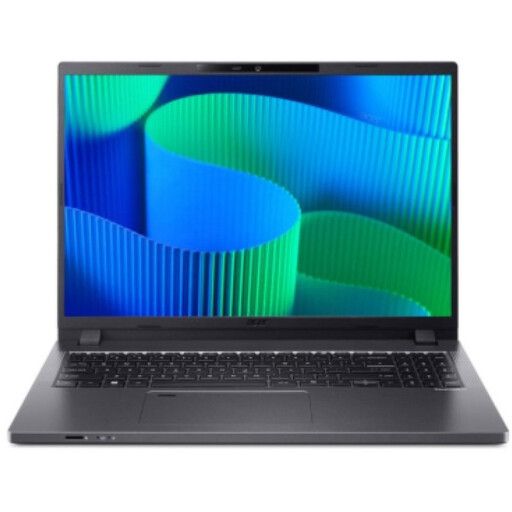
Acer TravelMate TMP216-41-TCO
A 16-inch configuration for working with digital documents at your desk.
16 inches, WUXGA, AMD Ryzen 3 PRO 7335U, 16 GB DDR5, 512 GB SSD and Windows 11 Pro Education.
View at Joybuy
 No image available
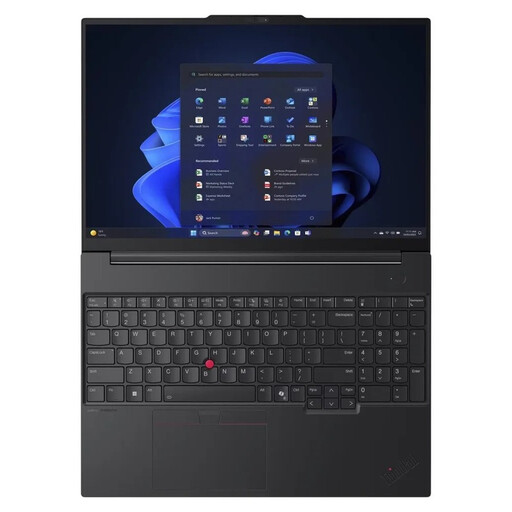
Lenovo ThinkPad E16 Gen 3 21ST
A larger laptop for reading and typing at a fixed workstation.
16 inches, AMD Ryzen 7 250 at 3.3 GHz, 32 GB RAM, 1 TB SSD and Windows 11 Pro.
View at Joybuy
 No image available
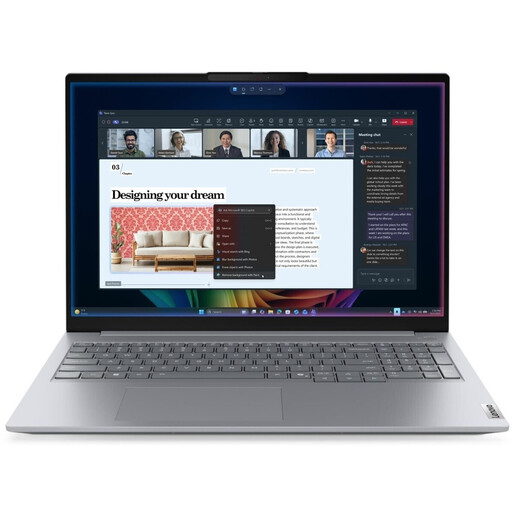
Lenovo ThinkBook 16 Gen 9
A 16-inch laptop for reading and editing digital assignments at your desk.
Intel Core Ultra 5 325, 32 GB DDR5, 512 GB PCIe SSD and Windows 11 Pro.
View at Joybuy
 No image available
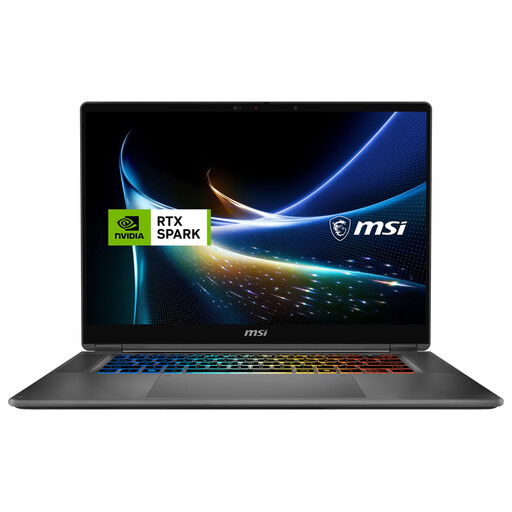
MSI Prestige N16 Flip AI+ C1XMT-027Y
The 2-in-1 design is useful if you want to switch between typing feedback and adding handwritten notes. Check the stylus and PDF workflow with your software.
16 inches, 128 GB DDR5, 2 TB SSD and Windows 11 Pro.
View at Joybuy
 No image available
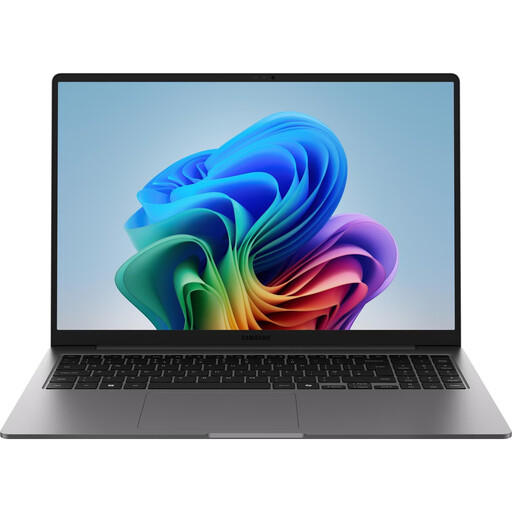
Samsung Galaxy Book6 Enterprise Edition
A 16-inch laptop for working with digital documents at a fixed workstation.
Intel Core Ultra 7 355, 16 GB LPDDR5X, 512 GB NVMe SSD and Windows 11 Pro.
View at Joybuy
Frequently asked questions
How should I set up a laptop for longer marking sessions?
For longer working sessions, the DGUV recommends an external keyboard and mouse, and an external monitor where possible. Position the screen and input devices to suit your workspace, rather than judging ergonomics by the laptop’s size alone.
Can I mark any PDF with a stylus?
The file format alone doesn’t tell you whether a particular marking workflow will work. Using an approved sample file, check that your school platform, software and stylus support the annotations you need and let you return the file.
What rights do I have when I buy a laptop online?
When you buy a new device as a consumer and it’s faulty, you generally have two years of statutory consumer rights against the seller. This is separate from any guarantee. Online consumer contracts usually come with a 14-day right to cancel. The conditions for your specific purchase apply.
Can I mark pupils’ work at home on my personal laptop?
There isn’t a single answer that applies across Germany based on the laptop model alone. For North Rhine-Westphalia, the Ministry of Education requires a declaration of commitment and approval from the headteacher when processing work-related personal data on teachers’ personal devices. Check your school’s and state’s rules before handling this data.


