Reviewing long club recordings
You’re handling a large amount of raw footage and need to organise it and get it ready for editing. Managing storage and creating working copies are key.


For long club recordings, your laptop should suit the editing software you use and offer enough space for original footage, project files and backups. It doesn’t simply need the highest possible spec. For Premiere, Adobe recommends 32 GB of RAM or more for 4K footage and above. Proxy files can make editing easier by using lower-resolution working copies, but they don’t replace the originals needed for the final export. You should also check the card reader, ports, display and weight against your footage and where you’ll be working.
You’re handling a large amount of raw footage and need to organise it and get it ready for editing. Managing storage and creating working copies are key.
You’re working with high-resolution or complex clips and need to match your laptop’s specification to the requirements of the editing software you actually use.
You move between the filming location, the club and your editing desk. Transferring footage, connectivity, the display and reliable file syncing all affect your choice.
When you’re working with long club recordings, it’s worth starting by calculating how much storage you’ll actually need and planning your editing workflow. You can then decide how much performance, suitable media connections, image monitoring and portability matter for your day-to-day work.
| Priority | What to check when buying | Who is it important to? |
|---|---|---|
| Storage and footage management | Check the file sizes of your originals and allow space for projects, cache, working copies and backups. Check the ports for external drives. | If you want to keep long original recordings, editing files and backups organised, a clear storage plan is essential. Around 25% of consumers put storage and footage management first. |
| Editing and playback performance | Match your editing software, version, operating system, resolution and codec to the CPU, RAM and GPU in the specific configuration. For Premiere 26.x, Adobe recommends 32 GB of RAM or more for 4K and above. | If you edit high-resolution or complex clips, check the requirements of your editing software carefully. Around 25% of consumers prioritise editing and playback performance. |
| Transferring footage from recording media | Make a note of the memory cards and drives you use, then check them against the card reader and ports on the specific laptop variant. | If memory cards and external drives are part of your club’s workflow, the right transfer options make it easier to import footage. Around 20% of consumers name this as their top priority. |
| Image monitoring | Compare the display specifications for the exact variant and decide whether you’ll finish your edits on the laptop or on an external monitor you already own. | If you want to judge colour and framing while you edit, consider the display alongside your workflow. Around 15% of consumers prioritise image monitoring. |
| Working in different locations | Consider how often you’ll move between locations, as well as the weight, screen size and power supply of the specific variant. | If you move between the club, filming locations and your editing desk, weight could be the deciding factor. Around 15% of consumers prioritise editing on the go. |
Originals, working copies and cache files can all take up space at the same time. So a single internal SSD doesn’t automatically solve where you’ll store project files and backups.
Check the actual file sizes and decide where to keep your originals, editing files and backups. Depending on your workflow, you may need additional media and backup drives.
RAM, SSD capacity and other features can vary between versions. The model name alone doesn’t confirm that a device has the configuration you’re looking for.
Check the full model name and the specifications that matter for your editing against the exact version on offer.
In the proxy workflow described by Adobe for Premiere, lower-resolution copies are used as working files. The original media still needs to be available for exporting at full resolution.
Keep your originals organised and check that they’re correctly linked in the project before exporting the final version. Creating working copies takes extra time and storage space.
The ProArt P16 range may suit teams weighing up a creator laptop’s display, media connections and storage together.
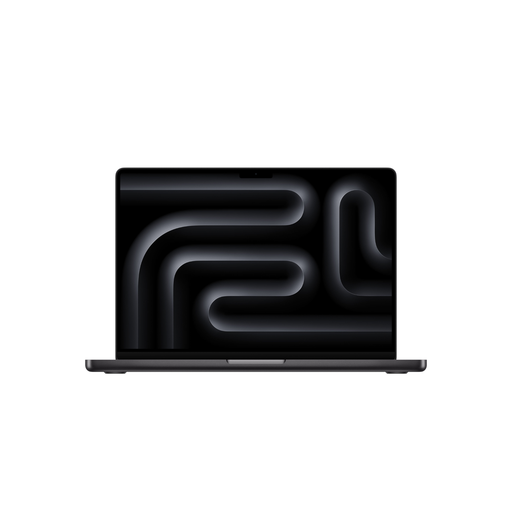
The MacBook Pro is a macOS option if it’s compatible with your club team’s editing software and file formats.
The Legion Pro 5 is a Windows option if the specifications of the specific variant meet your editing requirements.
The ZBook Studio G11 may be worth considering if your team wants to take configuration and service requirements into account.
The Joybuy laptops below offer a range of Windows and macOS configurations for editing, transferring footage and working in different locations. Check the requirements of your editing software and the size of your original files against the specific variant.
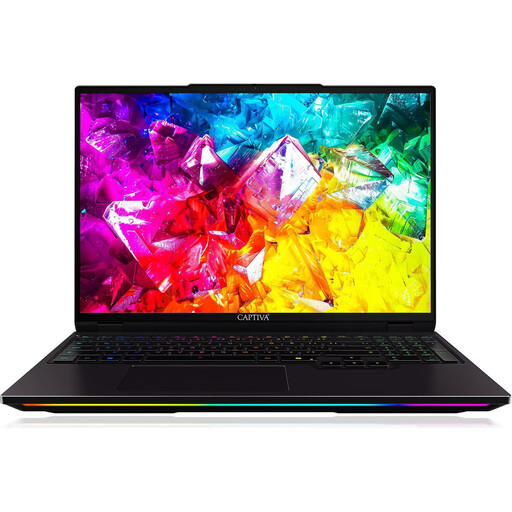 No product image available
Could suit a Windows editing setup if 32 GB of RAM and a card reader work for your workflow.
16-inch WQXGA IPS display with 300 Hz; Intel Core Ultra 9 275HX; NVIDIA GeForce RTX 5080 with 16 GB GDDR7; 32 GB DDR5; 1 TB SSD; Windows 11 Home.
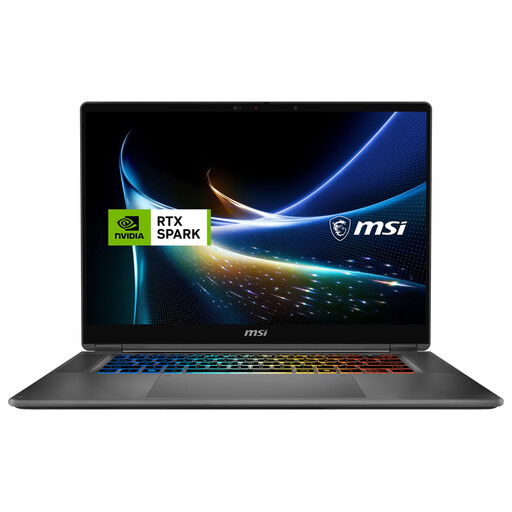 No product image available
The 2-in-1 design and OLED display may appeal to teams who want to check footage directly on the device.
16-inch UHD+ Tandem OLED display; 360-degree design; 128 GB DDR5; 2 TB SSD; USB4; Windows 11 Pro.
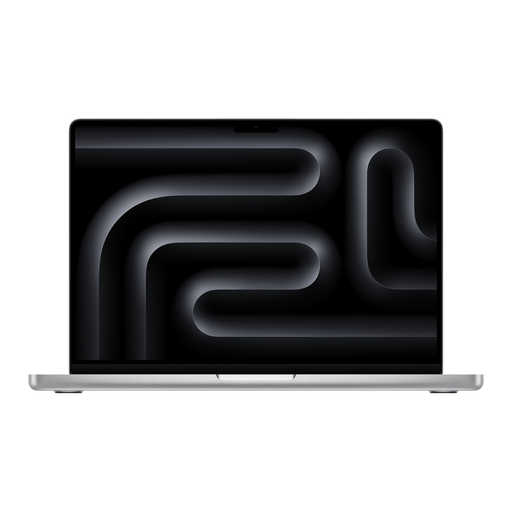 No product image available
A more compact macOS configuration, if your team’s editing software and file formats are compatible with MacBook Pro.
M5 Max; 36 GB memory; 2 TB SSD; 14.2-inch display; SDXC card slot; HDMI and Thunderbolt ports; 1.62 kg.
The product description states that a power adapter isn’t included; you’ll need to buy one separately.
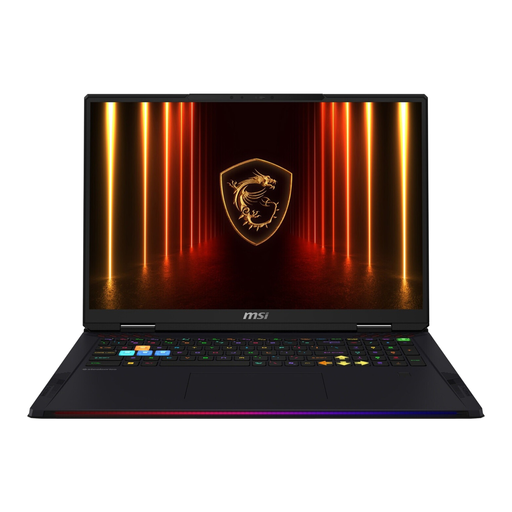 No product image available
Could suit large projects on a dedicated editing desk if a big display and plenty of internal storage are important.
18-inch WQUXGA display; Intel Core Ultra 9 285HX; RTX 5090; 64 GB RAM; 4 TB SSD; 3.6 kg.
Bear the listed weight in mind if you’ll be carrying it around frequently.
 No product image available
A macOS option if it’s compatible with your editing software and file formats, and 24 GB of RAM is enough for your workflow.
M5 Pro with 18-core CPU and 20-core GPU; 24 GB RAM; 1 TB SSD; 16.2-inch display; SDXC card slot; HDMI and Thunderbolt ports; 2.14 kg.
For Premiere with 4K footage or above, Adobe recommends 32 GB of RAM or more; this configuration has 24 GB. The product description states that a power adapter isn’t included.
No. Start by checking how much footage you already have, then allow extra space for working files and backups. Adobe recommends fast SSD or NVMe storage for video production and describes using separate drives for the system, cache and media as one way to organise storage. This doesn’t point to a one-size-fits-all capacity for your film.
If you use Premiere, you could try a proxy workflow. Adobe describes lower-resolution copies as working files for editing; the original media needs to be available for exporting at full resolution.
Allow for external drives, suitable adapters and software costs if needed. Adobe notes that using Premiere may involve additional costs or subscription fees. For a private consumer purchase made at a distance, the Verbraucherzentrale says you generally have a 14-day right to cancel. If the club is making the purchase, check the contracting party and applicable terms separately.
Not simply because the club filmed it. The Rhineland-Palatinate data protection authority points out that data protection law also applies to clubs, and that identifiable people in photos may count as personal data. For your specific footage and planned publication, check the relevant legal basis and image rights; this doesn’t amount to blanket permission.