Choose a laptop based on your editing software, video resolution and the ports needed for your recording devices. If your audio is recorded separately, the key is having a suitable synchronisation workflow in your software – not necessarily a particularly powerful graphics card. For Premiere, Adobe recommends 32 GB of RAM or more for 4K; proxies can make editing easier on less powerful hardware, but require extra preparation.
Which approach is right for you?
Family videos with external audio
If you’re combining camera or mobile phone footage with separately recorded conversations, you’ll need a suitable synchronisation workflow, well-organised storage and ports for your recording devices. Adobe describes features in Premiere for synchronising separately recorded clips.
Editing 4K footage from multiple recordings
For higher-resolution footage, match the RAM, storage drive and, where necessary, GPU to the software you use. Adobe recommends 32 GB of RAM or more for Premiere at 4K and higher resolutions.
Occasional editing with an eye on effort
If you only edit family videos occasionally, you could consider more modest hardware and use proxies if needed. Adobe describes proxies as a way to make playback and editing easier on less powerful hardware.
What should you look for when buying?
Consider your audio and video workflow separately from the hardware requirements for resolution and editing. Adobe describes dedicated features in Premiere for synchronising separately recorded clips.
Portable MacBook Pro
A good fit if: You often edit on the go and want macOS; check the specific chip, RAM and SSD configuration.
Consider: The adapters you need and what’s included, such as a power adapter that may need to be bought separately, can affect your choice.
Windows creator laptop with a dedicated GPU
A good fit if: Alongside video editing, you work on demanding 4K projects and want to connect cards or drives directly.
Consider: You don’t need a top-spec configuration just because your audio is recorded separately; features and costs vary between models.
Windows laptop with a proxy workflow
A good fit if: You edit 4K footage occasionally and want to see whether proxies will work for your workflow on less powerful hardware.
Consider: The requirements of your specific software and extra space for original footage, project files and temporary files are still important.
| What you need |
What to check when buying |
Who does this matter most to? |
| Syncing separate audio |
Check whether your editing software imports the files and offers a suitable manual or automatic synchronisation feature. |
If you record video and conversations on different devices, your workflow should bring them together reliably. Around 33% of consumers put audio synchronisation first. |
| Performance for your resolution |
Match the resolution and editing software to the RAM and GPU; Adobe recommends 32 GB of RAM or more for Premiere at 4K. |
If you edit several high-resolution recordings, you’ll want to choose a configuration that suits your software. Around 27% of consumers prioritise 4K performance. |
| Effort and overall cost |
Check the configuration, software model, power adapter and any required adapters for the specific offer. |
If you only edit personal videos occasionally, you won’t want to pay for features your workflow doesn’t need. Around 20% of consumers focus above all on the overall cost. |
| Transferring and storing files |
Check that the ports work with your camera, memory cards and drives; look at SSD capacity and any adapters you may need. |
If you import footage from several sources, you’ll need a suitable way to transfer files and store your projects. Around 20% of consumers put storage and file transfer first. |
Common buying mistakes
-
Assuming a powerful graphics card will solve separate-audio issues
Synchronising separately recorded files is first and foremost a matter of your editing software and workflow. The requirements for more demanding video editing are a separate consideration.
Test your planned import and synchronisation workflow, then choose a CPU, RAM and GPU to suit your resolution and software.
-
Assuming every configuration in a range is the same
Devices in the same range can differ in RAM, SSD, graphics and ports.
Compare the full model number and the exact configuration you’ve selected with the manufacturer’s specifications.
-
Overlooking the power adapter and editing software in your plans
Depending on the offer, you may need to pay extra for a power adapter, editing software or a subscription. Check what’s included with the specific device.
Include any accessories you need and the software model in your cost comparison.
Key brands at a glance
Apple
The MacBook Pro is a macOS option for editing on the go. Apple’s specifications for the 14-inch model with M5 Pro list unified memory that varies by configuration, SSD options and a Media Engine for multiple video formats.
- Configurations vary by chip option, RAM and SSD.
- Manufacturer specifications aren’t an independent test using family footage. Also check what’s included with the offer.
ASUS
The ProArt P16 range is aimed at users who want to compare the display, ports and hardware of a creator-focused configuration in detail.
- For the H7606WX-SE090X configuration, ASUS lists 64 GB RAM, a 2 TB SSD, an RTX 5090 and an SD card reader.
- These specifications don’t mean this configuration is necessary for every family video; other P16 models may differ.
HP
The HyperX OMEN 16-am2770ng is a specific Windows configuration with a 16-inch display and dedicated graphics.
- For this model, HP lists 24 GB RAM, a 1 TB SSD and an RTX 5070 with 8 GB.
- Adobe recommends 32 GB of RAM or more for Premiere at 4K. Weigh up the 24 GB configuration against the software you use and your planned workflow.
Lenovo
The IdeaPad Slim 5 shows why the exact specifications of a Windows configuration matter more than the range name alone.
- For model 83HY002TGE, Lenovo’s data sheet lists 24 GB RAM, a 1 TB SSD, integrated Radeon 860M graphics and a microSD reader.
- These specifications don’t demonstrate tested performance for a particular 4K or effects workflow; check the card type and software requirements.
Joybuy products for editing on the go
The following Joybuy offers are MacBook Pro configurations for editing on the go. They differ in display size, CPU and GPU specifications, and SSD capacity.
 No image available
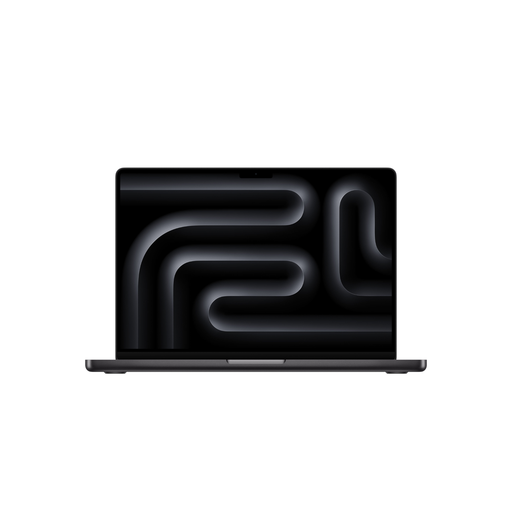
Apple MacBook Pro 16-inch (M5 Pro, 18-core CPU, 20-core GPU, 24 GB, 1 TB SSD, Space Black, German QWERTZ layout)
For editing on the go and transferring footage from SDXC cards, provided the card format suits your workflow.
- 24 GB RAM
- 1 TB SSD
- SDXC card slot
- A power adapter isn’t included and must be bought separately.
View at Joybuy
 No image available
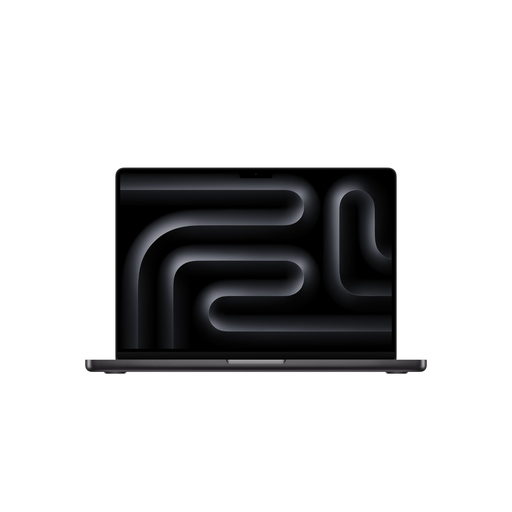
Apple MacBook Pro 14-inch (M5 Pro, 15-core CPU, 16-core GPU, 24 GB, 1 TB SSD, Space Black, German QWERTZ layout)
The 1 TB configuration is an option if you’re looking for a portable MacBook Pro with an SDXC card slot.
- 24 GB RAM
- 1 TB SSD
- SDXC card slot
- A power adapter isn’t included and must be bought separately.
View at Joybuy
 No image available
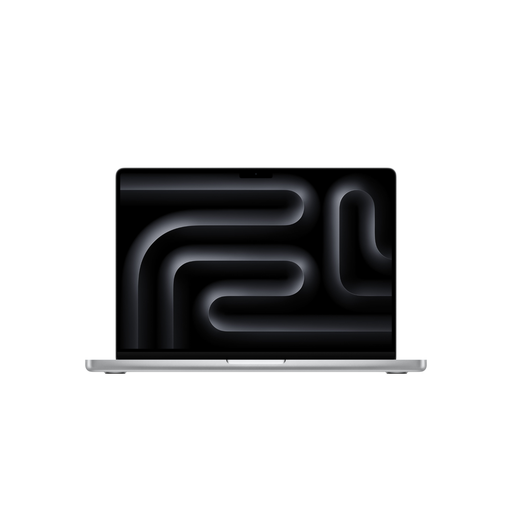
Apple MacBook Pro 14-inch (M5 Pro, 15-core CPU, 16-core GPU, 24 GB, 2 TB SSD, Silver, German QWERTZ layout)
The 2 TB SSD offers more internal storage than the listed 1 TB configurations; check whether it suits the size of your files and projects.
- 24 GB RAM
- 2 TB SSD
- SDXC card slot
- A power adapter isn’t included and must be bought separately.
View at Joybuy
 No image available
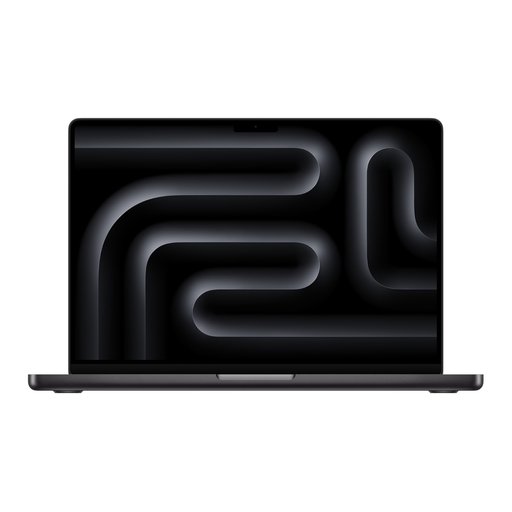
Apple MacBook Pro 14-inch (M5 Pro, 18-core CPU, 20-core GPU, 24 GB, 2 TB SSD, Space Black, German QWERTZ layout)
This 14-inch configuration combines a 2 TB SSD with M5 Pro and an SDXC card slot for compatible memory cards.
- 24 GB RAM
- 2 TB SSD
- SDXC card slot
- A power adapter isn’t included and must be bought separately.
View at Joybuy
Frequently asked questions
Do I automatically need a particularly powerful graphics card for separately recorded audio?
No. Synchronisation depends first on your workflow and the features of your editing software. Adobe describes ways to combine separately recorded clips in Premiere, as well as manual and automatic synchronisation options. Resolution and editing tasks determine the rest of your hardware requirements.
What can I do if 4K footage doesn’t play smoothly while I’m editing?
Adobe recommends a proxy workflow for Premiere, particularly for 4K footage on less powerful hardware. Also check the requirements for your software version and the available storage space for the application, cache and media.
Which ports and drives should I check before buying?
Check the ports on the specific laptop model against your camera, memory card, audio recorder and drives. Adobe recommends a fast internal SSD for the application and cache, plus an additional fast drive for media in Premiere. Whether you need a card adapter depends on your devices.
What extra costs and rights should I consider when buying a laptop in Germany?
Check whether a power adapter and any required adapters are included, and which software model you want to use; Adobe notes that extra costs or subscription fees may apply. For claims relating to defects in movable goods, § 438 BGB generally provides for a two-year limitation period from delivery. Online purchases can generally be cancelled within 14 days; the terms of the specific contract apply.


