Families with 4K footage
If you want to edit high-resolution clips, choose a laptop configuration that suits your footage and editing software. For Premiere on Windows, Adobe recommends 16 GB of RAM for HD media and at least 32 GB for 4K or higher.


For editing family videos at a shared workstation, choose a laptop that suits your editing software and HD or 4K footage. Separate user accounts and a clear plan for accessing project files are important too. For Premiere on Windows, Adobe recommends 16 GB of RAM for HD and at least 32 GB for 4K or higher. These recommendations do not automatically apply to other software, and separate accounts alone do not provide shared project storage.
If you want to edit high-resolution clips, choose a laptop configuration that suits your footage and editing software. For Premiere on Windows, Adobe recommends 16 GB of RAM for HD media and at least 32 GB for 4K or higher.
If several people use the same laptop, setting up personal user accounts and providing access to shared project files are two separate tasks. Microsoft and Apple explain how to set up multiple user accounts on their respective operating systems.
If you transfer clips from cameras or external drives, consider storage capacity, ports and where you plan to keep your originals and projects. For collaboration using Premiere Productions, Adobe recommends shared storage.
First, check which software you’ll use and what kind of footage you’ll edit. Then plan your storage, user accounts and connections. The following Adobe recommendations apply specifically to Premiere on Windows: 16 GB of RAM for HD and at least 32 GB for 4K or higher.
A good fit if: you want to keep using Windows software or existing Windows workflows.
Things to consider: specifications and ports vary by model and configuration, so check that the specific version meets your needs.
A good fit if: your editing software runs on macOS and suits your workflow.
Things to consider: Apple lists different storage options across its model range, so check the RAM, SSD and ports on the configuration you choose.
| Buying consideration | What to check | Who should pay particular attention |
|---|---|---|
| Editing performance | Check the editing software and version, whether you’ll be working with HD or 4K footage, and the RAM. For Premiere on Windows, also check the GPU memory against Adobe’s recommendations. | When we edit 4K footage, we want to consider the software and specifications together rather than relying on the model name alone. Around 31% of consumers put suitable editing performance first. |
| Storage and project access | Check the amount of footage, the SSD in the specific configuration, the ports you need, and where you’ll store originals and project files. For collaboration using Premiere Productions, Adobe recommends shared storage. | With lots of clips, I want to know where originals and projects are stored and how collaborators can access them. Around 25% of consumers prioritise space for and access to media and projects. |
| Sharing | Choose a suitable operating system, set up separate user accounts, and decide on access permissions and a storage location for shared folders. | If several family members use the same laptop, I need personal accounts and clear rules for project access. Around 25% of consumers put sharing first. |
| Screen and ports | Check that your existing monitor, drives, memory cards and cables are compatible with the display and ports on the specific laptop configuration. | When we review clips on the laptop or connect existing displays and media devices, I want to check the ports first. Around 19% of consumers prioritise reviewing footage and connectivity. |
Specifications for a model range or a different configuration don’t automatically tell you how much RAM and SSD storage the version on offer actually has.
Before buying, compare the full specifications of the specific configuration, especially its RAM and SSD.
Separate accounts organise personal settings and files, but they don’t automatically determine where shared media is stored or who can access it.
Set up personal accounts, then choose a suitable storage location for projects and decide who can access them.
Your editing software, existing drives and available ports all affect how you set up your workstation.
Before buying, decide which software you’ll use and which media and devices you need to connect.
MacBook Pro models are worth considering if your editing software runs on macOS and suits your workflow.
The ThinkPad T1g Gen 8 is a larger Windows model worth considering for a dedicated editing workstation.
The ProArt P16 range is designed for creative workflows and may appeal if the display and graphics features are important to you.
The Pro Max Plus 16 workstation is a configurable Windows model range worth considering if you’re specifically looking for a mobile workstation.
This selection includes laptops for editing at a shared workstation. Depending on the model, pay particular attention to the RAM, SSD, operating system and ports for your existing devices.
 No image available
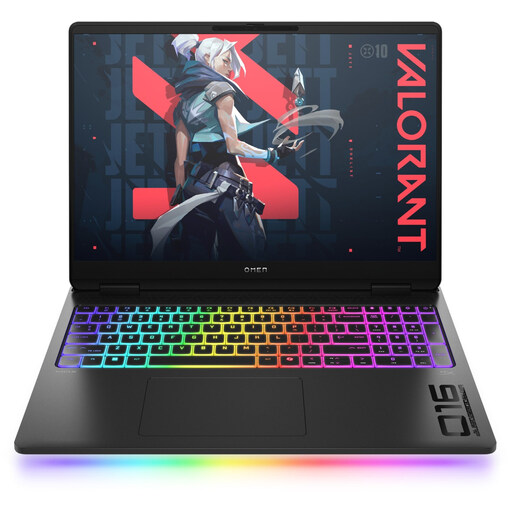
For Premiere on Windows with 4K footage, compare the listed RAM against Adobe’s recommendation of at least 32 GB.
Intel Core Ultra 9 275HX; 64 GB RAM; 2 TB SSD; GeForce RTX 5090 with 24 GB; 16-inch WQXGA OLED display with 240 Hz; Windows 11 Home; Thunderbolt 4 and HDMI 2.1.
 No image available
For Premiere on Windows with 4K footage, the listed 32 GB of RAM meets Adobe’s recommendation of at least 32 GB.
AMD Ryzen AI 9 HX 375; 32 GB RAM; 1 TB SSD; GeForce RTX 5070 Ti with 12 GB; 16-inch WQXGA display with 240 Hz; Windows 11 Home; USB-C and HDMI 2.1.
 No image available
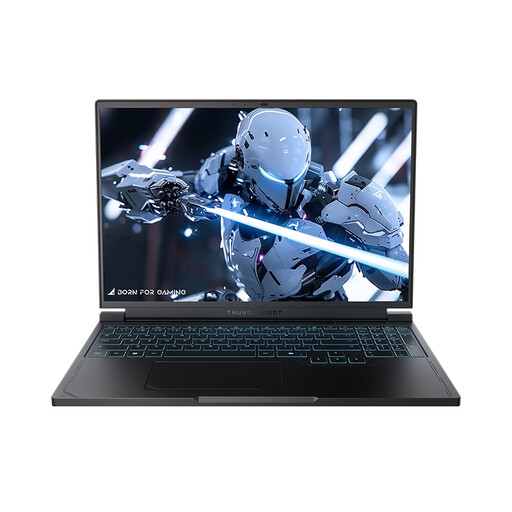
For Premiere on Windows, 16 GB of RAM meets Adobe’s recommendation for HD; for 4K, Adobe recommends at least 32 GB.
AMD Ryzen 7 7745HX; 16 GB DDR5 RAM; 1 TB SSD; NVIDIA GeForce RTX 5060; 16-inch QHD+ display with 240 Hz.
 No image available
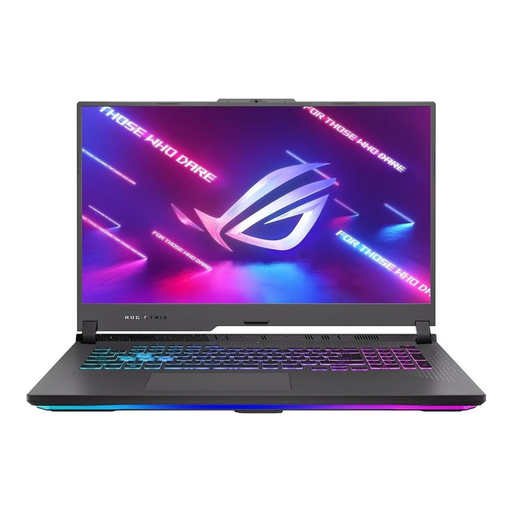
For Premiere on Windows with 4K footage, the listed 16 GB of RAM is below Adobe’s recommendation of at least 32 GB.
AMD Ryzen 9 7940HX; 16 GB RAM; 1 TB SSD; GeForce RTX 4060 with 8 GB; 17.3-inch FHD display with 144 Hz; Windows 11 Home; USB-C and HDMI.
 No image available
For Premiere on Windows, 16 GB of RAM meets Adobe’s recommendation for HD; for 4K, Adobe recommends at least 32 GB. The product listing states that no operating system is included, so you’ll need to provide one for setup.
Intel Core i5-13420H; 16 GB DDR5 RAM; 512 GB SSD; NVIDIA GeForce RTX 4050; 15.6-inch FHD display with 144 Hz; four USB ports.
No, not necessarily. For the specified versions of Premiere on Windows, Adobe recommends 16 GB for HD and at least 32 GB for 4K or higher resolutions. Check your software, version and footage; these figures aren’t a general minimum requirement for every laptop.
No. Separate accounts organise personal files and settings, but they don’t provide shared project storage. You’ll also need to decide where media and projects are stored and who can access them. For collaboration using Premiere Productions, Adobe recommends shared storage.
For a consumer purchase from a business seller, your statutory rights are against the seller. In the EU, the minimum legal guarantee is two years from the date you receive the goods. A voluntary manufacturer’s warranty may also apply, but it doesn’t replace these rights. This applies to purchases from business sellers, not private individuals.
The Bundesnetzagentur lists CE marking, product identification and manufacturer details among the areas it oversees. For a specific listing, check the identity of the product and seller. General information from the authority doesn’t confirm that an individual laptop complies with the requirements.