Choose a laptop based on your editing software, the resolution of your footage and your shared workspace – not just its product name. For Premiere on Windows, Adobe recommends 16 GB RAM for HD media and 32 GB or more for 4K. You should also plan a separate backup for archive files and check the ports on the specific configuration.
Who this selection is for
Family archive at a shared desk
You’re collecting footage from several people, want to keep projects organised and need to protect the originals from loss. The Verbraucherzentrale and the Federal Office for Information Security recommend planning for data backups.
Occasional HD video editors
You’re more likely to make short edits and want to choose your hardware to suit the editing software you actually use, rather than opting for a professional graphics configuration just in case. Adobe sets out different requirements for HD and higher resolutions in Premiere.
Editing extensive 4K archives
You’re planning larger or more demanding editing projects, so you should check the memory, graphics and media storage against your software’s requirements. For Premiere on Windows, Adobe recommends 32 GB RAM or more for 4K.
What to look for when buying
| What matters when buying |
What to check |
Who it matters most to |
| Editing performance to suit your footage |
Editing software and version, resolution, and the RAM, graphics and operating system requirements for the specific configuration. For Premiere on Windows, Adobe recommends 16 GB RAM for HD and at least 32 GB for 4K. |
If I mainly edit short HD videos or plan to work on 4K projects, I want to choose hardware that suits my footage and software. Around 29% of consumers say getting the right editing performance is their top priority. |
| Archive and separate backup |
The size of your existing archive, space for projects and media, and a separate backup method. For Premiere, Adobe recommends a fast internal SSD for installation and cache, plus an additional fast drive for media. |
It matters to me that the originals aren’t stored only on the laptop, so I can recover them after a fault or accidental deletion. Around 29% of consumers prioritise archive backups and media storage. |
| Sharing the laptop |
Who can edit projects, where shared files are stored and how everyone can access them. Windows supports separate user accounts, each with its own settings and documents. |
If several family members use the computer, I want everyone to have their own account and to agree on a clear storage location for shared projects. Around 21% of consumers say this kind of coordination is especially important to them. |
| Checking footage and ports |
The display on the specific version, plus ports for monitors, drives and the memory cards you use. ASUS lists HDMI, USB ports and an SD Express card reader among the features of the ProArt P16 H7606WX-SE090X. |
I want to review footage on the laptop or a monitor and connect my existing devices without unnecessary workarounds. Around 21% of consumers focus on checking footage and having the right ports when buying. |
Common buying mistakes
-
Confusing a large internal SSD with a backup
Keeping files in just one place won’t protect them if the device fails or they’re deleted by mistake. The Federal Office for Information Security and the Verbraucherzentrale treat data backups as a separate step.
Plan a separate backup of your originals and check that you can restore files from it.
-
Assuming minimum requirements are a recommendation for 4K
Adobe distinguishes between minimum requirements for HD and recommended specifications for HD and 4K in Premiere. So an HD specification won’t necessarily tell you what hardware is right for a 4K project.
Check the recommendations against the exact version of your software and the resolution of your footage.
-
Assuming the ports and included items from the model name
Specifications can vary between configurations in the same product range. The presence of a card reader, a suitable video output or a power adapter isn’t therefore confirmed for every version.
Check the ports, storage configuration and listed contents for the specific product to make sure they suit your shared workspace.
Relevant brands at a glance
ASUS
The ProArt P16 range is a Windows option for creative workflows.
- For the H7606WX-SE090X configuration, ASUS lists a 16-inch display, 64 GB RAM, a 2 TB SSD and an SD Express card reader.
- These specifications apply to the configuration listed; that doesn’t mean you’ll need them for every family video edit.
Apple
The MacBook Pro is an option for a macOS workflow.
- Apple lists different RAM and SSD configurations, as well as support for video formats, depending on the model.
- Check the storage, editing software and compatibility with your existing workspace for the specific model. Manufacturer information isn’t an independent hands-on test.
Lenovo
The ThinkPad T1g Gen 8 is a performance-focused range of 16-inch Windows laptops.
- Lenovo describes the range as having upgradeable memory and NVIDIA graphics that vary by configuration.
- Specifications depend on the model, so check the details of the specific version rather than deciding on the range name alone.
Dell
The Dell Pro Precision 5 16 range is a configurable Windows workstation option.
- Dell lists different processor and operating system options.
- Dell notes that your chosen options can change the specifications, so the range name alone doesn’t confirm the exact configuration.
HP
The mobile ZBook workstations include a range of configurations for more demanding workflows.
- HP lists the ZBook X G2i among its options for 1080p video editing.
- This is HP’s recommendation for the range, not independent evidence that every model or configuration is suitable for every project.
Joybuy products for family video editing
The Joybuy laptops featured here come with a range of storage and display configurations for editing family videos. Check the specifications of the model you’re considering against your editing software, footage and shared workspace needs.
 No image available
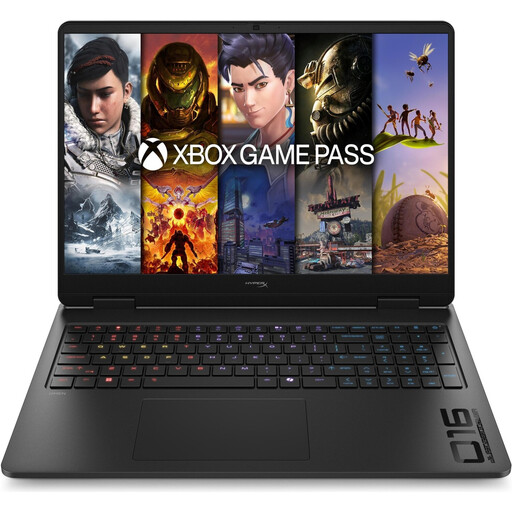
HP OMEN 16-ap1071ng, Ryzen 7 8745HX, 16 GB/1 TB, RTX 5060
For HD editing, you can check this Windows configuration against your editing software’s requirements. For Premiere on Windows, Adobe recommends 16 GB RAM for HD media.
16 inches, QHD, AMD Ryzen 7 8745HX, 16 GB RAM, 1 TB SSD, GeForce RTX 5060, Windows 11 Home.
View at Joybuy
 No image available
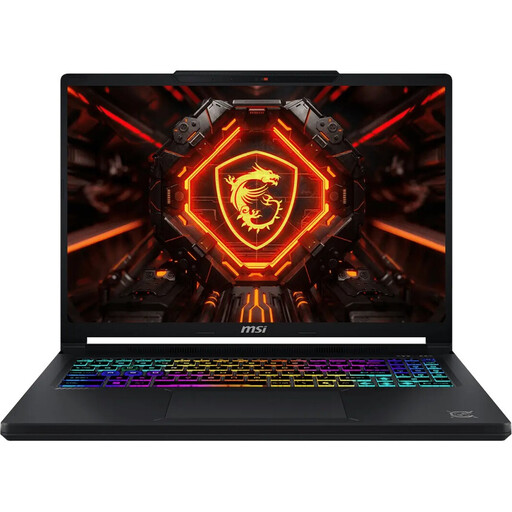
MSI Crosshair 16 Max HX E2WGXK-023, 16 GB/1 TB, RTX 5070
For HD editing, you can compare the listed RAM with your software’s requirements. Adobe’s recommendation of 16 GB applies to Premiere on Windows with HD media.
16 inches, QHD+ OLED, 165 Hz, Intel Core Ultra 9 275HX, GeForce RTX 5070 with 12 GB, 16 GB DDR5, 1 TB SSD, Windows 11 Home.
View at Joybuy
 No image available
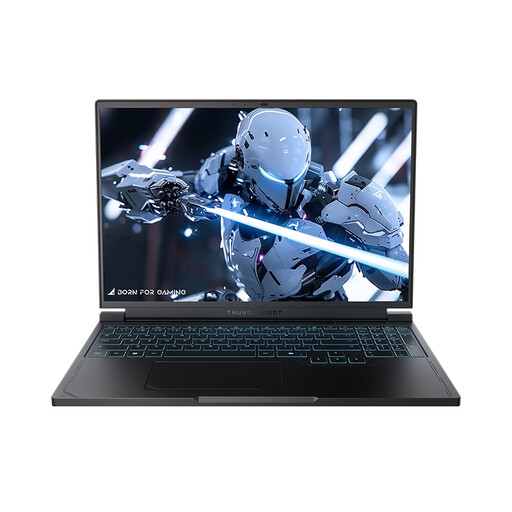
THUNDEROBOT Radiant S16, Ryzen 7 7745HX, 16 GB/1 TB, RTX 5060
If you’re looking for a 16-inch configuration for an archive project, check the display, storage and other requirements against your editing software and planned workspace.
16 inches, QHD+ at 240 Hz, AMD Ryzen 7 7745HX, 16 GB DDR5, 1 TB SSD, GeForce RTX 5060.
View at Joybuy
 No image available
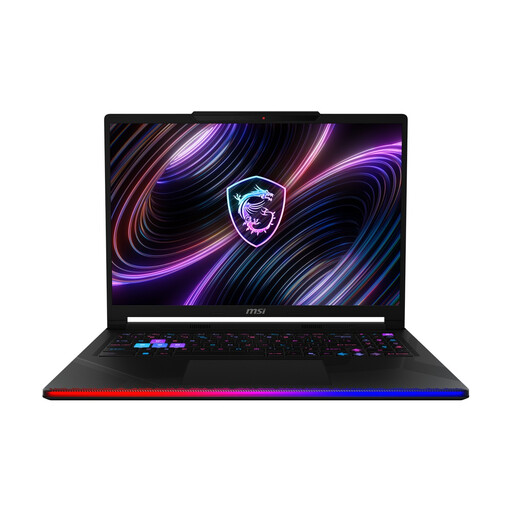
MSI Raider 16 Max HX B2WJ-071, 32 GB/2 TB, RTX 5090
For 4K projects in Premiere, Adobe recommends 32 GB RAM or more on Windows. Check the other requirements for the specific version of your software, too.
16 inches, OLED WQXGA, Intel Core Ultra 9 290HX, GeForce RTX 5090, 32 GB DDR5, 2 TB SSD, Windows 11 Home.
View at Joybuy
 No image available
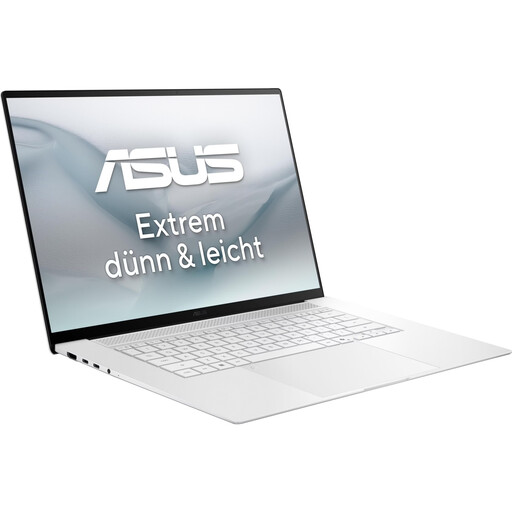
ASUS Zenbook S16 UM5606GA-SS335W, 32 GB/1 TB, without power adapter
The 32 GB configuration may be worth comparing with your software’s recommendations when shortlisting laptops for more demanding projects. For 4K in Premiere on Windows, Adobe recommends 32 GB RAM or more.
16 inches, WQXGA OLED, AMD Ryzen AI 9 465, 32 GB RAM, 1 TB SSD, Windows 11. The product name states that no power adapter is included.
View at Joybuy
Frequently asked questions
Do I need 32 GB RAM for every family video edit?
No. For Premiere on Windows, Adobe recommends 16 GB RAM for HD media and 32 GB or more for 4K and higher resolutions. First check your software version and the footage you’re using; these recommendations don’t automatically apply to every editing programme.
How do I set up a laptop for several family members?
On Windows, you can set up separate user accounts with their own files and settings. Also agree where shared project files will be stored and who can edit them. Microsoft Support explains how user accounts work.
Is the laptop’s SSD enough to back up old family videos?
No. A separate copy can help you restore the originals after a fault or accidental deletion. The Federal Office for Information Security and the Verbraucherzentrale recommend planning data backups as a separate step. The amount of storage you need depends on the size of your archive.
What rights do I have if a laptop I bought for business use is faulty?
Under the EU rules described by Your Europe, you have at least a two-year legal guarantee from the seller, starting from when you receive the goods. This is separate from a voluntary manufacturer’s warranty. These rules don’t apply in the same way to purchases from private individuals.
Can I share a video publicly if family members are recognisable in it?
Not automatically. Under § 22 KunstUrhG, images of people may generally only be distributed or shown publicly with their consent; whether the exceptions in § 23 apply must be assessed on a case-by-case basis. You’ll also need to check the relevant usage rights for any third-party music.


