Family video archivist
If you’re reviewing hours of raw footage, allow space for originals, cache and working files. Adobe recommends fast drives for media and cache in a Premiere workflow.


Choose a laptop based on the format of your footage, your editing software and how much space you need for originals, cache and any proxies. For Premiere, Adobe recommends 32 GB of RAM or more for 4K and higher resolutions. If you only edit occasionally, a proxy workflow could be an alternative, but it will still need storage space.
If you’re reviewing hours of raw footage, allow space for originals, cache and working files. Adobe recommends fast drives for media and cache in a Premiere workflow.
For higher-resolution footage, check the specific laptop configuration against the requirements of your editing software. For Premiere, Adobe recommends 32 GB of RAM or more for 4K and higher resolutions.
If you only edit occasionally while out and about, you could consider a more portable device and a proxy workflow. Adobe describes proxies as lower-resolution copies that make large video files easier to edit; they do require additional storage.
For long family recordings, it’s worth checking storage, editing software requirements, portability and how you’ll import your footage separately.
| Priority | What to check when buying | Who is this most important for? |
|---|---|---|
| Space for long recordings | Check the SSD capacity of the specific configuration and the ports available for an external drive. | If I want to keep originals, cache and any proxies together, storage comes first for me. Around 38% of consumers share this priority. |
| Editing footage | Check the resolution and codec of your footage against the requirements of your software version and the laptop’s full configuration. | If I want to edit demanding or higher-resolution footage regularly, the right specifications matter to me. Around 31% of consumers prioritise editing performance. |
| Portability | Check the weight of the specific configuration and the ports available for external media. | If I only edit occasionally in different places, I want a device that’s easy to take with me. Around 16% of consumers put portability first. |
| Checking images and importing footage | Check the display specifications and available ports; make sure the card format is supported by the stated reader. | If I want to import footage directly from a card and check it on the display, I pay particular attention to the card reader and screen. Around 15% of consumers share this priority. |
As well as the originals, your workflow may need space for cache and proxies.
Check your planned workflow and the ports on the specific configuration before deciding how much internal SSD storage you need.
If the internal storage isn’t enough, you may need a fast external drive for media or working files.
Requirements depend on factors including your editing software, its version and the footage you use. For Premiere, Adobe recommends 16 GB of RAM for HD media and 32 GB or more for 4K and higher resolutions.
Check the resolution and codec of your footage against your software requirements and the device’s full configuration.
Storage, graphics, display and ports can vary between configurations in a range. Lenovo also notes that configurations depend on the model and region.
Check the details for the full model code of the specific listing rather than relying on a general description of the range.
The ProArt P16 range is a Windows option for editing. For the H7606WP-RJ084X model, ASUS lists 64 GB of RAM, two 2 TB SSDs and an SD Express 7.0 card reader.
The MacBook Pro is a macOS option. Apple lists hardware-accelerated media processing for H.264, HEVC, ProRes and ProRes RAW on the MacBook Pro with M5 Pro.
The ThinkPad T1g Gen 8 is another Windows range for which Lenovo lists GeForce graphics and an SD Express 7.0 card reader on selected configurations.
HP offers mobile ZBook workstations in the 8, X, Ultra and Fury ranges, and specifically describes the ZBook X as suitable for 1080p video editing.
This selection includes laptops with different storage specifications and designs for reviewing footage and occasional video editing. Compare each configuration with the footage and software you actually use.
 No image available
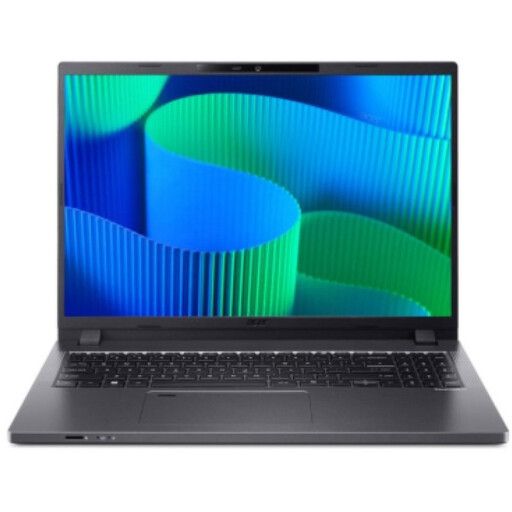
Could be worth considering for occasional editing if the Windows configuration suits your software and footage.
AMD Ryzen 3 PRO 7335U, 16 GB DDR5, 512 GB SSD and AMD Radeon 660M; Windows 11 Pro Education.
 No image available
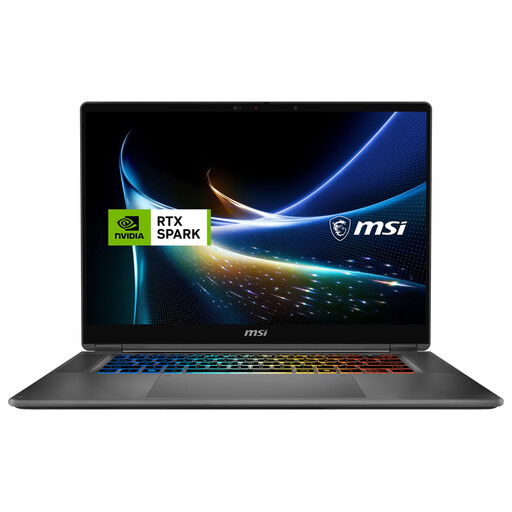
An option if you’re looking for a 2-in-1 device with a generous stated amount of RAM and SSD storage. Check that the configuration meets your editing software’s requirements.
128 GB DDR5, 2 TB SSD and Windows 11 Pro.
 No image available
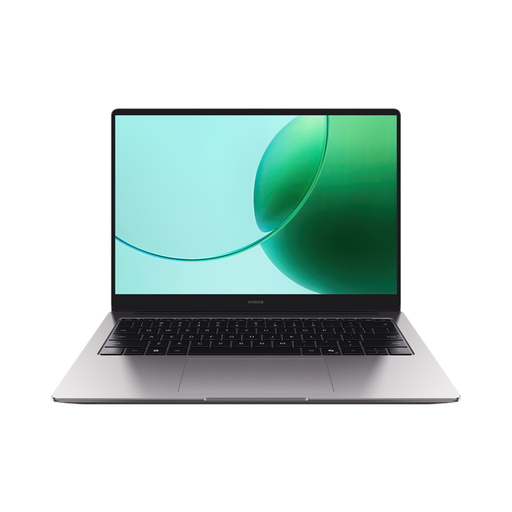
Could suit reviewing footage and occasional editing if 16 GB of RAM and the rest of the configuration meet your software and footage requirements.
16 GB RAM, 512 GB SSD, Cloud Gray and German keyboard layout.
 No image available
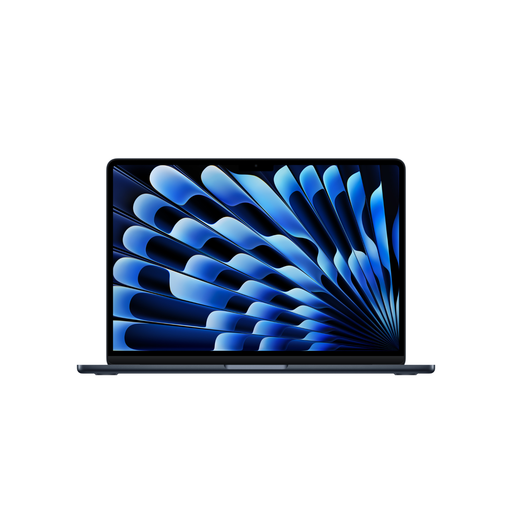
Could be a good choice for working on the move if the specific configuration suits your editing software and footage.
10-core CPU, 8-core GPU, 16 GB unified memory, 512 GB SSD, Midnight and German QWERTZ keyboard layout. Power adapter not included; must be purchased separately.
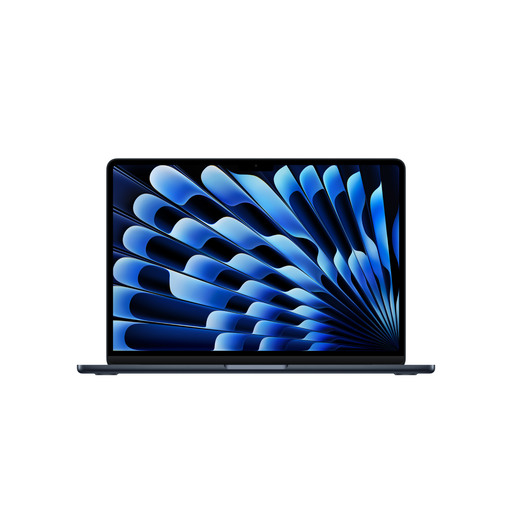 No image available
Could be suitable for working on the move if you’ve checked that the specific configuration meets the needs of your editing software and footage format.
10-core CPU, 10-core GPU, 16 GB unified memory, 512 GB SSD, Midnight and German QWERTZ keyboard layout. Power adapter not included; must be purchased separately.
For the Premiere versions mentioned, Adobe recommends 16 GB of RAM for HD media and 32 GB or more for 4K and higher resolutions. Check these recommendations against your software version, footage and the device’s full configuration.
Keep the original files and allow extra space for media and cache. Adobe recommends fast drives for Premiere and describes proxies as lower-resolution copies that make large video files easier to edit. Proxy workflows also have limitations, including with clips that contain captions and files that grow over time.
According to Germany’s Federal Ministry of Justice, consumers generally have a 14-day right to cancel a distance contract with a business. This is separate from your rights if goods are faulty: European Union consumer information states that goods are generally covered by a minimum two-year legal guarantee from the date you receive them.
The fact that a video is made for a private occasion does not automatically give you permission to publish it. The Lower Saxony Data Protection Commissioner explains that the applicable legal basis and the circumstances are key, particularly whether people can be identified and how the video is published.