Start by checking which writing software and file format you need. For longer editing sessions, a clear screen and comfortable input are also important. A larger laptop gives you more screen space on the device itself, while a compact model can be set up flexibly at your desk with an external monitor and keyboard. Check the ports, the exact device configuration and how you’ll save your changes.
Which laptop is right for you?
For people who do a lot of proofreading
If you’ll be reviewing long sections of a biography, look for a clear display and consider whether the screen and input devices can be arranged comfortably at your workstation. The German Federal Institute for Occupational Safety and Health highlights the total weight of work equipment as a particular consideration when you often change work locations.
For people with an established writing workflow
If you need to use a particular writing programme, file format or process for sharing documents, check compatibility before choosing a device. Google explains that certain files and apps can be used offline, while Microsoft sets out specific requirements for AutoSave in Microsoft 365.
For people managing sources and versions
If you need to check changes against templates and find earlier drafts, look at where files are stored, how they’re saved automatically and whether version history is available. Microsoft says that AutoSave in Microsoft 365 requires an active subscription and a file saved to OneDrive or SharePoint.
What should you consider when choosing?
First, check that your files are compatible with your writing software. Then narrow down your options by considering the screen, the ports you need at your workstation and how you want to back up your work.
Windows laptop
A good fit if: You rely on existing Windows programmes, documents or workflows.
Things to weigh up: Screen size, keyboard and ports vary between configurations.
MacBook with macOS
A good fit if: Your software and file-sharing formats work with macOS, and you’d prefer a compact device.
Things to weigh up: According to Apple, the 13-inch MacBook Air with M5 tested here has two Thunderbolt 4/USB-C ports. Accessories with different connectors may need an adapter or other suitable connection.
Chromebook with ChromeOS
A good fit if: You mainly use compatible web or ChromeOS apps.
Things to weigh up: Google says certain Drive files can be edited offline once set up, but not every app works without an internet connection.
| Buying priority |
What to check before buying |
Who this matters most to |
| Readability and typing |
Check the screen size and finish; make sure you can connect an external monitor and keyboard. |
When I’m comparing longer passages with my sources, I want to see everything clearly and type comfortably. Around 33% of consumers whose main priority is readability and typing pay particular attention to this. |
| Software and file compatibility |
Open a typical file in the programme you plan to use, edit it and check that you can return it in the required format. |
If I have to use a particular writing programme or file format, I want to know in advance that my workflow will work. Around 27% of consumers who prioritise compatibility above all else focus on this check. |
| Backups and versions |
Check where files are stored, how they’re saved automatically, whether version history is available and what happens offline. |
When I’m working through several rounds of edits, I want to save changes and be able to find earlier drafts. Around 20% of consumers who put backups and version history first pay particular attention to this. |
| Ports and workstation setup |
Check that your monitor and USB devices can connect; look at the charging connection and any accessories you may need. |
If I want to connect my laptop at my desk or take it with me occasionally, suitable ports and the total weight of everything I carry matter. Around 20% of consumers with this priority focus on workstation connections and flexibility. |
Common buying and usage mistakes
-
Judging ergonomics by screen size alone
A larger laptop screen won’t automatically solve the question of how your display and input devices are set up at your desk.
Check the space you have and the devices you already own. For longer sessions, a separate monitor and external keyboard may let you arrange your workstation differently.
-
Assuming AutoSave backs up every file
Microsoft says AutoSave in Microsoft 365 requires an active subscription and a file saved to OneDrive or SharePoint. Google’s offline features are available only for certain files and apps once they’ve been set up.
Before relying on your workflow, test where your files are saved, whether you can access them offline and how to restore an earlier version.
-
Assuming every model in a range has the same features
Manufacturers’ specifications apply to specific configurations. Dell points out that choosing different options can change the specifications.
Check the full model code, keyboard layout, screen and ports of the exact version on offer.
Brands to consider
Lenovo
The ThinkPad E14 Gen 7 21SX003SGE is an example of a compact Windows laptop.
- Lenovo lists a matte 14-inch WUXGA display and a backlit German keyboard for this version.
- These specifications apply to model code 21SX003SGE; other E14 configurations may differ. Source: Lenovo Germany.
HP
The ProBook 4 G1i 16 AD2N7ET#ABD is an example of a larger workspace directly on a Windows laptop.
- HP lists a 16-inch display with 1920 × 1200 pixels, 16 GB RAM and a 512 GB SSD for this version.
- Manufacturer specifications are not a substitute for an independent ergonomics test. Source: HP Store Germany.
Dell
The Dell 14 DC14255 is a configurable example of a compact Windows laptop.
- The documented configuration lists a 14-inch FHD+ display, 16 GB RAM, a 512 GB SSD and a backlit German keyboard.
- Dell points out that choosing different options can change the specifications. Source: Dell Germany.
Apple
The 13-inch MacBook Air with M5 is an example of a compact macOS option, provided your software and files are compatible.
- Apple lists a 13.6-inch display and two Thunderbolt 4/USB-C ports.
- If you have existing devices with different connectors, check which connection you’ll need. Source: Apple Support Germany.
Acer
The Chromebook Plus 514 NX.J5ZEG.001 is an example of a ChromeOS device for document-based workflows it supports.
- Acer lists a matte 14-inch WUXGA touchscreen and ChromeOS for this version.
- Offline use depends on the file and app; Google notes that some apps won’t work offline. Sources: Acer Store Germany and Google Chromebook Help.
Joybuy products for writing at home
These Windows laptops have been selected for working on text and sources at a fixed home workstation. Before buying, check that the model suits your software, file format and existing accessories.
 No image available
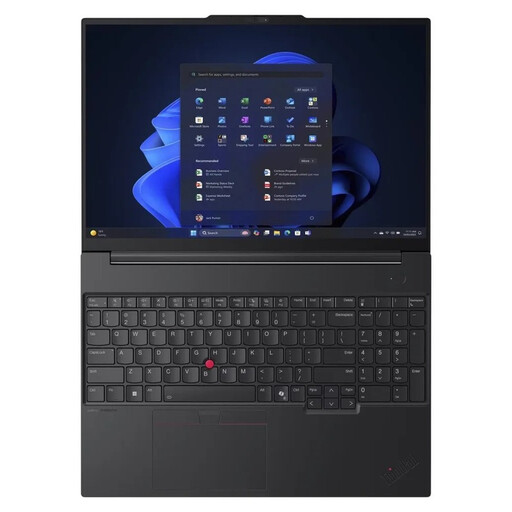
Lenovo ThinkPad E16 Gen 3 21ST
An option to consider if you’d like a 16-inch screen on your device for longer proofreading sessions.
AMD Ryzen 7 250 at 3.3 GHz; Windows 11 Pro; 32 GB RAM; 1 TB NVMe SSD.
Check the keyboard and ports on the specific version to make sure they suit your workstation.
Joybuy
 No image available
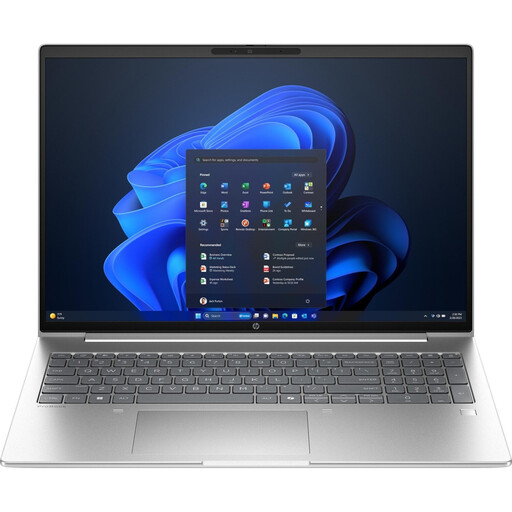
HP ProBook 4 16 G1i Notebook AI
An option if you want to work on text and sources directly on a laptop with a 16-inch screen.
Intel Core Ultra 7 255U at 2 GHz; Windows 11 Pro; 32 GB RAM; 1 TB NVMe SSD; IPS display with 1920 × 1200 pixels; Wi-Fi 7.
Check the ports on the version available against the accessories you already own.
Joybuy
 No image available
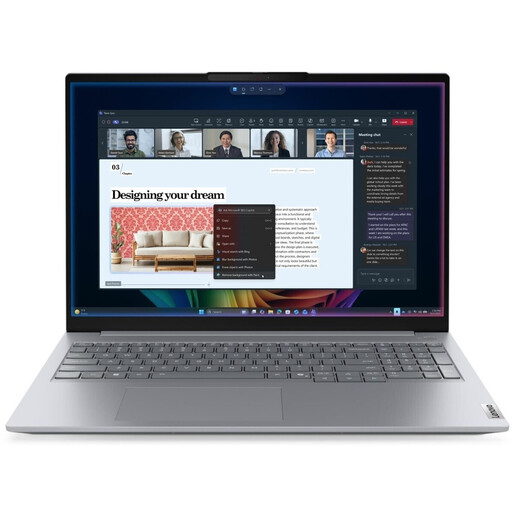
Lenovo ThinkBook 16 Gen 9, Intel Core Ultra 5 325
An option for writing on a 16-inch device; check the exact keyboard and ports to make sure they’ll suit your desk setup.
Windows 11 Pro; 32 GB DDR5; 512 GB PCIe SSD.
Joybuy
 No image available
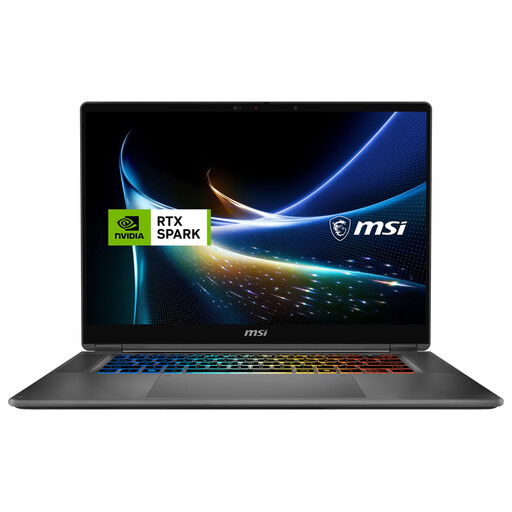
MSI Prestige N16 Flip AI+ C1XMT-027Y
An option if you want to work on text and sources on a 16-inch device; check that the exact configuration suits your workflow.
2-in-1 laptop; Windows 11 Pro; 128 GB DDR5; 2 TB SSD.
Before buying, check that the ports are compatible with your monitor and other accessories.
Joybuy
 No image available
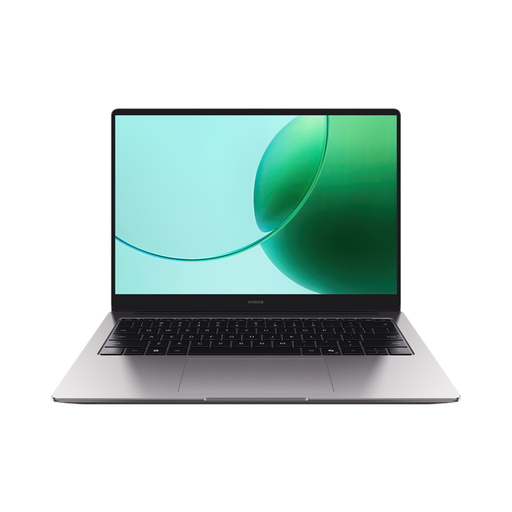
HONOR Magicbook X16 AMD 2025, German keyboard
An option for writing at home if a 16-inch device suits your workstation.
AMD R5 6600H; 16 GB RAM; 512 GB SSD; German keyboard; Cloud Gray.
Joybuy
Frequently asked questions
Do I need a particularly powerful laptop to write a biography?
Not just for the writing itself. First, check which programme and file format you need, and whether you want to view text and sources at the same time. The device configurations listed here don’t establish a specific minimum performance requirement for this kind of work.
How should I set up a laptop for long editing sessions?
If you’ll be working at the same desk for a long time, consider whether a separately positioned monitor and an external keyboard would suit your setup. The German Federal Institute for Occupational Safety and Health (BAuA) describes separate positioning of the screen and input devices for display screen work. However, the ASR A6 rules do not apply universally to private use at home.
Can I keep editing the biography without an internet connection?
On a Chromebook, certain Google Drive files can be made available offline once set up. Google notes that some apps don’t work offline and that changes will sync later, so test the specific file and app beforehand.
What should I know about automatic saving?
According to Microsoft, AutoSave in Microsoft 365 requires an active subscription and a file saved to OneDrive or SharePoint. Also check the version history and test whether you can restore an earlier draft.
Do laptops in Germany have to meet USB-C charging requirements?
The EU requirements for affected laptops that can be charged via a cable have applied since 28 April 2026. The European Commission explains the conditions and the USB Power Delivery requirements for devices that need the relevant level of power. This doesn’t mean that every older device still on sale is automatically non-compliant just because it has a different charging port.


