For a permanent workspace, connecting an external monitor to your laptop is a straightforward way to view your form design and preview separately. If you often work in different places, a laptop with two built-in displays may suit your workflow better. Before buying, decide whether you need two screens in total or two additional monitors, then check the ports on the exact configuration and your software’s requirements.
Which screen setup is right for you?
Designers working at a fixed desk
If you want to view your form design and preview separately on a laptop and an existing external monitor, the actual video outputs on the specific laptop configuration are key. Lenovo lists HDMI, as well as video-capable USB-C and USB4 ports, for the ThinkPad E14 Gen 7 (AMD).
Designers who work on the move
If you often change work locations and want to take two screens with you without carrying a separate monitor, a laptop with built-in dual displays could be a good fit. ASUS describes the Zenbook DUO UX8407 as having two integrated displays and being usable with a stand and detachable Bluetooth keyboard.
Designers with two monitors at their workstation
If you want to run two external monitors at the same time as your laptop display, check the documented display count and supported connections for the specific configuration. Lenovo lists support for up to three external displays for the ThinkPad E14 Gen 7 (AMD).
What should you look for when choosing?
Laptop display plus one external monitor
A good fit if: you already have a monitor at a fixed desk and want to arrange your design and preview on separate screens.
Consider: The monitor takes up desk space and needs a suitable connection. Lenovo lists HDMI, as well as video-capable USB-C and USB4 ports, for the ThinkPad E14 Gen 7 (AMD); check the exact configuration.
Two integrated displays
A good fit if: you often want to take two screens with you without carrying a separate monitor. ASUS describes the Zenbook DUO UX8407 as having two integrated 14-inch displays.
Consider: Check that the setup, available space and keyboard position work for your locations. ASUS describes it as usable with a stand and detachable Bluetooth keyboard.
Laptop display plus two external monitors
A good fit if: you want to run both large workstation monitors at the same time as your laptop display.
Consider: Lenovo lists support for up to three external monitors for the ThinkPad E14 Gen 7 (AMD), while Apple lists support for up to two external displays for the MacBook Air with M5. These model-specific details don’t guarantee compatibility with every dock and monitor combination.
| What you need |
What to check before buying |
Who will find this particularly important? |
| The right number of screens and suitable connections |
Check the total number of screens, including the laptop display, and the video output supported by the specific port. |
If I already have a monitor at my desk, I want to know whether the laptop and monitor will work at the same time and whether their connections are compatible. Around 36% of consumers put monitor connectivity first. |
| Space for your form design and preview |
Make sure the size, resolution and layout of your intended displays suit your workflow. |
If I want to see my design and preview side by side, I need to know whether both views will be easy to use on the available screens. Around 29% of consumers prioritise having separate space for their design and preview. |
| Two screens in different locations |
Consider the available setup modes, desk space and keyboard position for the specific device. |
If I often work on the move and don’t want to carry a separate monitor, having two displays built into the device matters to me. Around 21% of consumers prioritise portability with two screens. |
| Compatibility with your design software |
Check the system requirements for the software you actually use and any local tools you may need. |
If my layout or development software requires a particular system, I want to check that before buying a device. Around 14% of consumers put software compatibility first. |
Buying decisions that can cause problems
-
Confusing “two screens” with “two additional monitors”
A laptop display plus one external monitor is a different requirement from two external monitors in addition to the laptop display. The number of displays supported depends on the specific model and its ports.
First decide how many displays you want to use at the same time, then compare that number with the documentation for the exact device configuration.
Depending on the monitor and ports, you may need suitable cables, adapters or a dock.
-
Assuming every USB-C port supports video output
USB-C video capabilities vary by device and port. Dell documents differences in display output across certain Pro models.
Check the technical specifications for the specific laptop to see whether the port in question supports DisplayPort video output or Thunderbolt.
-
Confusing the manufacturer’s guarantee with your statutory rights
Your statutory rights for faulty goods generally apply against the seller; a guarantee is a separate voluntary promise. Verbraucherzentrale makes a clear distinction between these rights.
If you find a fault, first check your rights with the seller, then read the guarantee terms separately. Under § 439 BGB, the remedies available generally include repair or replacement.
Relevant brands and product ranges
Lenovo
The ThinkPad E14 Gen 7 (AMD) is a conventional laptop option for a fixed workspace with an external monitor.
- Lenovo lists HDMI, video-capable USB-C and USB4 ports, and support for up to three external displays across the range.
- According to Lenovo, the German configuration 21T0CTO1WWDE5 has 16 GB RAM, a 256 GB SSD and a matte 14-inch WUXGA display. These specifications don’t apply to other configurations.
Apple
The MacBook Air with M5 is a conventional laptop option for workflows using macOS and external displays.
- Apple lists two Thunderbolt 4 ports and support for up to two external displays.
- The technical specifications don’t list a built-in HDMI port. If you have an HDMI monitor, check how to connect it.
ASUS
The Zenbook DUO UX8407 is designed for people who want to take two screens with them without carrying a separate monitor.
- ASUS describes two integrated 14-inch displays, with a stand and detachable Bluetooth keyboard for different ways of working.
- Its design differs from a conventional laptop. Check that the screen and keyboard positions suit your workspace.
HP
The ProBook 4 G1a 14 is a conventional Windows option for a workstation with an external monitor.
- For the German variant AD2M8ET#ABD, HP lists a 14-inch WUXGA display, 24 GB RAM, HDMI and two USB-C ports.
- These port specifications alone don’t confirm how many additional monitors this exact variant can support at the same time.
Dell
The Dell Pro 14 is an alternative to consider, where the exact USB-C specification may matter.
- Dell documents different USB-C display capabilities across Intel and AMD models, and sometimes different ports on the same device.
- Don’t assume specifications for one Dell Pro 14 configuration also apply to another.
Joybuy laptops for layout work
These Joybuy laptop options have been selected for layout work. For each model, check that it supports your intended external display and meets your software’s requirements.
 No image available
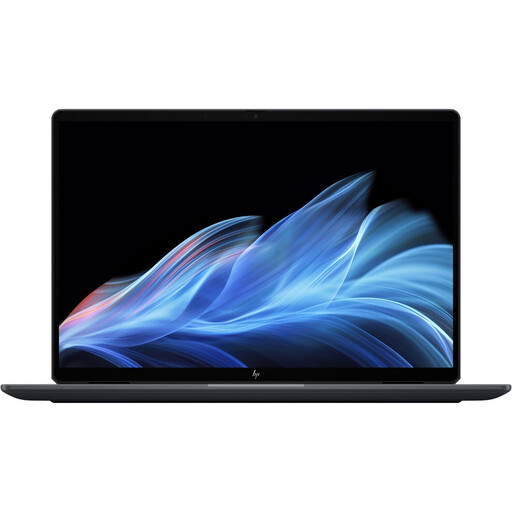
HP OmniBook Ultra Flip 14-fh0670ng
For a workspace with the laptop display and one external screen; the product description says both displays can be used at the same time.
14-inch 2.8K OLED touchscreen, Intel Core Ultra 7 258V, 32 GB RAM, 1 TB SSD and Windows 11 Home. It also lists Thunderbolt 4 and a USB-C to HDMI adapter in the box. No power adapter is included.
View at Joybuy
 No image available
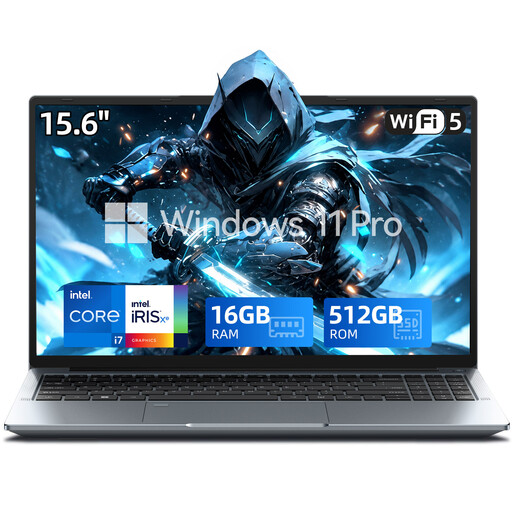
15.6-inch FHD laptop with Intel Core i7-1255U
An option for layout work with an external display; the product description lists video output via USB-C. Check that it will connect to your monitor.
FHD display, Intel Core i7-1255U, 16 GB RAM and 512 GB SSD.
View at Joybuy
 No image available
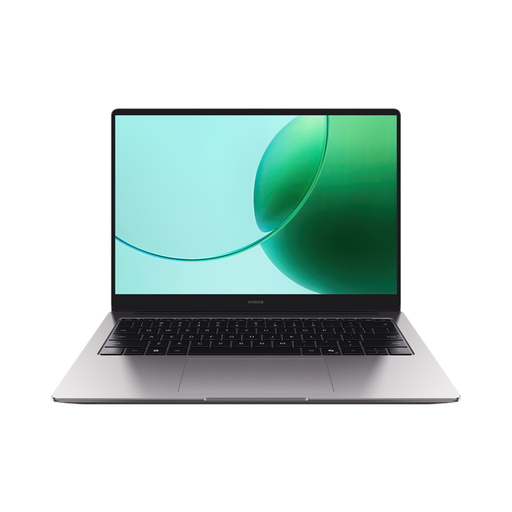
HONOR MagicBook X16 AMD 2025
A laptop option for layout work, if the listed specifications suit your workflow.
AMD R5 6600H, 16 GB RAM, 512 GB SSD and German keyboard layout.
View at Joybuy
 No image available
Apple MacBook Neo 13-inch, A18 Pro, 8 GB, 256 GB SSD, without Touch ID
For a workspace with the built-in display and one external screen; according to the product description, both can be used at the same time.
13-inch display with 2408 × 1506 pixels, 8 GB RAM, 256 GB SSD and German QWERTZ keyboard layout in silver. No power adapter is included; you’ll need a USB-C power source of at least 20 W to charge it.
View at Joybuy
Frequently asked questions
Will any USB-C port work with a second monitor?
No. Check the video output supported by the specific port. Dell documents different display capabilities across certain Pro models, while Lenovo explicitly lists DisplayPort for the USB-C ports on the ThinkPad E14 Gen 7 (AMD).
How do I arrange my design and preview across two screens in Windows?
In Windows display settings, you can identify detected screens and arrange them to match their actual positions. Whether your software shows the design and preview in separate windows depends on your workflow.
Do I need a specific graphics chip for a form layout?
Not necessarily; what matters is the requirements of the specific software you use. Figma lists WebGL, browser, operating system and driver requirements, but these don’t necessarily apply to other layout programmes.
What else might I need for a dual-screen workspace?
Depending on your monitor and laptop ports, you may need suitable cables, adapters or a dock. Compare the video outputs on the specific configuration with the monitor’s inputs; a USB-C port alone doesn’t confirm video output support.
Who is responsible if a laptop is faulty in Germany?
Your statutory rights for faulty goods generally apply against the seller, not automatically against the manufacturer. Section 438 of the BGB generally allows two years from delivery; under Section 439, repair or replacement may be available as a remedy. A manufacturer’s guarantee is separate from these rights.


