What to consider when choosing
First, check scanner compatibility and decide on your intended output format. Then weigh up file handling and portability to suit the way you work.
| Buying priority |
What to check |
Who this matters most to |
| Clear, print-ready cards |
Check the pixel dimensions of your scans against the planned card size. Adobe recommends 300 PPI as a guide for high-quality print output, unless your printer requires something different. Your screen, lighting and paper also affect how you judge colour. |
If I want to print cards, I need the images to remain clear at the planned size and want to assess the colours in advance. Print quality and legibility are the main priority for roughly 29% of consumers. |
| Connecting an existing scanner |
Check that drivers and software support your operating system, and make sure you have the physical connection you need. Adobe advises checking with the scanner manufacturer for scanner drivers; having the right connector doesn’t make up for a lack of software support. |
If I want to keep my scanner, it needs to work with my laptop and the scanning software I plan to use. Around 29% of consumers prioritise compatibility with their existing scanner. |
| Editing scans and layout files |
Compare the RAM and available SSD storage with your software’s requirements and file sizes. For Photoshop 27.x, Adobe recommends at least 16 GB of RAM; this isn’t a general requirement for other flashcard software. |
If I work with lots of files or larger ones, I need specifications that suit my software and workflow. File handling is the top priority for roughly 24% of consumers. |
| Staying mobile between work locations |
Compare the dimensions, display size and connections you need with your mobile workflow. A manufacturer’s battery-life estimate doesn’t necessarily reflect how long the battery will last while scanning and designing. |
If I create flashcards in different places, I want a device I can take with me without unnecessarily restricting my layout work. Around 18% of consumers prioritise portability. |
Joybuy products for scanning and layout work
The following Joybuy products are Windows laptops for scanning and layout work, ranging from compact touchscreen devices to models with larger displays. Before buying, check that your scanner and design software work with the configuration you choose.
 No image available
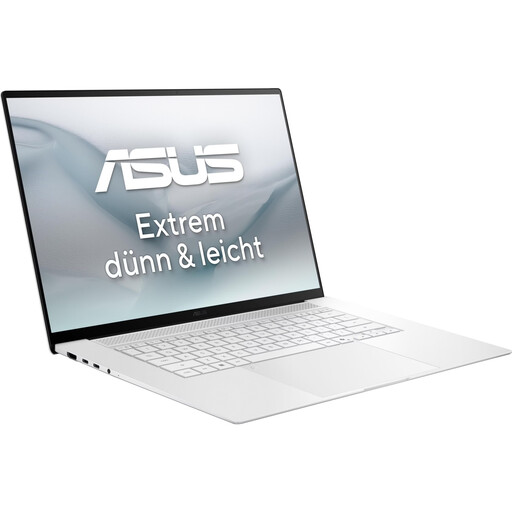
ASUS Zenbook S16 UM5606GA-SS335W
For layout work on a larger built-in display. Check that your scanner and software are compatible with Windows.
16-inch WQXGA+ OLED, 32 GB RAM, 1 TB SSD, Windows 11 Home. Product title states that no power adapter is included.
View at Joybuy
 No image available
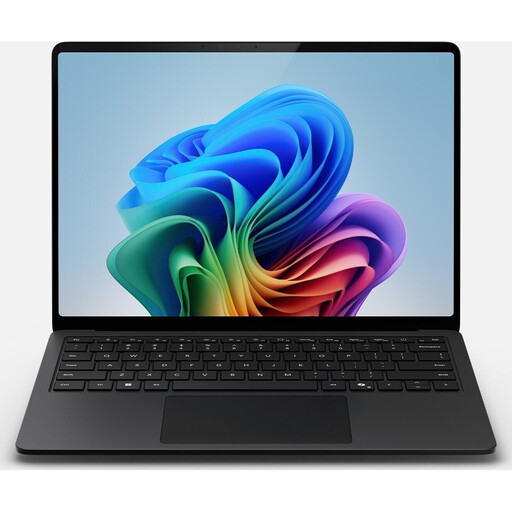
Microsoft Surface Laptop 7 Snapdragon X Plus, 16 GB, 512 GB, Black
The 13.8-inch touchscreen and stated weight of 1.34 kg suit a mobile workflow. Check that your scanner and software are compatible.
16 GB RAM, 512 GB SSD, Windows 11 Professional; USB 4 and USB 3 ports.
View at Joybuy
 No image available
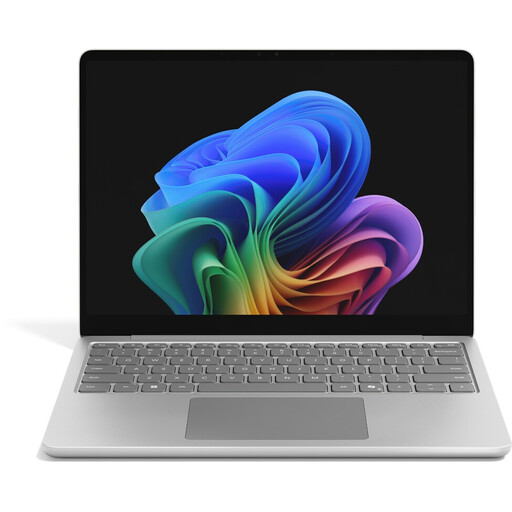
Microsoft Surface Laptop 8 Core Ultra 5, 512 GB, Platinum
The 13.8-inch touchscreen and stated weight of 1.34 kg are worth considering for a mobile workflow. Check that your scanning software is compatible.
512 GB SSD, Windows 11 Professional and USB 4 ports.
View at Joybuy
 No image available
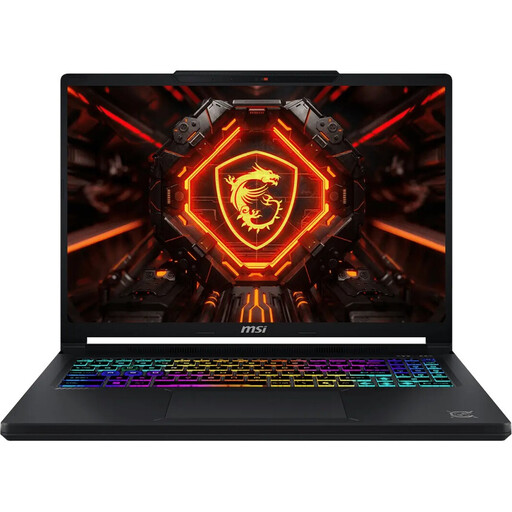
MSI Crosshair 16 Max HX E2WGXK-023
The 16-inch display gives you a larger built-in workspace. The listed graphics technology isn’t automatically needed for straightforward flashcard work.
QHD+ OLED with 165 Hz, 16 GB DDR5, 1 TB SSD and Windows 11 Home. Ports: USB-C, USB-A and HDMI.
View at Joybuy
 No image available
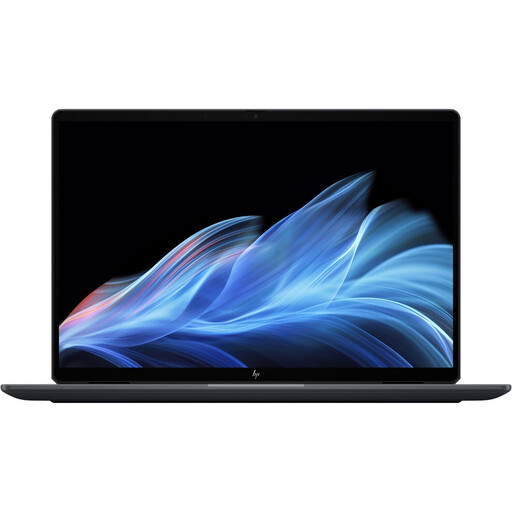
HP OmniBook Ultra Flip 14-fh0670ng
For mobile design and drawing: this configuration is described as a 2-in-1 touchscreen laptop supplied with a stylus. Check that your software and scanner are supported.
14-inch 2.8K OLED, 32 GB RAM, 1 TB SSD, Windows 11 Home and stated weight of 1.34 kg.
View at Joybuy
Frequently asked questions
Do I need a 4K display for printed study flashcards?
No. The printable size of a scanned drawing mainly depends on its actual pixel dimensions and the resolution you want for printing. Adobe recommends 300 PPI as a guide for high-quality print output, unless your printer requires something different. A 4K laptop display won’t add image detail that isn’t already in the original.
How do I import scanned drawings into Photoshop?
Adobe describes scanning via the scanner manufacturer’s application, as well as import options on macOS and Windows. Before buying a laptop, check that drivers for your exact scanner model are available for the operating system you’ve chosen. For the Photoshop workflow described, Adobe lists TIFF as an option for saving files without compromising quality.
Why do printed cards look different from how they appear on my laptop?
According to Adobe, your display profile, calibration, room lighting and paper all affect how you judge printed colours. If colour accuracy matters, set up your workflow and assess a test print. A stated colour gamut alone doesn’t guarantee a match.
What are my rights when buying a laptop online?
For eligible online consumer purchases, you generally have a 14-day right to cancel, starting from delivery. The EU’s Your Europe guidance sets out exceptions and conditions, including those relating to return costs. When you buy from a business seller, you also have statutory rights covering qualifying faults; a voluntary manufacturer’s warranty doesn’t replace them.
Can I scan and use other people’s drawings for German study flashcards?
That depends on who created the work, the usage rights and how you plan to use it. Section 60a of the German Copyright Act (UrhG) sets out conditions for certain non-commercial uses to illustrate teaching at educational institutions. It doesn’t give blanket permission to publish or sell flashcards. If you’re using someone else’s work, check that you have the rights for your specific use.


