Choose a laptop to suit your team’s workflow. For extensive editing in Word, it makes sense to have a device with access to the Word application you need; for simpler collaborative suggestions, a browser-based workflow may be enough. Also check the keyboard and document view, portability, and your software and ergonomic accessory requirements. If you’re handling personal data, you’ll also need appropriate security measures.
Which workflow is right for you?
Coordinating lots of edits
If you’re bringing together drafts and feedback from several people, you should be able to review and edit each change individually. Microsoft explains how Track Changes works in Word; check which features are actually available in the workflow your team plans to use.
Club members who do a lot of writing
If you write longer sections and review documents during extended sessions, consider the keyboard, screen and working setup together. For extended typing on a laptop, the DGUV recommends using a separate keyboard and mouse.
Working on the move with confidential documents
If you work in different locations and handle personal data, access controls and backups matter just as much as portability. The BfDI points out that encryption does not protect a device that has been unlocked.
What should you look for when choosing?
First, establish which application your team will use to edit the guide and which features it needs for reviewing. Then you can assess the screen, input devices, portability and security requirements more effectively.
| Consideration |
What to check before buying |
Who it matters most to |
| Reviewing changes |
Test with a sample file to see which application your team uses and whether it has the review and commenting features you need. |
If I need to track individual changes across the team, the specific document workflow matters to me. Around 29% of consumers prioritise reviewing changes. |
| Editing long documents |
Try the keyboard and screen with a longer document. For a permanent workstation, check for ports to connect external input devices. |
If I write for long periods and read lots of pages, the keyboard and document view need to suit my sessions. Around 23% of consumers prioritise typing comfort. |
| Working on the move |
Check the weight of the specific configuration, including its power adapter, the offline features you need and the conditions behind any battery-life claims. |
If I move between club venues, home and other workplaces, I want to be able to plan for the device and its power supply. Around 18% of consumers prioritise portability. |
| Protecting information |
If you handle personal data, set out access controls, device locking, encryption and backups for your actual workflow. |
If my draft contains personal data, I want to consider access and security measures for working on the move. Around 18% of consumers say data protection is particularly important to them. |
| Keeping track of the overall effort |
Check software access and any accessories you already have in advance; include any keyboard, mouse or screen you need in your plans. |
If I need to weigh up the costs and organisational effort involved in the device, software and accessories together, the overall requirements matter. Around 12% of consumers focus on total costs and support. |
Which pitfalls should you avoid?
-
Assuming a laptop gives you everything you need for working in Word
Microsoft lists fewer Track Changes features for Word for the web than for the desktop application. Simply stating an operating system also doesn’t prove that you have access to the application you need.
Before buying, check which application you plan to use and edit a real team document containing changes and comments.
An external keyboard, mouse and suitable work surface may take up extra space.
-
Assuming cloud sharing or a device password alone will protect confidential drafts
The BfDI explains that encryption does not provide the same protection when a device is switched on or unlocked. For collaboratively edited files, access permissions and backups are also part of the workflow.
If you’re handling personal data, define responsibilities, sharing permissions, device locking, encryption and backups for the way you’ll actually use the device.
-
Thinking hidden Word edits have been deleted
Microsoft points out that the ‘No Markup’ view only temporarily hides tracked changes. It does not remove them from the document.
Check the final version before sharing it, and explicitly accept or reject changes.
Relevant brands to consider
Lenovo
ThinkPad is a business laptop range that could suit mobile document work; the E14 Gen 7 AMD range includes a variety of configurations.
- Lenovo lists different display, memory and storage options for the E14 Gen 7 AMD range, depending on the configuration.
- Check the exact specifications, operating system and keyboard of the model you choose rather than assuming that details for the range apply to every listing.
HP
The ProBook range includes business laptops for use at a desk or in different workplaces.
- HP lists Windows 11 Pro, a 14-inch display with 1920 × 1200 pixels, 24 GB RAM and a 512 GB SSD for the ProBook 4 G1a 14 AD2M8ET#ABD.
- These manufacturer specifications apply to the configuration listed and don’t guarantee typing comfort, battery life or the features of other ProBook models.
Apple
The MacBook Air is a macOS option if it’s compatible with the software you need and your workflow.
- Apple offers MacBook Air M5 models with 13.6- and 15.3-inch display options.
- Check that you can access the Word application you need and that the specific model has the right ports. Advertised battery-life figures don’t tell you how long the device will last with your workflow.
Acer
TravelMate is a business laptop range; the TravelMate P2 16 is in the 16-inch class.
- Acer describes the TravelMate P2 16 range as a line of business laptops.
- Specifications and input devices vary by model. Check the exact model number rather than assuming that a range description applies to a specific listing.
Joybuy products for extended writing sessions
These are 16-inch Windows laptops suited to longer documents and writing sessions; the change-tracking workflow still depends on the application you use.
 No image available
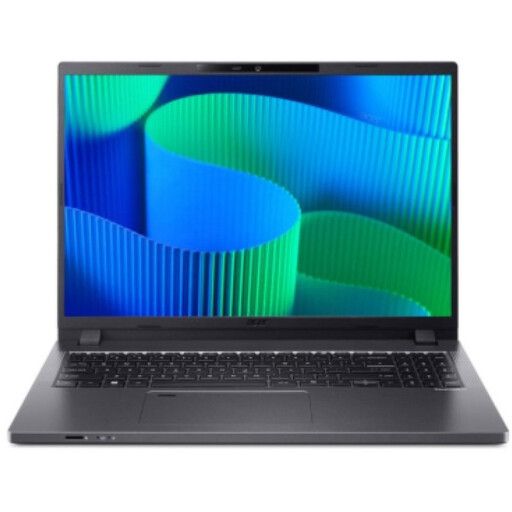
Acer TravelMate TMP216-41-TCO, 16-inch
Could be a good fit if you’re looking for a 16-inch Windows laptop for longer documents; change tracking depends on the application you use.
WUXGA; AMD Ryzen 3 PRO 7335U; 16 GB DDR5; 512 GB SSD; AMD Radeon 660M; Windows 11 Pro Education.
View at Joybuy
 No image available
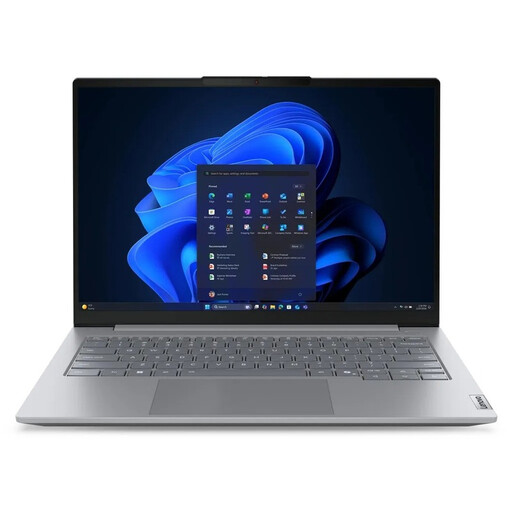
Lenovo ThinkBook 16 G9 AHP 21UT
An option if you’re looking for a 16-inch device with Windows 11 Pro for collaborative document work; check that you can access the software required for your Word workflow.
AMD Ryzen 5 220/3.2 GHz; Radeon 740M; 32 GB RAM; 1 TB SSD NVMe; 40.6 cm (16-inch).
View at Joybuy
 No image available
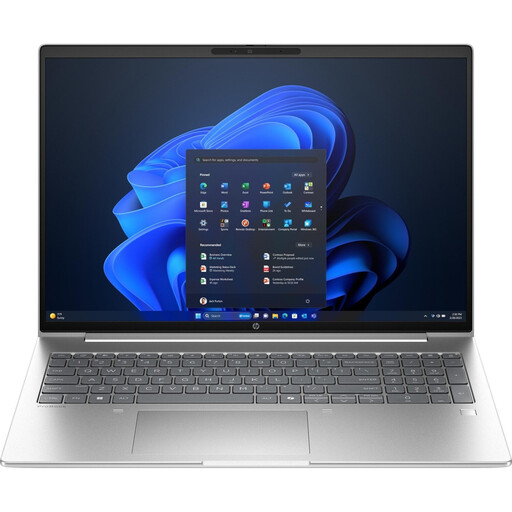
HP ProBook 4 16 G1i AI laptop
Could suit longer documents if you prefer a 16-inch laptop with Windows 11 Pro; you’ll need to make sure the application you choose works with your team’s workflow.
Intel Core Ultra 7 255U/2 GHz; 32 GB RAM; 1 TB SSD NVMe; IPS with 1920 × 1200 pixels; Wi-Fi 7.
View at Joybuy
 No image available
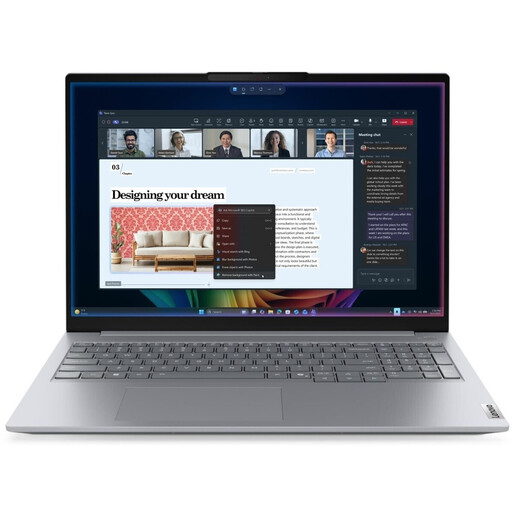
Lenovo ThinkBook 16 Gen 9, 16-inch
An option for writing and reviewing sessions on a 16-inch display; check in advance that you can access the document application you need.
Intel Core Ultra 5 325; 32 GB DDR5; 512 GB PCIe SSD; Windows 11 Pro.
View at Joybuy
 No image available
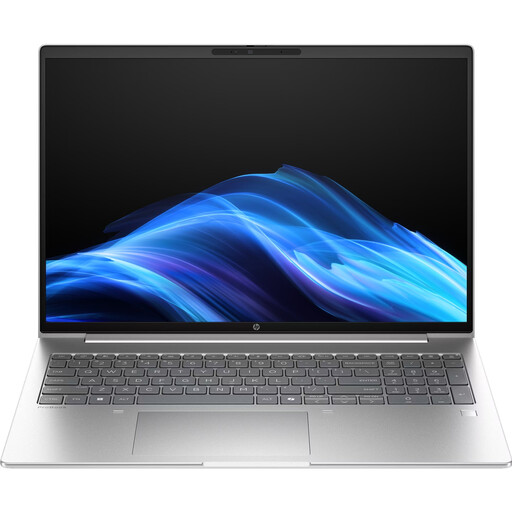
HP ProBook 4 G1a, 16-inch
Could suit longer writing sessions if you’re looking for a 16-inch laptop with Windows 11 Pro; check whether you’ll need external accessories for your workstation.
AMD Ryzen 5 230; 16 GB DDR5; 512 GB SSD; WUXGA IPS; AMD Radeon 760M.
View at Joybuy
Frequently asked questions
Do I need a Windows laptop to use Track Changes?
No. Microsoft also documents Track Changes in Word for macOS and the web. However, Word for the web has fewer review features than the desktop application; what matters is which features your team actually needs.
How should I set up a laptop for extended writing sessions?
For extended typing, the DGUV recommends using a separate keyboard and mouse. At your planned workstation, also check the screen position and make sure you have the ports needed for your setup.
Can I work on a draft without an internet connection?
You can work offline in Google Docs if you set up offline access in advance. Enable it and test the files you need before a meeting where you won’t have a connection.
What should I consider when a grant guide contains personal data?
If you’re processing personal data, your security measures need to match the risks involved. The BfDI explains how encryption can protect mobile devices, but also highlights its limitations when devices are unlocked. A laptop description alone isn’t enough to establish suitable security measures.
Does ‘No Markup’ remove all Word edits before I share a document?
No. Microsoft says this view only temporarily hides tracked changes. Explicitly accept or reject changes before sharing the document.


