What to consider when choosing
Windows laptop
A good fit if: you want to use Word for Windows or other Windows programmes, or you haven’t yet settled on a file format.
Consider: configurations vary within a model range. Lenovo Germany lists a 256 GB SSD for the ThinkPad E14 Gen 7 21T0CTO1WWDE5, while Acer Germany lists a 512 GB SSD for the Aspire Go 15 NX.J7WEG.007.
MacBook
A good fit if: your existing document and image workflow already uses macOS. Word for Mac supports inserting images.
Consider: Apple Germany lists two USB-C-form Thunderbolt 4 ports for the MacBook Air M5 reviewed. Check how you’ll connect any USB-A image storage devices you already have.
Chromebook
A good fit if: you’ll create the guide mainly in a browser using Google Docs. Google Docs explains how to insert images from your device, Drive and Photos.
Consider: you’ll need to set up offline access for eligible Drive files. Google Chromebook Help notes that some apps don’t work offline.
For this type of guide, the main priorities are a comfortable setup for writing, a suitable way to import images and a document programme that supports the required file format.
| What matters |
What to check before buying |
Who it matters most to |
| Arranging text and images |
Check the keyboard, display size and resolution, and how images are positioned in your document programme. |
If I want a clear view of my text and reference images while writing, I compare how much of the document I can see at once. Around 33 % of consumers list this as their main priority. |
| Checking reference images |
Check the specifications for the exact display variant and the ports you’ll need for your image storage device. |
If I want to compare image details with the booking steps and add the files to my guide, I focus on the display and image-import options. Around 27 % of consumers place particular importance on this. |
| Working in different locations |
Check the device size, the ports you need and the offline mode offered by your document service. |
If I want to continue working on the guide in different places, the device needs to suit where I work and, if necessary, support offline access set up in advance. Around 20 % of consumers prioritise portability. |
| Choosing the right specification |
Check the exact RAM and SSD configuration, along with your existing software licences and any adapters you’ll need. |
If I mainly write and insert images, I want the specifications to suit the way I actually work with documents. Around 20 % of consumers put getting the right core specifications first. |
Joybuy products for a Windows workflow
The following Joybuy product options are Windows laptops for creating documents with reference images. Compare the screen size, specifications and design with your workflow.
 No image available
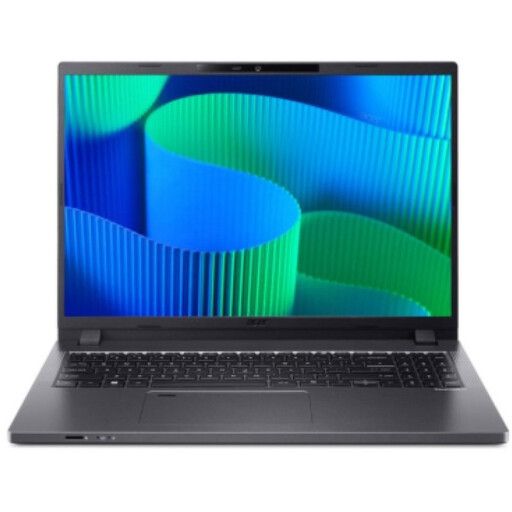
Acer TravelMate TMP216-41-TCO
For a Windows document workflow involving text and reference images; the 16-inch format may be useful if you want a larger document view.
16 inches, WUXGA, AMD Ryzen 3 PRO 7335U, 16 GB DDR5, 512 GB SSD, AMD Radeon 660M and Windows 11 Pro Education.
View at Joybuy
 No image available
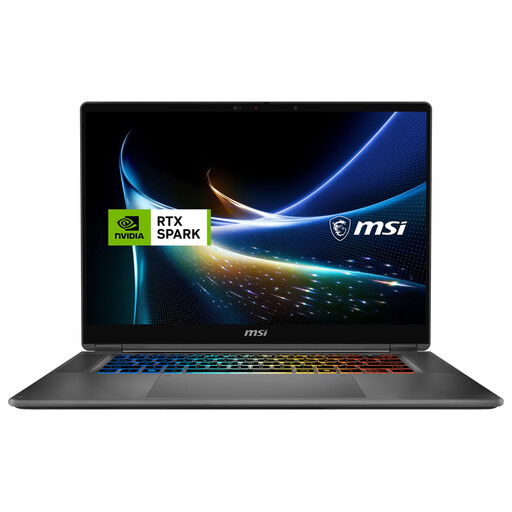
MSI Prestige N16 Flip AI+ C1XMT-027Y
For a Windows document workflow where a 2-in-1 design may suit the way you work.
16 inches, 2-in-1, 128 GB DDR5, 2 TB SSD and Windows 11 Pro.
View at Joybuy
 No image available
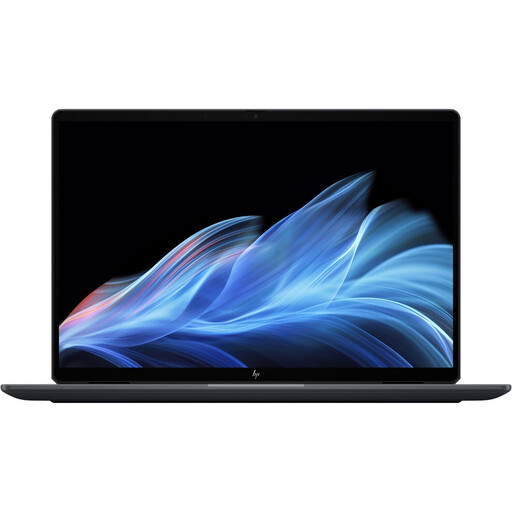
HP OmniBook Ultra Flip 14-fh0670ng
For Windows documents and reference images if you’re considering a 14-inch 2-in-1 device.
Intel Core Ultra 7 258V, 32 GB RAM, 1 TB SSD, 2.8K OLED display and Windows 11 Home.
View at Joybuy
 No image available
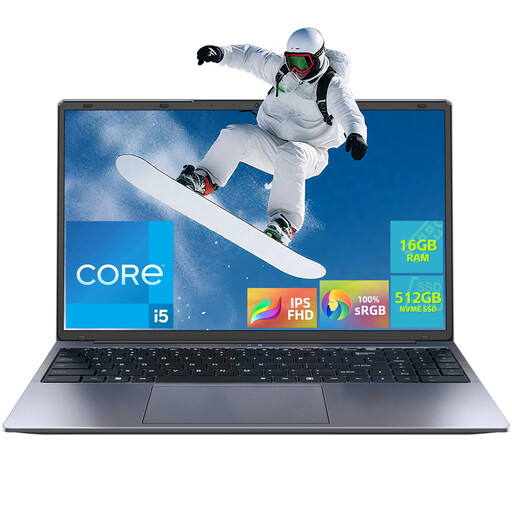
16-inch Windows laptop with Intel Core i5-8210Y
For a Windows document workflow involving text and local image files; check that the specific processor suits your programmes.
16-inch FHD display, Intel Core i5-8210Y, 16 GB RAM, 512 GB SSD and Windows 11 Pro.
View at Joybuy
 No image available
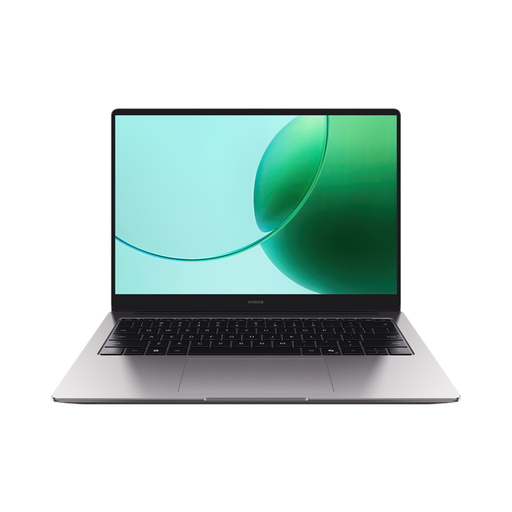
HONOR Magicbook X16 AMD 2025
For longer writing sessions if you’re looking for a German keyboard and a 16-inch format.
AMD Ryzen 5 6600H, 16 GB RAM, 512 GB SSD and German keyboard layout.
View at Joybuy
Frequently asked questions
Do I need a dedicated graphics card for text and reference images?
The documented Word and Google Docs features don’t specify a dedicated graphics card as a requirement for writing and inserting images. Check for additional hardware requirements if you plan to use specific image-editing or other specialist software.
How do I insert images and share the guide?
Word and Google Docs support inserting images from files or from your device. Word can export documents as PDFs. Before sharing, check the finished page layout and confirm whether recipients need an editable file or a PDF.
Can I work on the guide offline on a Chromebook?
You can work offline with eligible Google Drive files if you set up offline access in advance and sync the files you need. Google notes that some apps don’t work offline.
Which specifications and software should I check before buying?
Check that your preferred document programme is available and find out which ports your image storage devices need. Also compare the full model number and the RAM and SSD specifications of the exact variant.
What rights do I have if my laptop is faulty?
According to Your Europe, when you buy from a trader in the EU as a consumer, faulty goods are covered by a legal guarantee of at least two years from the date you receive them. This is different from a voluntary manufacturer’s warranty. If you buy for business use, don’t assume consumer rights apply without checking.
Can I use reference images I find online in a published guide?
You can’t assume so just because an image is available. The German Patent and Trade Mark Office explains copyright protection for images and usage rights. Before publishing, check the rights for the specific image, or use your own material or images with an appropriate licence.


