People having audio problems at a two-screen setup
If there’s no sound, first check which audio output is selected. Microsoft Support recommends doing this when several output devices are available.


A second screen alone isn’t a reason to buy a headphone amplifier. Microsoft Support recommends first checking that you’ve selected the right output device when several audio outputs are available. If the existing output genuinely isn’t powerful enough for your particular headphones, choose an amplifier based on the connection, the power specifications for the socket you’ll use and the space it takes up. For calls, make sure it explicitly supports your microphone too.
If there’s no sound, first check which audio output is selected. Microsoft Support recommends doing this when several output devices are available.
The right connection and enough power for your particular headphones are what matter. Focusrite also highlights sensitivity, the audio source and your listening environment, as well as impedance.
If you want to listen and speak through your laptop, check microphone support, the connection you need and whether you’ll need a splitter. Creative describes the Sound Blaster PLAY! 4 as a device for headsets with a microphone.
First check which audio output is selected, then make sure it suits your headphones and that you have room for the device. Headset microphone support is another factor to consider.
| What matters | What to check before buying | Who it matters most to |
|---|---|---|
| Sound from the right device | First select and test the output you want in your sound settings. Microsoft Support recommends this check when several output devices are available. | If there’s no sound at my two-screen setup, I want to check the selected output before rushing to buy an extra device. Around 36% of consumers say audio output is their main concern. |
| Connection and headphone power | Match the plug type, sensitivity and impedance to the power specifications for the socket and load you plan to use. Focusrite also cites the audio source and listening environment as factors. | I want to be sure the connection and power are right for the socket I’ll use with my wired headphones. Around 29% of consumers say this is their main concern. |
| Space and controls | Check how much desk space it needs, whether the controls are within easy reach, whether you have a spare USB connection and what power supply it needs. The manufacturer specifies DC 12 V/2 A for the FiiO K11; the iFi ZEN DAC 3 manual also mentions USB power. | At a permanent desk setup, I need easy-to-reach controls without the device and its cables taking up unnecessary space. Around 21% of consumers prioritise space, cabling and ease of use at their workstation. |
| Headset microphone | Check for a microphone input, the right headset plug, whether you need a splitter and the input mode. Fosi Audio notes that the K5 Pro’s microphone doesn’t work with optical or coaxial input. | For calls, my wired headset needs to do more than play audio: the device must also support its microphone. Around 14% of consumers say this is their main concern. |
If several output devices are available, selecting the wrong one could explain why you can’t hear any sound. An extra amplifier won’t necessarily fix this setting.
First test the output you want to use in your sound settings.
Focusrite cites headphone sensitivity, the audio source and listening environment as factors in finding the right setup, as well as impedance.
Compare your particular headphones’ specifications with the power ratings for the socket and load you’ll use.
A socket for headphone playback doesn’t mean your headset’s microphone will work too. According to the manufacturer, the Fosi K5 Pro’s microphone function also depends on the input mode.
Before buying, check the microphone connection, plug configuration and whether you’ll need a splitter.
FiiO describes the K11 as a desktop DAC with a USB input, a control dial and several audio outputs for a permanent listening setup.
Creative designed the Sound Blaster PLAY! 4 for wired headsets and online calls.
iFi audio describes the ZEN DAC 3 as a USB desktop device for headphones and other audio equipment.
Fosi Audio describes the K5 Pro as a USB DAC with headphone and microphone connections for a permanent workstation setup.
The Scarlett Solo 4th Gen is worth considering if you want to connect a separate microphone or instrument as well as headphones.
This selection includes a USB audio DAC with a headphone amplifier and an analogue desktop headphone amplifier. Check that your laptop’s audio output is compatible with the connection on the device you choose.
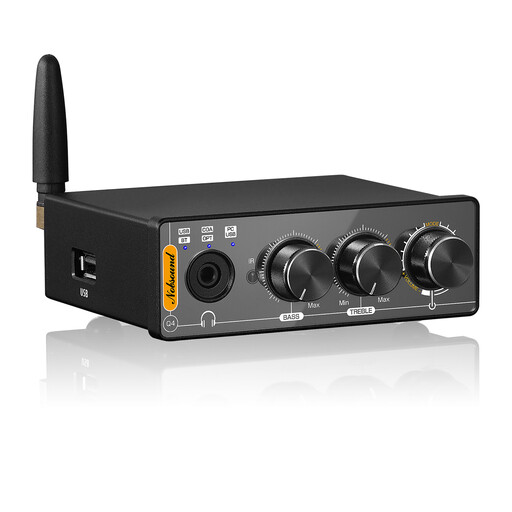 No image available
For a permanent listening setup if you’re looking for a USB DAC with a headphone amplifier.
The product name lists Bluetooth, an optical input, 24-bit/192 kHz audio, tone controls and a remote control. The description specifies an external DC power supply; use the correct one.
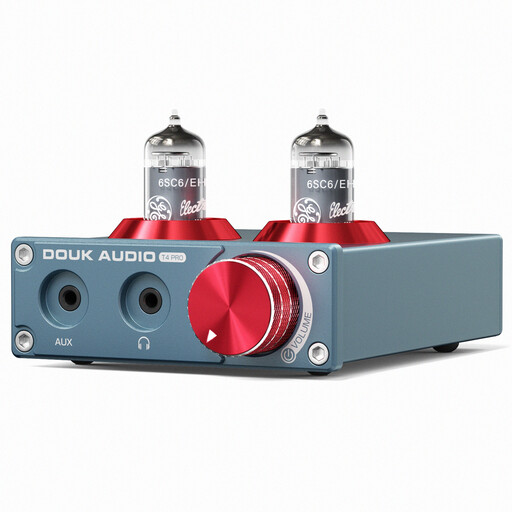 No image available
An option for a permanent listening setup if your laptop has an analogue AUX output for connecting it.
This is described as a desktop headphone amplifier with an AUX input, not a USB DAC. It specifies a power supply of DC 12 V/≥1.5 A and a DC 12 V adapter.
No, not by itself. If several audio outputs are available and there’s no sound, Microsoft Support recommends selecting the output device you want in your Windows sound settings first. Whether the existing headphone output is powerful enough then depends on your headphones and listening situation.
Connect the device to your laptop as described in its instructions, plug your headphones into the appropriate socket and then select the device as your audio output. The Fosi manual describes these steps for the K5 Pro; connections and power requirements may differ on other models. Start with the volume turned down.
No. Check specifically for a microphone connection and the right operating mode. Fosi Audio specifies a headset splitter for the K5 Pro and says the microphone won’t work with optical or coaxial input.