You don’t need an external DAC or headphone amplifier just because you sit by a bright window. If your laptop’s headphone output works smoothly and gives you a comfortable listening volume with your wired headphones, you can carry on using it. If you’re missing a suitable connection, or need a headset microphone, an easily accessible volume control or extra outputs, choose a device to meet those specific needs. To reduce glare, adjust your workspace – a DAC won’t help.
Who might need a DAC?
Laptop users with wired headphones
If you’re not sure whether your laptop’s existing output is good enough, first check the selected output device and your audio settings. Microsoft Support lists these settings and possible driver issues as things to check when troubleshooting sound problems in Windows.
Headset users who make calls
If you want to use your headset’s microphone as well as listen through it, your device and connector need to support this. Creative lists headset microphone support and a microphone mute button for the Sound Blaster PLAY! 4.
Listeners at a permanent window-side desk
If you plan to keep the DAC on your desk, consider the space it takes up, cable management and how easy the controls are to reach. Germany’s Federal Institute for Occupational Safety and Health (BAuA) treats glare from daylight as a workplace lighting issue; an audio adapter won’t change the amount of light coming in.
What should you look for when buying?
Base your decision on the problem you actually want to solve: suitable connections, a specific playback or volume requirement, easy controls at your window-side desk, microphone support or extra desk connections. The guide below is for consumers in Germany considering a DAC or headphone amplifier for wired headphones with a laptop. Each row represents a key buying priority.
| What you need |
What to check when buying |
Who is it important to? |
| Compatible connection |
Check whether your laptop has USB-A or USB-C and match it to the headphone connector you need, making sure you check the full model variant. |
If the main question for me is how to connect my laptop and headphones, I’d check the connectors first. Around 31% of consumers put compatibility first. |
| Volume and playback |
If you have sound problems, first check the output device and settings. Only compare power specifications if the output and stated headphone impedance are the same. |
If my laptop’s output sounds too quiet or the sound is distorted even after checking the settings, I’ll look for a suitable solution rather than the highest possible figures. Around 25% of consumers prioritise playback and volume. |
| Space and controls |
Consider the space available, cable management and how easy a control will be to reach where you plan to put the device. Reposition your screen if reflections are a problem. |
If there’s limited desk space by my window or I want to adjust the volume easily, the design matters to me. Around 19% of consumers prioritise controls and space by the window. |
| Headset microphone |
Check that the device supports your specific headset connector, microphone and any software features you need. |
If I want to listen and join meetings using the same device, I need confirmed microphone support. Around 13% of consumers prioritise calls. |
| Extra outputs |
Only plan for connections you’ll actually need for other devices. If the outputs are on the rear, check how the volume is controlled. |
If I want to use active speakers on my desk as well as headphones, the outputs need to suit my set-up. Around 12% of consumers prioritise extra desk connections. |
Common buying mistakes
-
Buying a DAC because of bright light by the window
An audio converter won’t fix glare. The BAuA considers troublesome daylight a workplace lighting issue; Microsoft Support recommends checking the output device and settings, among other things, when troubleshooting audio problems in Windows.
Consider your screen and the light separately from your audio needs, and try the headphone output you already have first.
-
Assuming a headphone output supports a headset microphone
A headphone output doesn’t automatically mean that a headset microphone will work.
Check the connector and microphone support for the specific model. If they’re not compatible, you may need another USB audio device or a suitable adapter.
The software features you want may also depend on your operating system; Creative describes its SmartComms features in the context of Windows.
-
Comparing power specifications without checking the connection and headphone impedance
A specification for a particular impedance doesn’t automatically tell you how loud or suitable a device will be with different headphones.
Only compare figures for compatible outputs and similar impedance ratings. Start at a low volume; the World Health Organization notes that both listening time and how often you’re exposed to sound matter.
-
Overlooking the rear output setting when using active speakers
According to the manual, the ‘Fixed’ setting on the iFi ZEN DAC 3 bypasses the volume control for the rear output.
Before connecting your speakers, decide where you want to control the volume and check the appropriate setting at a low level first.
Key brands at a glance
FiiO
The documented models range from compact USB adapters to desktop units with extra controls.
- The USB-C version of the KA11 is listed with a USB-C connector and a 3.5 mm headphone output.
- FiiO lists switchable gain for the E10K-Type C.
- FiiO distinguishes the E10K-Type C from the original E10K version. Specifications for one version shouldn’t be applied to the other, and they don’t prove an audible improvement over a specific laptop output.
Creative
The Sound Blaster PLAY! 4 is an option for wired headphones and headset calls.
- Creative lists headset microphone support and a dedicated microphone mute button.
- The advertised SmartComms features are claims made by the manufacturer; Creative describes them in connection with Windows. Check that the features work with your operating system and headset.
iFi audio
The ZEN DAC 3 is a desktop unit for headphones and, with the right set-up, active speakers.
- The manual lists 6.35 mm and 4.4 mm headphone outputs, as well as a gain switch.
- The ‘Fixed’ or ‘Variable’ setting for the rear output needs to match how you want to control the volume. The manual recommends using a low level before changing the gain setting.
AudioQuest
AudioQuest describes the DragonFly Black v1.5 as a portable USB DAC with a headphone amplifier for computers.
- AudioQuest lists native decoding up to 24-bit/96 kHz for this model.
- This manufacturer claim doesn’t prove an audible improvement with a particular laptop. Also check that the USB connector is compatible or whether you’ll need an adapter.
Joybuy products for laptops and wired headphones
These product options cover USB connections and, if your laptop has a compatible analogue output, a traditional AUX connection too. Before choosing, check the connections you’ll actually use on your laptop and headphones.
 No image available
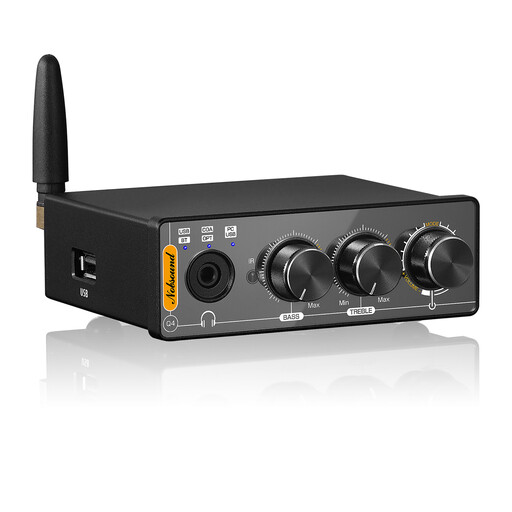
Nobsound Q4 USB audio gaming DAC with Bluetooth
An option if you want to connect your laptop via USB and also use other audio inputs or active speakers on your desk.
The description lists optical and coaxial inputs, RCA outputs, tone controls and a remote control.
A headphone impedance range of 16–300 Ω is listed. The description says an external power supply is required; use only a compatible power supply.
View at Joybuy
 No image available
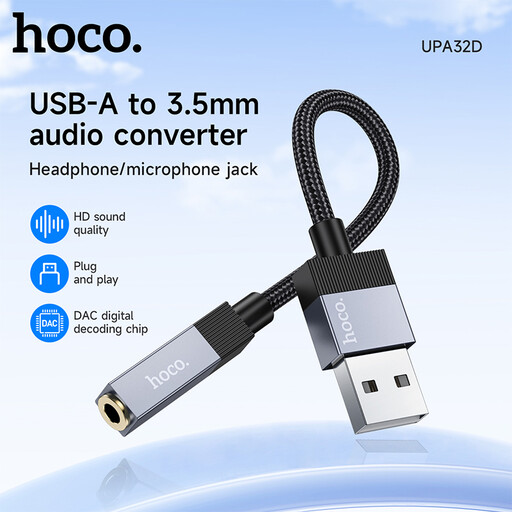
HOCO UPA32D USB-A to 3.5 mm audio adapter
A compact connection option if your laptop has USB-A and your headphones or headset use a compatible 3.5 mm connector.
The description lists support for headsets with or without a microphone; check that your specific headset and the microphone features you need are supported.
This adapter requires a USB-A port for this connection.
View at Joybuy
 No image available
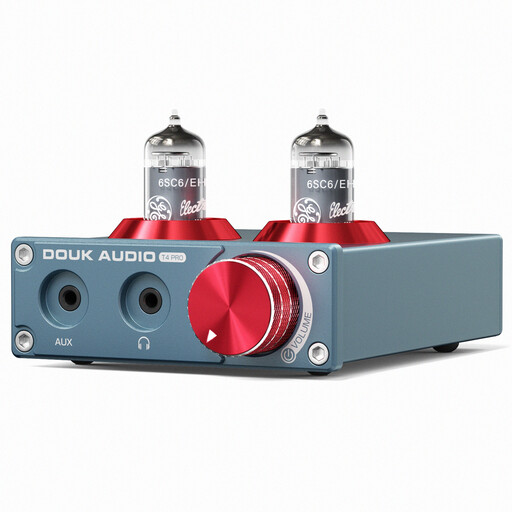
Douk Audio T4 PRO Mini valve headphone amplifier
A desktop option if your laptop has an analogue 3.5 mm audio output and you want to use a volume control or RCA outputs.
The description lists a 3.5 mm AUX input, a 3.5 mm headphone output and stereo RCA outputs. No USB input is listed for connecting to a laptop.
A headphone impedance range of 32–300 Ω and 150 mW at 32 Ω are listed; these figures don’t guarantee a particular volume with every pair of headphones. The description says the device needs a 12 V power supply.
View at Joybuy
Frequently asked questions
What should I check if there’s no sound after connecting a USB DAC?
In Windows, first check that the correct output device is selected and that the sound isn’t muted. Microsoft Support also lists audio enhancements and drivers as possible causes; start at a low volume.
Will my wired headset’s microphone work with any headphone DAC?
No. A headphone output on its own doesn’t confirm that a headset microphone is supported. Creative lists this feature for the Sound Blaster PLAY! 4, but you should still check your headset’s connector and the software features you need.
How can I reduce reflections on my laptop screen beside a window?
Adjust the position of your screen and the way light falls on it, rather than buying a DAC. The BAuA notes that daylight in the workplace needs to be controllable because sunlight can cause glare.
How can I use a more powerful headphone amplifier safely?
Start at a low volume and consider both the level and how long you listen for. The World Health Organization lists both as factors in safe listening; the iFi ZEN DAC 3 manual recommends not changing the gain at a high volume.
Do I need a DAC if my laptop’s output already works well?
Not necessarily. If your existing output works smoothly and gives you a comfortable listening volume with your headphones, and you don’t need extra connections or controls, you can carry on using it. A DAC may be worth considering if you have a specific connection or control requirement.


