For long historical film recordings, choose a laptop with a processor, RAM and graphics capabilities that suit the resolution and format of your source files and editing software. Its storage should also have room for originals, working files and a separate backup. For Premiere projects in 4K and higher resolutions, Adobe recommends 32 GB of RAM or more. Proxies can make editing easier, but they require extra time and storage, and do not replace your original files or their backup. The display, ports and weight will then help you decide whether the laptop is best suited to a permanent editing setup or to reviewing footage on location as well.
Who is this selection for?
Editing long recordings
If you review a lot of source footage, a reliable, well-organised editing workflow matters more than one headline specification. Adobe describes proxies as lower-resolution copies that can help when editing high-resolution video.
Storing and backing up your collection
If you’re bringing historical originals, project files and working copies together, make sure you have enough storage and plan for a separate backup. The German Federal Office for Information Security recommends backing up data regularly.
Reviewing footage on location
If you also work away from a permanent editing setup, weigh up a practical display and suitable ports against the weight of the laptop and any drives you may need to carry.
What should you look for in a laptop for long film recordings?
Start by checking your source footage, editing software and storage needs. Then compare the display, ports and weight with the way you’ll actually use the laptop.
| What matters |
What to check before buying |
Who is this particularly important for? |
| Smooth editing |
Check the resolution and format of your source files against your editing software’s requirements, as well as the processor, RAM and graphics in the specific configuration. Test proxies first on representative footage. |
If I want to review and edit long source files, a reliable workflow matters more to me than one headline specification. Around 36% of consumers put smooth editing first. |
| Footage and backups |
Work out the size of a typical batch of footage and allow space for originals, project files, cache and, where needed, proxies. Check how external drives connect and how backups can be stored separately. |
I want to keep originals and working files organised and have a separate backup. Around 29% of consumers prioritise storage and data backups. |
| Assessing image quality |
Check the display type, resolution and stated colour-space coverage for the full model number. If colour accuracy is critical, also consider the requirements of your intended output. |
If I want to check image details and match shots, the specific display configuration matters to me. Around 21% of consumers prioritise image assessment. |
| Working on the go |
Compare the weight and available ports on the specific configuration with the memory cards and drives you use. Remember to factor in any adapters and accessories you’ll need to carry. |
I want to be able to review and connect footage away from a permanent editing setup. Around 14% of consumers prioritise portability. |
Common laptop-buying mistakes
-
Allowing storage only for the finished video
Source files, editing projects, cache and, where needed, proxies also take up space. A single drive is not a separate backup either.
Start by working out the size of a typical batch of footage, then plan for working storage and backup storage separately.
Remember to allow for extra storage for source files, cache, proxies and separate backups.
-
Assuming every model in a range has the same specifications as the version on sale
RAM, graphics, display and SSD can vary within the same range. Specifications can also differ between regions.
Check the full model number and the specific configuration against the requirements of your editing project.
-
Treating proxies as a replacement for originals or backups
Proxies are extra working copies for editing. They don’t replace the original footage or a separate backup.
Keep the originals unchanged and back them up separately. Choose a clear, easy-to-follow storage location for your proxy files.
If data is lost, recovering footage or digitising it again can take time.
Which brands and ranges are worth considering?
Apple
MacBook Pro for an editing workflow built around macOS and compatible editing software.
- Apple lists media engines and various memory and SSD options for M5 Pro configurations. Its technical specifications include hardware acceleration for H.264, HEVC, ProRes and ProRes RAW.
- These specifications are not a guarantee of compatibility with every historical source format. Check the specific memory configuration, ports and software requirements for your project.
ASUS
ProArt P16, a Windows creator range with a choice of display and port options.
- For one specific configuration, ASUS Germany lists 64 GB of RAM, two 2-TB SSDs and an SD Express card reader.
- These specifications don’t automatically apply to every ProArt P16 model. Check the full model number and the details of the individual listing.
Lenovo
ThinkPad T1g Gen 8, a performance-focused 16-inch range with graphics card options and documented ports.
- Lenovo’s general specification sheet lists a card reader and replaceable LPCAMM2 memory.
- Lenovo notes that configurations can vary by region, so check the specifications of the specific device.
HP
ZBook Studio G11 for buyers who want to compare a clearly stated RAM upgrade option.
- HP lists up to 64 GB of DDR5 SODIMM memory and various GPU options for this range.
- The maximum capacity and available options don’t describe every device on sale. Check the RAM and graphics in the specific configuration.
Joybuy laptops for editing and reviewing footage
The following Joybuy listings include Windows laptops and a MacBook Pro, with a range of display sizes and stated RAM and SSD configurations. Compare each specification with your source files, editing software, transport needs and backup requirements.
 No image available
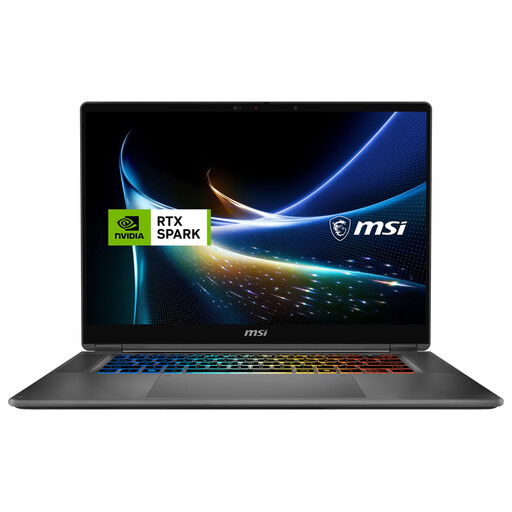
MSI Prestige N16 Flip AI+ C1XMT-027Y
The 2-in-1 design may suit you if you want a foldable device for reviewing footage on the go.
Specifications include 128 GB of DDR5 RAM, a 2-TB SSD and Windows 11 Pro. The 16-inch OLED display has a resolution of 3,840 × 2,400 pixels, and USB4 is listed as a port. The stated weight is 1.9 kg.
View at Joybuy
 No image available
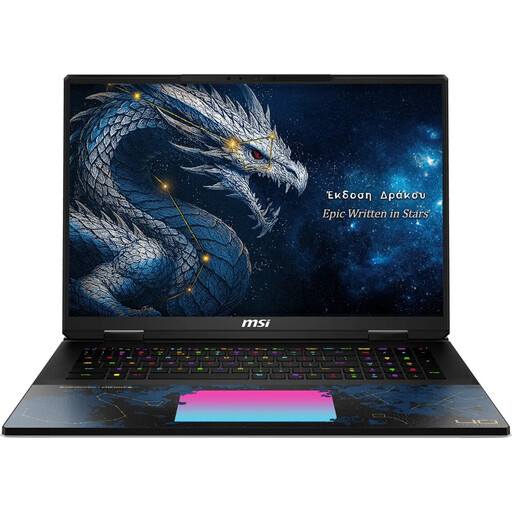
MSI Titan 18 HX Dragon Edition Draco Epic A2WJ-1218
The 18-inch screen may be useful for reviewing footage on the laptop, if carrying it around frequently isn’t a priority.
The stated specifications include 96 GB of DDR5 RAM, a 4-TB SSD and an NVIDIA GeForce RTX 5090 with 24 GB. The UHD+ Mini LED display is listed at 240 Hz, and an SD card reader is included. At 3.6 kg, its weight is worth bearing in mind if you’ll be transporting it often.
View at Joybuy
 No image available
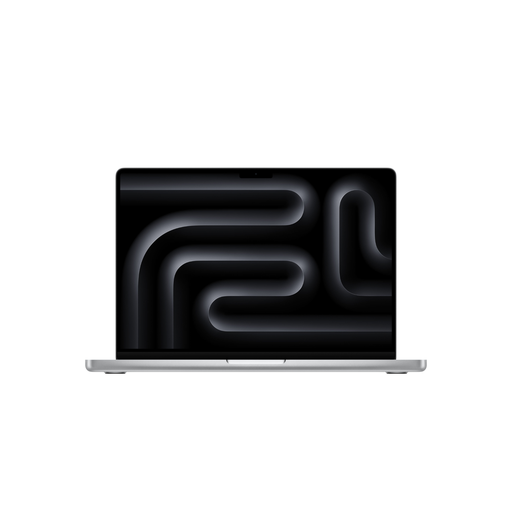
Apple 16-inch MacBook Pro (M5 Max, 2026)
This MacBook Pro may suit you if you work with macOS and need an SDXC card slot in your workflow.
The configuration lists 36 GB of memory, a 2-TB SSD and a 16.2-inch Liquid Retina XDR display with a resolution of 3,456 × 2,234 pixels. Thunderbolt 5, HDMI and an SDXC card slot are listed; the weight is 2.15 kg. According to the product description, a power adapter is not included.
View at Joybuy
 No image available
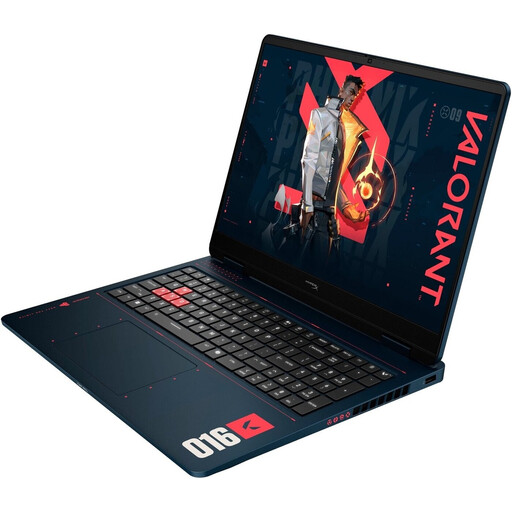
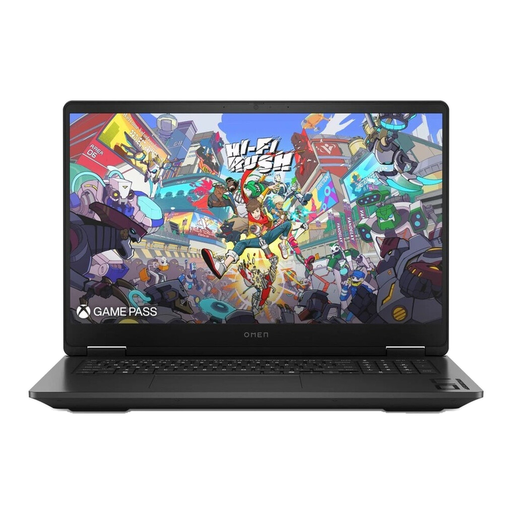
HP OMEN 16-ap1099ng
This configuration may suit you if you’re considering a 16-inch display and a stated discrete graphics card.
Specifications include 24 GB of RAM, a 1-TB SSD, a GeForce RTX 5070 with 8 GB of graphics memory and a 16-inch display with a resolution of 2,560 × 1,600 pixels. For Premiere projects in 4K or higher, 24 GB of RAM is below Adobe’s recommendation of 32 GB or more. Check that the configuration meets the needs of your specific project.
View at Joybuy
 No image available
HP OMEN 17-db1077ng
The 17.3-inch display may be useful for assessing images on the laptop, provided the stated display configuration suits your workflow.
The configuration lists 24 GB of RAM, a 1-TB SSD and a GeForce RTX 5070. The 17.3-inch QHD IPS display is listed as covering 100% of the sRGB colour space. For Premiere projects in 4K or higher, 24 GB of RAM is below Adobe’s recommendation of 32 GB or more.
View at Joybuy
Frequently asked questions
Do I have to buy the most expensive laptop for long 4K recordings?
No. First, compare your editing software’s requirements with the footage you actually have. For Premiere projects in 4K and higher resolutions, Adobe recommends 32 GB of RAM or more, among other specifications. Proxies can make editing demanding original footage easier. This is a guide for suitable projects, not a general requirement to buy a particular laptop.
How can I start using proxies without losing the historical originals?
Create proxies in Premiere from suitable original clips and choose a clear, easy-to-follow storage location for the working copies. Keep the originals and back them up separately. Adobe notes that some media, such as clips with subtitles, may have limitations, and that the original media must remain available for the final edit.
What ongoing costs and consumer rights should I consider when buying?
As well as the laptop, you may need to budget for external storage and a licence for your chosen editing software. If a purchase is faulty, your statutory rights against the seller are separate from any voluntary guarantee. The German consumer advice service explains the right to a remedy; the specific costs of software and storage depend on the options you choose.
Can I simply publish historical film recordings in the finished village history film?
Not just because the recordings are old. The German Patent and Trade Mark Office notes that films can also be protected by copyright; if people are recognisable, data protection and personality rights may also be relevant. Material from the German Federal Archives is subject to its specific terms of use. Whether a particular recording can be published depends on its origin, the rights involved and how you plan to use it.


