What should you look for when buying?
First, compare your software and footage with the spec of the exact laptop configuration. Then plan for the display, ports and accessories you’ll need to make the laptop work with your sit-stand setup.
| Criterion |
What to check |
Who is it particularly important for? |
| Editing headroom |
Check that your editing software and version, footage resolution, RAM, graphics memory and SSD all match the exact configuration. For Premiere on Windows at 4K and above, Adobe recommends at least 32 GB RAM and 8 GB GPU memory; these figures apply to the workflow it documents. |
If I often work on larger projects, I want to choose specs that suit my footage rather than paying for headroom I won’t use. Around 33% of consumers put having the right editing headroom first. |
| Sit-stand workstation setup |
Check that your desk space and ports work with your setup, including your monitor, external keyboard and mouse. |
For longer sessions, I want to position my screen and input devices so my workstation suits switching between sitting and standing. Around 25% of consumers put workstation setup first; the BAuA describes changing posture as part of sit-stand activity. |
| Display and screen space |
Check the screen size and exact panel configuration, and consider whether you already have an external monitor. |
If I plan to review and edit most of my footage on the laptop, screen space matters more to me than extra power my workflow doesn’t need. Around 25% of consumers prioritise viewing and assessing their footage. |
| Media and ports |
Check the card format, drive connectors, video outputs and SSD capacity against your camera, storage devices and project size. |
If I want to transfer footage directly from a card or drive, I want the necessary connections to work with my equipment without extra steps. Around 17% of consumers put media transfer first when choosing what to buy. |
Joybuy laptops for video editing
The Joybuy laptops below offer features for video editing and connecting an external screen. The key is to find a configuration that suits your footage, editing software and workstation.
 No image available
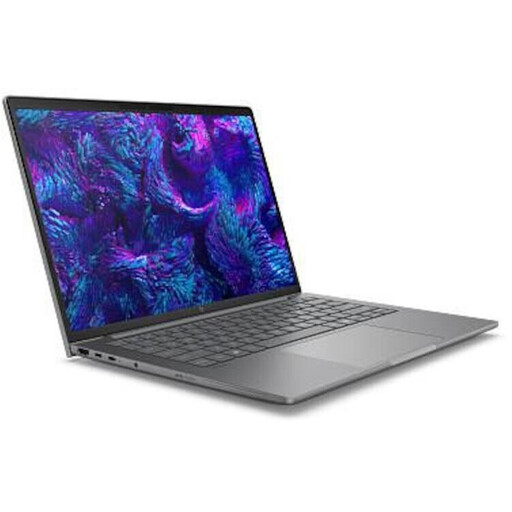
HP ZBook 8 G1i 14, Ultra 9 285H, 64 GB RAM, 1 TB SSD
An option if you’re looking for a 14-inch laptop with plenty of memory and ports for an external screen.
The configuration lists 64 GB RAM, a 1-TB SSD, Intel Arc graphics with shared memory, Thunderbolt 4 and HDMI 2.1. Check that these ports are compatible with your monitor.
View at Joybuy
 No image available
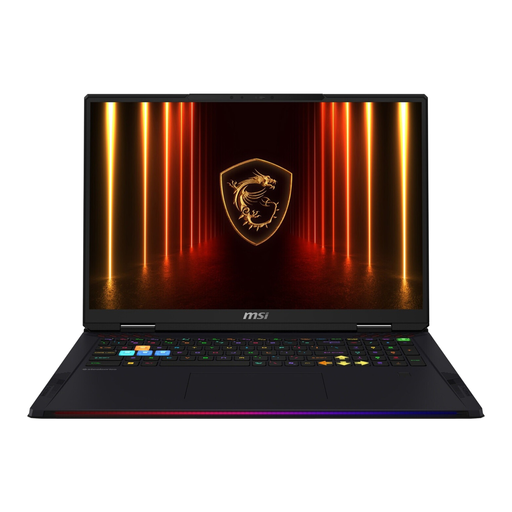
MSI Raider 18 HX AI A2XWJG-074
An option if you want to compare a large built-in display and plenty of storage for bigger projects.
The listed configuration has an 18-inch display, 64 GB RAM, a 4-TB SSD and an RTX 5090 with 24 GB graphics memory. HDMI and USB ports are listed; check that they work with your existing devices.
View at Joybuy
 No image available
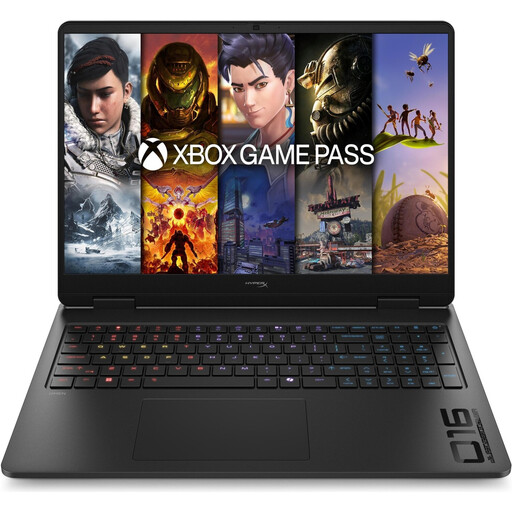
HP OMEN 16-ap1071ng, Ryzen 7 8745HX
An option if you’re looking for a 16-inch display and an HDMI port for an external monitor, and the RAM suits your editing software.
The configuration lists a QHD display, 16 GB RAM, a 1-TB SSD and a GeForce RTX 5060. For Premiere on Windows at 4K and above, Adobe recommends at least 32 GB RAM, so this 16-GB configuration falls short.
View at Joybuy
 No image available
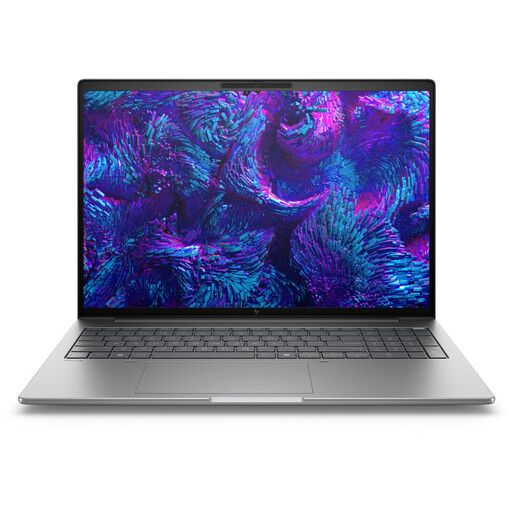
HP ZBook 8 G1i 16, Ultra 7 265H, 64 GB RAM, 2 TB SSD
An option if you’re planning to use a 16-inch display and a large SSD for projects stored locally.
The configuration lists 64 GB RAM, a 2-TB SSD, a WUXGA display and an NVIDIA RTX A500 with 4 GB graphics memory. For Premiere on Windows at 4K and above, Adobe recommends at least 8 GB GPU memory, so this configuration falls short.
View at Joybuy
 No image available
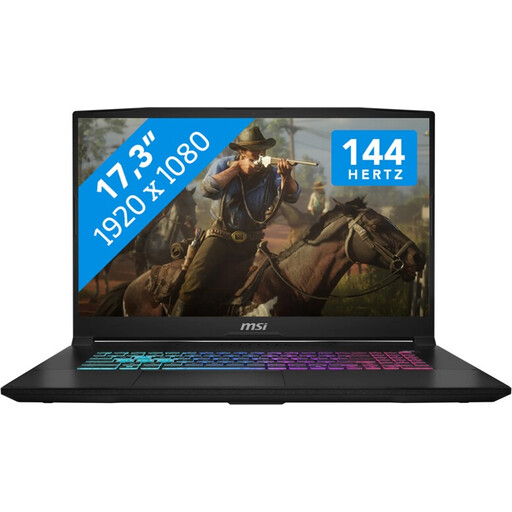
MSI Katana 17 HX B14WFK
An option if you want to compare a large 17.3-inch display and ports for an external screen.
The title lists a Full HD display with a 144 Hz refresh rate, an Intel Core i7, 16 GB RAM, a 1-TB SSD and a GeForce RTX 5060 with 8 GB GDDR6. For Premiere on Windows at 4K and above, Adobe recommends at least 32 GB RAM, so this configuration falls short.
View at Joybuy
Frequently asked questions
Do I need the same specs for short holiday videos as I do for large 4K projects?
No, not just because you’re making a holiday video. For the Premiere version it documents, Adobe distinguishes between minimum requirements for HD and recommendations for HD, 4K and higher resolutions. Check your software version, footage and exact laptop configuration; Premiere’s requirements don’t automatically apply to other programmes.
How should I set up my laptop for longer editing sessions at a height-adjustable desk?
Plan your workstation around your screen and input devices rather than relying on the laptop screen alone. For longer work sessions, the DGUV recommends using an external keyboard and mouse, as well as an external screen where possible. The BAuA describes alternating between sitting and standing; it doesn’t mean standing all the time.
What extra costs and accessories should I check?
Check what software costs apply and whether you already have a monitor, keyboard, mouse, storage devices and charger, or whether they’re included. Adobe notes that Premiere may involve fees or membership costs; Dell says the XPS 16 configurations shown on its own offer page don’t include a charger. You can’t assume the same additional costs apply to other models.
What rights do I have when buying online in Germany?
Consumers generally have a right to cancel distance contracts, subject to the statutory exceptions in § 312g BGB; § 355 BGB sets a 14-day cancellation period. If goods are faulty, your statutory rights against the seller are separate from any voluntary manufacturer’s warranty. The Verbraucherzentrale also explains that the period may be extended in certain circumstances if you choose a repair for faulty goods.


