What should you look for when buying?
First, check that the approved software suits your plans for the workstation. For longer writing sessions, the DGUV recommends using an external keyboard and mouse, and an external monitor where possible.
Windows business laptop
A good fit if: Your library uses Windows software or existing USB-A and HDMI devices.
Things to weigh up: Ports and what’s included vary by model and configuration.
MacBook Air with macOS
A good fit if: The library software you need runs on macOS and you move between workstations.
Things to weigh up: Apple lists two Thunderbolt 4/USB-C ports. You may need an adapter for existing HDMI or USB-A devices.
Chromebook with ChromeOS
A good fit if: Your team approves a browser-based workflow and the web apps available meet your needs for documents and images.
Things to weigh up: Microsoft says the Windows and Mac desktop versions of Office cannot be installed on a Chromebook.
| Priority |
What to look for |
Who should prioritise it? |
| Comfortable typing and readable pages |
Check the keyboard layout and screen at your intended workstation; plan to use external input devices for longer writing sessions. |
If I write long chapters at a fixed workstation, a comfortable keyboard and a clear working area matter more to me than keeping the weight as low as possible. Around 33% of consumers prioritise typing comfort. |
| Reference images and page layout |
Open a sample chapter with real image files and check image placement, export options, and whether you can view the guide and source at the same time. |
If I check illustrations alongside the instructions, I want to assess the layout without constantly switching views. Around 27% of consumers prioritise checking images and page layout. |
| Software and work file security |
Check approved software, file formats, access rights and backups with the relevant person or team. |
If my library specifies particular software or storage locations, the laptop needs to support that workflow. Around 27% of consumers prioritise software and file security. |
| Moving between workstations |
Check your route, power supply and the ports you’ll need at each workstation; confirm what’s included with the specific offer. |
If I regularly take my draft between the desk and the office, weight and ports are essential to me. Around 13% of consumers prioritise portability. |
Laptops to consider at Joybuy
This selection features Windows laptops for writing longer documents, checking reference images and connecting devices at your workstation.
 No image available
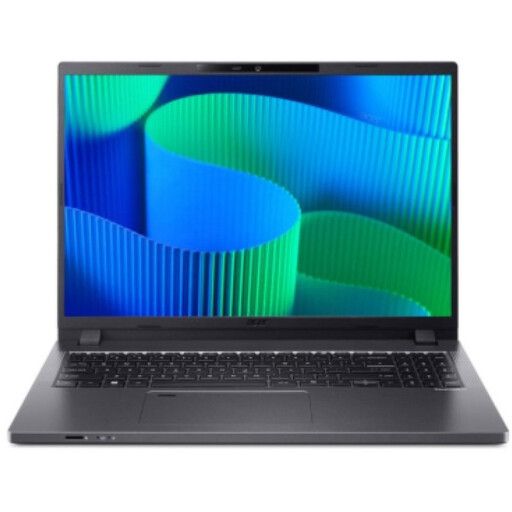
Acer TravelMate TMP216-41-TCO, 16-inch
The 16-inch display gives you more room to work on text and reference images at a fixed workstation.
WUXGA; AMD Ryzen 3 PRO 7335U; 16 GB DDR5; 512 GB SSD; AMD Radeon 660M; Windows 11 Pro Education.
View at Joybuy
 No image available
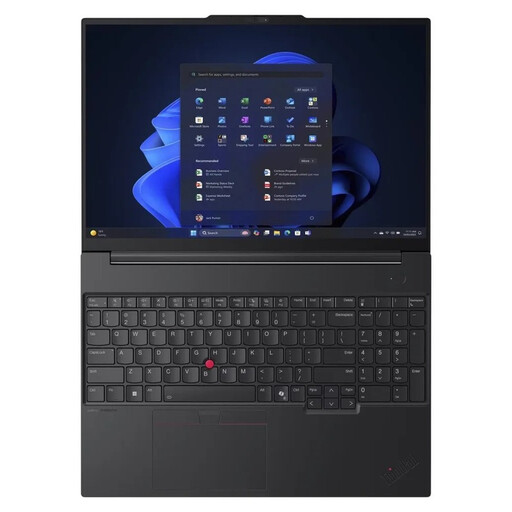
Lenovo ThinkPad E16 Gen 3 21ST, 16-inch
The 16-inch display is designed for working with text and checking images on a larger screen.
AMD Ryzen 7 250/3.3 GHz; 32 GB RAM; 1 TB SSD; Windows 11 Pro; Radeon 780m; 180° hinge design.
View at Joybuy
 No image available
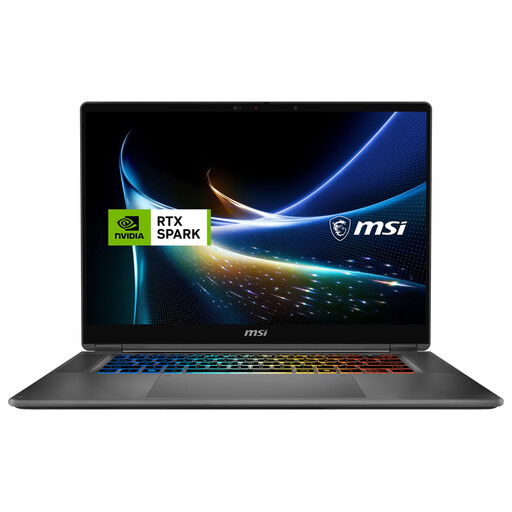
MSI Prestige N16 Flip AI+ C1XMT-027Y
The 16-inch 2-in-1 design could suit a workstation where you need different ways to interact with your device as well as a keyboard.
16-inch; 2-in-1 laptop; 128 GB DDR5; 2 TB SSD; Windows 11 Pro.
View at Joybuy
 No image available
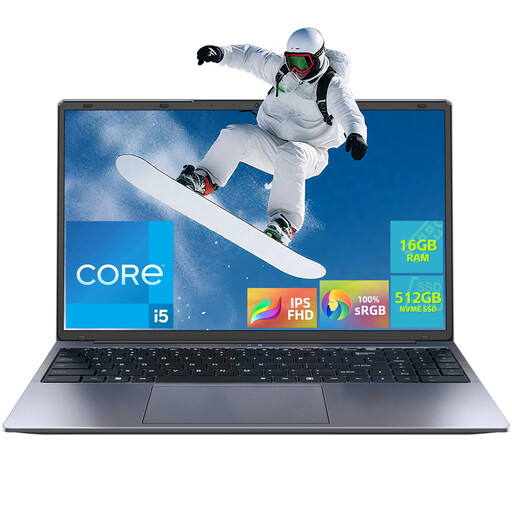
16-inch laptop with FHD, 16 GB RAM and 512 GB SSD
The listed screen size and RJ-45 port may be useful for a fixed workstation with an existing network connection.
Intel Core i5-8210Y; 16 GB RAM; 512 GB SSD; Windows 11 Pro; RJ-45.
View at Joybuy
 No image available
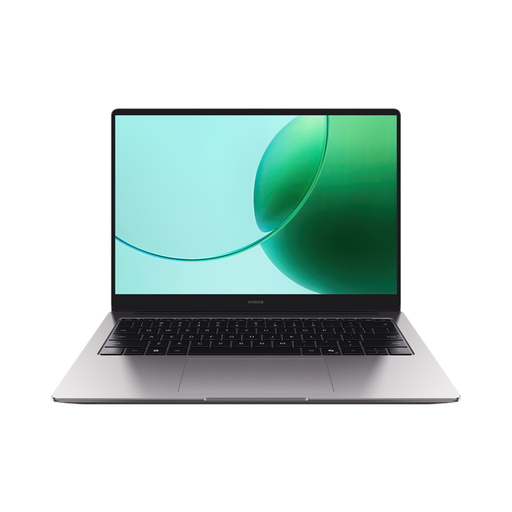
HONOR MagicBook X16 AMD 2025, German keyboard
The German keyboard, explicitly listed in the specifications, could be useful when writing longer texts in German.
16-inch; AMD Ryzen 5 6600H; 16 GB RAM; 512 GB SSD; Cloud Gray; German keyboard.
View at Joybuy
Frequently asked questions
Is a Chromebook enough for an illustrated Word manual?
It could be, if the approved web-based workflow offers all the features you need. Microsoft says the Windows and Mac desktop versions of Office cannot be installed on Chromebooks. Google says you need OneDrive to edit Microsoft 365 files on a Chromebook. Test a sample chapter with images and the intended sharing permissions.
How should I set up a laptop for longer writing sessions?
For longer sessions, the DGUV recommends using an external keyboard and mouse and, where possible, an external monitor. Check in advance that the ports on your chosen laptop are compatible with the equipment at your desk.
What should I bear in mind when using reference images from the library?
If images contain identifiable people or personal information, the library should check that it has an appropriate legal basis and meets its information obligations. Consent is not the only possible legal basis. Photos may also be protected by copyright. The laptop model itself does not determine usage rights or data protection approvals.
What costs and entitlements should I check when buying?
Check the specific offer to see whether a power adapter and any required adapters are included, and what software access you’ll need. As the Verbraucherzentrale explains, statutory consumer rights are separate from a voluntary guarantee when you buy as a consumer. If the library is making the purchase, check the contract terms separately.
What should I check when charging a laptop via USB-C?
The European Commission gives 28 April 2026 as the start date for common charging requirements for laptops. Check the charging power required and what’s actually included with the specific offer. A USB-C port on its own doesn’t tell you whether an existing power adapter will be suitable.


