Editing long recordings
You review a lot of raw footage and need to organise originals, project files and, where necessary, proxies. Storage and a practical way to import files are key.


Choose a laptop and workflow for long carnival recordings based on your source format, editing software and the space you need for originals, cache and any proxies. The length of the finished film alone tells you very little about the storage you’ll need. For Premiere on Windows, Adobe recommends 32 GB or more of RAM and 8 GB of GPU memory for 4K and higher resolutions. Proxies can make editing easier on less powerful hardware, but they require extra files and need to be managed.
You review a lot of raw footage and need to organise originals, project files and, where necessary, proxies. Storage and a practical way to import files are key.
You work with high-resolution footage or use more demanding effects, so you’ll need to check the requirements of your specific software, along with memory and graphics performance.
You review and edit footage in different locations, weighing up the display, card ports and storage against size and purchase price.
Best for: When your editing software and source formats are compatible with macOS and you often work on the move.
Trade-off: Apple’s claims about media acceleration and ports don’t guarantee a particular editing speed. Check the memory and SSD in the specific configuration.
Best for: If you’re planning to use demanding effects, need a larger working display or expect to handle lots of media files, compare specific configurations.
Trade-off: Graphics, memory, SSD and display vary by model; specifications for a product range don’t necessarily apply to every offer.
Best for: If you’d rather work with lighter editing copies than high-resolution originals, Adobe describes proxies as an option for less powerful hardware.
Trade-off: You’ll need to create and manage proxies, then switch back to the original media for the final export.
When working with long original recordings, the main considerations are space for media files, your editing software’s requirements, a suitable display, portability and the cost of the overall workflow.
| Buying consideration | What to check before buying | Who is it important to? |
|---|---|---|
| Storage for originals | Estimate SSD capacity and the space needed for cache and any proxies based on your actual source files. | If I want to organise long original recordings locally, I need space for media, cache and, where necessary, proxies. Around 31% of consumers say storage is their top buying priority. |
| Editing and resolution | Check the software version and video format. For Premiere on Windows, Adobe recommends 32 GB or more of RAM and 8 GB of GPU memory for 4K and higher resolutions. | If smooth editing matters more to me than other features, I check the RAM, graphics and whether a proxy workflow is an option. Around 25% of consumers put editing performance first. |
| Display for costume details | Compare the display type, size, resolution and stated colour gamut of the specific configuration. | If I want to assess costume details and colours on my laptop, the display on the exact configuration matters. Around 19% of consumers say image assessment is their top priority. |
| Editing on the go | Check the size, weight, card ports and charging options of the specific configuration for where you plan to use it. | If I want to edit in different locations, I weigh portability and import options against workspace. Around 13% of consumers say portability matters most. |
| Overall workflow costs | Consider the laptop configuration you need alongside planned media drives and software costs. | If I want to keep the cost of my complete editing workflow down, I check storage and software as well as the laptop’s features. Around 12% of consumers put overall costs first. |
You’ll also need to organise original recordings, project files, cache and any proxies. The length of the finished film doesn’t reflect the space needed for this workflow.
Estimate the space you need based on your actual source files and planned import or proxy workflow.
Graphics, memory and display can vary within a range. Lenovo also notes that configurations differ by region and model.
Before buying, compare the full model number and specifications of the specific offer.
For Premiere, Adobe distinguishes between minimum specifications for HD and recommended specifications for 4K and higher resolutions.
Check your software version, resolution and effects, then decide whether suitable hardware or a proxy workflow is a better fit for your project.
The MacBook Pro is worth considering if your editing software and source formats are compatible with macOS and you want to compare the specifications of a specific configuration.
The ProArt P16 range is a Windows option if you want to check the display and dedicated graphics on a specific configuration.
The ThinkPad T1g range is worth comparing if you’re looking for performance-focused work laptops with different port and storage options.
The OMEN 16 is another Windows range whose specific configuration you can check against your editing workflow.
This selection features Windows laptops for editing projects with long recordings. Compare storage and memory, and check the requirements of your software against each configuration.
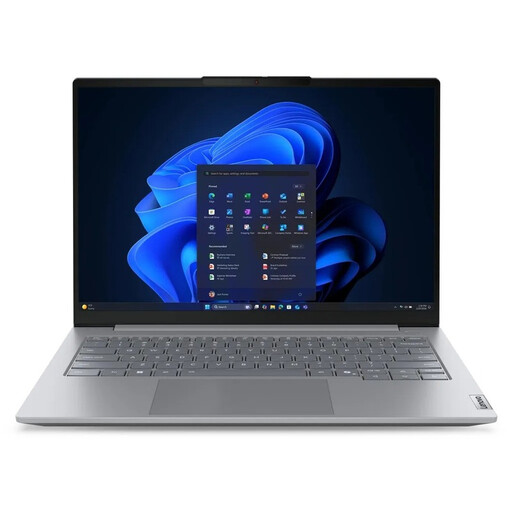 No image available
If you want to organise long recordings locally, the stated SSD capacity is a useful point of comparison.
Configuration: AMD Ryzen 5 220 at 3.2 GHz, Radeon 740M, 32 GB RAM, 1 TB NVMe SSD, 16 inches (40.6 cm), Windows 11 Pro.
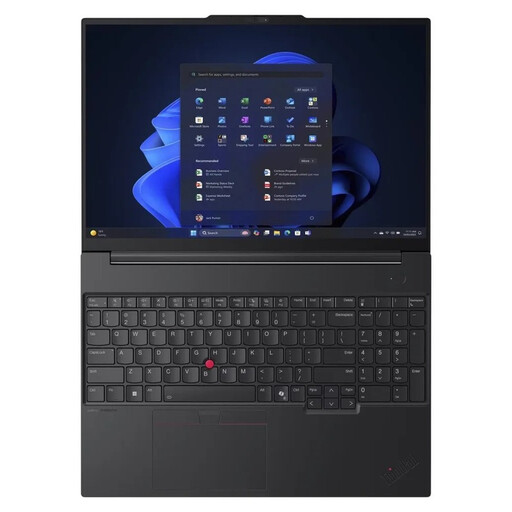 No image available
If you want to store long original recordings locally, compare the stated SSD capacity with the space you expect to need for your files.
Configuration: AMD Ryzen 7 250 at 3.3 GHz, Radeon 780M, 32 GB RAM, 1 TB NVMe SSD, 16 inches (40.6 cm), Windows 11 Pro.
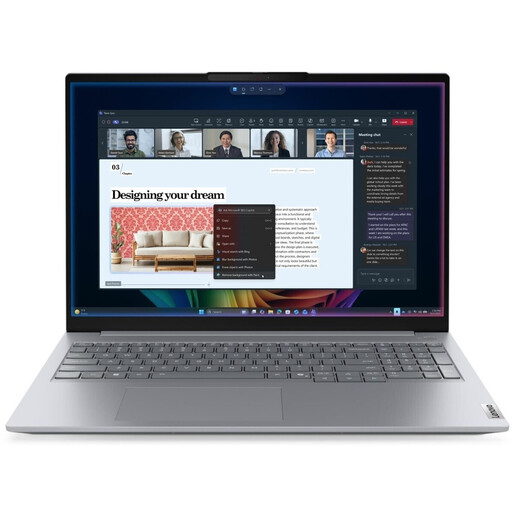 No image available
If you want to store project files locally, weigh the stated SSD capacity against the space you need for your originals and working files.
Configuration: Intel Core Ultra 5 325, 32 GB DDR5, 512 GB PCIe SSD, 16 inches, Windows 11 Pro.
 No image available
If you’re comparing a portable Windows laptop with dedicated graphics, check the full specifications of the configuration on offer.
Configuration: Intel Core Ultra 7 265H, 32 GB RAM, 1 TB SSD, RTX PRO 2000, 14-inch FHD+, Windows 11 Pro.
 No image available
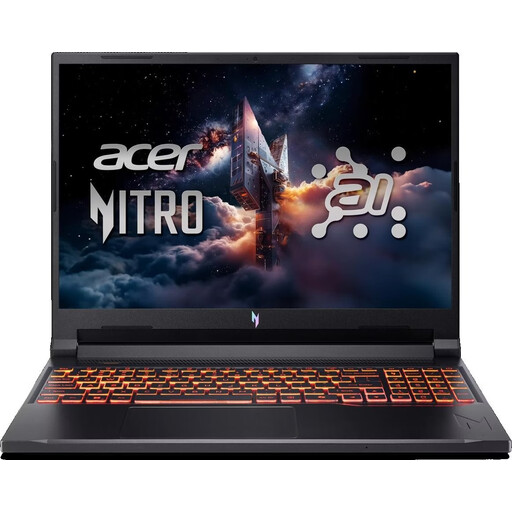
For Premiere on Windows at 4K and higher resolutions, the stated 16 GB of RAM is below Adobe’s recommended 32 GB or more.
Configuration: AMD Ryzen 5 240, RTX 5050 with 8 GB, 16 GB DDR5, 512 GB SSD, 16-inch WUXGA, Windows 11 Home. The product name specifies a US keyboard.
It doesn’t guarantee smooth editing. For Premiere on Windows at 4K and higher resolutions, Adobe recommends 32 GB or more of RAM and 8 GB of GPU memory. Also check the requirements for your software version and workflow.
Organise your originals and editing copies, then create low-resolution proxies in Premiere to edit with. Adobe says you’ll switch back to the original media for the final export, so make sure you have room for both sets of files.
Check your source files to see whether you’ll need extra space beyond the internal drive for originals, working copies and cache. Adobe also notes that Premiere may involve additional fees or membership costs; the price depends on the plan you choose.
According to the European Union’s consumer information, distance purchases of this kind generally come with a 14-day right to withdraw, starting from delivery. The buyer may have to pay return costs if the retailer has properly informed them of this; purchases from private individuals are not covered.
No. The European Union’s consumer information states that when you buy goods from a business seller, there is a minimum statutory period of two years from receipt. Any additional commercial manufacturer’s guarantee cannot reduce these rights. For a fault, contact the seller about your statutory rights.