Editing long recordings at a desk
You review plenty of raw footage and do most of your editing in one place, so performance and a clear, spacious timeline come first.


When choosing a laptop for long allotment-garden recordings, start with your editing software’s requirements and the space you’ll need for original footage, cache and exports. For Premiere, Adobe recommends at least 32 GB of RAM for 4K and higher on Windows. Extra fast storage for media and proxies can also affect your workflow. A larger, more powerful machine is better suited to a permanent editing desk, while weight and ports matter more if you’ll be carrying it around regularly.
You review plenty of raw footage and do most of your editing in one place, so performance and a clear, spacious timeline come first.
You keep lots of original clips and want to organise your working files and exports, rather than comparing only the stated size of the internal SSD.
You regularly take your laptop with you and need to weigh up screen space, weight and the ports you’ll need.
A good fit if: You mostly edit long timelines at a fixed workstation and the specific configuration suits your software and footage.
The trade-off: A larger display and higher specifications come with extra weight and bulk. Check the RAM, GPU and SSD for the exact model.
A good fit if: You want to use macOS and the chip, memory and ports suit your recording formats and editing software.
The trade-off: Apple lists hardware acceleration for certain codecs, but that doesn’t mean every MacBook Pro is suitable for all types of footage.
A good fit if: Your software can create proxies for the video files in question and you want to review and edit working copies.
The trade-off: Adobe describes proxies as lower-resolution working copies. They need to be created and stored, and don’t replace the original files.
| Buying priority | What to check | Who is this most relevant to? |
|---|---|---|
| Smooth playback and editing | Requirements for the software and version you use; RAM and GPU in the specific configuration; proxy support for your footage. | If I want to review long clips without unnecessary interruptions, I’ll check the software requirements and proxy support first. For around 36% of consumers, a smooth editing workflow comes first. |
| Storage for raw footage and projects | How much space the original files take up; extra room for cache, proxies and exports; ports for external storage. | If I want to keep lots of original footage and organise my working files, I’ll plan storage locations for the entire project. Around 29% of consumers prioritise storage organisation. |
| Editing on the move | How often you’ll carry the laptop; the weight and screen size of the exact model; ports for your camera, monitor and storage. | If I want to review footage away from my usual workspace, I’ll compare weight, screen space and connectivity. For around 21% of consumers, portability is the top priority. |
| Assessing image quality | Whether you’ll colour-grade on the laptop or an external monitor; display specifications for the exact model; requirements for HDR projects. | If I want to assess images directly on my laptop, I’ll check the display specifications and consider how I’ll actually work. Around 14% of consumers put image monitoring first. |
A Premiere project uses storage not only for original media, but also for cache, proxies and exports. Adobe recommends fast storage for media in addition to storage for the application and cache.
Check how much space your existing footage takes up and plan storage locations for the whole project before choosing an SSD configuration.
You may need an additional fast drive and space for working copies.
Adobe describes proxies as lower-resolution copies for editing, not as a replacement for high-resolution source files.
Keep your originals and proxy folders clearly labelled, and plan separately for storing the original files.
Creating and managing proxies takes extra time and storage space.
RAM, GPU and SSD specifications can vary within a range. Dell also notes that changes to a configuration can affect other specifications.
Compare the full specifications of the exact model with the requirements of your editing software.
MacBook Pro for an editing workflow on macOS. The chip, unified memory and SSD depend on the model you choose.
ProArt P16 is ASUS’s Windows creator range. For the German configuration described, ASUS lists a 16-inch OLED display.
Lenovo offers laptops for video and image editing, including models with a range of specifications.
ZBook workstations for buyers looking to compare configurable Windows workstations.
Pro Max 16 Plus is a configurable 16-inch Windows workstation.
The Joybuy products below include larger Windows laptops for a permanent editing workstation, as well as a MacBook Pro model. Compare each configuration with your software requirements and storage needs.
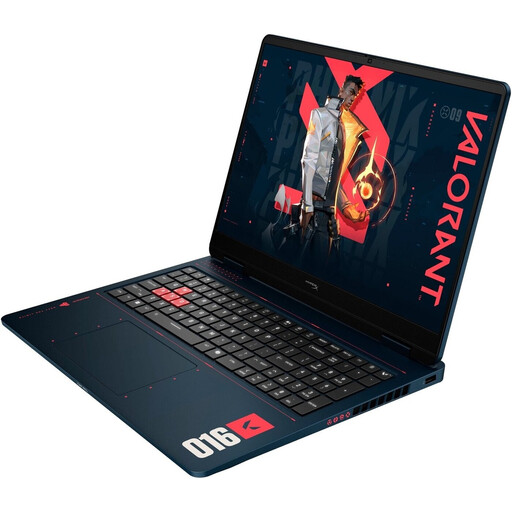 No image available
A larger Windows editing workstation if the screen size and listed specifications suit your project.
This configuration includes an AMD Ryzen 9 8940HX, a GeForce RTX 5070, 24 GB of RAM and a 1 TB SSD. For Premiere on Windows, Adobe recommends 32 GB of RAM or more for 4K and higher resolutions. Check how this compares with your software and footage.
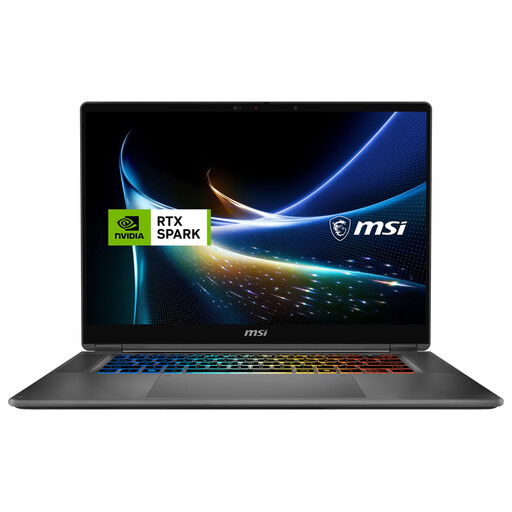 No image available
A 2-in-1 option for anyone comparing a convertible design with plenty of listed memory and SSD storage.
The title lists 128 GB of DDR5 RAM and a 2 TB SSD. The product description specifies a 16-inch UHD+ Tandem OLED display and a 360° design.
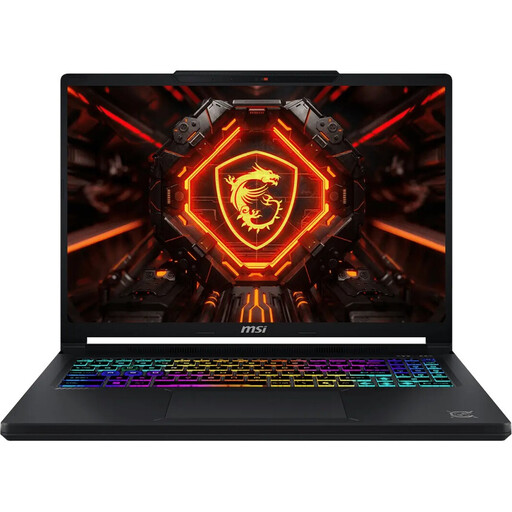 No image available
A 16-inch editing workstation if the specific configuration suits your software and footage.
This configuration includes an Intel Core Ultra 9 275HX, a GeForce RTX 5070, 16 GB of DDR5 RAM and a 1 TB SSD. The QHD+ OLED display is listed at 165 Hz. Check your editing software’s RAM requirements for the project you have in mind.
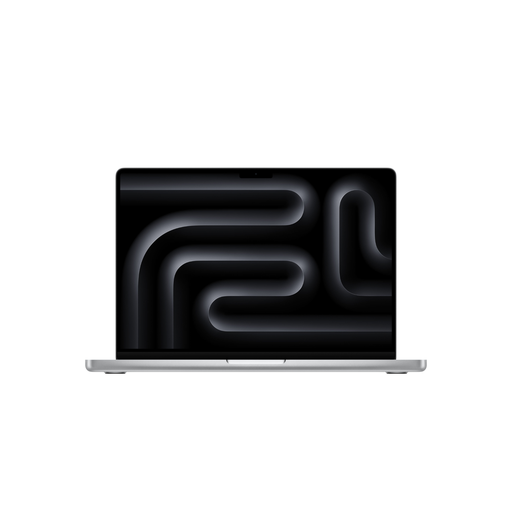 No image available
For an editing workflow on macOS, if the chip, memory and ports suit your software and recording formats.
This configuration includes an 18-core CPU, a 32-core GPU, 36 GB of unified memory and a 2 TB SSD. The display is listed at 16.2 inches. According to the product description, the power adapter is sold separately.
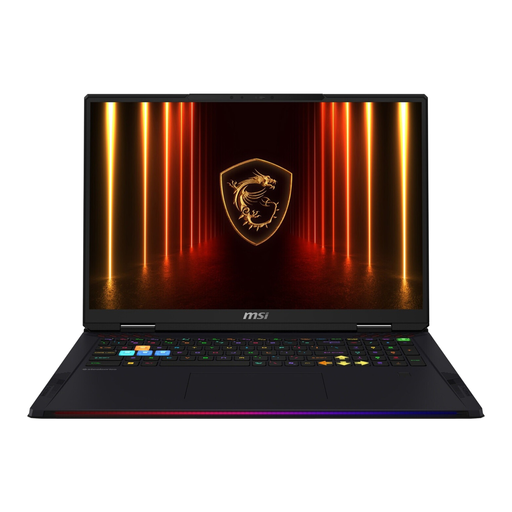 No image available
For a mostly fixed editing workstation, if a large display and plenty of internal storage suit your workflow.
This configuration includes an Intel Core Ultra 9 285HX, a GeForce RTX 5090, 64 GB of RAM and a 4 TB SSD. The 18-inch display is listed as UHD+; the stated weight is 3.6 kg.
No, it isn’t a general minimum requirement for all video editing. Adobe recommends 32 GB of RAM or more for Premiere on Windows at 4K and higher resolutions. Also check the requirements for the software and version you actually use.
Before importing, decide where to store your original files, cache, proxies and exports. In Premiere, you can create lower-resolution proxies for supported video clips and choose a separate destination folder. Remember to plan for the original files separately.
Your statutory rights against the seller are not the same as a voluntary guarantee. For online consumer contracts, you generally have a 14-day right to cancel; the Verbraucherzentrale says this period begins when the contract is made or the goods are received. Check the terms of your specific purchase and any voluntary service cover separately.