If you usually work on your manuscript and sources side by side on a laptop, the usable space on its built-in display should suit your split-screen editor view and preferred font size. If you often write in different places, a more compact device may fit your routine better. In that case, pay particular attention to the keyboard layout, software compatibility and backup process.
Which laptop suits which writer?
Writers who work with source material
If you want to keep earlier chapters, alternate versions or sources in view while writing, make sure your software can show two text areas in the way you actually work. Literature & Latte explains that Scrivener lets you split the editor vertically or horizontally.
Anthology writers on the move
If you write in different places, you’ll need to weigh the built-in workspace against how easy the device is to carry. Consider whether you really need both text areas on your laptop when you’re out and about, or whether you could use an external monitor from time to time.
Writers working on a long manuscript
For a long-term project, keeping track of versions and having an additional copy away from your laptop should be part of your workflow. Literature & Latte describes local Scrivener backups; Microsoft Support says that OneDrive or SharePoint Online is required for AutoSave to be on by default in Microsoft 365.
What should you look for when choosing?
Start by trying your writing software’s split-screen view at your usual font size. Then decide how much space you need on the built-in display and what compromises you’re willing to make on portability, keyboard and manuscript backups.
| What matters |
What to look for |
Who will find this especially important? |
| Room for a split-screen editor |
Check the view in your writing software, your font size and the display specifications for the exact configuration. |
If I want to read my manuscript and source side by side without an external monitor, I need enough space at my usual font size; around 29% of consumers put usable space for a split-screen editor first. |
| Keyboard and writing conditions |
Check the keyboard layout on the exact version and, if possible, try typing a longer piece of text. |
For long writing sessions, I want to type using a familiar layout; around 23% of consumers prioritise the keyboard and writing conditions. |
| Portability and power |
Compare the display size and charging ports on the exact model; check what kind of use the manufacturer’s battery-life claims refer to. |
If you often change where you write, you’ll need to balance portability against the built-in workspace; around 18% of consumers prioritise portability and power. |
| Software and manuscript backups |
Check that your writing software is compatible with the operating system and plan to keep recoverable copies away from your laptop. |
For a long manuscript, I want to make sure my software and backups fit reliably into my workflow; around 18% of consumers put their software workflow and project protection first. |
| What’s included and software licence |
Check whether a compatible power adapter is included and whether your existing licence covers the operating system you’ve chosen. |
If I want to confirm before buying that I’ll have a charger and the right writing software for my configuration, this matters to me; around 12% of consumers prioritise what’s included and the software licence. |
Avoid common buying mistakes
-
Assuming display specifications apply to every model in a range
Acer’s specifications for the Aspire Go range differ from those for the specific AG15-42P NX.J7WEG.007 model: this configuration is listed with 1,920 × 1,080 pixels in a 16:9 format. You can’t assume that another display variant has the same specifications.
Check the resolution and aspect ratio against the full model or reference number, then try your split-screen text view on it.
-
Taking advertised battery life as a measure of writing time
Apple quotes up to 18 hours of video streaming for the 15-inch MacBook Air with M5. That figure doesn’t tell you how long the battery will last with your editor, browser and research workflow.
Check battery-life claims against the type of use they refer to, and consider how you’ll charge your device where you write.
-
Overlooking what’s included and the software licence
Dell’s documentation for configuration DC16256 doesn’t list a power adapter as included. Literature & Latte says a Scrivener licence for macOS doesn’t unlock the Windows version, and vice versa.
Before buying, check exactly what’s included and whether your existing licence is compatible.
Depending on the configuration, you may need to budget separately for a compatible charger or a licence for the other operating system.
-
Confusing local backups with a separate copy of your manuscript
Literature & Latte says automatic Scrivener backups are initially stored in a folder on the same computer. If your device is lost or stops working, that isn’t an independent copy.
Set up an additional backup somewhere else and check that you can reopen a saved version of your project.
Relevant brands at a glance
Dell
The documented Dell 16 DC16256 is one option if you want to work with your manuscript and sources side by side on a larger built-in display.
- For this configuration, Dell lists a 16-inch display with 1,920 × 1,200 pixels and 16 GB RAM.
- Dell says the DC16256 doesn’t include a power adapter; check what comes with the exact configuration.
Lenovo
The ThinkPad E14 Gen 7, model 21SX000RGE, is a more compact Windows option with a documented German keyboard layout.
- Lenovo lists a backlit German keyboard and a matte 14-inch display with 1,920 × 1,200 pixels for this model.
- These specifications apply to 21SX000RGE and not automatically to other E14 configurations.
Apple
The 15-inch MacBook Air with M5 is a macOS option with a larger built-in display.
- Apple lists a 15.3-inch display and configurable storage capacities.
- The claim of up to 18 hours refers to video streaming, not a full day working on an anthology. If you’re switching platforms, check your writing software licence first.
ASUS
The Zenbook 14 UX3480KA is a compact Windows option with documented ports for different workspaces.
- ASUS lists a 14-inch OLED display with 1,920 × 1,200 pixels for the UX3480KA, along with HDMI, USB-A and USB-C.
- You’ll need to judge whether the display and font size are comfortable in your working environment. ASUS says the included charger varies by country, region and model.
Acer
The Aspire Go 15 AG15-42P, reference NX.J7WEG.007, is a specific 15.6-inch Windows configuration.
- For this reference, Acer lists an IPS display with 1,920 × 1,080 pixels in a 16:9 format, 16 GB RAM and a 512 GB SSD.
- Display specifications for other Aspire Go models don’t automatically apply to NX.J7WEG.007.
Joybuy picks for split-screen writing
These laptops are aimed at writers who want to work on their manuscript and source side by side on a larger built-in display.
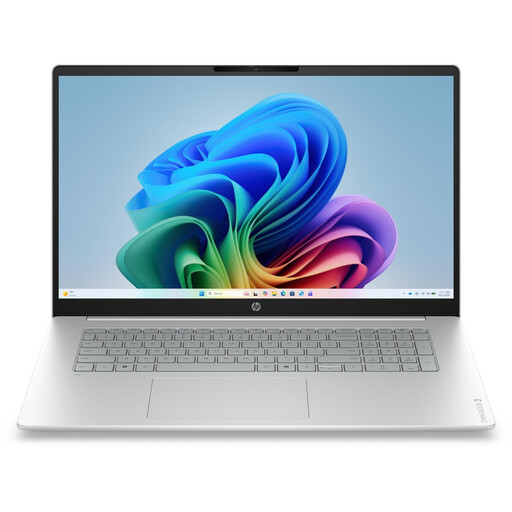 Image unavailable
HP OmniBook 3 17-dg0050ngx
The 17.3-inch display gives you plenty of built-in space for your manuscript and source material; try your split-screen view to see whether it stays easy to read at your preferred font size.
FHD display; Intel Core Ultra 5 225U; 8 GB RAM; 256 GB SSD; Windows 11 Home.
View at Joybuy
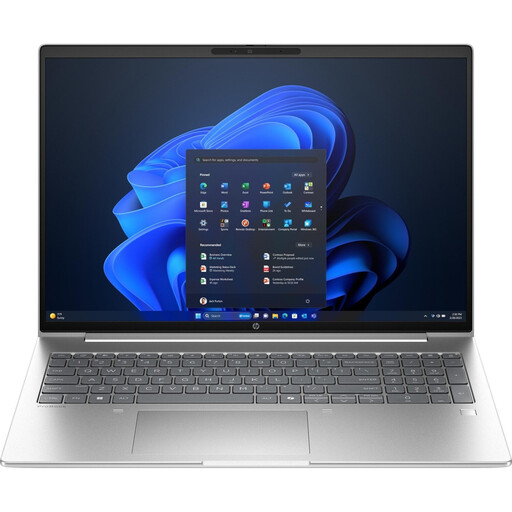 Image unavailable
HP ProBook 4 16 G1i
The listed 16-inch screen may suit anyone who wants two text areas open at once; try arranging your windows at your preferred font size.
IPS display with 1,920 × 1,200 pixels; Intel Core Ultra 7 255U; 32 GB RAM; 1 TB SSD NVMe; Windows 11 Pro; Wi-Fi 7.
View at Joybuy
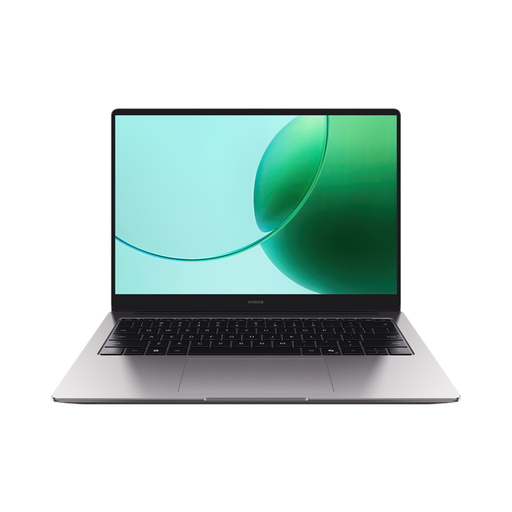 Image unavailable
HONOR Magicbook X16 AMD 2025
The 16-inch display gives you built-in space for your manuscript and source material; the listed German keyboard layout is useful if you type using a German layout.
AMD R5 6600H; 16 GB RAM; 512 GB SSD; German keyboard layout; colour: Cloud Gray.
View at Joybuy
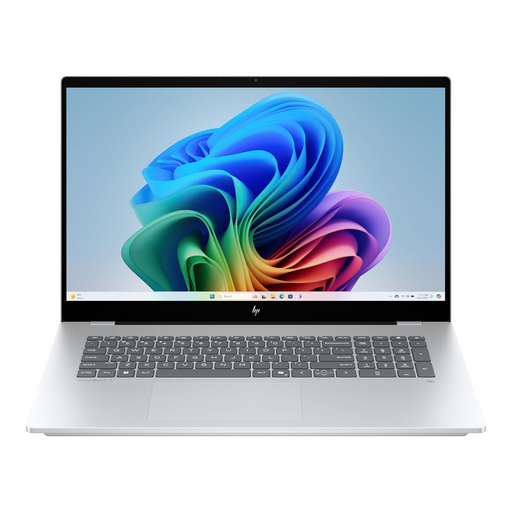 Image unavailable
HP OmniBook X Flip 16
The 16-inch touchscreen gives you space for a split-screen text view; before choosing, check that the available screen area suits your editor layout.
WUXGA touchscreen; Intel Core Ultra; 16 GB RAM; 512 GB SSD; Windows 11; USB-C Power Delivery.
View at Joybuy
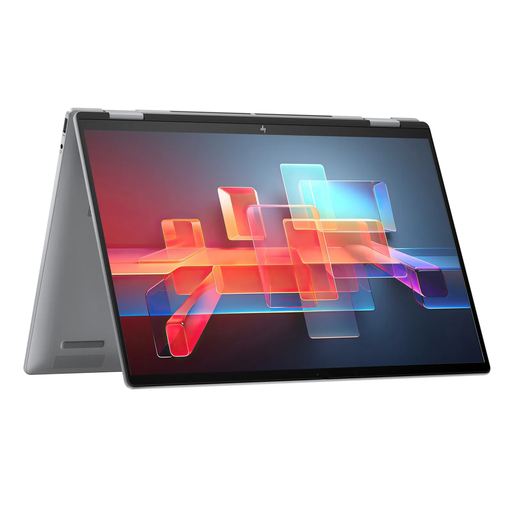 Image unavailable
HP ENVY x360 16-ac0473ng
The 16-inch display may give you room for your manuscript and sources side by side; check that your particular window layout is easy to read.
WUXGA IPS touchscreen; Intel Core Ultra 7 155U; 16 GB RAM; 512 GB SSD; Windows 11; USB-C Power Delivery.
View at Joybuy
Frequently asked questions
How can I display my manuscript and source side by side?
According to Literature & Latte, Scrivener can split its editor horizontally or vertically to show two documents at once. In the versions of Word described by Microsoft, you can compare two open files by selecting “View” and then “View Side by Side”. Try the layout you want at your preferred font size before deciding on a display size.
Is AutoSave enough to back up my anthology?
Make sure you also keep recoverable copies somewhere else. Literature & Latte says Scrivener backups are initially stored in a folder on your computer. Microsoft says OneDrive or SharePoint Online is required for AutoSave to be on by default in Microsoft 365, so check where your file is saved too.
Do I need a new Scrivener licence when switching from Windows to macOS?
According to Literature & Latte’s FAQ, a Scrivener licence for macOS doesn’t unlock the Windows version, and vice versa. Check your existing licence before switching operating systems.
What are my rights when buying a laptop online in Germany?
Consumers buying remotely generally have the right to cancel their purchase. The Verbraucherzentrale says this is usually 14 days from receiving the goods ordered, and notes that exceptions apply. For claims relating to defects, § 438 BGB generally sets a limitation period of two years from delivery. Your statutory rights against the seller are separate from any voluntary manufacturer’s warranty.


