What should you look for when buying?
First, check that your editing software supports your file and syncing workflow. Then match its resolution and storage requirements to the specific laptop configuration.
| Consideration |
What to check before buying |
Who is this important for? |
| Syncing video and audio |
Import a short sample clip and check file formats, card and device connections, and your software’s syncing feature. |
If you record train sounds or commentary separately, you’ll need a suitable workflow from importing to monitoring. Around 31% of consumers prioritise audio syncing and importing. |
| Resolution and effects |
Check the software version, resolution and codec against the RAM and GPU in the exact configuration. For Premiere on Windows, Adobe recommends 16 GB of RAM for HD and at least 32 GB for 4K or higher. |
If you regularly edit high-resolution clips, your footage and effects will determine what you need. Around 31% of consumers prioritise performance headroom for editing. |
| Project and media storage |
Allow space for original videos, separate audio files and working files. Check the SSD capacity and how you can connect any external drive you plan to use. For Premiere, Adobe recommends a fast internal SSD for the application and cache, plus a separate fast media drive. |
If you want to keep your original footage and working files available, storage is an important part of your editing setup. Around 23% of consumers put this first. |
| Working on the move |
Compare the screen size, weight and ports of the specific model with your workspace and the devices you use to import files. |
If you review and edit longer recordings in different places, you’ll need to balance screen space with portability. Around 15% of consumers prioritise working on the move. |
Joybuy laptop options
You can compare the laptop options below by their listed specifications for video editing, file importing and project storage.
 No image available
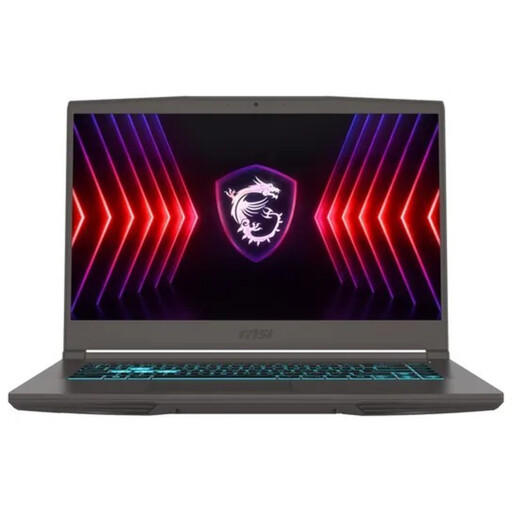
MSI Thin 15 B13UC-3475NN, 15.6-inch, RTX 3050
An option to compare if you want to monitor separate audio recordings and consider additional storage beyond the internal drive.
16 GB RAM, 512 GB SSD and NVIDIA RTX 3050. The listed connections include line-in and line-out, as well as additional drive bays. According to the product description, no operating system is pre-installed. For regular 4K editing in Premiere, Adobe recommends at least 32 GB of RAM.
Joybuy
 No image available
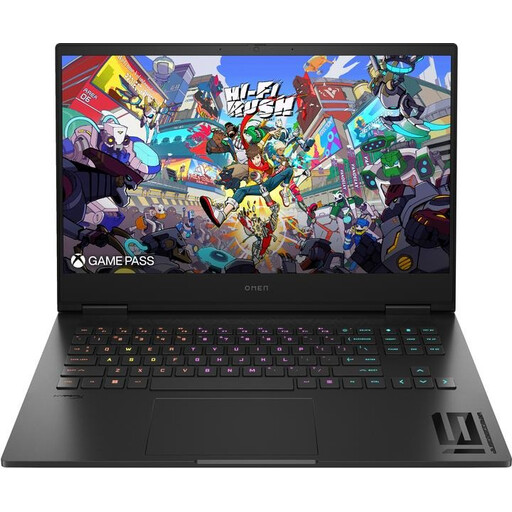
HP OMEN 16-wf1473ng, RTX 4060, 16 GB RAM
An option to consider if you want to import SD cards directly and edit on a 16.1-inch display.
Intel Core i7-14700HX, 16 GB RAM, 512 GB SSD and NVIDIA GeForce RTX 4060 with 8 GB of graphics memory. The listed display has Full HD resolution. For regular 4K editing in Premiere, Adobe recommends at least 32 GB of RAM.
Joybuy
 No image available
MSI Cyborg 15 A13VE-1005, RTX 4050
An option to compare if you’re looking for dedicated graphics and a built-in display for editing and storing media.
Intel Core i5-13420H, 16 GB DDR5 RAM, 512 GB SSD and a 15.6-inch Full HD display. According to the product description, no operating system is pre-installed. For regular 4K editing in Premiere, Adobe recommends at least 32 GB of RAM.
Joybuy
 No image available
HP OMEN 16, 16.1-inch, RTX 4060, 16 GB RAM
An option to consider if you import SD cards and need to factor in audio and other device connections.
16 GB RAM, 512 GB SSD and NVIDIA GeForce RTX 4060 with 8 GB of graphics memory. The listed features include a 16.1-inch Full HD display, an SD card reader and a combined audio jack. For regular 4K editing in Premiere, Adobe recommends at least 32 GB of RAM.
Joybuy
 No image available
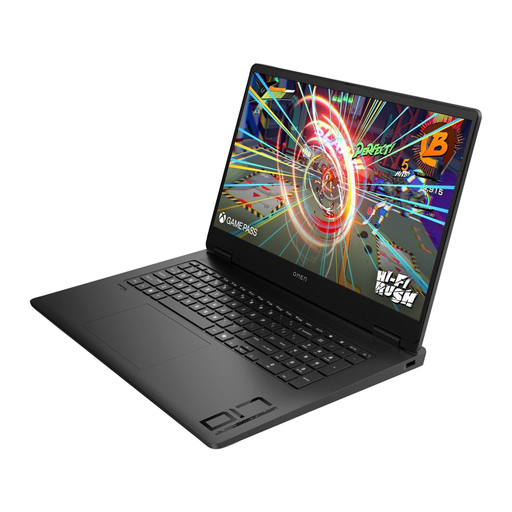
HP OMEN 17, 17.3-inch, 16 GB RAM, 1 TB SSD
An option to compare if you want to review longer clips on a larger built-in display and have more internal storage.
AMD Ryzen AI 7, 16 GB RAM, 1 TB SSD and NVIDIA RTX 5050 with 8 GB of graphics memory. The listed features include a 17.3-inch Full HD display and Windows 11 Home. For regular 4K editing in Premiere, Adobe recommends at least 32 GB of RAM.
Joybuy
Frequently asked questions
Do I need a particular laptop for separately recorded audio?
Not necessarily. First, make sure your editing software can combine video and audio files in a way that suits your workflow. Adobe describes a feature in Premiere for merging separately recorded clips. That feature alone doesn’t guarantee compatibility with every file format or recording device.
How can I test a workflow with an external audio recording?
Transfer a short video clip and its matching audio file, then test importing, syncing and playback in your editing software. Adobe describes this feature for Premiere. If you use other software, check its own guidance and make sure your files are compatible.
How much storage space should I allow for?
As well as your editing software, allow space for original videos, separate audio files and cache. Adobe recommends a fast internal SSD and an additional fast media drive for Premiere. Base your plans on the projects you actually work on, and check whether the laptop has a suitable port for an external drive.
What rights do I have in Germany if a laptop bought online is faulty?
If you buy a new laptop, consumers can exercise their statutory rights against the seller within two years of delivery or receipt. The Verbraucherzentrale distinguishes these legal rights from a voluntary guarantee. Online purchases generally come with a right to cancel, usually within 14 days of receiving the goods; the conditions of the specific purchase apply.
Can I add music to my model railway videos and publish them online?
Editing a video on your laptop doesn’t give you the rights to use someone else’s music. German copyright law distinguishes private copies from making content available to the public. Before publishing, check that your use of the music is covered by rights you hold, a licence or a relevant legal exception.


