Choose a laptop based first on your editing software, operating system and recording format. The number of video tracks alone doesn’t determine how much RAM or graphics power you’ll need. For Premiere 26.x on Windows, Adobe recommends 32 GB of RAM or more for 4K footage. With suitable footage, proxies can be an alternative to upgrading your hardware too soon, but they require extra storage and a separate workflow. You’ll also need space and suitable ports for your original clips, projects and, where applicable, proxies.
Who are these selection criteria for?
Demonstration videos with multiple tracks
If you combine several camera angles or video layers, check how well playback and editing work with your footage and software. Adobe describes proxies as lower-resolution copies that offer another way to edit suitable projects.
Projects with lots of footage
For long or numerous original clips, you’ll also need room for project files and any proxies, as well as the right ports. Adobe’s requirements for Premiere vary according to the footage you use.
Editing in different locations
If you review and edit footage at different workstations, weigh screen space and the ports you need against the size and weight of the specific configuration. Lenovo lists card-reader and video ports among the features of the ThinkPad T1g range, although specifications vary by model.
What should you look for when buying?
Start by choosing your software, operating system and recording format. Then compare the storage, ports and display with the way you actually work on your projects.
| What matters to you |
What to check when buying |
Who it matters most to |
| Smooth playback |
Check the software version, recording format and requirements for the specific configuration. For Premiere 26.x on Windows, Adobe recommends 32 GB of RAM or more for 4K footage; other software and footage may have different requirements. |
If I’m editing several tracks at once, I need playback that works well with my software and footage. That’s why around 31% of consumers prioritise playback when editing multiple tracks. |
| Space for original footage and working files |
Estimate how much storage your projects will need, then check the SSD capacity and whether there are suitable ports for external drives. |
If I manage lots of original clips and project files, I need to plan for more than just the space required for finished videos. Around 25% of consumers put project storage first. |
| Compatibility with editing software |
Check the software, version, operating system and any required project or exchange formats in advance. |
If my training course requires specific editing software, the laptop needs to support its operating system and file formats. Around 19% of consumers prioritise software compatibility. |
| Reviewing images on the laptop |
Compare the size and resolution of the specific display. Manufacturers’ colour specifications are no substitute for measuring the screen itself. |
If I mainly assess footage and playback on the built-in screen, I look at its usable space and the exact display specification. Around 13% of consumers put image review first. |
| Portability and ports |
Compare the weight and screen size of your chosen model with the camera, storage media, drive and monitor you want to connect. |
If I regularly move between filming locations and my editing desk, I need a device I can carry and connect to my existing equipment. Around 12% of consumers prioritise portability and ports when working in different locations. |
Avoid common buying mistakes
-
Assuming the number of tracks means you need a certain minimum 4K specification
Adobe’s recommendations for Premiere on Windows with 4K footage are not a universal requirement for every training video or editing program.
First, identify your software, resolution and codec. Then compare these with the exact laptop configuration and, if your footage is suitable, consider a proxy workflow too.
-
Allowing storage only for finished videos
Original footage, project files and any proxies also take up space.
Plan storage for the entire project workflow and check that the ports will work with your external drives.
-
Assuming similarly named models have identical specifications
RAM, SSD and graphics specifications can vary within a model range. Notebookcheck lists the specifications of individual devices; these don’t automatically apply to similarly named models.
Before buying, compare the full model number, chip or GPU, RAM, SSD and the ports you need.
-
Confusing a voluntary warranty with your statutory rights for faulty goods
For a qualifying consumer purchase, a manufacturer’s warranty does not replace your statutory rights against the seller.
Check the warranty terms and your statutory rights for faulty goods separately.
Useful brands to consider
Lenovo
The ThinkPad T1g Gen 8 range is worth considering as a Windows creator option if you want to compare the ports and graphics specifications of a particular model.
- Lenovo lists features including SD Express, HDMI and Thunderbolt, as well as versions with an RTX 5060 or RTX 5070.
- These specifications don’t automatically apply to every listing; check the full model number and specifications.
Apple
The MacBook Pro is one option for a macOS workflow, for example if you’re planning to use Final Cut Pro for Mac.
- For M5 Pro configurations, Apple lists a media engine for H.264, HEVC and ProRes, along with a choice of RAM and SSD options.
- These manufacturer specifications don’t tell you how quickly your projects with multiple tracks will run. Also check that your training software and files work with macOS.
ASUS
The ProArt P16 range is a Windows creator option to consider if you want a larger built-in display and a dedicated GPU.
- One listed configuration includes a 16-inch OLED display, 32 GB of RAM, a 1 TB SSD and an RTX 4060 with 8 GB of graphics memory.
- These specifications apply to this configuration and shouldn’t be assumed for differently equipped P16 models.
HP
The ZBook Studio 16 G11 range is another Windows workstation line to compare if a 16-inch device is right for you.
- Listed models include 32 GB of RAM and a 1 TB SSD, as well as a choice of GPUs, each with 8 GB of graphics memory.
- Specifications and GPUs vary by model, so check the details of the specific device.
Joybuy product options for a Windows workflow
These models are options for an existing Windows or Premiere workflow. Before choosing, check your editing software’s requirements, along with your projects’ storage and port requirements.
 No product image available
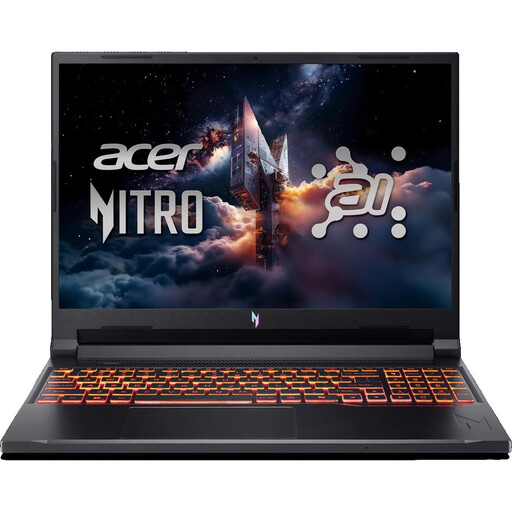
Acer Nitro V 16 AI ANV16-42-R1HB
An option for an existing Windows workflow; check that the software and footage suit the specifications of this configuration.
Listed specifications include Windows 11 Home, 16 GB of RAM and a 1 TB SSD.
The configuration includes an RTX 5060 with 8 GB of graphics memory and a 16-inch WQXGA display.
The stated weight is 2,44 kg.
View at Joybuy
 No product image available
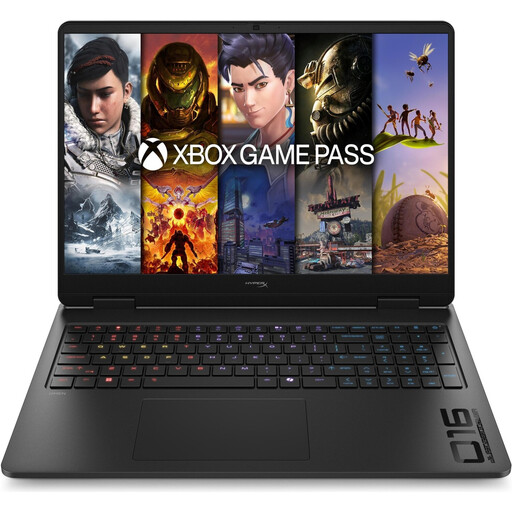
HP OMEN 16-ap1071ng Ryzen 7 8745HX, RTX 5060
For a Windows workflow, compare this model with the requirements of your software and files.
The product description lists 16 GB of RAM, a 1 TB SSD and an RTX 5060.
Ports listed include HDMI 2.1 and several USB ports.
The stated weight is 2,48 kg.
View at Joybuy
 No product image available
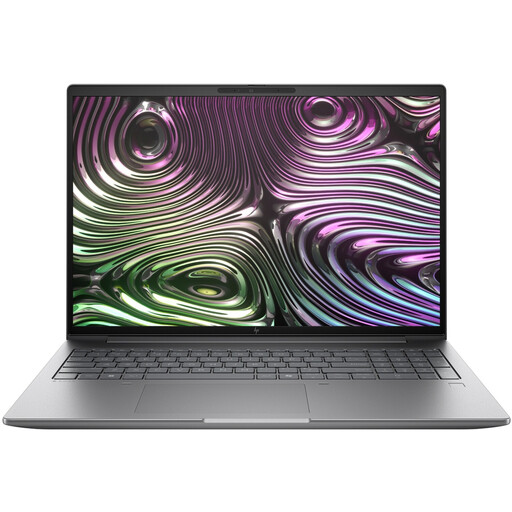
HP ZBook X G1i 16 Ultra 7 255H
An option for a Windows workflow if you want to compare the listed memory specifications with your projects.
Listed specifications include Windows 11 Professional, 32 GB of RAM and a 1 TB SSD.
The model has a 16-inch WUXGA display and a stated weight of 2,04 kg.
Ports listed include HDMI and several USB ports.
View at Joybuy
 No product image available
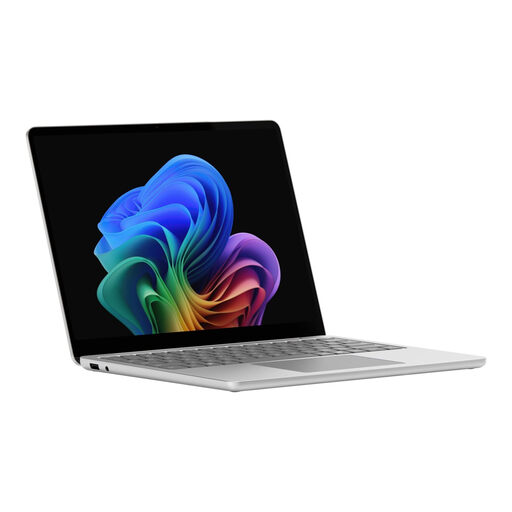
Microsoft Surface Laptop 8 Core Ultra 5, 24 GB, 1 TB, Platinum
If you’re looking for a portable Windows workflow, check that the screen size and ports suit your editing tasks.
The model is listed with a 13.8-inch touchscreen and USB 4 ports.
The stated weight is 1,34 kg.
View at Joybuy
 No product image available
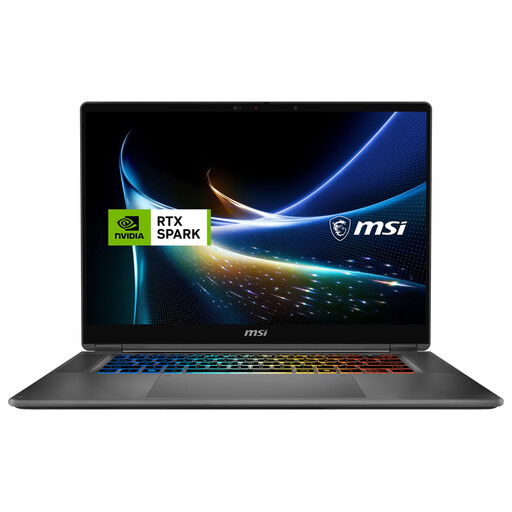
MSI Prestige N16 Flip AI+ C1XMT-027Y
If you need plenty of room for working files, compare the listed storage specifications with the size of your projects.
The configuration is listed with 128 GB of RAM and a 2 TB SSD.
It includes a 16-inch UHD+ OLED touchscreen and a 360° flip design.
The stated weight is 1,9 kg, and the listed operating system is Windows 11 Pro.
View at Joybuy
Frequently asked questions
Is a particular amount of RAM enough on its own for multiple video tracks?
No. The number of tracks alone doesn’t determine a universal minimum. For Premiere 26.x on Windows with 4K footage, Adobe recommends 32 GB of RAM or more. If you’re using different software, footage or an operating system, check the relevant requirements.
How can I use proxies if playback is choppy?
For suitable video clips, you can use a proxy workflow in Premiere after importing them, so you can edit using lighter working copies. Allow for extra storage and time to manage the files; Adobe notes some limitations, such as clips with subtitles.
What extra costs and rights should I check before buying?
Check the licence terms for your editing software and whether you’ll need extra storage. Apple also offers Final Cut Pro for Mac as a one-off purchase; Adobe lists membership fees for Premiere. For consumer purchases in the EU, Your Europe explains the minimum two-year legal guarantee from the date you receive the goods. This is separate from a voluntary warranty. Many online purchases also come with a right to cancel, although exceptions apply.
Can I edit and publish training footage showing identifiable people without further checks?
Not in every case. If footage contains personal data, its use must have an appropriate legal basis. Valid consent is one possible basis, but it isn’t the only one. Before using the footage, check whether recording, editing and publication are permitted for your particular project. The Federal Commissioner for Data Protection and Freedom of Information explains the requirements for consent.


