What to look for when buying
First decide whether you’ll mainly be reviewing text and images on a larger screen, working on the move or annotating directly on the display. Then compare the specifications of the exact configuration with your software, image sources and budget.
| Buying priority |
What to look for when buying |
Who is this particularly important to? |
| Working clearly with text and reference images |
Check the display size and aspect ratio for the exact configuration, as well as the keyboard and ports for your existing image sources. |
If I want to review a draft and reference images side by side, a practical working area matters more to me than having a particularly small device. Around 36% of consumers put being able to view text and images clearly first. |
| Writing on the move without a fixed workspace |
Compare the weight and ports of the exact configuration; don’t assume advertised maximum battery life will match your own writing routine. |
If I often change where I work, I want a device that’s easy to carry without missing the ports I need. Around 29% of consumers prioritise being able to work in different places frequently. |
| Marking up reference images directly on screen |
Check touchscreen functionality, stylus compatibility, what’s included and support in the app you use, separately. |
If I want to annotate images directly on the device, touchscreen functionality alone isn’t enough to confirm that a suitable stylus will work. Around 21% of consumers put direct image annotation first. |
| Keeping the purchase and image workflow affordable |
Compare the software and storage requirements, ports and any adapters you may need for the exact configuration; set your budget according to your own workflow. |
If I need to keep the cost of my entire workflow in check, I don’t want to pay for features I don’t need. Around 14% of consumers prioritise the total cost of a suitable workflow. |
Joybuy products
The models below include larger laptops for reviewing text and reference images, as well as convertibles for interacting directly with images.
 No image available
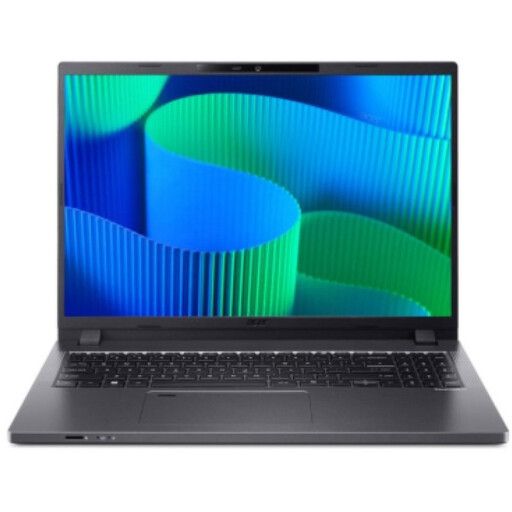
Acer TravelMate TMP216-41-TCO
The 16-inch display gives you a larger built-in working area for reviewing text and reference images on the same device.
16-inch WUXGA IPS display in 16:10 format with anti-glare finish; USB4, USB-A, HDMI and RJ-45. AMD Ryzen 3 PRO 7335U, 16 GB DDR5, 512 GB SSD, AMD Radeon 660M and Windows 11 Pro Education. Listed weight: 1.7 kg; German keyboard.
View at Joybuy
 No image available
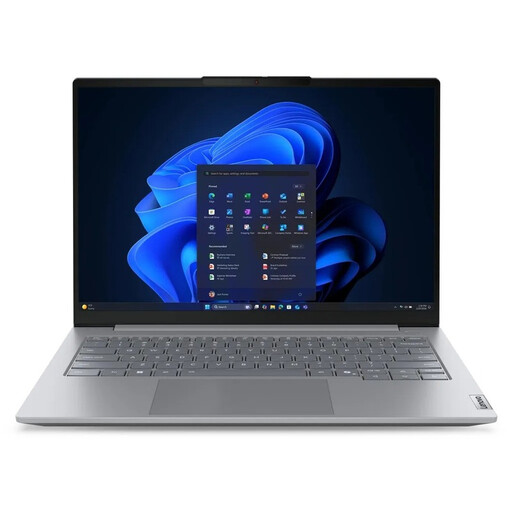
Lenovo ThinkBook 16 G9 AHP 21UT
The 16-inch 16:10 display gives you a larger working area for longer texts and reference images.
WUXGA IPS display with anti-glare finish; USB-A, USB4-C and HDMI. AMD Ryzen 5 220/3.2 GHz, Radeon 740M, 32 GB RAM and 1 TB SSD NVMe; Windows 11 Pro. Listed weight: 1.7 kg; German keyboard.
View at Joybuy
 No image available
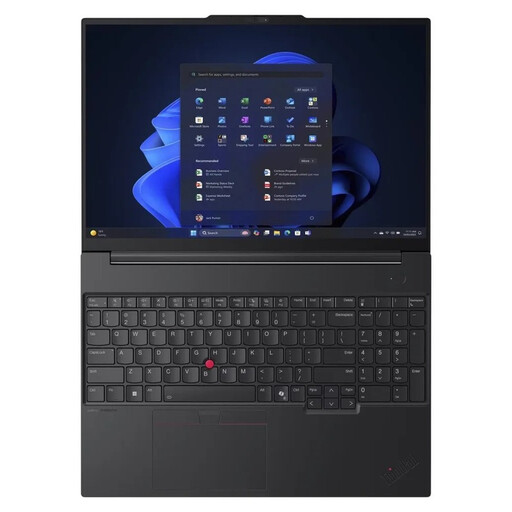
Lenovo ThinkPad E16 Gen 3 21ST
The 16-inch display provides a larger built-in working area if you’re editing text and images on one device.
Matt 16-inch WUXGA IPS display; USB4-C, USB-C, USB-A and HDMI. AMD Ryzen 7 250/3.3 GHz, Radeon 780M, 32 GB RAM and 1 TB SSD TCG Opal Encryption 2, NVMe; Windows 11 Pro. Listed weight: 1.71 kg; German QWERTZ keyboard.
View at Joybuy
 No image available
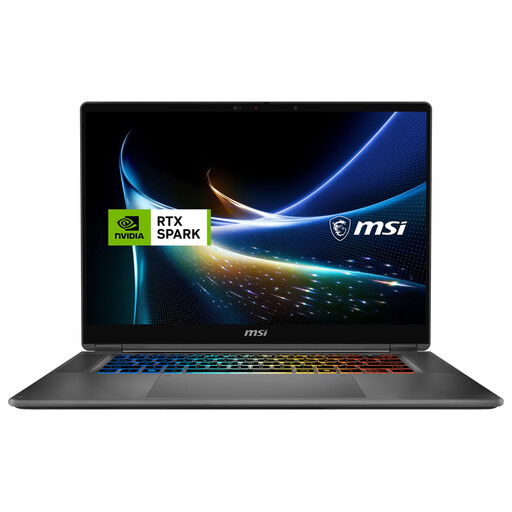
MSI Prestige N16 Flip AI+ C1XMT-029Y
If you want to mark up images directly on the device, the description for this 16-inch 2-in-1 laptop lists touch functionality and an integrated MSI Nano Pen.
360-degree hinge and multi-touch display; 32 GB DDR5 and 1 TB SSD. Windows 11 Pro.
View at Joybuy
 No image available
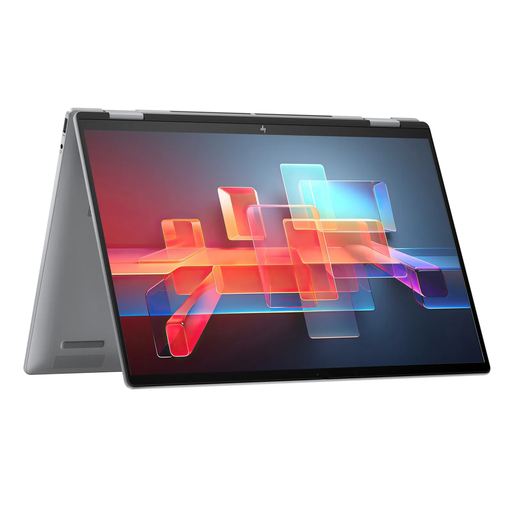
HP ENVY x360 16-ac0473ng
This convertible combines a larger screen with touch functionality, so you can review reference images directly on the device too.
16-inch WUXGA IPS touchscreen; Intel Core Ultra 7 155U, 16 GB RAM, 512 GB SSD and Windows 11. USB-C Power Delivery, Thunderbolt, USB-A and HDMI are listed. Listed weight: 1.87 kg; German QWERTZ keyboard and several convertible modes.
View at Joybuy
Frequently asked questions
Do I need a touchscreen for reference images?
No. You can insert existing images into a Word document without a touchscreen. Microsoft explains a standard way to do this; touch functionality is mainly relevant if you want to interact with images directly on the device. For stylus annotations, the stylus and app must be compatible separately.
How can I stop lots of images making my Word file unnecessarily large?
Microsoft explains how to compress embedded images in desktop versions of Word for Windows. Choose image quality to suit how you’ll use the file and keep originals if needed: according to Microsoft, deleted cropped areas can’t be restored.
Can I use music notation software on a Windows or macOS device?
The MuseScore Studio manual includes installation instructions for Windows and macOS. If you want to use a particular notation app, check its current requirements and the extensions you’ll need before buying.
Who is responsible for the statutory guarantee if my laptop is faulty?
When you buy from a trader, European Union consumer information states that you have at least two years’ legal guarantee from the date you receive the goods; the seller is your point of contact. Any additional manufacturer’s warranty offered is separate.
Can I include someone else’s sheet music or reference images in a guide that I share?
Not as a general rule. Section 51 of the German Copyright Act (UrhG) allows quotations from published works only to the extent justified by the specific purpose of the quotation; section 63 of the UrhG covers source attribution and includes exceptions. For each image, check the rights, purpose and extent of the quotation, and how the guide will be shared. Don’t assume that using it for an exam means you have permission.


