For large or complex panoramas, start by checking your RAM, available SSD storage and image software requirements. Adobe identifies additional RAM as a factor in performance when creating panoramas in Lightroom Classic. If you often work on your laptop display, a larger screen may be important. If there’s a suitable monitor at your shared desk, you’ll also need the right ports and a consistent approach to colour assessment.
Which workflow is right for you?
Photographers working with large panoramas
If you’re stitching together lots of high-resolution shots, choose your RAM and available storage to suit your files and the programmes you use at the same time. Adobe identifies additional RAM as a potential performance benefit when creating panoramas in Lightroom Classic.
Image editors who need colour accuracy
If you carefully assess transitions, tones and colours, consider the screen you’ll use for your final checks. Adobe recommends a calibrated monitor for Lightroom Classic; your laptop display won’t automatically calibrate an external screen.
People who use a shared workspace
If you regularly need to clear your desk, make sure the monitor, storage devices and power supply work with the ports on the specific laptop configuration. Check its specifications against your existing setup rather than assuming a USB-C port guarantees dock compatibility.
What should you look for?
First, check your software and the size of your image files. Then consider the screen available at your workspace, followed by the ports you’ll actually need when setting up and packing away.
| Priority |
What to check before buying |
Who will find this most important? |
| RAM and processing headroom |
Check your software requirements and the RAM in the specific configuration. Adobe recommends at least 12 GB of RAM for performance improvements in Lightroom Classic; this isn’t a general buying recommendation for other programmes. |
If you’re stitching together lots of large images and running editing programmes at the same time, a smooth workflow will be a priority. Around 33% of consumers prioritise having enough headroom for stitching. |
| Screen size and colour accuracy |
Compare the screen size of the specific configuration with the monitor you’ll actually have available. For colour-critical work in Lightroom Classic, Adobe recommends calibrating the monitor you use. |
If you assess details and colours on a shared screen, you’ll want a reliable view on the display you’re actually using. Around 27% of consumers put image checking first. |
| Ports at your workspace |
Check that the video and data connections, as well as the charging requirements, match your monitor, dock, card reader and drives. |
If you often move between workspaces, you’ll want to use your existing equipment without unexpected connection problems. Around 20% of consumers prioritise compatibility with their setup. |
| Storage and backups |
Check the SSD storage in the configuration you’re ordering, and plan a separate backup for your originals and exports. Adobe says the Lightroom Classic catalogue backup doesn’t automatically include edited photos and exports. |
If you want to keep your originals, working files and finished panoramas, you’ll need a suitable storage and backup workflow. Around 20% of consumers focus on file storage and backups. |
Common buying mistakes
-
Assuming a high graphics or overall rating proves panorama performance
An overall rating for photo and video editing doesn’t show how quickly a device will stitch your particular panorama files. Adobe also identifies RAM as a performance factor in Lightroom Classic.
Start by checking your software, the size of your image files and the specifications of the specific laptop configuration. Consider external overall ratings only in light of the test criteria they publish.
Paying for specifications that haven’t been shown to benefit your workflow could mean spending more than you need to.
-
Assuming the laptop display is ready for accurate image checks
At a shared desk, you may carry out your final checks on another screen. Adobe recommends calibrating the monitor you use with Lightroom Classic.
Consider the screen you’ll actually use to assess your panorama, and check that it can connect to your setup.
-
Assuming a catalogue backup protects all your photos
Adobe says the built-in Lightroom Classic backup covers only the catalogue file, not your edited photos and exports.
Include your originals, exports and catalogue separately in your backup plan.
For a separate backup, you’ll need suitable storage and, if necessary, a compatible external drive.
Brands to consider
Lenovo
The ThinkPad T1g Gen 8 is a Windows option for a frequently used workspace.
- Lenovo lists features for the product range including an SD Express 7.0 card reader, HDMI, Thunderbolt 4 and two Thunderbolt 5 ports.
- The product range specifications don’t confirm compatibility with a particular existing dock. Check the specific configuration and your peripherals.
Apple
The MacBook Pro is a macOS option if your image-editing programmes and workspace suit macOS.
- Apple lists 24, 48 or 64 GB of unified memory for M5 Pro configurations.
- The choice of memory sizes doesn’t tell you what a specific listing includes or predict its performance when stitching panoramas. Check the model configuration and peripherals separately.
ASUS
ASUS describes the ProArt P16 range as designed for creative work; the H7606 is available with different specifications.
- ASUS lists a 16-inch OLED touchscreen for the H7606, along with options featuring an AMD Ryzen AI processor and NVIDIA graphics.
- Notebookcheck lists 32 GB of RAM and a 2 TB SSD for the specific H7606WW-SE028X configuration. These specifications don’t automatically apply to other ProArt P16 models.
Dell
The XPS 16, model DA16250, is a large-screen Windows option for creative projects.
- Dell lists a 16.3-inch display and an included charger for the specified product.
- This doesn’t mean every configuration has the same ports or that an existing dock will provide enough charging power.
Laptops at Joybuy
This selection includes laptops for editing panoramas on the built-in display, as well as for workspaces where you’ll use an external monitor or dock. Before buying, check the specifications of the configuration you’re considering and make sure it connects to your existing setup.
 No image available
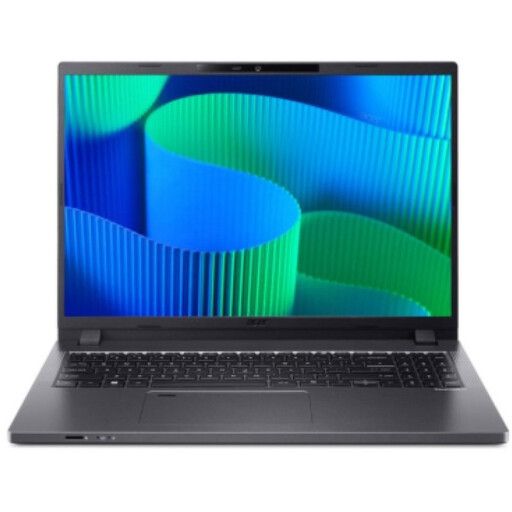
Acer TravelMate TMP216-41-TCO, 16-inch, 16 GB RAM, 512 GB SSD
The 16-inch version could suit you if you want to review panoramas directly on your laptop display. The product name lists a WUXGA display, AMD Ryzen 3 PRO 7335U, 16 GB DDR5, a 512 GB SSD and AMD Radeon 660M.
Check that the ports on the specific configuration work with your monitor and other workspace equipment.
View at Joybuy
 No image available
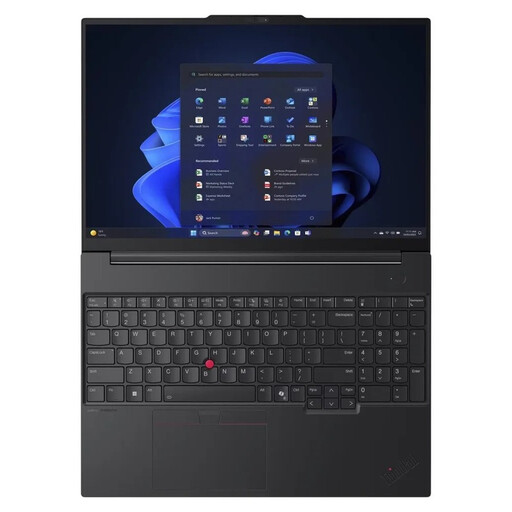
Lenovo ThinkPad E16 Gen 3 21ST, 32 GB RAM, 1 TB SSD
If you’re looking for a 16-inch laptop for panoramas and other image-editing programmes, you can check this configuration against your software requirements. The product name lists AMD Ryzen 7 250 at 3.3 GHz, 32 GB of RAM and a 1 TB NVMe SSD.
Check that the ports on the specific configuration work with your monitor, dock and storage devices.
View at Joybuy
 No image available
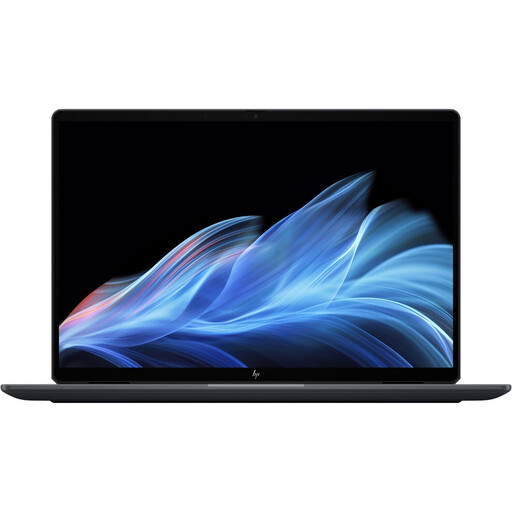
HP OmniBook Ultra Flip 14-fh0670ng, 32 GB RAM, 1 TB SSD
The 14-inch version could suit a workflow where you use an external monitor at a shared desk. The product name lists a 2-in-1 2.8K OLED touchscreen, Intel Core Ultra 7 258V, 32 GB of RAM and a 1 TB SSD.
Check the specific video output and compatibility with your existing dock.
View at Joybuy
 No image available
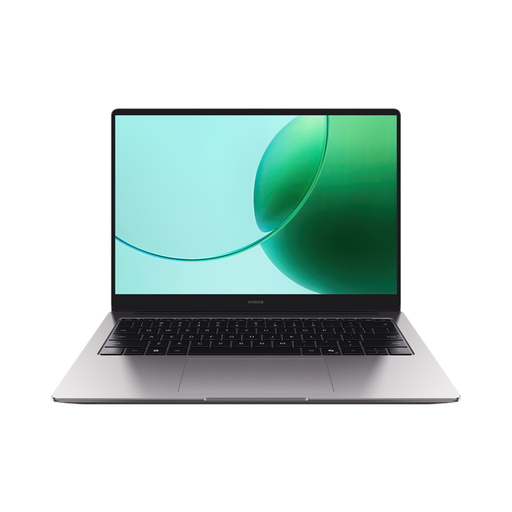
HONOR MagicBook X16 AMD 2025, 16 GB RAM, 512 GB SSD
If you edit panoramas on a 16-inch laptop display, compare this configuration with the storage requirements of your programmes and files. The product name lists AMD R5 6600H, 16 GB of RAM, a 512 GB SSD and a German keyboard.
View at Joybuy
 No image available
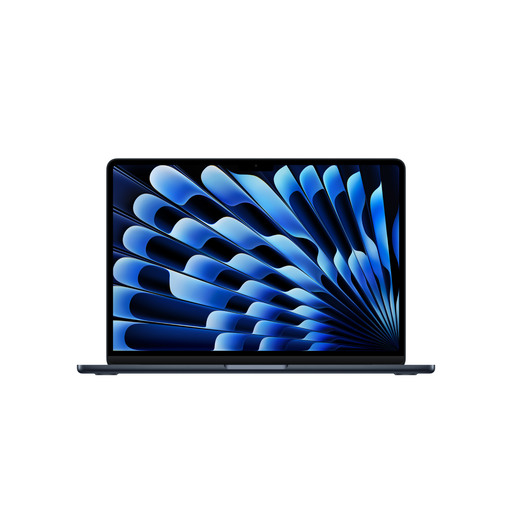
Apple 15-Inch MacBook Air (M5, 2026), 16 GB, 512 GB SSD
If your image-editing programmes work with macOS and you’re looking for a 15-inch MacBook for a shared workspace, compare this configuration with your storage and connectivity needs. The product name lists M5, a 10-core CPU and 10-core GPU, 16 GB of unified memory, a 512 GB SSD and a German QWERTZ keyboard.
The product description says that a power adapter isn’t included; check whether you need a compatible one.
View at Joybuy
Frequently asked questions
Do I need a dedicated graphics card for panoramas?
The sources consulted don’t establish a general requirement for a dedicated graphics card. Adobe identifies additional RAM as a performance factor when creating panoramas in Lightroom Classic. Before buying, check the requirements of the software you use and the size of your image files.
How do I set up image checks on a shared monitor?
If you use Lightroom Classic for colour-critical work, Adobe recommends calibrating the monitor you use to assess the image. Also check that your laptop, video output and existing peripherals all work together when you reconnect them.
Does a Lightroom Classic catalogue backup also protect my original panorama files?
No. Adobe says the built-in catalogue backup includes only the catalogue file; edited photos and exports need to be backed up separately.
What are my rights when buying a laptop online in Germany?
For a standard online purchase from a retailer, you generally have a 14-day right to cancel from the day you receive the goods, although exceptions may apply. Under the EU rules outlined by the European Commission, the seller is liable for a lack of conformity that existed when the goods were delivered and becomes apparent within two years of delivery. Your statutory rights for faulty goods are separate from any voluntary manufacturer’s guarantee.


