You don’t necessarily need a particularly powerful creative laptop to browse, name and organise a photo archive. First, make sure you have enough space for your archive, a separate backup and the right connections for your drives and desk monitor. If you assess or edit images on your laptop display, check the exact display specification and your software’s requirements. At a shared desk, separate user accounts and a screen lock are important too.
Who is a laptop for a photo archive suitable for?
People organising a photo archive
You want to browse, name and find your images again. Make sure you have enough space for your files and a separate backup. The Federal Office for Information Security and the consumer advice centre offer guidance on backing up important data.
People using flexible or shared desks
You regularly clear your workspace or share your device with others. Microsoft Support recommends separate user accounts when several people use the same device. If you often change where you work, the device’s weight may also matter, as explained by the Federal Institute for Occupational Safety and Health.
People editing photos on a laptop
You assess or edit images directly on your laptop display. Check the exact display specification and whether your device meets your image-editing software’s requirements. Adobe publishes system requirements to help you do this.
What should you consider when choosing one?
Extra internal storage is no substitute for a separate backup. The Federal Office for Information Security and the consumer advice centre recommend backing up important data separately.
| Priority |
What to check before buying |
Who is this important to? |
| Archive storage and backup |
Estimate the size of your existing archive and how much it is likely to grow; allow space for a separate backup. |
If I want to manage lots of existing photos locally, I need enough space and a separate backup. Around 36% of consumers put archive storage and backup first. |
| Connections at your desk |
Check that your drives’ and monitor’s connectors match the ports on the exact laptop model; factor in any adapters you may need. |
At a shared desk, I want to be able to connect my existing drives and, if needed, my monitor. For around 29% of consumers, ports and desk setup are the main priority. |
| Access protection |
If you share the device, set up separate accounts and a screen lock; on Windows, check the encryption available on the specific configuration (Microsoft Support). |
If other people can access the desk or device, I don’t want my private photos to be left accessible in an open session. Access protection comes first for around 21% of consumers. |
| Viewing and editing images |
Compare the display specifications for the exact model with the current system requirements for your image-editing software. |
If I assess or edit images directly on my laptop display, I want to know its specifications and the software requirements. Viewing and editing images are the main priority for around 14% of consumers. |
Avoid common buying mistakes
-
Confusing a large internal SSD with a backup
Even lots of photos stored locally can be lost if your device fails, you delete them by mistake or it is stolen.
Treat your archive and backup as separate tasks: make a separate copy and occasionally check that you can open the backed-up photos. The Federal Office for Information Security and the consumer advice centre recommend backing up important data.
-
Checking only the laptop’s ports, not the connectors you already have
Your drives and monitors may have different connectors from the device you choose. Apple lists two Thunderbolt 4 ports for the MacBook Air M5, so USB-A and HDMI devices may need adapters.
Make a note of the connectors on your drives and monitor, then compare them with the exact laptop model before you buy. Factor in any adapters or a docking solution your setup may need.
-
Assuming RAM or screen size tells you how colours will look
RAM and display specifications are separate buying considerations. Lenovo lists 45% NTSC for the display on the ThinkPad E14 Gen 7 AMD, model 21T00022GE. The amount of RAM alone does not show whether it is suitable for assessing colours.
If you assess colours on the built-in display, check the colour gamut of the exact model rather than relying on screen size, resolution or RAM alone.
Key laptop brands at a glance
These examples represent different types of device. The details apply to the models or configurations mentioned, not necessarily to every product from each brand.
Lenovo
The ThinkPad E14 Gen 7 AMD is a compact Windows option for a desk with an external monitor.
- Lenovo describes the range as upgradeable. For model 21T00022GE, Lenovo lists 16 GB RAM and a 512 GB SSD.
- Lenovo specifies 45% NTSC for the display on this model. If you assess colours on your laptop, check carefully whether this display specification meets your needs.
Apple
The MacBook Air M5 offers a macOS alternative in 13- and 15-inch sizes, provided the archive software you need is compatible with macOS.
- Apple lists a P3 colour gamut IPS display and two Thunderbolt 4 ports for the MacBook Air M5.
- You may need adapters for USB-A devices or an HDMI monitor. Also check the display and storage specifications for the size and configuration you want.
HP
The OmniBook 5 Flip is a Windows alternative if you’re looking for a convertible touchscreen device.
- For model 14-fp0765ng, HP lists a 14-inch touchscreen, 16 GB RAM and a 512 GB SSD. HP says a power adapter is included.
- These specifications don’t confirm any particular colour gamut. A hinge isn’t essential if you’re simply sorting photos.
GEEKOM
The GeekBook M16 is a larger Windows laptop if you often browse images without a separate monitor.
- GEEKOM lists two M.2 SSD slots and a German keyboard for the M16. One available configuration includes 16 GB RAM and a 512 GB SSD.
- Performance and battery-life figures are manufacturer claims. Check the exact display specification and make sure the laptop will fit your desk setup.
Joybuy products for your photo archive and desk
This selection is for photo archives managed locally and flexible desk setups.
 No image available
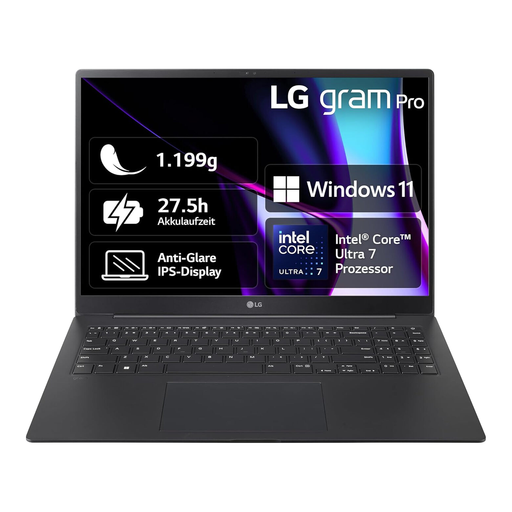
LG Gram 16 Pro (2024) 16Z90SP-G.AD7BG
If you move your laptop between workspaces, its weight may be worth considering. Check the figure for the exact model.
The LG Gram 16 Pro (2024) is listed with a 16-inch OLED display and a weight of approx. 1.19 kg. M.2 NVMe SSD options of 1 or 2 TB depend on the model, so check the capacity you want before buying.
View at Joybuy
Frequently asked questions
Is my photo archive’s internal storage enough as a backup?
No. Plan a separate backup that you update regularly, and occasionally check that you can open the backed-up photos. The Federal Office for Information Security lists device failure, accidental deletion and theft among the possible causes of data loss.
How should I set up my laptop if others use the same desk or computer?
Lock your session when you leave your workspace. If other people use the same device, Microsoft Support recommends separate user accounts. On Windows, you should also check whether device encryption is available and enabled on your specific device.
Do I need a monitor or docking station for a shared desk?
Not necessarily. First, compare the ports on your chosen laptop with those on your existing drives and monitor. Whether you need extra hardware depends on your setup.
Do I need a colour-accurate display to sort photos?
Colour reproduction isn’t automatically the deciding factor when you’re organising filenames and albums. If you assess or edit images on your laptop display, check the exact display specification and your image-editing software’s requirements.


