What to look for when buying
First, think about whether you judge colours on the laptop or an external monitor. Then compare the specifications with your files and consider how often you set up and pack away your workspace.
| Priority |
What to check when buying |
Who it matters most to |
| Judging skin tones and tonal values |
Check the display specifications for the exact configuration, reflections in your workspace, and options for calibration and profiling. |
If I judge skin tones on a laptop, I want to assess how the image looks in my actual working environment. Around 40% of consumers put colour checking first. |
| Large files and demanding retouching |
Compare the RAM, available SSD storage and GPU support with the requirements of your software and your own files. Adobe lists 8 GB of RAM as the minimum for Photoshop and recommends 16 GB or more. |
When working with large files, lots of layers or several programmes open at once, I want the configuration to suit my workflow. Around 30% of consumers prioritise editing performance. |
| Moving between workstations frequently |
Check which monitors and ports you already have; confirm the video output, power supply and USB or card connections you need on the specific model. |
If I regularly share and clear my desk, I want to connect my laptop and existing peripherals without an unnecessarily complicated set-up. Around 20% of consumers prioritise being able to switch workstations. |
| Protecting photos at a shared workstation |
Check how to lock the device when you leave your desk and what rules apply to your photos. The BSI recommends locking access to your device when you’re away. |
If I step away from my desk briefly, I don’t want other people to be able to access open portraits. Around 10% of consumers prioritise access protection. |
Joybuy products for portrait retouching
The Joybuy models below suit different ways of working, from a 13-inch laptop for a frequently changing workstation to devices with larger built-in displays and configurations for more extensive image projects. Display specifications alone don’t replace checking how colour management works in practice.
 No image available
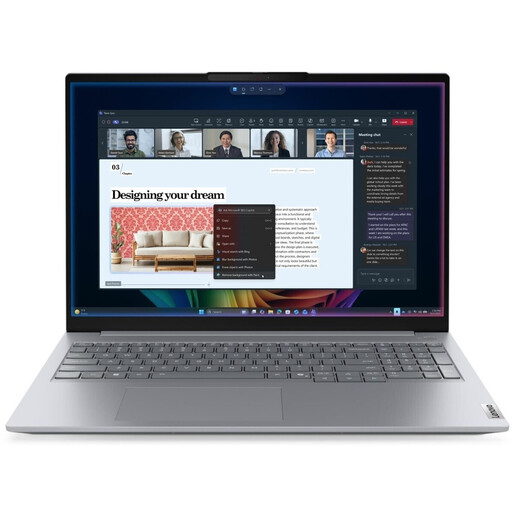
Lenovo ThinkBook 16 Gen 9, Intel Core Ultra 5 325, 32 GB DDR5, 512 GB PCIe SSD
This could be worth considering if you’re looking for a 16-inch format for portrait retouching and want to match your file sizes to the storage configuration you choose.
Specifications include 32 GB DDR5, a 512 GB PCIe SSD and Windows 11 Pro.
View at Joybuy
 No image available
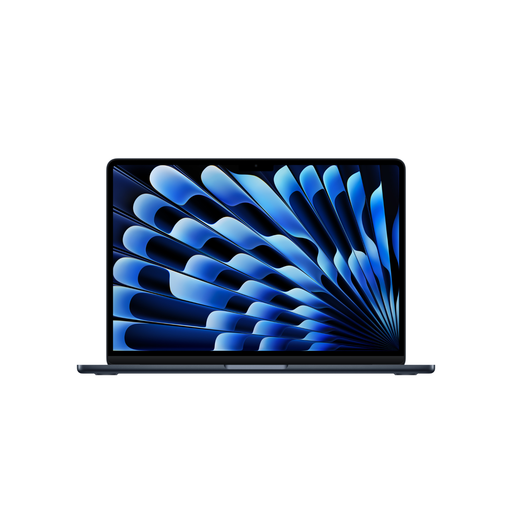
Apple MacBook Air 13-inch (M5, 2026), 16 GB, 512 GB SSD
This could be a good fit if you often put away a 13-inch device at a shared workstation. For colour-critical decisions, check whether your workflow includes a suitable external monitor.
This version is listed with a 10-core CPU, 8-core GPU, 16 GB of memory and a 512 GB SSD. A power adaptor isn’t included and must be supplied separately.
View at Joybuy
 No image available
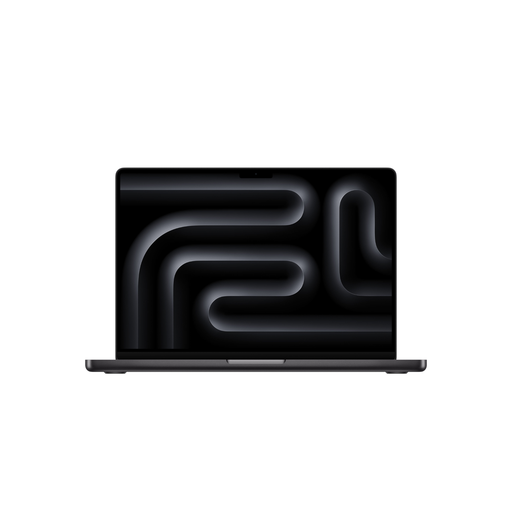
Apple MacBook Pro 16-inch (M5 Pro, 2026), 24 GB, 1 TB SSD
This could be worth considering if you’d prefer to judge portraits mainly on a larger built-in display. Check colour management in your actual set-up.
Apple lists a wide P3 colour gamut for the 16-inch MacBook Pro with M5 Pro. This version is listed with a 15-core CPU, 16-core GPU, 24 GB of memory and a 1 TB SSD. A power adaptor isn’t included and must be supplied separately.
View at Joybuy
 No image available
Apple MacBook Pro 14-inch (M5 Max, 2026), 36 GB, 2 TB SSD
This could be worth considering if you’re comparing 14-inch models with more storage for demanding creative work. Check the requirements of the software you use.
Specifications include an 18-core CPU, 32-core GPU, 36 GB of memory and a 2 TB SSD. A power adaptor isn’t included and must be supplied separately.
View at Joybuy
 No image available
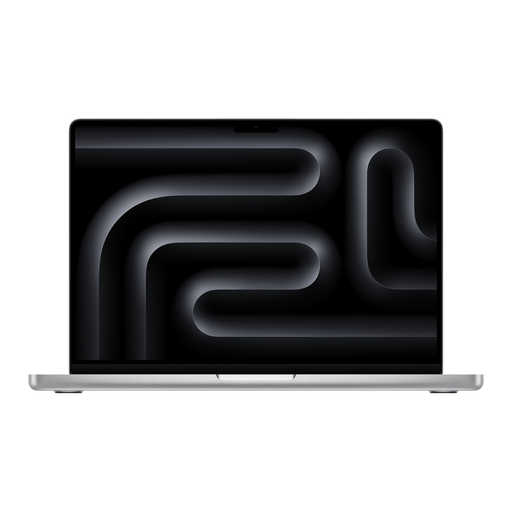
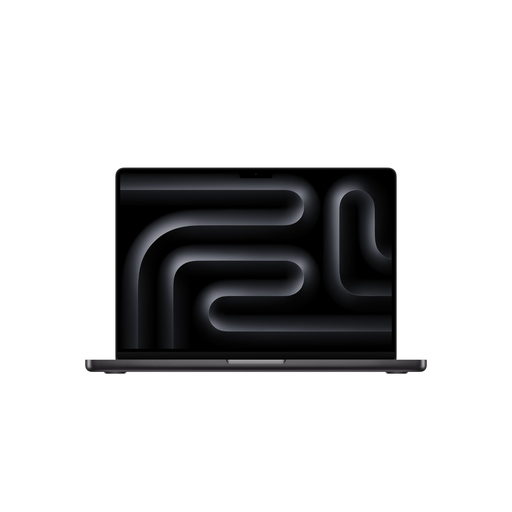
Apple MacBook Pro 14-inch (M5 Pro, 2026), 24 GB, 1 TB SSD
This could be worth considering if you switch between a laptop and external monitor at a shared desk. Check that the connections you need are compatible with your monitor.
This version is listed with a 15-core CPU, 16-core GPU, 24 GB of memory and a 1 TB SSD. A power adaptor isn’t included and must be supplied separately.
View at Joybuy
Frequently asked questions
Is ‘100% DCI-P3’ enough to ensure reliable skin tones?
No. The colour gamut figure alone doesn’t show how the image will look in your set-up. For colour-critical work, Adobe recommends calibrating and profiling the monitor you actually use, and keeping the lighting stable.
What should I check before connecting a shared monitor?
Compare the monitor’s video input with the outputs on the specific laptop configuration, and check how the monitor is set up and profiled. Check the power supply and any other connections you need separately; a USB-C port alone doesn’t guarantee a complete single-cable solution.
How often should I recalibrate my monitor?
Adobe recommends recalibrating once a month and advises restarting Adobe applications after creating a new profile. This is a recommendation from the software provider, not a legal requirement.
What are my rights in Germany if my laptop is faulty or I buy it online?
For a consumer purchase from a retailer, you have statutory rights for faulty goods against the seller; EU guidance specifies a minimum of two years from receipt of the goods. For an online consumer purchase, you generally have a 14-day right to cancel, although exceptions and the circumstances of the specific contract should be taken into account. A voluntary manufacturer’s warranty is separate; if you’re buying for business, don’t assume that consumer rights apply without checking.
How can I protect portrait files at a shared desk?
Lock your device when you leave your workstation, as recommended by the German Federal Office for Information Security. If identifiable images are processed outside a purely personal or family context, also check the data protection requirements that apply to the specific use.


