For creating presentations at a shared desk, your laptop should work with the monitor or projector available and the presentation software you use. If you often move between workspaces, you may prefer a more compact, lightweight device. If you spend long periods working on slides without an external screen, you may want to prioritise a larger built-in display. Microsoft Support explains how to use a supported second screen to keep speaker notes private. So check the ports, cables, charger and software licence for the exact configuration, too.
Who is this laptop selection for?
People who move between workspaces and use an external monitor
You regularly connect your laptop to a shared screen or projector and need compatible video and power connections. Microsoft Support explains how to present across multiple screens, while Lenovo Germany and Apple Germany document the connection options for specific device configurations.
Slide creators without a dedicated monitor
You work on slides directly on your laptop for longer periods, so the built-in screen size and display features are especially important. COMPUTER BILD’s office laptop test covers, among other things, using a larger display.
Presenters who use speaker notes
You want to see your notes on your own screen while the audience sees the slides. Microsoft Support explains how to use a supported second screen and select the appropriate display setting.
Which buying criteria matter?
| Criterion |
What to check before buying |
Who is it most important for? |
| Connecting to the shared screen |
Check that the HDMI and USB-C video outputs, and any required charging function, on the exact configuration work with your monitor, cable or dock. |
If I want to connect the existing screen without an extra video adapter, the right laptop port is essential. Around 28% of consumers put screen connectivity first. |
| Workspace for creating slides |
Check the screen size and resolution of the exact model, and whether an external screen will regularly be available. |
If I work on slides for a long time without a second screen, I need enough space on the built-in display for both the slide and the tools. Around 22% of consumers prioritise workspace. |
| Moving between workspaces |
Check the weight and what’s included in the box for the exact configuration, and consider the connections available at your destination. |
If I often carry my laptop with me, its weight and the accessories I need to bring matter. Around 17% of consumers put portability first. |
| Security at a shared desk |
Check which sign-in options are available and, on Windows, set up both manual and automatic screen locking. |
If I step away from the desk briefly, I want to stop others from viewing an unlocked screen. Around 17% of consumers prioritise security at a shared desk. |
| Presentation software and what’s included |
Check the PowerPoint version you need, your existing licence, operating system requirements and what’s included with the exact model. |
If my team’s templates and presentation software need to work, I look at the software and included accessories, not just the hardware. Around 16% of consumers put software and what’s included first. |
What should you watch out for?
-
Don’t assume USB-C will automatically work for your monitor and charging needs
A list of ports alone doesn’t confirm that video output, the dock and power supply will all work together at your shared workstation.
Compare the ports on the exact laptop model with your monitor, cable and dock, and test the connection before you use it.
Depending on your workspace, you may need a compatible adapter, a different cable or a suitable docking station.
-
Don’t compare only the built-in display
To keep speaker notes private during a presentation, the key question is whether you can use a supported second screen. Microsoft Support explains how to use an extended display in PowerPoint.
Test your planned screen connection and Presenter View before your presentation.
-
Don’t take the charger and presentation software for granted
Hardware specifications don’t confirm that you have a PowerPoint licence or that everything you need is included in the box.
Check your software entitlement and what’s included with the specific offer before choosing a configuration.
ASUS states that the Zenbook UX3405CA-QL205W doesn’t include a charger. Depending on your setup, you may need to arrange a suitable charger or software licence separately.
Brands and ranges to consider
Lenovo
The ThinkPad E range is worth considering if you move between workspaces and want a business laptop with a documented selection of ports.
- For the ThinkPad E14 Gen 7 (21SX000RGE) in Germany, Lenovo lists a 14-inch display, 16 GB RAM, a 512-GB SSD, USB-A, USB-C, Thunderbolt 4 and HDMI.
- These specifications apply to the configuration listed and are not a performance assessment of the brand as a whole.
HP
ProBook models are an option for business workspaces; the exact configuration and its ports are what matter.
- HP lists HDMI, USB-A, two USB-C ports and a manual camera shutter for the ProBook 4 G1a 14 CB4M5EA#ABD.
- You can’t automatically assume that these features apply to other ProBook configurations.
ASUS
The Zenbook 14 OLED is an option to compare if you want a compact device with documented screen and connection features.
- ASUS lists a 14-inch OLED display, a weight of 1,28 kg, HDMI 2.1 and two Thunderbolt 4 ports for the UX3405CA-QL205W.
- ASUS states that this configuration doesn’t include a charger; specifications may differ for other UX3405 variants.
Acer
The Swift 14 AI is a compact Windows option, with screen and connection features that depend on the specific model.
- For the SF14-51, NX.J2KEG.002 configuration, Acer lists a 14-inch OLED display, HDMI, two USB-A ports and two USB-C ports.
- These features aren’t automatically included on other Swift 14 AI versions.
Apple
The MacBook Air is an alternative if macOS and the presentation software you need suit your working environment.
- Apple documents two Thunderbolt 4 ports and support for external displays on the MacBook Air M5.
- Apple’s list of ports doesn’t include a built-in HDMI port. So you’ll need to plan for a suitable connection if you’re using an HDMI screen.
Joybuy products for presentations at your desk
This selection mainly features 16-inch office laptops with a larger built-in workspace. The 14-inch ASUS Zenbook is a more compact option if you often move between workspaces.
 No image available
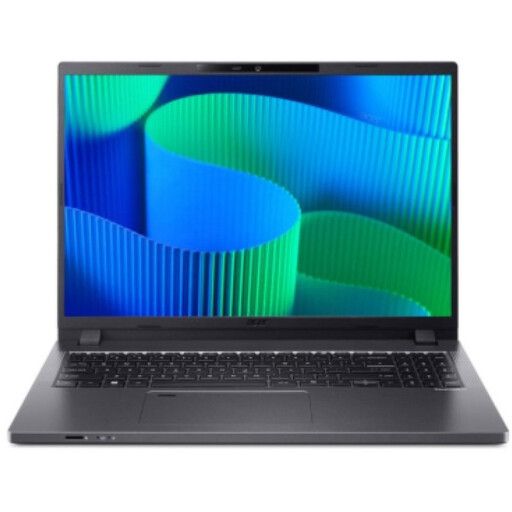
Acer TravelMate TMP216-41-TCO, Ryzen 3 PRO 7335U, 16 GB/512 GB
This configuration has a 16-inch display for working on slides directly on your laptop.
16-inch WUXGA IPS display, HDMI 2.1 and USB4.
16 GB DDR5, 512 GB SSD and stated weight of 1,80 kg.
Windows 11 Pro Education.
Joybuy
 No image available
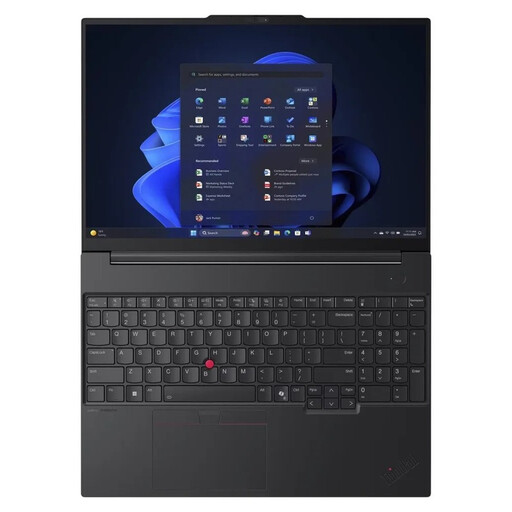
Lenovo ThinkPad E16 Gen 3 21ST, Ryzen 7 250, 32 GB/1 TB
The 16-inch display may be useful if you spend long periods working on slides without an external screen.
16-inch WUXGA display, HDMI 2.1 and USB4-C.
32 GB RAM, 1 TB SSD and stated weight of 1,71 kg.
Windows 11 Pro and German keyboard, according to the description.
Joybuy
 No image available
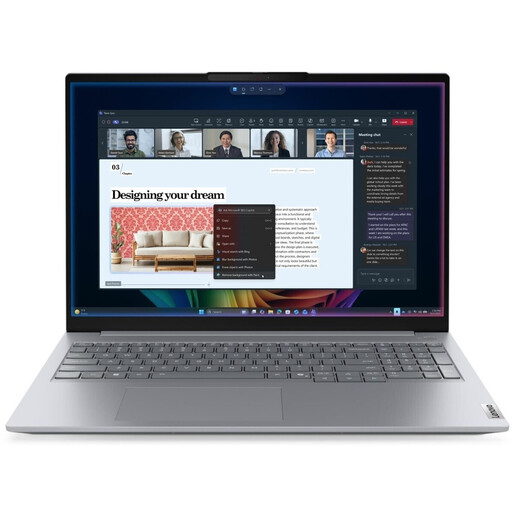
Lenovo ThinkBook 16 Gen 9, Core Ultra 5 325, 32 GB/512 GB
This configuration combines a 16-inch display with ports you can check against those available at your workspace.
16-inch WUXGA display in 16:10 format, HDMI 2.1 and Thunderbolt 4.
32 GB DDR5, 512 GB SSD and stated weight of 1,7 kg.
Windows 11 Pro.
Joybuy
 No image available
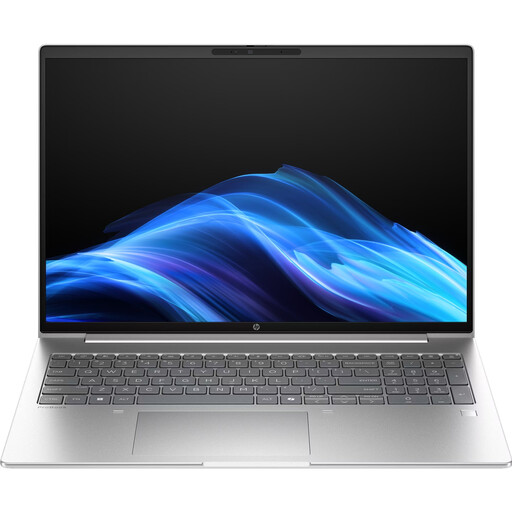
HP ProBook 4 G1a 16, Ryzen 5 230, 16 GB/512 GB
The 16-inch display is an option if you often work on slides directly on your laptop.
16-inch WUXGA IPS display in 16:10 format with anti-glare finish.
HDMI 2.1 and USB-C.
16 GB DDR5, 512 GB SSD and stated weight of 1,75 kg.
Windows 11 Pro and German keyboard, according to the description.
Joybuy
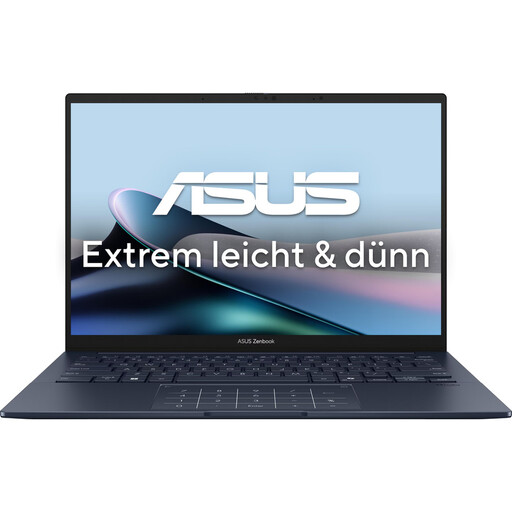 No image available
ASUS Zenbook 14 UX3405CA-QD1303W, Core U7 255H, 16 GB/1 TB
The more compact 14-inch format may suit you if you often move between workspaces.
14-inch WUXGA OLED touchscreen, HDMI 2.1 and two Thunderbolt 4 ports.
16 GB RAM, 1 TB SSD and stated weight of 1,22 kg.
Windows 11 Home.
Joybuy
Frequently asked questions
How can I keep speaker notes private during a presentation?
In PowerPoint, use a supported second screen and Presenter View. Microsoft Support explains how an extended display lets you see your notes on your screen while the audience sees the slides on theirs. Test your display setup before your presentation.
Will any USB-C port work with a monitor at a shared desk?
You can’t tell from the USB-C label alone. Check that the video output and charging function you need on the exact laptop configuration work with your monitor, cable and dock. If you have an HDMI screen, check whether the laptop has an HDMI port or needs a suitable connection.
Does a laptop automatically come with PowerPoint?
No. The laptop hardware alone doesn’t include a PowerPoint licence. Check your existing entitlement, the version you need and the system requirements for the specific operating system. Microsoft Support lists PowerPoint for Windows and Mac.
How do I lock my laptop if I step away from a shared desk?
On Windows, press Windows+L to lock your device, and you can also set up automatic locking. Microsoft Support explains these options; they don’t replace your workplace’s account and organisational policies.
What should I check about the charger?
Check what’s included with the exact configuration and whether you already have a compatible charger. For example, ASUS states that the Zenbook UX3405CA-QL205W doesn’t include a charger; this doesn’t automatically apply to other variants.


