Choose your laptop based on which screen you use to assess product colours. At shared workspaces, the specific laptop display matters; at a fixed desk, a suitable external monitor can be part of your workflow. Then match the RAM and storage to your software and image volumes, and check the ports, desk space and performance under sustained load. A wide colour gamut or powerful GPU alone is no substitute for colour management or checking the exact configuration you’re considering.
Which priorities suit you?
People who assess product colours on their laptop
If you edit at different desks and need to assess colours directly on the built-in screen, check the exact display variant, the lighting at your workspace and your colour workflow. The laptop range name alone doesn’t tell you how reliably colours will appear on screen.
People working with large batches of images and retouching
If you work with lots of photos or several programmes open at once, match the RAM and available SSD space to your software and workload. A high-end graphics card name alone doesn’t prove that you need that specification for your workflow.
People who move between desks
If you take your laptop with you and connect it at a shared workspace, screen size, weight, card importing and monitor connections all matter. Check that the device fits on the available desk and can connect to your existing equipment.
What should you look for when buying?
Compact laptop for moving between workspaces
A good fit if: you often change desks and review or edit images directly on your laptop. Check the display variant, reflections, weight and the connection you need for your import method.
Trade-off: A smaller footprint and easier portability mean a smaller built-in workspace; the model range alone doesn’t prove colour accuracy.
Larger creator laptop as a dedicated editing station
A good fit if: you mainly work on the laptop display and handle larger files. ASUS lists a 16-inch OLED display, 64 GB RAM and an SD Express card reader for the ProArt P16 H7606WX-SE090X configuration.
Trade-off: A larger device takes up more space; the particularly powerful graphics in this variant aren’t a general requirement for product photography.
Laptop with an external monitor at a fixed desk
A good fit if: you carry out final colour checks at a fixed workspace. Match the monitor connections and file management to your needs, and calibrate the screen you use for assessment; Adobe describes calibration as part of a reliable colour workflow in Lightroom Classic.
Trade-off: An additional monitor needs desk space and the right connections; when you’re out and about, image assessment still depends on the laptop display and its surroundings.
| Buying priority |
What to check when buying |
Who it matters to most |
| Colour checking |
Check the display variant and stated colour gamut for the exact configuration; decide whether you’ll assess colours on the laptop or on an external calibrated monitor. |
If I approve product colours on the laptop, the display and workspace lighting need to suit my colour workflow. Around 33% of consumers put colour checking first. |
| Image batches and retouching |
Match your software version, typical files, programmes used at the same time, RAM and available SSD space. Adobe lists 8 GB as the minimum for Photoshop and recommends 16 GB or more. |
When working with large batches of images or several programmes at once, I want to match the specification to how I actually work. Around 27% of consumers prioritise editing performance. |
| Space and portability |
Check the dimensions and weight against your workspace; if you’ll use the laptop for extended periods, check how a monitor could be positioned and look for noise measurements for the exact configuration. |
If I move between desks, the laptop needs to fit on the available desk and be easy to carry, without overlooking the fact that the space is shared. For around 20% of consumers, this combination of portability and space requirements is a priority. |
| Importing and file organisation |
Match the card format, USB and monitor outputs to your existing equipment; plan your working and backup storage separately. |
For importing photos from my camera and storing current projects, I need suitable connections and a clear backup routine. Around 20% of consumers prioritise importing and file organisation. |
Common buying mistakes
-
Assuming a wide colour gamut guarantees reliable colour checking
A colour gamut figure alone doesn’t tell you how product colours will look at a shared workspace. The display variant, lighting and the colour workflow you actually use also matter.
First decide where you’ll carry out final colour checks. Then choose the exact display variant and, if needed, an external monitor workflow to suit.
A dedicated monitor and calibration can mean extra setup.
-
Assuming every configuration in a workstation range has the same display
Lenovo’s datasheet for the ThinkPad P14s Gen 6 (AMD) 21QL0041GE configuration lists an anti-glare display with 45% NTSC. Other features can vary across the range.
Check the full display specifications for the exact configuration, especially if you approve colours directly on the laptop.
-
Choosing the most powerful GPU for every product photography edit
Adobe distinguishes between minimum and recommended specifications for Photoshop. The RTX 5090 in a particular ProArt variant isn’t a general minimum software requirement.
First check the features your software uses and the files you work with. Then assess the RAM, SSD and GPU in the specific laptop variant.
Unnecessary specifications can needlessly limit your choice of device.
Key brands at a glance
Apple
The MacBook Pro range offers a macOS option for editing images on the move.
- Apple lists a P3 display for its 14-inch models.
- The chip, memory, SSD and display vary by configuration. A wide colour gamut doesn’t independently confirm colour accuracy in an office workspace.
ASUS
The ProArt P16 H7606WX-SE090X is a Windows configuration with a large built-in display and connections suited to a creator workspace.
- ASUS lists a 16-inch OLED display with 100% DCI-P3, 64 GB RAM, a 2 TB SSD and an SD Express card reader for this variant.
- The RTX 5090 isn’t a general requirement for product photography. Manufacturer claims about colour gamut and display performance don’t replace independent testing in your office lighting.
Lenovo
The ThinkPad P14s Gen 6 (AMD) is a mobile Windows workstation range. You can check its display and connections against the requirements of a fixed or shared workspace.
- Lenovo’s datasheet lists connections for external monitors.
- Features depend on the configuration. For the documented 21QL0041GE model, Lenovo lists an anti-glare display with 45% NTSC; the workstation name alone doesn’t make this a proven choice for approving colours on the built-in screen.
HP
HP positions the ZBook 8 range as a mobile workstation option for tasks including photography and multitasking.
- The range is another option to consider for a mobile photo workspace.
- Graphics and storage specifications vary by model. Check the exact display variant and configuration before buying.
Joybuy products for this workflow
These Joybuy products are suited to editing images at a fixed office desk or in shared workspaces. Compare the display specifications, RAM, storage and connections with your specific workflow.
 No image available
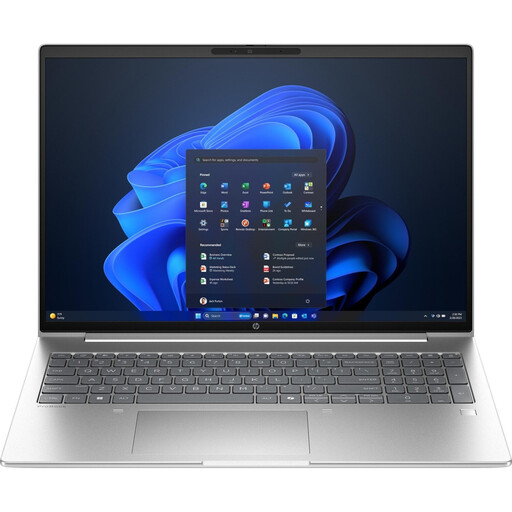
HP ProBook 4 16 G1i, Core Ultra 7 255U, 32 GB RAM, 1 TB SSD
For a fixed workspace with an external monitor, the listed HDMI connection and storage for image files are useful points to consider.
The product description lists a 16-inch IPS display with 1920 × 1200 pixels and 400 cd/m², an Intel Core Ultra 7 255U, Intel Graphics, 32 GB RAM, a 1 TB NVMe SSD and Windows 11 Pro. HDMI is listed as a video output.
Joybuy
 No image available
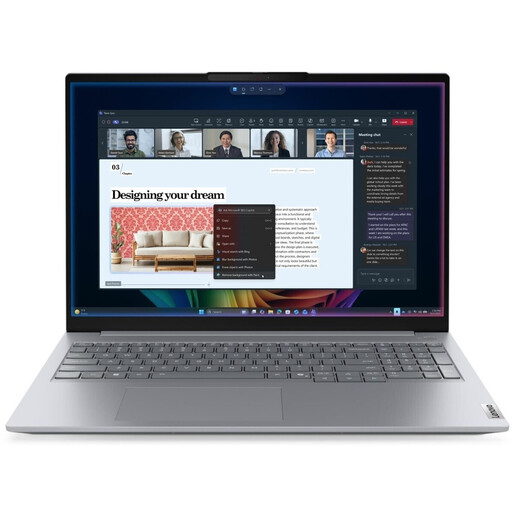
Lenovo ThinkBook 16 Gen 9, Core Ultra 5 325, 32 GB RAM, 512 GB SSD
If you import photos directly from an SD card and connect a monitor at a fixed desk, the listed connections may suit your workflow.
The product specifications list a 16-inch IPS display with WUXGA resolution and 400 cd/m², 32 GB RAM, a 512 GB SSD and an integrated SD card reader. HDMI 2.1 and Thunderbolt 4 are listed for monitor connections; the stated weight is 1.7 kg.
Joybuy
 No image available
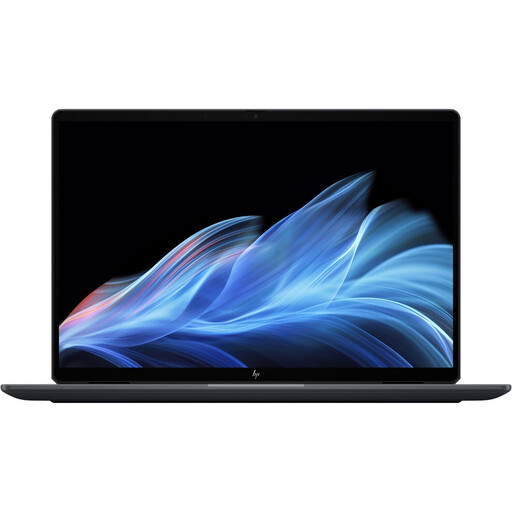
HP OmniBook Ultra Flip 14-fh0670ng, Core Ultra 7 258V, 32 GB RAM, 1 TB SSD
For shared workspaces, the listed display specifications, weight and Thunderbolt 4 connections are useful points to consider. Display specifications alone don’t replace checking your colour workflow.
The product description lists a 14-inch OLED touchscreen with 2880 × 1800 pixels, 120 Hz and 100% DCI-P3, 32 GB RAM, a 1 TB SSD and a weight of 1.34 kg. Thunderbolt 4 is listed for connecting external displays.
Joybuy
 No image available
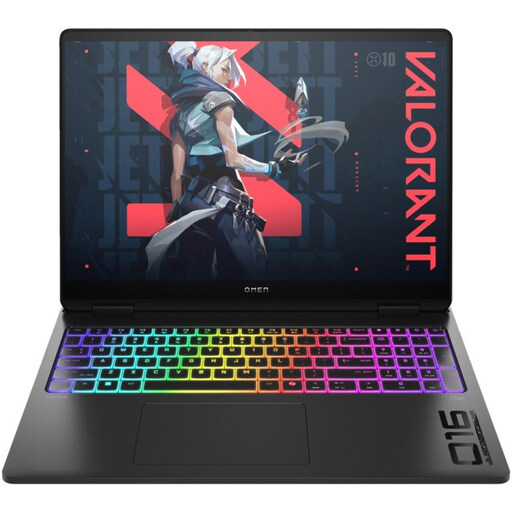
HP OMEN MAX 16-ak0693ng, Ryzen AI 9 HX 375, RTX 5070 Ti
If you use several programmes and want to connect an external monitor, compare the listed storage and video connections with your needs. The graphics card name alone doesn’t prove that you need this specification for your photo workflow.
Listed specifications include 32 GB RAM, a 1 TB SSD, a 16-inch IPS display with 2560 × 1600 pixels, 500 cd/m² and a matt finish, plus a GeForce RTX 5070 Ti with 12 GB. HDMI 2.1 and USB-C are listed as connections.
Joybuy
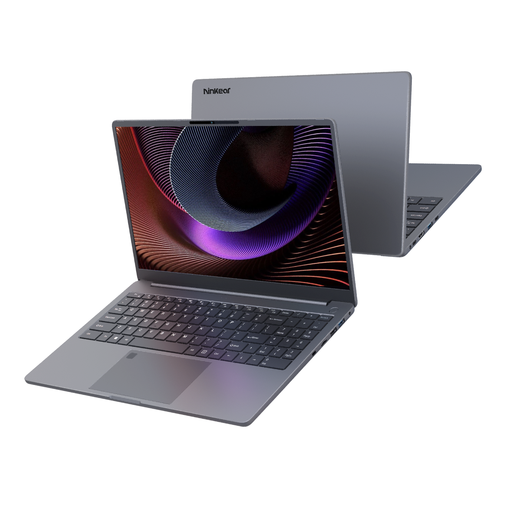 No image available
Ninkear A15 Pro, 15.6-inch FHD IPS display, 16 GB RAM, 512 GB SSD
If you take your laptop between desks, the stated weight and display size are useful details to compare with your transport and desk space needs.
The product title lists 16 GB DDR4 RAM, a 512 GB SSD, a 15.6-inch FHD IPS display and a weight of 1.6 kg. It also lists a display that opens to 180°.
Joybuy
Frequently asked questions
Do I need a particularly powerful dedicated graphics card for product photography?
Not necessarily. Match the requirements of your software version and the GPU features you need to the exact laptop configuration. Adobe distinguishes between minimum and recommended specifications for Photoshop; that doesn’t mean you need a high-end GPU in every case.
How do I set up colour checking with an external monitor?
Decide which screen you’ll use for final assessment, then calibrate it. At shared office workspaces, also check for distracting reflections; the laptop’s colour gamut figure doesn’t replace colour management on the monitor you actually use.
Is it enough to back up only the Lightroom Classic catalogue file?
Treat the catalogue and its associated image files as separate parts of your workflow. Adobe recommends storing catalogue backups on a different drive from the catalogue itself, wherever possible.
Can I always cancel an online laptop purchase in Germany within 14 days?
No, this depends on factors including whether you’re buying as a consumer or a business. The Verbraucherzentrale describes a right to cancel within 14 days in general for relevant consumer distance contracts; this doesn’t establish a general right to cancel a business purchase. Check the contract terms before placing a business order.
Is a manufacturer’s warranty the same as the statutory guarantee?
No. The statutory guarantee covers legal claims against the seller in the event of defects; a warranty is a voluntary service offered under its own terms. When buying, check who the seller is and what additional service terms apply.


