If you need to judge product colours, start by checking the exact display and planning a suitable colour-management workflow: high graphics performance alone won’t guarantee reliable colour reproduction. For large RAW projects or regular, demanding retouching, you’ll also need to consider RAM, SSD space and, where appropriate, a suitable GPU. For occasional adjustments, a less powerful configuration may be enough. Factor in your software, any external monitor and the ports you need, too.
What matters for different users
Product photographers who need accurate colour
If you judge product colours on your laptop, details about the exact display and a well-planned colour-management workflow matter more than maximum processing power. EIZO Germany points out that calibration can’t overcome a display’s limitations.
Regular RAW editing and retouching
If you work with large image libraries or complex files, consider your RAM, available SSD space and the requirements of the features you actually use together. Adobe recommends at least 16 GB of RAM for Photoshop 27.x and later.
Photo editing at a fixed desk
If you mostly work from home with a monitor or other peripherals, make sure the ports and card reader suit your existing setup. Whether you check colours on the laptop or an external monitor will also affect your choice of display.
What to look for when buying
First decide which screen you’ll use to assess colours. Then check the software and storage requirements, along with the ports, against your workspace setup.
| Priority |
What to check before buying |
Who it matters most to |
| Assessing product colours |
Check the colour gamut and calibration details for the exact display variant, as well as the lighting conditions in your workspace. |
If I check product colours on my laptop, I need a display whose characteristics I can verify. This is a priority for around 36% of consumers who consider colour accuracy their main concern. |
| RAW files and retouching |
Compare the requirements of your software and the features you use with the available RAM, SSD space and, where relevant, GPU compatibility. |
For large image projects or several applications running at once, I want to allow enough headroom rather than focus on just one performance figure. Around 29% of consumers prioritise RAW and retouching performance. |
| Connecting your workspace |
Compare the ports on the exact model variant with your monitor, peripherals and camera card format. |
If I want my laptop to connect to a monitor and storage devices at my desk, its ports need to work with the accessories I already own. For around 14% of consumers, workspace connectivity comes first. |
| Keeping the overall setup in mind |
Consider the laptop, any monitor you might use for checking images, colour-management accessories and the adapters you need as a whole. |
If I want the right equipment without planning for unnecessary extra purchases, I need to consider my entire workflow. Around 21% of consumers put total spending first. |
How to avoid common buying mistakes
-
Assuming a wide colour gamut means accurate product colours
A stated colour gamut doesn’t automatically tell you how accurate or consistent the colours will be on the actual screen. EIZO Germany points out that calibration can’t compensate for a limited colour gamut or panel inconsistencies.
Check the exact display variant carefully and, if colour accuracy is critical, consider your entire display and colour-management workflow.
If you want to assess colours on an external reference monitor, you may need extra desk space and colour-management accessories.
-
Assuming you need a powerful GPU regardless of your workflow
The benefits of a GPU depend on the software, features and displays you use. Having a particular component doesn’t prove it will help with every photo adjustment.
Compare the features you actually use with your software’s requirements and the laptop’s exact configuration.
-
Checking only whether a card reader and ports are included
A microSD reader won’t necessarily accept larger SD cards. The ports for your monitor and peripherals also need to suit the exact model variant.
Before buying, compare your camera’s card format and the monitor connections you need with the port list for the exact model.
Depending on the card format, you may need an additional card reader or adapter.
Key brands at a glance
Apple
An option for a macOS workflow. Apple lists the wide P3 colour gamut among the features of the 14-inch MacBook Pro with Liquid Retina XDR display.
- The specifications make it easier to compare chip, memory and display options.
- P3 alone doesn’t prove the colour accuracy of the specific device. Also check that your software and existing accessories are compatible with macOS.
ASUS
The ProArt P16 range is designed for Windows-based creator workflows. For the specific H7606WX-SE008X configuration, ASUS lists 64 GB RAM, a 2 TB SSD and a dedicated RTX 5090 laptop GPU.
- These specifications allow you to make a direct comparison with this memory and graphics configuration.
- This specification applies to this variant and not necessarily to every ProArt P16 model. Its benefits depend on the photo-editing features you actually use.
Acer
The Swift Go 16 OLED SFG16-73-92GG is an example of a 16-inch model with integrated graphics. Acer lists the manufacturer’s part number as NX.JDDEG.00C.
- For this variant, Acer lists 32 GB RAM, a 1 TB SSD and a microSD reader.
- Check whether the glossy display suits the lighting conditions in your workspace and whether the card format works with your camera. The specifications alone don’t prove a particular level of colour accuracy.
Lenovo
The Yoga 9i 2-in-1 Gen 10 Aura Edition is a versatile 14-inch option for use at your desk and on the go.
- Lenovo describes the range as a convertible for different ways of working.
- Check the RAM, display and ports for each specific variant separately.
HP
The ZBook range is worth considering as a workstation alternative if your workflow includes other demanding professional applications as well as product photography.
- HP offers different ZBook configurations, making it possible to compare specific models.
- The workstation label doesn’t guarantee the colour accuracy you need or an advantage for simple photo adjustments. Specifications vary by model.
Joybuy models for photo editing
The Joybuy models below have dedicated graphics and clearly listed display or storage features. Compare them with your needs for RAW editing, colour checking and connecting your workspace.
 No image available
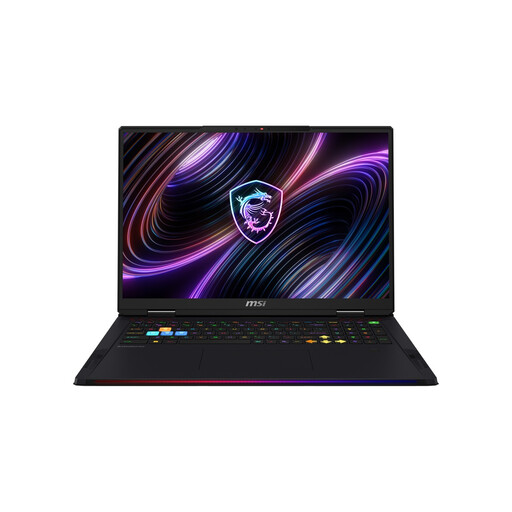
MSI Raider 18 Max HX A2WI-1075
Compare the listed specifications with your requirements for larger image projects and your choice of display.
18-inch Mini LED display with WQUXGA; 32 GB RAM; 2 TB SSD; NVIDIA GeForce RTX 5080; 100% DCI-P3; HDMI, DisplayPort, USB-C/Thunderbolt and SD card reader.
View at Joybuy
 No image available
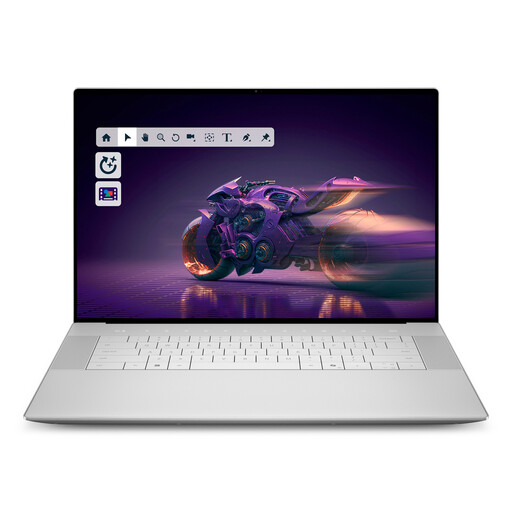
Dell 16 Premium DA16250 8N5N4
The specific memory and graphics configuration may be relevant for image projects involving several applications running at once.
16.3-inch OLED display with 4K and 100% DCI-P3; 32 GB RAM; 1 TB SSD; dedicated RTX 5070 graphics; three Thunderbolt 4 ports and a microSD reader.
View at Joybuy
 No image available
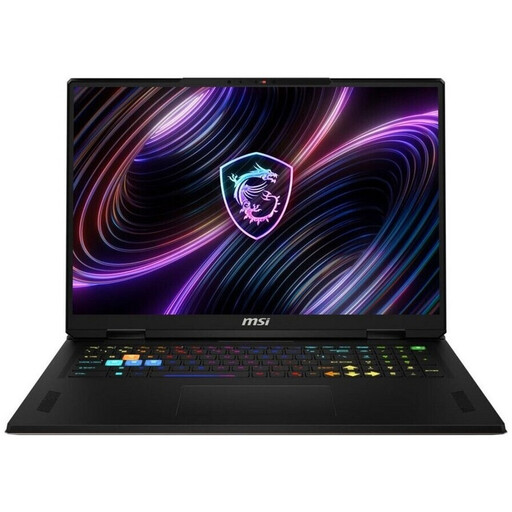
MSI Raider 18 HX A2WH-1088
Check the listed graphics against the features you actually use in your photo-editing software.
18-inch IPS display with QHD+; RTX 5070 Ti with 12 GB graphics memory; 32 GB RAM; 1 TB SSD; HDMI, Thunderbolt 5, USB-A and SD card reader.
View at Joybuy
 No image available
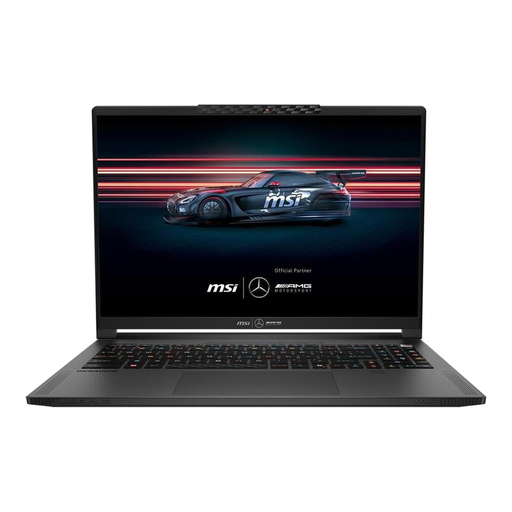
MSI Stealth A16 AI+ Mercedes-AMG Motorsport A3XWGG-052
Compare the RAM and SSD specifications with the size of your image projects and how much work you do at the same time.
16-inch QHD+ OLED display; Ryzen AI 9 370; 32 GB RAM; 2 TB SSD; RTX 5070; USB4, USB-C with DisplayPort, HDMI and 2.5 Gbit/s LAN.
View at Joybuy
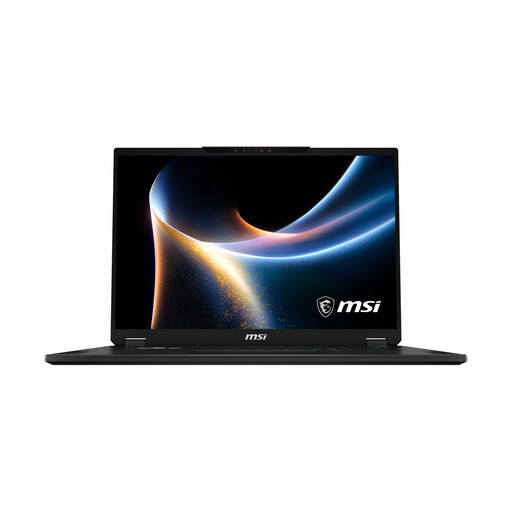 No image available
MSI Stealth 18 HX
Compare the display specifications with your colour-checking workflow, and the graphics and memory with the image-editing features you use.
18-inch Mini LED display with 100% DCI-P3; RTX 5080; 32 GB RAM; 2 TB SSD; HDMI, DisplayPort, Thunderbolt, USB-C and SD card reader.
View at Joybuy
Frequently asked questions
Is 16 GB RAM enough for Photoshop?
Adobe recommends at least 16 GB RAM for Photoshop version 27.x and later; Adobe lists 8 GB as the minimum requirement. These are software requirements, not a guarantee that every size or number of RAW files will run smoothly when edited at the same time.
Will calibration make any laptop screen colour-accurate?
No. EIZO Germany explains that profiling and calibration can account for display errors, but can’t fix a limited colour gamut or panel inconsistencies. So first check the exact display variant, then plan your colour-management workflow.
Which ports should I check for my camera and external monitor?
Compare your camera’s card format and the monitor connection you need with the ports on the exact laptop variant. A microSD reader won’t necessarily accept other SD card sizes; for example, Acer lists microSD, HDMI and USB-C for the Swift Go 16 OLED SFG16-73-92GG.
What rights do I have when buying online as a private consumer in Germany?
Consumers generally have a right to cancel a distance purchase, usually within 14 days; exceptions and the exact start of the cancellation period should be taken into account. The Verbraucherzentrale also points out that consumers can exercise their statutory rights if new goods are faulty, within two years of receiving them. If you’re buying as a business, don’t assume these consumer rules apply to your contract without checking.
What should I check to make sure a device complies with German market requirements?
The Bundesnetzagentur says that retailers should, among other things, check the CE marking and the required accompanying documentation. Check the specific device for the marking and its associated safety information; a product listing alone doesn’t prove that the device complies.


