Choose a laptop to suit your workflow. For large scans and several files open at once, you’ll need plenty of memory and SSD storage. If you want to trace directly on screen, choose a model that explicitly supports a stylus and check that you have the right one. For printed booklets, also check the image’s pixel dimensions at the intended print size and make sure your print workflow is properly set up. A powerful graphics chip alone doesn’t guarantee that a laptop is suitable for print work.
Which type of laptop is right for you?
Editing large archive scans
If you edit high-resolution images and keep several image and layout files open, look for plenty of memory and free SSD storage. Adobe distinguishes between the minimum requirements and recommended specifications for Photoshop 27.x.
Drawing directly on screen
If you want to trace historical outlines on the display, check stylus support, the exact stylus model and what’s included with the specific variant. Lenovo and HP provide different information about the stylus for the models covered here.
Creating print-ready booklets
If you’re combining illustrations with a page layout, check the image’s pixel dimensions at the intended print size. Display specifications alone don’t prove that an image will be suitable for print; Adobe explains how print resolution relates to output size.
What should you look for when choosing?
Adobe lists 8 GB of RAM as the minimum for Photoshop 27.x and recommends 16 GB or more. This applies to that software version and isn’t a general minimum requirement for every booklet project.
| Your needs |
What to check before buying |
Who is this important for? |
| Editing scans and files |
Memory and available SSD capacity for the exact configuration; requirements of the software you use. |
If you edit large scans and work with several files at once, prioritise smooth performance and plenty of storage. Around 37% of consumers put scan and file editing first. |
| Drawing directly over the original |
A compatible stylus and whether it’s included with the full model number; alternatively, the ports needed for an external graphics tablet. |
If you want to trace outlines directly on your laptop, check stylus support and accessories for that exact variant. Around 27% of consumers prioritise direct stylus input. |
| Preparing scans for print |
The image’s pixel dimensions at the planned print size and the printer’s requirements. Adobe describes 300 ppi as ideal for smaller prints. |
If your illustrations are going into a printed booklet, you’ll want to assess their detail at the intended output size. Around 18% of consumers prioritise print preparation. |
| Working on the move and connecting devices |
Display size and stated weight, as well as the ports on the specific variant compared with your scanner and other peripherals. |
If you move between the archive, home and your working group, you’ll need the right balance of workspace, portability and connectivity. Around 18% of consumers pay particular attention to mobile working and ports. |
Which assumptions should you avoid?
-
Assuming a touchscreen comes with a stylus
A touchscreen doesn’t automatically mean that an active stylus is supported or included. Lenovo describes the stylus for the Yoga 7 2-in-1 Gen 10, model 83JR000PGE, as optional and sold separately; HP says a Pen is included with the OmniBook Ultra Flip 14-fh0797ng.
Check the full model number, stylus compatibility and what’s included with the specific variant.
You may need to buy a compatible stylus separately.
-
Assuming display specifications guarantee print-ready images
Display specifications describe the screen, not the number of pixels in your scanned image or its suitability for a particular print size. Adobe points out that the right resolution depends on the output size and viewing conditions.
Check the pixel dimensions at the intended image size, and confirm the printer’s requirements before exporting.
If the original image isn’t high enough in quality, you may need to scan it again or order a proof print.
-
Overlooking the accessories you need
What’s included can vary between offers. For one MacBook Air configuration, Joybuy Germany doesn’t list a charger; the stylus for the Lenovo model is sold separately.
Before buying, check whether the selected variant includes a power adapter, any necessary adapters and drawing accessories.
Which brands and product ranges are worth considering?
Lenovo
The Yoga 7 2-in-1 is a Windows convertible range designed for working directly on the screen, which folds back; the details below apply to model 83JR000PGE.
- Lenovo lists 32 GB of soldered memory, a 1 TB SSD and a 14-inch OLED touchscreen for this configuration.
- The stylus is described as optional and sold separately. Check compatibility and what’s included with the specific variant.
HP
The OmniBook Ultra Flip 14-fh0797ng is a convertible with a touchscreen. HP lists a Pen as included with the offer covered here.
- HP lists 32 GB of RAM, a 1 TB SSD, an HDMI adapter and a Pen as included with this configuration.
- These details apply to model 14-fh0797ng and may not apply to other OmniBook variants.
Apple
The MacBook Air is a traditional laptop option for editing scans and working on layouts on the move; Apple offers 13- and 15-inch models.
- For the M5 base configuration shown, Apple lists 16 GB of unified memory and 512 GB of storage.
- Direct stylus input isn’t confirmed for this laptop range here. According to the offer details, the Joybuy configuration covered here doesn’t include a charger.
ASUS
The ProArt P16 H7606WX-SE090X is an option for working with large images and tool palettes on the built-in screen.
- ASUS lists a 16-inch display, 64 GB of RAM, a 2 TB SSD, multiple ports and a weight of 1.95 kg for this version.
- The RTX-5090 specification alone doesn’t demonstrate a particular advantage for straightforward 2D booklet layout. Other ProArt P16 configurations may differ.
Laptops for scan editing and layout work
This selection includes 16-inch laptops for editing scans and creating booklet layouts, as well as a 2-in-1 model for drawing directly on the device.
 No image available
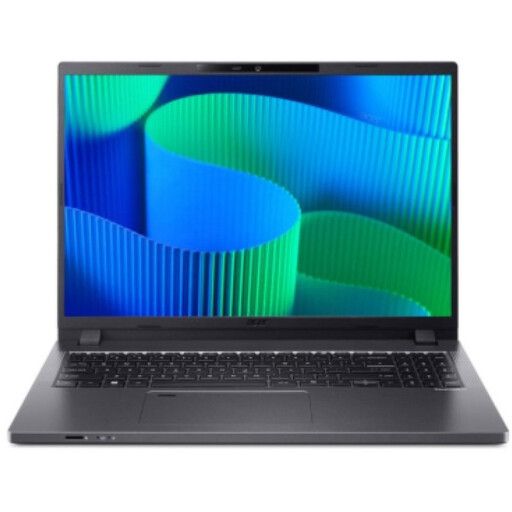
Acer TravelMate TMP216-41-TCO, 16-inch
The stated storage specification and screen size are useful factors to consider for scan and layout files.
16-inch WUXGA display, AMD Ryzen 3 PRO 7335U, 16 GB DDR5, 512 GB SSD, AMD Radeon 660M and Windows 11 Pro Education.
Joybuy
 No image available
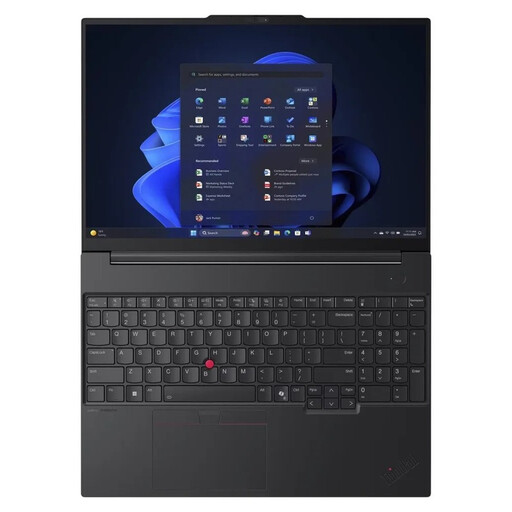
Lenovo ThinkPad E16 Gen 3 21ST, 16-inch
For working with several scan and layout files, 32 GB of RAM and a 1 TB SSD are useful features of this configuration.
16-inch, AMD Ryzen 7 250, 32 GB RAM, 1 TB SSD, AMD Radeon 780M, Windows 11 Pro and a 180° hinge design.
Joybuy
 No image available
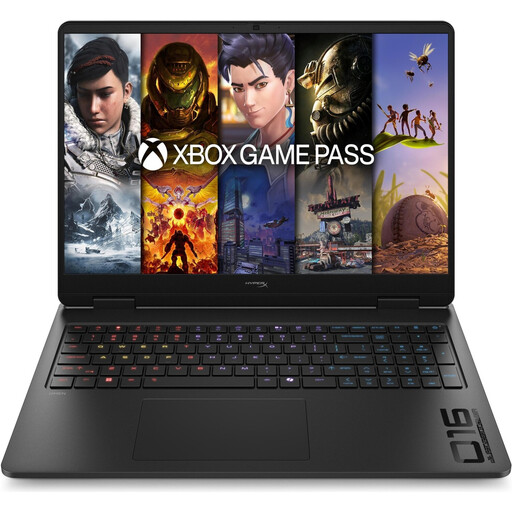
HP OMEN 16-ap1071ng, 16-inch
The stated 1 TB SSD is worth considering when choosing a laptop for scan and layout files. Also check that the weight and configuration suit your workspace.
QHD display with 1,920 × 1,200 pixels, AMD Ryzen 7 8745HX, 16 GB RAM, 1 TB SSD, GeForce RTX 5060 and Windows 11 Home.
Joybuy
 No image available
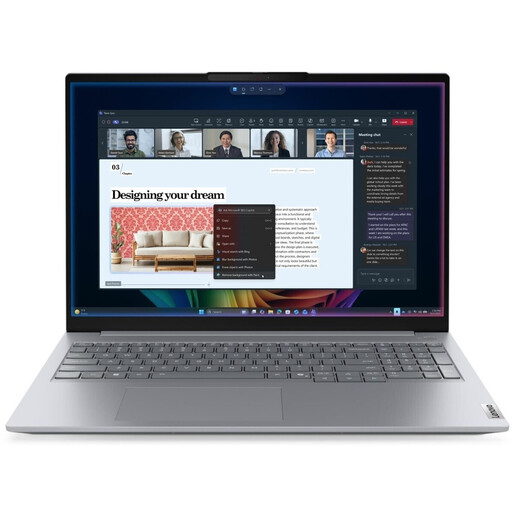
Lenovo ThinkBook 16 Gen 9, 16-inch
The stated storage specification and 16-inch display are useful factors to consider for large scans and several files open at once.
Intel Core Ultra 5 325, 32 GB DDR5, 512 GB PCIe SSD and Windows 11 Pro.
Joybuy
 No image available
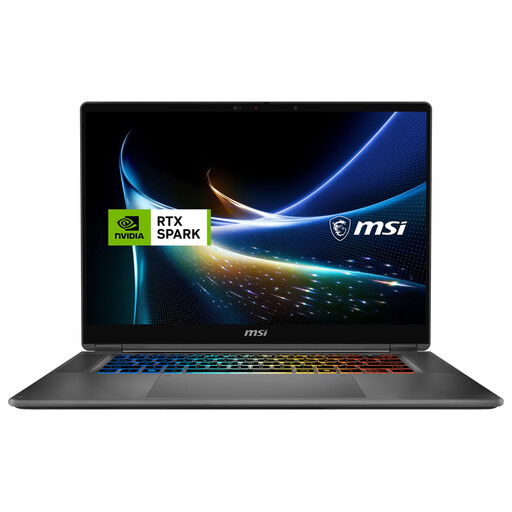
MSI Prestige N16 Flip AI+ C1XMT-029Y, 16-inch
As a 2-in-1, this model is worth considering if you want to combine drawing with laptop work. Check the stylus and what’s included with the specific variant.
16-inch, 32 GB DDR5, 1 TB SSD and Windows 11 Pro.
Joybuy
Frequently asked questions
Do I need 32 GB of RAM for scanned drawings?
No, 32 GB isn’t a general requirement. Adobe lists 8 GB as the minimum for Photoshop 27.x and recommends 16 GB or more. The right amount for you also depends on the files you’re working with and the programmes you use at the same time.
Can I draw directly over a scan on any touchscreen laptop?
No. Check the full model number to see whether it supports a compatible stylus and whether one is included. Lenovo describes the stylus for the Yoga offer covered here as optional; HP lists a Pen as included with the OmniBook offer covered here.
What scan resolution do I need for a printed booklet?
What matters is the number of pixels available at the planned print size, not an isolated dpi figure. Adobe describes 300 ppi as ideal for smaller prints and notes that lower resolutions may be suitable for large-format prints viewed from a distance. Check the requirements for your booklet with the printer.
Can I print a historical drawing just because I’ve scanned it?
No. Scanning an image doesn’t automatically give you the right to use it. The German Patent and Trade Mark Office explains that drawings may be protected by copyright and that, in Germany, copyright generally expires 70 years after the creator’s death. Check the rights for the specific image and intended use.
What are my rights when buying a laptop online in Germany?
Consumers generally have a 14-day right to cancel an online purchase. If a product is faulty, your statutory rights against the seller are separate from any voluntary manufacturer’s guarantee. The Baden-Württemberg consumer portal explains these basics; the terms of your specific purchase should also be checked.


