What to look for when buying
First, decide how many displays you want to use at the same time. Then check software compatibility, followed by the accessories and items included that you’ll need for your workspace.
| Buying priority |
What to check before buying |
Who it matters most to |
| Useful screen layout |
Count the laptop display and external monitors separately. Check the number of independent displays supported, as well as the resolution and refresh rate, for the exact configuration. |
If you want to see your canvas and references side by side, the number of displays you can use simultaneously is crucial. Around 36% of consumers prioritise screen layout. |
| Diagram software and multitasking |
Check the operating system and browser requirements for the software you plan to use. BioRender recommends Chrome on desktop and laptop computers; Inkscape is available for Windows, macOS and Linux. |
If you want to keep your diagram software, browser and references open at the same time, compatibility across your entire workflow matters. Around 29% of consumers prioritise software and multitasking. |
| Working on the move |
Compare the display size and resolution of the exact variant. Also consider the weight and charging options if you regularly work away from a fixed desk. |
If you want to edit diagrams without an external monitor, the built-in display becomes more important. Around 21% of consumers prioritise mobile viewing. |
| Total cost and support |
Check what’s included with the exact configuration, which cables and adapters you already have, and the licence terms for your intended software use. |
If you want to factor in accessories, software licences and post-purchase support, check each of these separately. Around 14% of consumers prioritise total cost and support. |
Joybuy product options for one external monitor
The configurations below are suited to creating diagrams with the laptop display and one external monitor. If you want to use two external monitors as well as the laptop display, check support for the exact variant and the complete connection setup separately.
 No image available
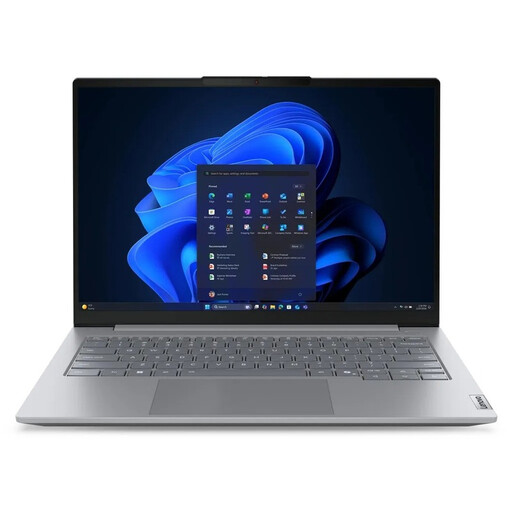
Lenovo ThinkBook 16 G9 AHP 21UT, Ryzen 5 220, 32 GB RAM, 1 TB SSD
This configuration could suit diagram work and reference materials at a fixed monitor setup, provided the connection to your monitor is suitable.
Specifications listed include AMD Ryzen 5 220 at 3.2 GHz, Windows 11 Pro, Radeon 740M, 32 GB RAM, a 1 TB NVMe SSD and a 16-inch display.
View at Joybuy
 No image available
HP OMEN 16-ap1071ng, Ryzen 7 8745HX, 16 GB RAM, 1 TB SSD
If you want to use diagram software and reference materials on your laptop display alongside one external monitor, check support for this exact configuration.
Specifications listed include a 16-inch QHD display, AMD Ryzen 7 8745HX, 16 GB RAM, a 1 TB SSD, GeForce RTX 5060 and Windows 11 Home.
View at Joybuy
 No image available
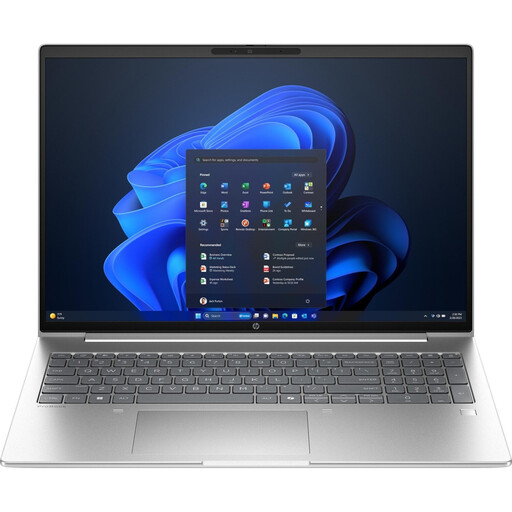
HP ProBook 4 16 G1i, Core Ultra 7 255U, 32 GB RAM, 1 TB SSD
For working on diagrams and reference materials side by side, compare the specifications with your software requirements and check monitor connectivity for the exact variant.
Specifications listed include Intel Core Ultra 7 255U, Windows 11 Pro, 32 GB RAM, a 1 TB NVMe SSD, a 16-inch IPS display with 1920 × 1200 pixels and Wi-Fi 7.
View at Joybuy
 No image available
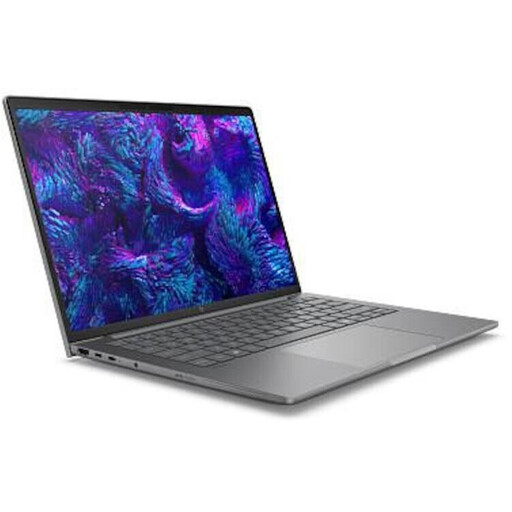
HP ZBook 8 G1i 14, Ultra 9 285H, 64 GB RAM, 1 TB SSD
If you use diagram software alongside other applications, compare the listed specifications with your needs and check support for your chosen monitor setup.
Specifications listed include Intel Ultra 9 285H, 64 GB RAM and a 1 TB SSD.
View at Joybuy
 No image available
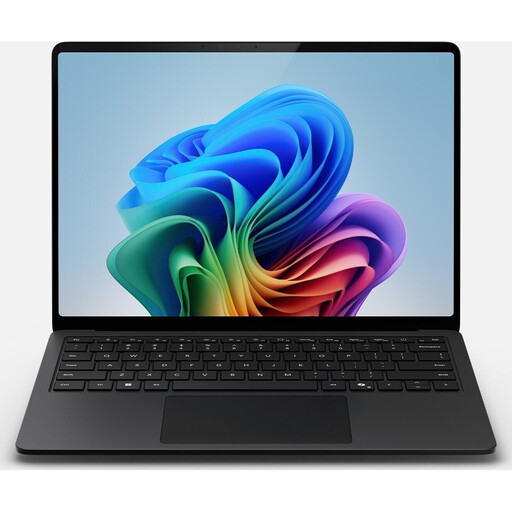
Microsoft Surface Laptop 7, Snapdragon X Plus, 16 GB RAM, 512 GB SSD, Black
For a mobile diagram workflow, check your software’s compatibility and the connection to an external monitor for this configuration before buying.
The product name lists Snapdragon X Plus, 16 GB RAM, a 512 GB SSD and the colour Black.
View at Joybuy
Frequently asked questions
Is one HDMI port enough for my second screen?
For a laptop display plus one external HDMI monitor, a suitable HDMI video output may allow you to connect directly. If you want to use two additional external monitors, check the number of independent displays supported, along with the ports and, if needed, the dock.
How do I arrange diagrams and references in Windows?
In Windows display settings, you can arrange your connected screens so that moving the cursor matches their physical layout. If a monitor isn’t detected, you can also use the detection feature there; Microsoft Support explains these steps.
Do I need additional rights to use scientific BioRender figures?
That depends on how you intend to use the figures. BioRender explains that the Basic, Trial and Undergrad plans don’t include publication rights, and offers paid plans for publications or commercial projects. Check the licence terms for your intended use.
What rights apply when shopping online in Germany?
For a qualifying distance purchase from a trader, you generally have a 14-day right to cancel from the date of delivery; exceptions may apply. Faulty goods are covered by a statutory guarantee from the seller for at least two years. The European Union’s Your Europe website explains these rights, which are separate from a voluntary manufacturer’s warranty.


