For drawing on a small desk
If you create diagrams at a small, permanent workstation, consider the laptop’s design and how much room you’ll have left for a mouse, papers or notes.


First, choose a device that works with your diagram software and fits on your desk. Then consider the usable screen space and your preferred way of working. A traditional laptop keeps your setup simple, while a 14-inch model can give you more room to see the details. A convertible or 2-in-1 is worth considering if you want to draw directly on the device, provided the pen and accessories are compatible with the specific model.
If you create diagrams at a small, permanent workstation, consider the laptop’s design and how much room you’ll have left for a mouse, papers or notes.
If you need to check lots of labels and elements on the built-in screen, compare the specific display configuration with the requirements of your diagram software, rather than looking only at the screen size.
If you want to draw directly on the device, consider the pen, keyboard and your overall workspace setup as parts of the same workflow.
A good fit if: you mainly use a mouse or trackpad with compatible software and want to keep desk space to a minimum.
The trade-off: With a smaller display, you may need to zoom in more often when working with lots of labels.
A good fit if: you edit lots of diagram elements directly on your device and have room on your desk for a 14-inch laptop.
The trade-off: Display and casing vary by configuration, so check the product number and dimensions against your workspace.
A good fit if: freehand sketching is part of your workflow and a pen is compatible with the specific model.
The trade-off: A touchscreen doesn’t automatically guarantee compatibility with a particular active pen. The keyboard for the Surface Pro 12-inch is sold separately.
The following points are especially relevant if you’re choosing a device for creating scientific diagrams on a small desk. Each percentage represents the share of consumers who rank that factor as their top buying priority.
| Consideration | What to check before buying | Who should pay particular attention |
|---|---|---|
| Desk space and a simple setup | Check the dimensions of the specific model, and consider how much room it needs with the screen open and your preferred input device in use. | If I want room on my small desk for a mouse and papers too, I compare the actual casing dimensions. Around 35% of consumers rank desk space as their top priority. |
| On-screen detail | Compare the display configuration, resolution and readability at your preferred scaling in the software you use. | If I need to check lots of labels and elements on the built-in screen, the specific display configuration matters to me. Around 28% of consumers prioritise seeing details clearly. |
| Compatibility with software and file formats | Check your software, operating system, browser, export formats and any requirements set by your institution. | If my workflow depends on specific software or export formats, I check compatibility before buying. Around 22% of consumers say software compatibility is their top priority. |
| Drawing directly with a pen | Check pen compatibility with the exact model version, what’s included and whether you’ll need to buy a keyboard separately. | If I want to sketch directly on the device, I check the pen and accessories together. Around 15% of consumers prioritise freehand drawing. |
Models in the same 14-inch range can have different display specifications. Screen size also doesn’t tell you how much desk space the casing will take up.
Compare the full product number, the specific display and the casing dimensions with your workspace.
A touchscreen doesn’t confirm that a particular active pen will work. Microsoft sells the keyboard for the Surface Pro 12-inch separately.
Check the pen protocol, accessory compatibility and what’s included for the same model version.
Depending on the 2-in-1 configuration, you may need to buy a compatible pen or keyboard separately.
BioRender’s terms for publishing its illustrations depend on the subscription plan you use and a Publication License.
Before starting a project intended for publication, check whether your planned export comes with the necessary usage rights.
A suitable paid plan may be required to obtain a BioRender Publication License.
The 13-inch MacBook Air M5 is a compact macOS option for diagram work with compatible applications.
The ThinkPad E14 Gen 7 range includes traditional 14-inch Windows laptops. Display and specifications vary by product number.
The OmniBook X Flip range is an option if you’re considering a 14-inch convertible with touchscreen controls.
The Surface Pro 12-inch is a 2-in-1 option if you want to draw on the device and use it as a laptop with a keyboard.
Zenbook 14 models are a compact Windows option. Check the processor platform and specifications for the exact model you’re considering.
This selection includes compact traditional laptops, 14-inch models and 2-in-1 devices for working on diagrams at a small desk.
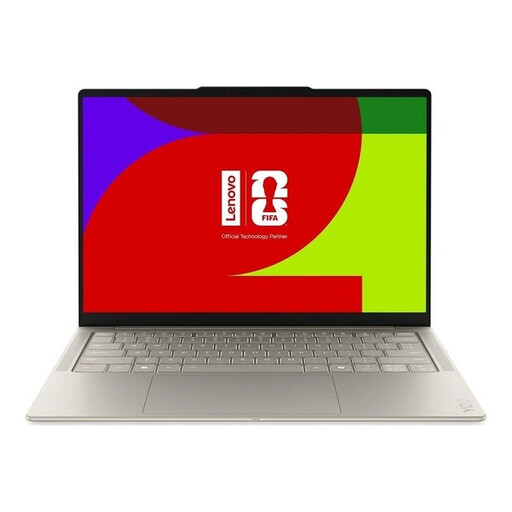 No image available
A traditional 14-inch laptop for anyone who wants to edit diagrams on the built-in display.
Listed in the product name: 2.8K OLED display, Core Ultra 7 355, 16 GB memory, 1 TB SSD and Windows 11 Evo. Check that your specific diagram software works with this configuration.
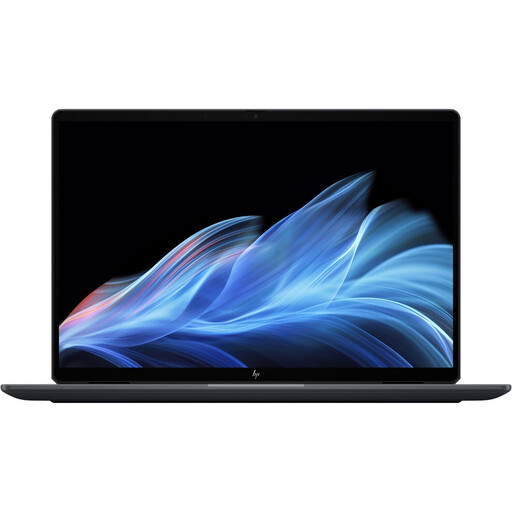 No image available
The 2-in-1 design is worth considering if you want to include touchscreen controls in your diagram workflow.
Listed in the product name: 14-inch touchscreen, 2.8K OLED display, Core Ultra 7 258V, 32 GB RAM and 1 TB SSD. A touchscreen alone doesn’t confirm compatibility with a particular active pen.
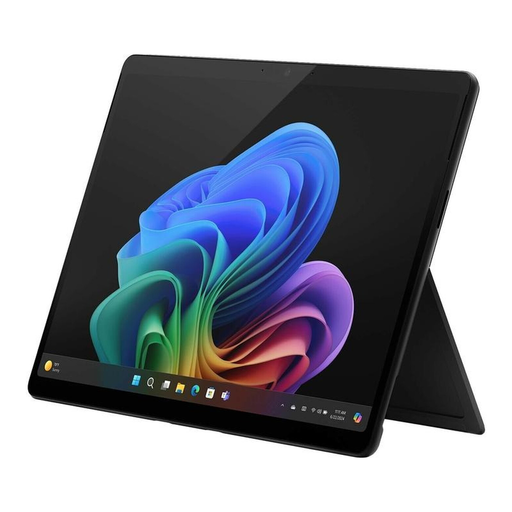 No image available
The 13-inch 2-in-1 format is an option if a more compact touchscreen device suits your workspace.
Listed in the product name: OLED display, Core Ultra 7 266V, 16 GB memory, 512 GB SSD and Windows 11 Pro. Check that the drawing and diagram software you need, as well as any accessories, are compatible with this specific model.
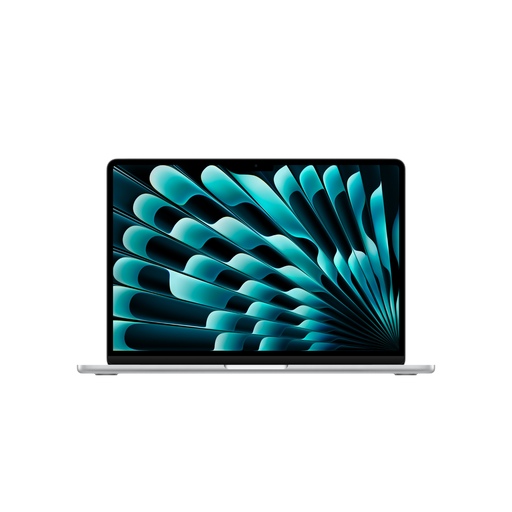 No image available
This traditional 13-inch laptop is a compact option if your diagram software works with macOS.
Apple lists a 13.6-inch display with a resolution of 2560 × 1664 pixels, 16 GB of unified memory and a 512 GB SSD for this model. According to the product description, a power adapter isn’t included, so you’ll need to buy a compatible USB-C power adapter separately.
 No image available
This 14-inch laptop is an option if you’re looking for a traditional design with an OLED display for diagram work.
Listed in the product name: WUXGA OLED display, Core U7 255H, Intel ARC, 16 GB memory, 1 TB SSD and Windows 11. Check that the software you need is compatible with this specific configuration.
The information provided for Inkscape, diagrams.net and BioRender doesn’t indicate a general requirement for a dedicated graphics card. First, identify the specific software and files you’ll use, then check that the configuration you’re considering is suitable.
BioRender describes its application as designed for desktop and laptop computers, and says tablets aren’t currently supported. So if BioRender is essential to your workflow, don’t assume a tablet can replace your laptop without checking first.
Microsoft describes drawing with the Slim Pen on the Surface Pro 12-inch. You can connect a Surface Pro 12-inch keyboard to use it as a laptop; according to Microsoft Support, the keyboard is sold separately. Check the accessories are compatible and included with the specific model version.
Your choice of device alone doesn’t determine this. BioRender sets conditions based on the subscription plan you use and requires a Publication License; according to the provider, not every plan can generate one. Check the terms for your specific illustration before submitting it. These are the provider’s terms of use, not a general statement about German copyright law.
For a consumer purchase from a business seller, you generally have at least two years of statutory rights for faulty goods, starting from the date you receive them. For an eligible online distance contract, the cancellation period is generally 14 days from delivery; exceptions and conditions relating to return costs apply. Statutory rights are separate from any voluntary manufacturer’s guarantee.